Connections
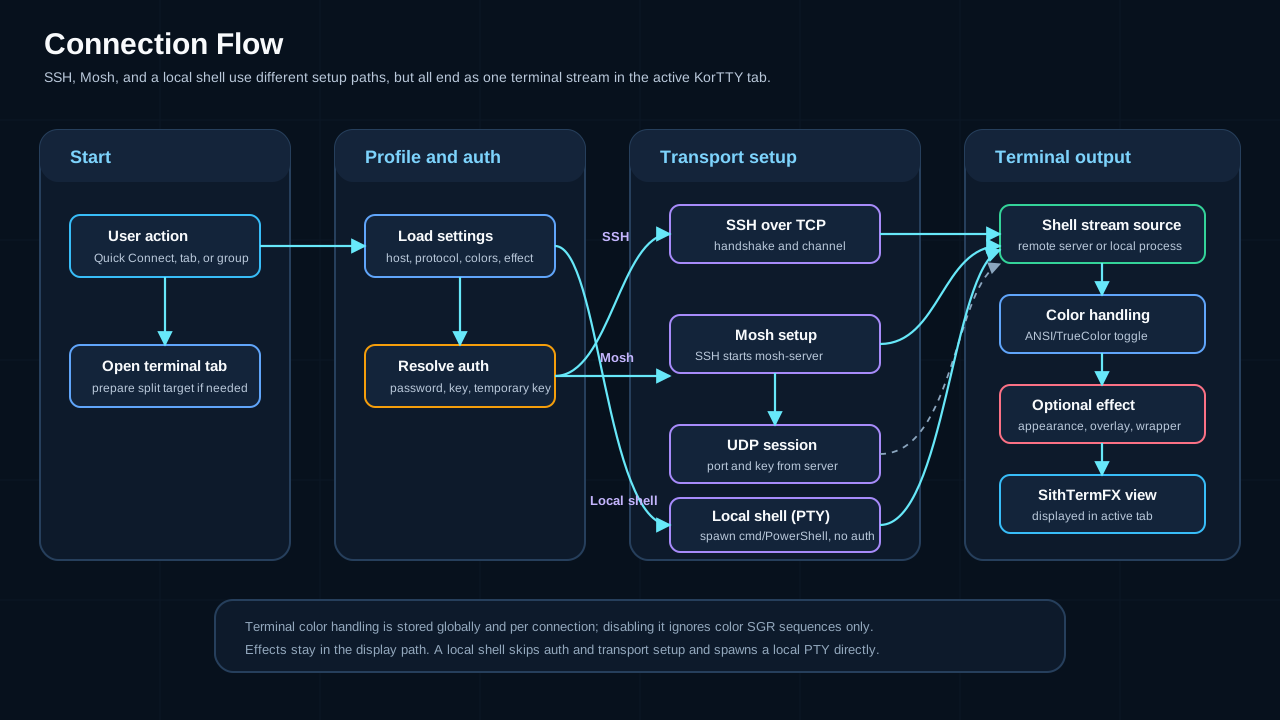
korTTY manages SSH, Mosh, local-shell and serial connections through three entry points: Quick Connect, the Connection Manager, and saved Projects.
Quick Connect
Open with Ctrl+K (or Connections → Quick Connect…). Enter host, port, username and authentication, and connect without saving. Frequently used connections appear as quick buttons; a live search filters them. Saved connections can be picked from a dropdown with its own search field that matches name, host or tag (* works as a wildcard); a saved connection's tag is shown next to its name (🏷) in the dropdown and in the quick buttons' tooltips.
Connection Manager
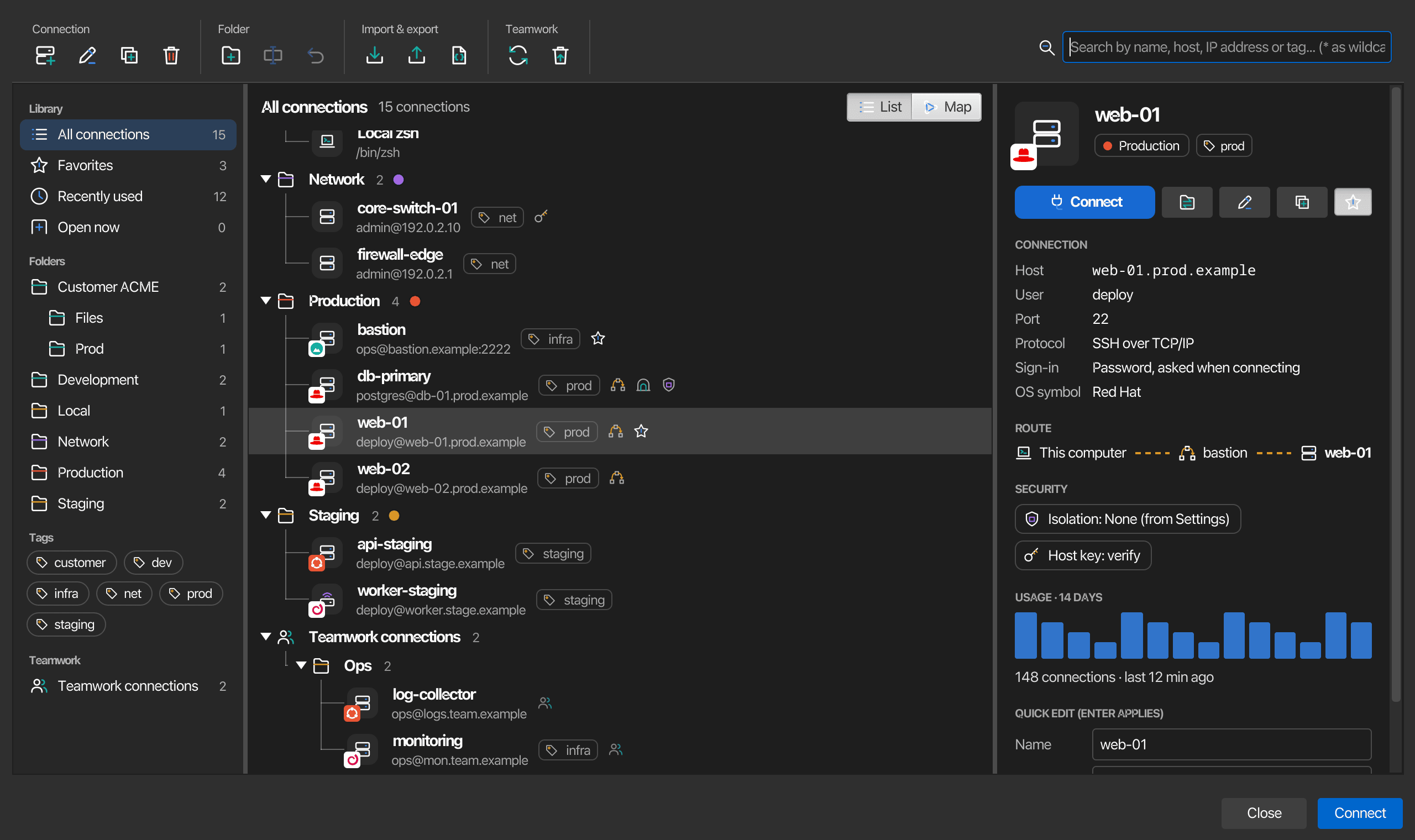
Connections → Manage Connections… (or the Connection Manager button of the icon toolbar) opens the Connection Manager. The library on the left chooses which connections the middle shows, the middle shows them as a list or as a map, and the inspector on the right shows everything about the selected connection or folder. The search field at the top right narrows what the library chose; it matches name, host, IP address or tag, with * as a wildcard. The toolbar above groups the actions as the icon toolbar does: Connection (new, edit, duplicate, delete), Folder (new folder, rename folder, undo the last move), Import & export (import, export, export an overview) and Teamwork (refresh, restore deleted). Every button names itself in a tooltip. The context menu of a folder also sets its Session Isolation level for every connection in it that sets none of its own (see Choosing a level).
Library
| Entry | Shows |
|---|---|
| All connections | Every saved connection, in its folders, and below them the connections of your teamwork sources in a Teamwork connections branch. |
| Favorites | The connections you marked with the star, in the inspector or in a connection's context menu (Favorite on/off). Favorites are kept on this computer and are never exported. |
| Recently used | The 15 connections used most recently. |
| Open now | The connections with a terminal tab open in any window. |
| Folders | One entry per folder, subfolders indented below it, each with its tab color and how many connections it holds; choosing a folder shows it with its subfolders. |
| Tags | One chip per tag; choosing a chip shows the connections with that tag, choosing it again shows all of them. |
| Teamwork connections | Only the connections of your teamwork sources, with the authentication for all team connections above the list. |
All connections, Favorites, Recently used, Open now and the tags show local and teamwork connections together. A teamwork connection carries a small people mark after its name, in the list and on the map, and stays read-only wherever it appears: it cannot be edited, duplicated, tagged or moved, and Delete only hides it on this computer. A folder of the library always shows local connections only.
List and map
List shows the chosen connections in their folders, with lines from each folder to its connections and subfolders; an empty folder shows no entries below it. Each row shows the protocol (server for SSH, waves for Mosh, a laptop for a local shell, a plug for a serial port) with the connection's OS symbol on its corner, the name, user@host, the tag, a star for a favorite and small marks for a jump server, tunnels, an isolation level of its own, incognito and a switched-off host-key check; a green dot and a count mean the connection has tabs open. Drag a connection onto a folder to move it there; Undo in the toolbar takes the last move back. Double-click a connection to connect.
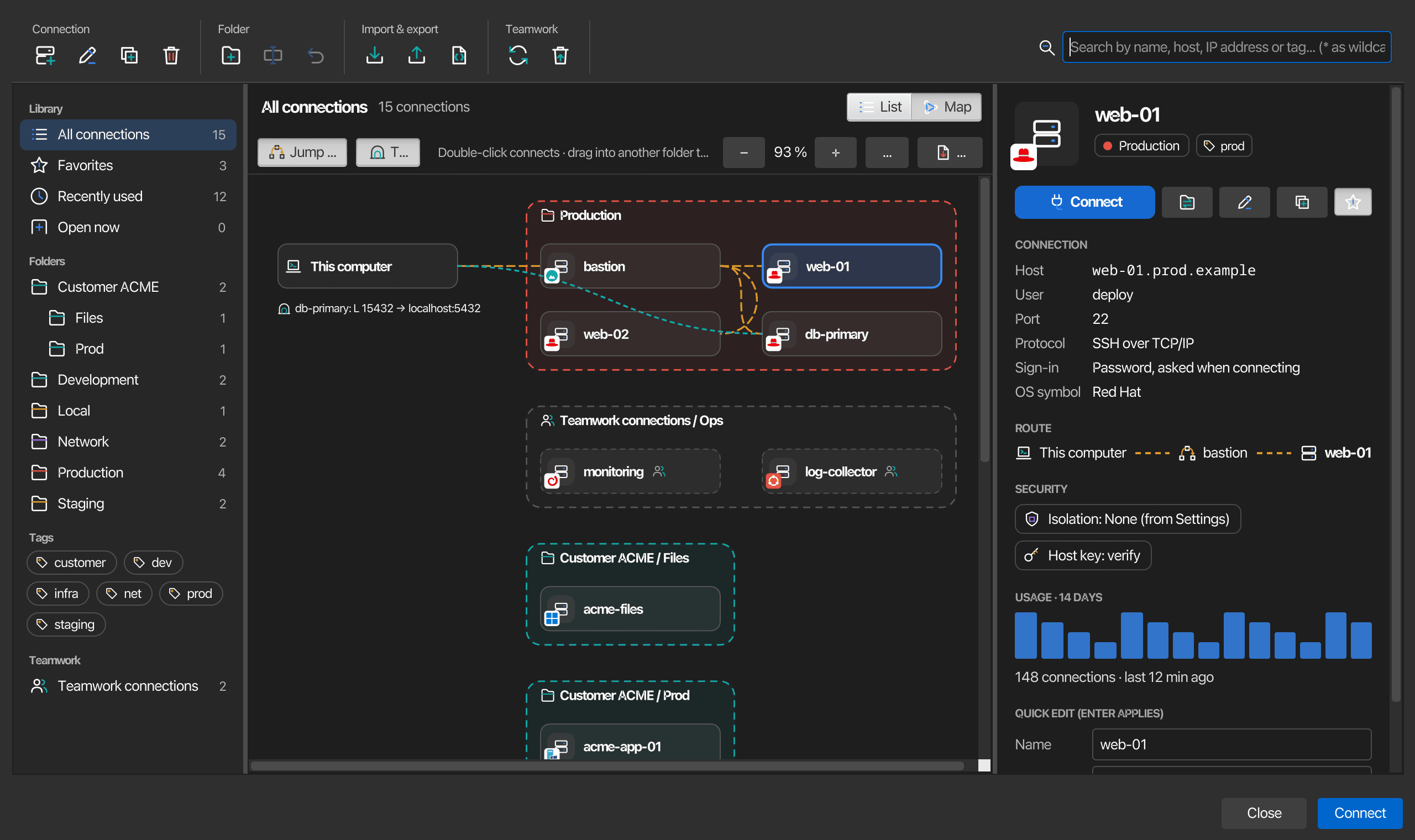
Map shows the same connections on a network plan: a dashed zone per folder in the folder's tab color, a node per connection, and this computer on the left. Orange dashed lines show the route through a jump server, which is the saved connection with that host when there is one and a node of its own otherwise; teal dotted lines show tunnels, which are also listed under this computer. Click a node to select it, double-click it to connect, and drag it into another zone to move the connection into that folder (Undo takes it back). Jump routes and Tunnels show or hide the lines, −, + and Fit zoom, and Ctrl with the mouse wheel zooms too. Teamwork connections get zones of their own and dashed nodes and cannot be moved. The map is arranged automatically; nothing about it is stored.
PDF saves the map as a vector PDF with the korTTY logo, a title, the legend and the date. Choose Landscape or Portrait and a title; korTTY arranges the zones to fill the page in that orientation and continues on further pages when the map does not fit on one at a readable size.
Inspector
The inspector shows the selected connection: its folder and tag, its address, protocol, sign-in and OS symbol, the route from this computer through the jump server to the server with its tunnels below, the isolation level and the host-key check, and how often it was used in the last 14 days, one bar per day. Connect, the SFTP Manager, Edit, Duplicate and the star act on it directly. Below, Name, Tag and OS symbol change the connection without opening the editor; Enter applies a changed name or tag. A selected folder shows its tab color, isolation level and host-key check with buttons to rename it, set its tab color or create a subfolder. A teamwork connection is shown read-only, with the source it comes from.
OS symbols
A connection can show the symbol of the operating system its server runs, on the corner of its row, on the map, in the inspector and in the PDF. korTTY draws its own symbols for Windows XP, Windows 10, Windows 11, Windows Server, macOS, Linux, Red Hat, Rocky Linux, AlmaLinux, CentOS, Fedora, Debian, Ubuntu, Linux Mint, Arch Linux, SUSE, ChromeOS, Oracle Solaris, IBM AIX, HP-UX, DEC, FreeBSD, OpenBSD and IBM z/OS. Choose one under OS symbol in the inspector or on the connection editor's Connection tab, or for several connections at once in the context menu (OS symbol).
Your own symbols… (next to the picker and at the end of the context menu) adds symbols of your own: pick a PNG, JPG, GIF or SVG file and give it a name. korTTY keeps a copy as a 128-pixel PNG in the os-badges folder of its configuration directory, so the original file can move or go away. Rename or delete a symbol there; connections whose symbol was deleted show none.
Exporting an overview
Export overview in the toolbar's Import & export group, or in the context menu of the selected connections or of a folder, writes an inventory of your servers as JSON, YAML, TOML or XML, for documentation or scripts. Choose the connections (the selected ones or the folder's, what the manager shows right now, or all of them including teamwork connections), the format and the parts of each entry:
| Part | Contents |
|---|---|
| Basics (always) | Name, protocol, host, port and user; for a local shell its command and start directory; for a serial connection its port and line settings instead of host, port and user |
| Folder, tag, tab color, favorite | The folder path, the tag, the tab color and whether the connection is a favorite |
| Sign-in method | Password, SSH key, keyboard-interactive, temporary key or none, with the name of the stored credential or SSH key |
| Jump server | Host, port, user and sign-in method of an enabled jump server |
| Tunnels | Type, local and remote host and port, and description of every enabled tunnel |
| Terminal settings | Terminal emulation, character encoding, highlighting rule set, terminal effect, timeout and retries |
| Isolation, incognito, host key check | The connection's own session isolation, incognito and host-key verification |
| Usage | When the connection was last used and how often |
| Source | Local or teamwork, with the teamwork source |
| OS symbol | The name of the connection's OS symbol |
A preview shows the first connection as the file will have it. Passwords, passphrases and keys are never written. The overview is not an import file; to move connections to another korTTY, use Export and Import.
Signing in
Connect in the Connection Manager signs in to the selected connection in this order:
- korTTY checks your organization's server access policy first. A blocked server or jump server shows the policy message before korTTY asks you for anything.
- A shared teamwork connection that names neither a credential nor an SSH key uses the team's default authentication.
- A connection with a temporary SSH key reuses that key while it is still valid and asks for a new one once it has expired. It also asks for a new one while the vault is locked and korTTY could not decrypt the key it stored, rather than trying SSH key authentication without a key.
- A local shell, a serial connection and SSH key authentication connect without a password.
- Otherwise korTTY uses the saved password, from the connection's stored credential first and then from the connection itself, and asks for the password when none is saved; OK stays greyed out until you type one. When the saved password is in the locked vault, korTTY first offers Unlock Vault… (see Unlocking the vault later); if you do not unlock it, korTTY asks you to type the password instead.
Cancelling any of these questions opens no tab. Duplicate in a terminal tab's context menu signs in the same way, so it also asks for a new temporary SSH key when the tab's key has expired. A saved or teamwork connection chosen in the command palette (Ctrl+Shift+P, Cmd+Shift+P on macOS, then @ and part of its name) signs in the same way, and so does a connection chosen in File → Open Recent. Reopen Closed Tab and File → Recently Closed sign in the same way too, with the saved connection as it is now (see Working with tabs). Opening a project signs in to every tab in the same order but asks nothing on its own: a tab that needs a password, a new temporary SSH key or the locked vault waits in a bar with Connect… and Unlock Vault…, and a blocked server or a deleted connection is listed there instead of showing a dialog.
Creating / editing a connection
The connection editor has these tabs:
| Tab | Contents |
|---|---|
| Connection | Host, port, username, protocol (SSH over TCP/IP, Mosh (mosh4j), Mosh Client (native), Local Shell or Serial), terminal emulation, Character encoding (use default / UTF-8 / ISO-8859-1 / ISO-8859-15 / Windows-1252), authentication (password / key / keyboard-interactive), Host key verification (use default / verify / don't verify), group/folder assignment an optional free-text tag and the OS symbol, Connection timeout (1–300 seconds) and Retries (1–20 attempts, used while Enable connection retries is on in Settings → Terminal). For Local Shell and Serial connections host, port, username and authentication are not required and are disabled; a serial connection has its own rows for the port and line settings (see Serial connections). See Character encoding. |
| Terminal Settings | Use the global terminal settings or Own settings for this connection with per-connection colors, font and ANSI/TrueColor handling (see Own terminal settings), the Terminal behavior section with the tab color, the keyword highlighting rule set and the paste protection, and below the paste protection the Session isolation rows with the isolation level, strict terminal mode and incognito switch, terminal effect |
| SSH Tunnels | Local / remote / dynamic port forwarding |
| Jump Server | Bastion-host chaining |
| Terminal Logging | Writes this connection's terminal output to a file — folder, format, daily rotation, compression and retention. See Terminal logging. |
| Journal | Per-connection session journal: enable journaling for this connection and configure its capture log and AI summarization |
| Window Geometry | Saved size/position for this connection |
| AI | Per-connection AI defaults: the AI profile, Disable AI agent for this connection for systems such as production servers where the agent must not run commands (see Connections without the agent), the AI agent design agent runs are shown in, and the AI Skills used by terminal AI features on this connection, with a search field above the list that filters by name, description and tags |
Eight tabs no longer fit in one row in a narrow window. Besides the menu at the right end of the tab bar, which jumps to a tab by name, the row above the tabs has two arrow buttons that step to the previous and the next tab, with a counter such as 3 / 8 showing where you are; an arrow is greyed out on the first and the last tab. Ctrl+Tab and Ctrl+Shift+Tab (or Ctrl+Page Down and Ctrl+Page Up) do the same from the keyboard, also while the cursor is in a field.
Own terminal settings
The top of the Terminal Settings tab chooses where the connection's terminal look comes from. Use the global terminal settings, the choice for every new connection, follows Settings → Terminal and the colors there, so changing them later changes this connection too; the fields below then show the global values and cannot be edited. Own settings for this connection unlocks the theme, font, size, text and background colors, the terminal colors switch, Close tab without confirmation and Show command timestamps, starting from the values that apply at that moment. Saving in the Connection Manager applies the choice to the connection's open tabs in every window, and new and reconnected tabs use it as well. Switching back to the global settings shows the global values again and makes the connection follow Settings → Terminal once you save; switching to own settings again before saving brings back the values you had entered, while after saving with the global settings, choosing Own settings for this connection later starts from the global values of that moment. The Terminal behavior section and the terminal effect apply either way.
Connections saved by earlier versions keep using the global settings after the update, even when their Terminal Settings tab still holds values from back then: those values never applied, so korTTY does not switch them on by itself. Choose Own settings for this connection and save to give such a connection its own look. The same applies to exports and teamwork files written by earlier versions; exports and teamwork files written now carry each connection's choice.
In Quick Connect, the Terminal Appearance section shows the values the connection would use; when you change them there, that session draws with them, and a new connection saved with Save Connection keeps them as its own settings. For a saved connection picked from the list, a changed appearance applies to that session only and the saved connection stays as it is.
Character encoding
Character encoding sets how korTTY decodes what this connection's session prints and encodes what you type and paste, for servers whose programs still write ISO-8859-1, ISO-8859-15 or Windows-1252 instead of UTF-8. Use default follows Settings → Terminal → Encoding for SSH connections and means UTF-8 for local shells. Mosh only works with UTF-8, so the dropdown is locked for Mosh connections and a note beside it says so. The choice is stored with the connection, survives duplicating, exporting and importing, and applies the next time the tab connects or reconnects.
Keyword highlighting
The Terminal behavior section of the Terminal Settings tab picks the keyword highlighting rule set this connection's terminals show: Use the default follows the default rule set of Settings → Terminal, None keeps them plain, or pick a built-in set or one of your own, for example Network devices for switches. The section applies whether or not the connection uses its own terminal settings, and also while terminal effects are switched off. The choice is stored with the connection, survives duplicating, exporting and importing, and saving in the Connection Manager applies it to the connection's open terminals at once. A set chosen for a single pane in a menu or with Ctrl+Shift+H (Cmd+Shift+H on macOS) still wins for that pane.
Paste protection
The Terminal behavior section of the Terminal Settings tab can give a connection a paste protection of its own, for example so that a production server asks before every paste with a line break while your other connections keep the default:
- Warn about multi-line pastes — Use the default follows Settings → Terminal → Paste protection and names its current choice; or pick Off, Unless the program uses bracketed paste or Always. Always is the choice for production servers: whether a program uses bracketed paste is what the server says, and any output can claim it. Off also turns off the warning about control characters for this connection.
- Pause after each pasted line — tick Own pause instead of the default and set 0 to 1,000 ms to send this connection's pastes one line at a time, for a switch or console server that loses input arriving too fast (see Pasting into slow devices). With the tick, 0 pastes into this connection at once even when Settings → Terminal sets a pause; without it, the pause of Settings → Terminal applies, and the box names it.
When your organization's enterprise policy sets a least warning with paste-warning, a connection's own warning that asks less often is raised to it. The size check, Warn about pastes larger than, always comes from Settings → Terminal. Each pane follows its own connection, so a pane that Split Right (new connection) or Split Down (new connection) opened to another server uses that server's paste protection. Saving in the Connection Manager applies to the next paste into the connection's open terminals in every window. When a connection's own warning asks, the paste confirmation says that the connection sets it instead of pointing to Settings → Terminal; a paste that asks only because of its size still points to Settings → Terminal. The choice is stored with the connection and survives duplicating, exporting and importing; an imported connection brings the values of the file it comes from, so check them in the editor.
Shared connections can only make the warning stricter
A teamwork connection can carry a paste protection of its own in the shared file. Its warning applies only when it asks more often than your own setting, so whoever maintains the file can make a production server ask before every multi-line paste but can never switch off a warning you chose; the connection editor says so for such a connection. Its pause after each pasted line applies as written, because a pause only slows a paste down and Esc stops it. A teamwork connection keeps the values it had when its terminal was opened.
AI memory of a connection
The AI tab of the connection editor has Edit connection memory..., which opens the memory of this connection. Its rules are sent only with the AI requests and agent runs for this connection, next to the global memory. The button is available once the connection is saved, because the connection's memory is kept under its saved identity. See AI memory.
Tags
Every saved connection can carry one optional free-text tag — a label such as prod, staging or a customer name — independent of the group/folder hierarchy. Set it on the connection editor's Connection tab (next to the group), or in bulk in the Connection Manager. Tags are stored with the connection in connections.xml and survive duplicating, exporting and importing.
- Visible — tagged connections show a tag chip after their name in the Connection Manager list and a 🏷 badge in Quick Connect's saved-connections dropdown; the tag also appears in the tooltip of the frequently-used quick buttons. The Connection Manager's library has a chip per tag that shows only the connections with that tag.
- Searchable — the Connection Manager search (local and teamwork connections) and Quick Connect's saved-connections search match tags as well as names and hosts.
- Bulk assign / remove — select one or more servers and choose Assign Tag from the context menu to tag them in one step. The prompt is pre-filled when all selected connections already share the same tag, and clearing that pre-filled value removes the tag. Remove Tag clears the tag and is enabled only while the selection contains at least one tagged connection. The same two entries on a folder's context menu apply to every connection in that folder, subfolders included.
- Export by tag — once at least one tag exists, the Connection Manager's export dialog offers a Connections to export choice: keep the pre-selected connections, or export all connections with these tags — pick one or more tags from the list, the header's connection count follows the selection live, and the export button stays disabled while nothing matches.
Tab color
A tab color marks every terminal tab of a connection with a small colored dot in front of its title and a 3-pixel frame of the same color around its terminal, so a production server stands out from test machines at a glance. Set it on the connection editor's Terminal Settings tab, in the Terminal behavior section: tick Mark this connection's tabs with a color and pick the color. The picker offers red, orange, yellow, green, blue, purple and gray as custom colors, and any other color works too. The section applies whether or not the connection uses its own terminal settings, and it stays when terminal effects are switched off. Untick the box to remove the color.
- Not by color alone — pointing at a colored tab shows a tooltip with the connection (
user@host, or the connection's name for a local shell) and the color by name and code, for example Tab color: red (#D32F2F), set on this connection. Screen readers read the same text for the dot. - Frame around the terminal — the frame surrounds the whole tab content, all split panes and the status bars included. It takes 3 pixels on each side, so setting or removing a color resizes the connection's open terminals and full-screen programs redraw. To keep only the dot, switch off Frame the terminal in its connection's tab color in the Window settings.
- Applies at once — saving in the Connection Manager recolors the open tabs of that connection in every window, and the split panes that run it, and removing the color removes the dot and the frame. The same goes for a folder color and for moving a connection into another folder. Tabs opened from a saved connection through Quick Connect, Duplicate, Reopen Closed Tab or a project show its color too.
- Status colors stay — the yellow tab while a connection is being made and the dark red tab of a failed or lost connection work as before; the dot and the frame are shown in addition and never replace them.
- Split panes of other connections — a pane that Split Right (new connection) or Split Down (new connection) opened to a connection whose tab color differs from the tab's, and every pane split from it on the same server, gets a 3-pixel frame of its own color at its edge, inside the tab's frame: a production pane in a test server's tab is framed red, for example. This frame lies over the edge of the pane, so it never resizes the terminal, and the pane's focus ring moves inside it. Pointing at the tab lists those panes with their connection and color, for example Split panes with a different color: db-prod – red (#D32F2F), which also gives a tab without a color of its own a tooltip, and screen readers hear the connection and its color after the pane's name. A pane whose connection has no color gets no frame, because there are no default colors, but it is still listed with no tab color; a pane of another connection with the tab's own color is not marked. The frames follow the same rules as the tab's color, folder and environment colors included, change with it when you save, and go away with Frame the terminal in its connection's tab color switched off.
- Stored with the connection — the color is saved in
connections.xmlas#RRGGBBand survives duplicating, exporting and importing. A value that is not a hex color is ignored. - Color from the folder — a connection without a tab color of its own can take the color of its folder (its group) in the Connection Manager, which also marks servers you sign in to with an SSH key and no stored credential. Right-click the folder, choose Tab Color..., tick Mark the tabs of this folder's connections with a color and pick the color; a dot after the folder's name shows it, and untick the box to remove it. Subfolders take the color too unless they have one of their own, so coloring Production also marks Production/DB, and the dialog names the color a folder takes from a folder above it. The tooltip then names the folder, for example Tab color: red (#D32F2F), from the group Production. No folder has a color until you pick one.
- Folders renamed, deleted or rearranged — renaming a folder keeps its color and the colors of its subfolders; renaming it into a folder that already has a color keeps that folder's color. Deleting a folder removes its color together with its connections, so a new folder of the same name starts without one. Dragging a connection into another folder, or changing its group in the connection editor, gives its open tabs the new folder's color at once.
- Color from the credential's environment — a connection without a tab color of its own and without a folder color can take the color of its stored credential's environment, for example red for every connection that signs in with a production credential. Give the environment a color in the Credentials manager under Environments..., see Environments and tab colors. The tooltip then names the environment instead of saying the color is set on the connection.
- Which color wins — the connection's own color comes first, then the color of its folder or the nearest folder above it with one, then the color of its credential's environment. Folder colors are stored in
global-settings.xml, not with the connections, so exporting a connection does not take its folder's color along.
Shared connections bring their own color
A teamwork connection shows the color written in the shared file, so whoever maintains that file decides how its tabs are marked. That color also comes before the color of your own credential environment. Your folder colors never apply to teamwork connections, because the shared file decides which folder they are in. Treat the color as a hint, not as proof of which server you are on: the tooltip still names the connection, and so does the tab title unless you renamed the tab or its shell set a title.
Protocols
Standard SSH via Apache MINA SSHD. Supports password, public-key and keyboard-interactive authentication, keep-alive, and OSC 8 hyperlinks for web and mail addresses that open with Cmd / Ctrl + click (see Links in terminal output).
Roaming, latency-friendly Mosh transport (mosh4j). The Mosh backend is bundled in native builds; existing connections need no migration.
Roaming Mosh session with the mosh-client program installed on this computer, shown in a terminal tab. korTTY starts the session over SSH itself and then hands the screen to mosh-client, which needs to be on the PATH (install it with your system package manager, for example Homebrew, apt or dnf). On Windows, korTTY looks for mosh-client.exe in the folders of the PATH; scoop install mosh-client installs it, but puts only mosh.exe on the PATH, so add the Scoop folder of mosh-client to the PATH yourself. A connection to a server behind a jump server is refused, because the Mosh session runs over UDP, which the jump server's tunnel cannot carry. With session isolation, this protocol can also run in an operating-system sandbox.
Opens the local machine's shell in a terminal tab (no network) via a pty4j-backed pseudo-terminal. Host, port, username and authentication are not required. See Local Shell below.
Opens a terminal on a serial port of this computer (COM port, /dev/ttyUSB0, a USB-to-serial adapter), with speed, data format, flow control and what Enter sends set per connection. Host, port, username and authentication are not used. See Serial connections.
SSH host-key verification
Interactive Terminal and SFTP connections use the same trust-on-first-use (TOFU) host-key store. Mosh uses it for the SSH bootstrap as well. Trust is keyed by the normalized host name and port, so different saved connections to the same endpoint share one decision.
On the first connection, korTTY shows the key algorithm and OpenSSH SHA-256 fingerprint. Verify that fingerprint with the server administrator before selecting Yes; No is the safe default. A matching key is accepted silently on later connections. If the server presents a different key, korTTY hard-blocks the connection, shows the expected and offered fingerprints, and does not retry because repeating the attempt cannot resolve a possible man-in-the-middle attack. A changed key is never replaced automatically.
When a server was legitimately rebuilt, the changed-key alert of a terminal tab or the SFTP manager offers Review and Replace… next to Close, which stays the default. The review shows the currently trusted key and the new key, each with its algorithm and SHA-256 fingerprint. Replace Key and Connect stays disabled until you tick I have verified the new fingerprint with the server administrator, and Cancel is the default button, so Enter never confirms. After you confirm, korTTY replaces the trusted key and the same connection continues. The replacement only succeeds while the trusted key is still the one you reviewed: if another window changed or removed it in the meantime, the connection stays blocked and you reconnect to review the current key. A jump server's changed key gets the same review when the connection was opened from a terminal tab or the SFTP manager.
Other connections never offer the replacement, so nothing that runs without your attention waits on a review dialog: the SSH bootstrap of Mosh sessions, remote editors and image viewers restored with a project, and other background transfers. Their alert points to Configuration → Security → Known Hosts… instead. While an enterprise policy sets enforce-host-key-check, korTTY can neither replace nor remove a trusted key; the alert says so, and your administrator has to update the key.
Configuration → Security → Known Hosts… lists every trusted key with host, port, algorithm, SHA-256 fingerprint and the time it was trusted. The search field filters by host, port, algorithm or fingerprint, ignoring case. Remove… asks for confirmation, with No as the default, and deletes the key only if it still has the fingerprint shown; the next connection to that server shows the first-use prompt again. If the store cannot be read, the dialog shows the error and offers no actions.
The first-use prompt can be turned off for hosts where it is not wanted — set Host key verification on the connection editor's Connection tab or in Quick Connect (Use default / Verify / Don't verify), per group via the Connection Manager's group context menu, or globally under Settings → Terminal. The relaxation is accept-new only: an unknown key is pinned without a prompt, but a key that differs from one already pinned for that host is still hard-blocked. See Relaxing host-key verification.
The interactive pins are stored atomically in ~/.kortty/ssh-host-keys.properties, with cross-process locking so two korTTY windows cannot overwrite each other's decisions. Removing the last trusted key deletes the file, which korTTY treats as an empty store. These endpoint-based pins are separate from the connection-ID-based pins used by unattended JobScheduler SSH, SFTP, and Rsync jobs.
When a new split connection is opened, the SSH handshake runs on a worker while a progress dialog keeps the JavaFX interface responsive. This allows both host-key confirmation and keyboard-interactive authentication to complete without blocking the UI.
Local Shell
A Local Shell connection spawns a local pseudo-terminal (PTY) on your own machine instead of connecting to a remote host. It is selectable in both Quick Connect and the Connection Manager; for these connections host, port, username and authentication are not required (and are disabled in the dialogs), and no password prompt is shown. The shell, custom command and start directory are stored with the connection and survive duplicating, exporting and importing; picking a saved Local Shell connection in Quick Connect shows them in the form and starts that shell.
Choosing a shell
| Platform | Options |
|---|---|
| Windows | PowerShell (default) or cmd.exe. Git Bash, Cygwin and WSL are also offered as presets — but only when actually installed (Git Bash/Cygwin are detected via their usual install locations / PATH; WSL appears only when wsl.exe is present and at least one distribution is installed). |
| macOS / Linux | Zsh and Bash are offered on macOS and Bash on Linux (ksh on Solaris), and the first one is selected for a new connection. A Custom command left empty starts your $SHELL, falling back to /bin/zsh or /bin/bash. |
A free-form Custom command field accepts any executable with arguments (e.g. pwsh.exe, wsl.exe -d Ubuntu, a Git Bash path), and an optional start directory can be set. The command parser is quote-aware, so shell paths containing spaces — like "C:\Program Files\Git\bin\bash.exe" — launch correctly.
Add shell integration automatically, below the start directory, starts bash, zsh or fish with korTTY's shell integration without a snippet in your startup files, which korTTY never changes: the shell first runs your own startup files and then korTTY's snippet, so you can jump between prompts and see how each command ended. It is off until you tick it, the line under it says when the selected shell cannot get it, and it never applies to SSH or Mosh connections or to connections shared through Teamwork; an export leaves it behind. While Use the command marks of shells set up for shell integration (OSC 133) is switched off in Settings → Terminal, the box stays tickable, but the line under it says that korTTY adds nothing until the setting is on again.
When korTTY runs from its Flatpak package, the local shell is started on the host through flatpak-spawn --host, including the selected start directory and terminal locale. The package has host-filesystem access so terminal file actions can use host paths. Because the sandbox-side process ID belongs to flatpak-spawn rather than the host shell, current-directory tracking uses trusted absolute prompt paths instead of reading /proc/<pid>/cwd; if no safe host path can be established, path-dependent actions stop with an explicit error.
Terminal features in local shells
Terminal logging and recording, plus the AI input/data hooks, work for local shells via a shared ObservableTtyConnector interface. Typed and pasted agent requests use the same byte-level input path, and terminal file actions plus local agent runs follow the interactive shell's current directory. macOS/Linux use the local process directory; native PowerShell and cmd use absolute prompt paths. WSL, Git Bash, Cygwin, and custom commands are best-effort when their shell path namespace differs from the host filesystem, and an unmappable directory produces an explicit error instead of a wrong-file fallback. Features that depend on an SSH channel stay SSH-only.
AI Agent in local shells
The AI Agent and AI Planning also run in local shells on Windows, macOS and Linux — see AI assistant.
A local shell can also be isolated from korTTY and the other tabs, in its own process or in an operating-system sandbox, with the Isolation setting of its connection or folder; see Session isolation. A sandboxed local shell keeps its history and temporary files in a folder of its own, which is removed when the session ends.
Tunnels & jump servers
- SSH tunnels — forward ports through the connection: local (
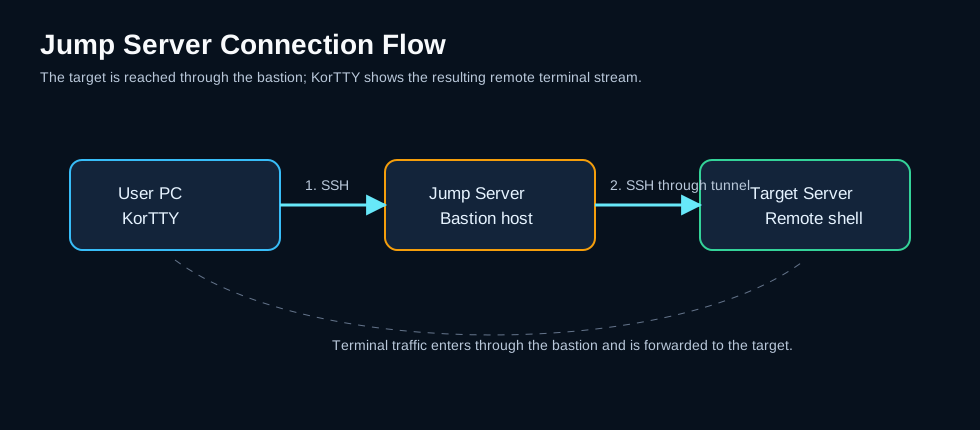
-L), remote (-R) or dynamic / SOCKS (-D). - Jump server (bastion) — route the connection through an intermediate host; SSH terminal and SFTP sessions both hop through it. See Jump Server.
Import from other clients
Connections → Import… reads connection files from MTPuTTY, MobaXterm and PuTTY Connection Manager, with group filtering and credential handling.
More to come
This page is part of the scaffolded guide. The full feature library — SFTP, snippets, JobScheduler, AI assistant & tools, terminal recording, security, and the complete settings tables — is being filled in next.