Menu reference
Every item in korTTY's menu bar, with its shortcut (where defined) and what it does. The in-window menu bar starts visible in each new window. Right-click either icon-toolbar row and choose Show/hide menu bar to toggle it, or press Ctrl+Shift+L (Cmd+Shift+L on macOS). You can also restore it by right-clicking the terminal or status bar. Visibility applies to the current window for this session; the macOS system menu bar remains available.
File
| Item | Shortcut | Description |
|---|---|---|
| New Tab | Ctrl+T | Open Quick Connect in a new terminal tab |
| New Incognito Session… | Open Quick Connect; the tab it opens is an incognito session whatever the connection says. Greyed out when your organization forbids incognito sessions | |
| Rename Tab… | Give the active terminal tab a name of its own instead of the connection's name or the title its shell set; an empty name shows that again. Available while a terminal tab is active. See Working with tabs | |
| Close Tab | Ctrl+W | Close the active terminal tab |
| Close Other Tabs | Close every other tab of the current window; the active tab stays open. Asks once when some of the closing terminals have split panes or a running command. The same entry is in a terminal tab's right-click menu. See Working with tabs | |
| Close Tabs to the Right | Close the tabs after the active tab, which stays open. Asks like Close Other Tabs. The same entry is in a terminal tab's right-click menu | |
| Close All Tabs | Close every tab in the current window; Reopen Closed Tab brings the terminal tabs back | |
| Reopen Closed Tab | Ctrl+Alt+Shift+T | Reopen the terminal tab you closed last (or the tabs one command closed together) with a new session; greyed out while there is nothing to reopen. The same entry is in a terminal tab's right-click menu. See Working with tabs |
| Recently Closed ▸ | What you closed, newest first, also before korTTY last quit: a tab, the tabs one command closed together, or Window: … for the tabs of a closed window. Choose an entry to reopen it; Clear List empties the list | |
| New Window | Ctrl+Shift+N | Open an additional, independent main window |
| Close Window | Ctrl+Shift+W | Close the current window |
| Open Project… | Ctrl+O | Restore a saved project: its first window replaces the tabs of this window, each further window opens in a new window, and every window gets its position, size, tabs and active tab back. See Windows |
| Open Recent ▸ | Under Connections, the saved connections you used last (up to 10, newest first, as at the top of Quick Connect), each opening a tab that signs in like Connect in the Connection Manager; under Projects, the projects you opened or saved last (up to 10), followed by the other projects in ~/.kortty/projects, each opening like Open Project…. Files that no longer exist are left out. Clear List empties the menu without deleting a connection or a project file. See Open Recent |
|
| Save Project… | Ctrl+S | Save every open window with its position, size and tabs as a project (.kortty) |
| Restore Previous Session | Reopen the windows and tabs korTTY had open before this start, which it saves on its own while it runs: the first window opens in this window when it has no tabs, otherwise in a new window, and every further window in a new window; tabs that need a password, a new temporary SSH key or the locked vault wait in the restore bar. Greyed out while there is no previous session and after you restored it once. See Previous session | |
| Create Backup… | Ctrl+Shift+B | Create an encrypted backup (ZIP password or GPG) |
| Import Backup… | Restore from a backup file | |
| Quit | Ctrl+Q | Exit korTTY |
Connection entries (Quick Connect, Manage/Import/Export Connections) live in the Connections menu.
Edit
| Item | Shortcut | Description |
|---|---|---|
| Cut | Ctrl+X | Cut (disabled for terminal tabs) |
| Copy | Ctrl+C | Copy the terminal selection |
| Paste | Ctrl+V | Paste into the terminal |
| Find… | Ctrl+F | Search the active tab (terminal scrollback or open editor). On Windows and Linux a focused terminal sends Ctrl+F to the shell, so open Find from this menu or the terminal's right-click menu there |
| Quick Select | Ctrl+Shift+Space | Label every web address, path, e-mail address, UUID, IP address, git hash and number of four or more digits in the focused terminal pane, and every match of your own patterns; type a label to copy its text, or Shift and the label to open a web or e-mail address, or in SSH and local-shell tabs a file path in the Snippet Editor. Disabled outside terminal tabs, see Quick select |
| Previous Prompt | Ctrl+Shift+Up | Scroll the focused terminal pane to the prompt before the one you are at, using the marks of a shell set up for shell integration; when it cannot, the status bar says why. Disabled outside terminal tabs |
| Next Prompt | Ctrl+Shift+Down | Scroll the focused terminal pane to the next prompt its shell marked, or back to the bottom after the last one. Disabled outside terminal tabs |
| Select Last Output | Select what the last finished command printed in the focused terminal pane, using the marks of a shell set up for shell integration; the status bar says what was selected, or why nothing was. Disabled outside terminal tabs | |
| Copy Last Output | Copy what the last finished command printed in the focused terminal pane to the clipboard, without changing the selection. Disabled outside terminal tabs |
Connections
| Item | Description |
|---|---|
| Quick Connect… | Connect to a host without saving (Ctrl+K) |
| Manage Connections… | Open the Connection Manager (tree, search, edit) (Ctrl+M) |
| Import… | Import connections from other clients |
| Export… | Export connections |
| SFTP-Client… | Open the dual-panel SFTP file manager (Ctrl+Shift+U) |
| Open SFTP Here | Open the SFTP file manager on the focused terminal pane's own SSH session, in the folder its shell is in |
Configuration
| Item | Description |
|---|---|
| Security ▸ | The vault, the credential, GPG-key and SSH-key managers and the known-hosts list; see Security below |
| Global Settings… | Open the global Settings dialog (all tabs), Ctrl+, |
| Prevent System Sleep | On macOS and Windows, enable activity-based system-sleep prevention. The computer is kept awake only while a terminal is connected, an enabled Scheduler job has a future run or is running, or an AI request is in progress. With none of these activities, system sleep remains available even while the item is checked. Display sleep is unaffected. On Linux the item is visible but disabled. |
See the Settings reference for every individual setting.
Security
| Item | Shortcut | Description |
|---|---|---|
| Unlock Vault… | Enter the master password to unlock stored secrets when the startup prompt is off (disabled while unlocked) | |
| Credentials… | Ctrl+Shift+M | Manage stored credentials (encrypted). The shortcut also works while a terminal has the focus |
| GPG-Keys… | Ctrl+Shift+G | Manage GPG keys used for backup encryption |
| SSH-Keys… | Ctrl+Shift+I | Manage SSH keys and passphrases |
| Known Hosts… | Review, search and remove trusted SSH host keys |
Tools
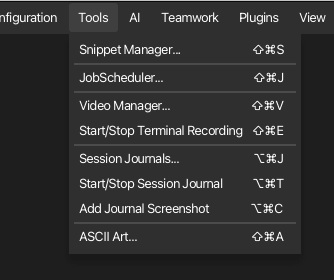
| Item | Description |
|---|---|
| Snippet Manager… | Create, edit, organize, send and export command snippets in one workspace: the library and the snippets you edit as tabs, each with its stored Full code analysis (Ctrl+Shift+S) |
| New Snippet Manager Window | Opens one more Snippet Manager as a window of its own, also in tab mode, for example to put a Full code analysis on a second screen while the terminals stay usable |
| JobScheduler… | Schedule background command / snippet / AI-agent / AI-swarm / SFTP / Rsync jobs (Ctrl+Shift+J) |
| Video Manager… | Manage terminal recordings and export to WebM/MKV via ffmpeg (Ctrl+Shift+V) |
| Start/Stop Terminal Recording | Toggle recording of the active terminal (Ctrl+Shift+E) |
| Logfile Manager… | Browse, filter, view, export (optionally trimmed to a time range) and delete the files written by terminal logging (Ctrl+Shift+X) |
| Session Journals… | Manage session journals: search, open, rename, describe, export and delete them, and set the journal options (Ctrl+Alt+J) |
| Start/Stop Session Journal | Toggle the session journal of the active terminal tab; starting mid-session imports the existing scrollback (Ctrl+Alt+T) |
| Add Journal Screenshot | Snapshot the active terminal into its running session journal (Ctrl+Alt+C) |
| Session Processes… | List the session workers of isolated SSH sessions with their memory, CPU share and running time, and end one |
| ASCII Art… | Two tabs in one dialog: Text Banner renders text as a FIGlet banner in multiple font styles, AI Picture lets an AI profile draw a subject as ASCII art (Ctrl+Shift+A) |
The three session-journal items stay visible but are disabled when an enterprise policy denies the session-journal feature.
AI
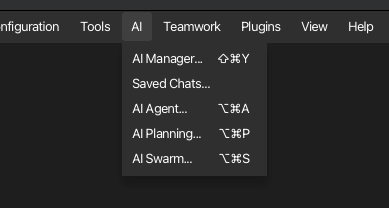
| Item | Description |
|---|---|
| AI Manager… | Manage AI profiles, integrated GGUF models, RAG knowledge stores, the AI Skills library, and Text/Coding roles (Ctrl+Shift+Y) |
| Saved Chats… | Open the saved AI chat conversations directly in their own window; invoking it again brings the existing window to the front |
| AI Agent… | Open the terminal AI agent Open the terminal AI agent (Ctrl+Alt+A) |
| AI Planning… | Open the AI planning workflow Open the AI planning workflow (Ctrl+Alt+P) |
| AI Swarm… | Broadcast one AI task to many servers and compare the answers (Ctrl+Alt+S) |
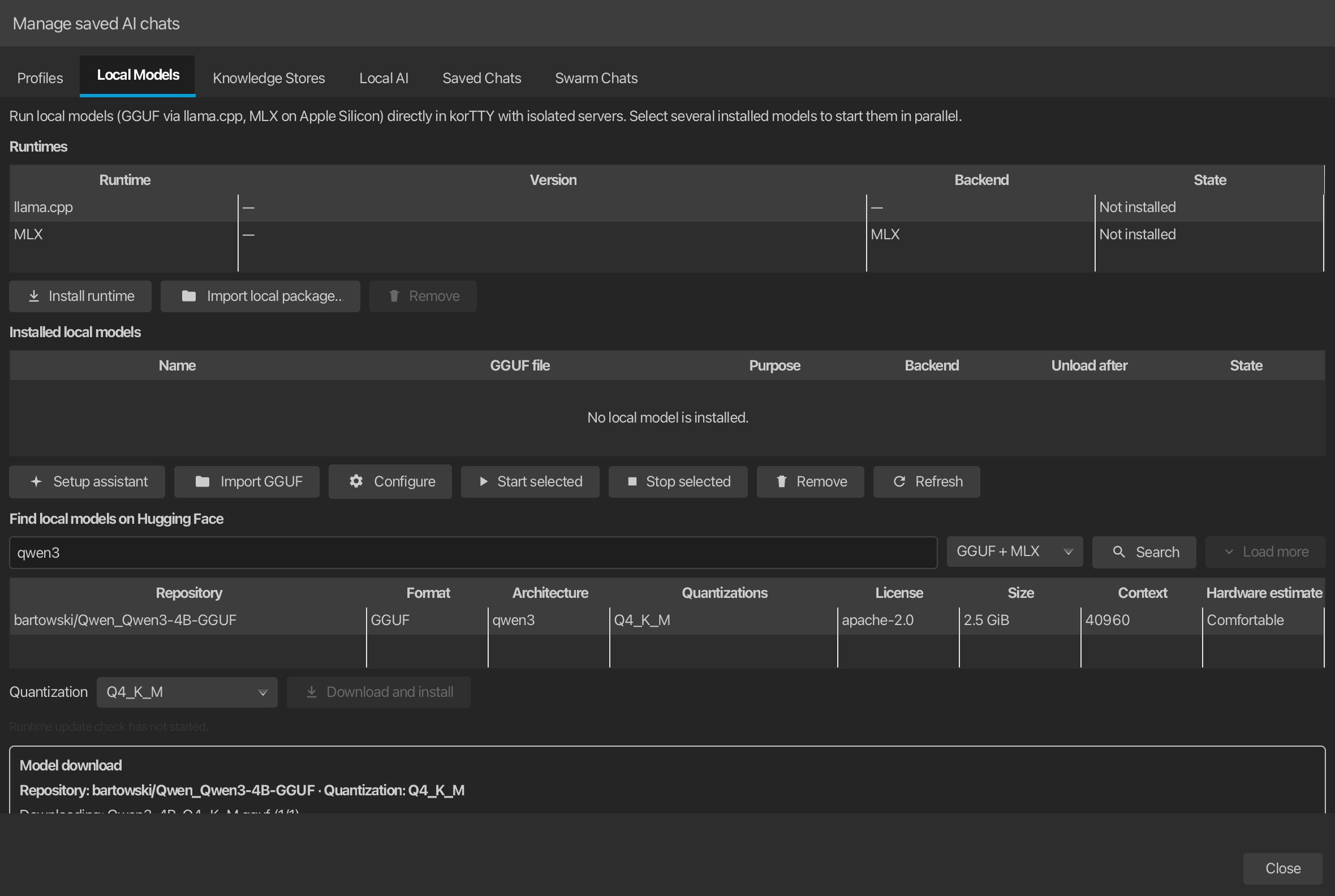
AI Manager opens as a modeless window, so it can remain visible while you use the main window. Invoking it again restores and focuses the same manager for that main window instead of creating a duplicate. Its five sections are Profiles (connection mode, model, prompt preset, reasoning, internet access and token budget), Local Models (search/download/import GGUF models), Knowledge Stores (RAG sources), AI Skills (the skill library, moved here from the global settings dialog) and Local AI (Text/Coding/embedding roles and the local runtime). The open primary section remains marked by a bold accent underline after you move focus into its tables, fields, or buttons:
Plugins
| Item | Description |
|---|---|
| Terminal Effects… | Enable/disable, configure, import/export terminal-effect plugins |
| AI Agent Design | Choose how terminal AI agent runs are shown: a combination of designs, the default and your own combinations |
View
| Item | Shortcut | Description |
|---|---|---|
| Command Palette… | Ctrl+Shift+P | Open the command palette to find and run any menu command or a terminal command such as Clear Buffer, switch to an open tab, connect to a saved connection or run a snippet in the terminal, by typing part of its name; the shortcut also works while a terminal has the focus and with the menu bar hidden, and closes the palette again |
| Snippet Palette… | none (assign one in Settings → Keyboard) | Open the command palette with $ already typed, so it lists only the snippets and runs the one you choose in the focused pane of the terminal; a shortcut you assign also works while a terminal has the focus, and closes the palette again |
| Show Dashboard | Ctrl+Shift+D | Toggle the connections dashboard |
| Show Command Timestamps | Ctrl+Shift+T | Toggle inline command timestamps |
| Show Menu Bar | Ctrl+Shift+L | Toggle the in-window menu bar for this session; visible by default, also available from either icon-toolbar row’s context menu |
| Action toolbar | — | Show or hide the action row above the menu bar independently of the connection row; saved across windows and restarts |
| Connection toolbar | — | Show or hide the saved-server and group row independently of the action row; an empty connection row stays hidden outside customization |
| File Browser ▸ Show on Left | Ctrl+Shift+K | Dock the local file browser to the left of the terminal; unchecking the active side hides it |
| File Browser ▸ Show on Right | Ctrl+Shift+R | Dock the local file browser to the right of the terminal; unchecking the active side hides it |
| AI Agent Panel ▸ At Bottom / Dock Left / Dock Right | Choose where the AI agent activity panel lives | |
| AI Agent Panel ▸ Ask in Spotlight… | Open a field in the middle of the focused terminal that asks the AI agent, with a profile to choose (the Spotlight) | |
| AI Agent Panel ▸ Show or Hide Status Bar | Show the status display of the focused terminal again after it faded out, or hide it | |
| AI Agent Panel ▸ Design... | Open Plugins → AI Agent Design | |
| Live Journal ▸ Dock Left / Dock Right | Dock the live journal panel beside the terminal; selecting the active side hides it | |
| Live Journal ▸ Show/Hide | Ctrl+Alt+L | Toggle the live journal panel on its last-used side (right by default) |
| Coding Agents ▸ Dock Left / Dock Right | Dock the Coding Agents panel beside the terminal; selecting the active side hides it | |
| Coding Agents ▸ Show/Hide | Ctrl+Alt+G | Toggle the Coding Agents panel on its last-used side (right by default) |
| Coding Agents ▸ Next Blocked Agent | Ctrl+Alt+N | Bring the next coding agent that is waiting for a decision to the front, across windows |
| Remote Files Sidebar ▸ Dock Left / Dock Right | Dock the remote files sidebar beside the panes of every terminal tab; unchecking the active side hides it. Offered while the active tab has an SSH pane or the sidebar is on | |
| Remote Files Sidebar ▸ Show/Hide Remote Files Sidebar | Show the remote files sidebar on the right, or hide it; hiding asks first while sidebar transfers are running | |
| Zoom In | Alt++ | Increase terminal font size |
| Zoom Out | Alt+- | Decrease terminal font size |
| Reset Zoom | Alt+0 | Reset terminal font size |
| Background Transparency | Slider (0–100 %) that makes the terminal background see-through to the desktop while the text stays sharp; every split pane inherits the value. The value is saved across restarts; fullscreen temporarily renders terminal backgrounds opaque and restores the value when you leave. Switching it on or off needs a restart, so the status bar shows a hint when you cross that threshold. Shown in the in-window menu bar only. | |
| Panes ▸ Split Pane | Ctrl+Shift+O | Split the focused pane of the active terminal tab on that pane's own server, as Split Right (same server) or Split Down (same server) in its right-click menu does: the new pane goes to the right when the pane is wide and below it when it is tall, and gets the keyboard focus (see Split operations). On macOS the key is Cmd+Shift+O |
| Panes ▸ Split Right / Split Down | Split the focused pane on that pane's own server, with the new pane always to the right / below | |
| Panes ▸ Close Pane | Close the focused pane of the active tab without asking; the keyboard moves to the first remaining pane. Disabled while the tab has a single pane | |
| Panes ▸ Focus Pane Left / Right / Above / Below | Ctrl+Alt+Left / Ctrl+Alt+Right / Ctrl+Alt+Up / Ctrl+Alt+Down | Move the keyboard focus to the split pane on that side of the focused pane in the active tab; at the edge of the tab nothing happens. Available while the active tab has two or more panes. On macOS the keys are Cmd+Option with an arrow key |
| Panes ▸ Next Pane / Previous Pane | Move the keyboard focus to the next or previous pane of the active tab, starting over after the last one | |
| Panes ▸ Zoom Pane | Ctrl+Shift+Enter | Let the focused pane of the active tab fill the whole tab, or show all its panes again; the check mark shows whether a pane is zoomed. Splitting, closing or moving a pane and moving the focus to another pane show all panes again as well (see Split operations). Available while the active tab has two or more panes. On macOS the key is Cmd+Shift+Enter |
| Panes ▸ Broadcast to All Panes of This Tab | Switch the active tab's broadcast mode on or off, as Extras → Broadcast Mode in a pane's right-click menu does; the check mark shows whether it is on. Switching it on needs two or more panes | |
| Multi-exec ▸ Include This Pane | Let the focused pane of the active terminal tab take part in multi-exec, so what you type in it also goes to the other panes that take part, in any tab and window, or take it out again; the check mark shows whether it takes part. Extras → Multi-exec: Include This Pane in a pane's right-click menu does the same for that pane | |
| Multi-exec ▸ Include All Panes of This Tab | Let every pane of the active terminal tab take part in multi-exec, or take them all out when they all take part; the check mark shows whether they do. The tab's right-click menu has the same entry | |
| Multi-exec ▸ Include All Terminals of This Window | Let every pane of every terminal tab of this window take part in multi-exec | |
| Multi-exec ▸ Stop Multi-exec | Take every pane of every window out of multi-exec, as Stop in the status bar does. Available while a pane takes part | |
| Highlighting ▸ Highlighting On | Ctrl+Shift+H | Switch keyword highlighting on or off for the focused pane of the active tab; switching it back on restores the set the pane showed last. Applies to the running session only |
| Highlighting ▸ None / rule set | Choose the rule set the focused pane shows: None, a built-in set (Errors and warnings, Network addresses, Network devices) or one of your own. Applies to the running session only | |
| Highlighting ▸ Manage Rule Sets… | Open the rule-set editor to create, change, duplicate or delete your own rule sets and look at the built-in ones; it opens on the set the focused pane shows | |
| Terminal Effect ▸ | Choose the terminal effect of the active terminal tab: None or one of the installed effect plugins. The submenu is greyed out while terminal effects are switched off; its animation-speed slider below the plugins is enabled only while a plugin is active | |
| Fullscreen | F12 | Toggle window fullscreen |
| Terminal-only Fullscreen | Ctrl+Shift+F | Show the whole korTTY window — menus, tabs and status bar included — kept at its previous window size and centered on an empty fullscreen background, hiding the desktop and other windows |
| Hide terminal scrollbars in fullscreen | Also hide scrollbars while in fullscreen |
Teamwork
| Item | Description |
|---|---|
| Teamwork Settings… | Configure shared connection sources and synchronization |
Help
| Item | Shortcut | Description |
|---|---|---|
| Manual | F1 | Open this documentation inside korTTY |
| About korTTY | Version and project information |
The manual has its own text-size buttons at the top left of its window: A-, the current percentage, and A+. Clicking the percentage resets it. The same three actions have keyboard shortcuts: Cmd++, Cmd+-, Cmd+0. korTTY remembers the size, and the size covers the whole window — the page and, when it is open, the AI search panel beside it. See Manual text size.
Screenshots and diagrams enlarge on click: the picture opens over the page at the largest size the window allows, with − / + buttons and a percentage that returns it to that fitted size. Zoom further to read a single setting row, drag the picture to pan, and close with the ×, Esc or a click next to the picture. Ctrl and the wheel zoom as well. The same works in the online guide.
JobScheduler status
This menu sits after Help and appears only while the Show Jobs status in menu bar option of the JobScheduler is on and a scheduled entry is active. It always starts with Open JobScheduler…. While jobs run it lists a Running jobs header, a status line per job and a Cancel item per job; the cancel items work without a window. Below them, Next jobs lists the queued scheduled jobs with their start times.
macOS Dock & menu bar
On macOS the packaged app keeps running in the background (so the JobScheduler can run scheduled jobs) even after the last window is closed. korTTY therefore adds two extra entry points so it stays reachable — and quittable — with no window open:
- Dock icon menu — right-click korTTY's Dock icon for quick actions: New Window, New Tab in Current Window, Manage Connections…, Open Project…, Manual, About korTTY, and Quit.
- Menu-bar (status) icon — a system-tray icon with New Window and Quit; clicking the icon opens a new window.
Both provide a reliable Quit even when every window is closed.
The menu bar at the top of the screen stays as well when you close the last window, and while no korTTY window has the focus it can still be the menu bar of a window you closed. Its entries then act in the korTTY window you used last, which comes to the front, or open a new window first when none is open: New Tab opens Quick Connect there, Manage Connections... the Connection Manager. New Window, Quit, Prevent System Sleep, Stop Multi-exec and cancelling a running job need no window. Close Tab, Close All Tabs, Close Window, Close Pane, Cut, Copy, Paste, Broadcast to All Panes of This Tab and the three Include entries of View → Multi-exec do nothing from the menu bar of a closed window, so they never close a tab or a pane, paste into it or change where your typing goes in a window you are not looking at.