Appearance, themes & font
korTTY's visual configuration spans three tabs: Appearance controls the app-level UI design, Font configures terminal typeface and size, and Themes manages reusable terminal color profiles. All settings persist to ~/.kortty/global-settings.xml.
Appearance tab
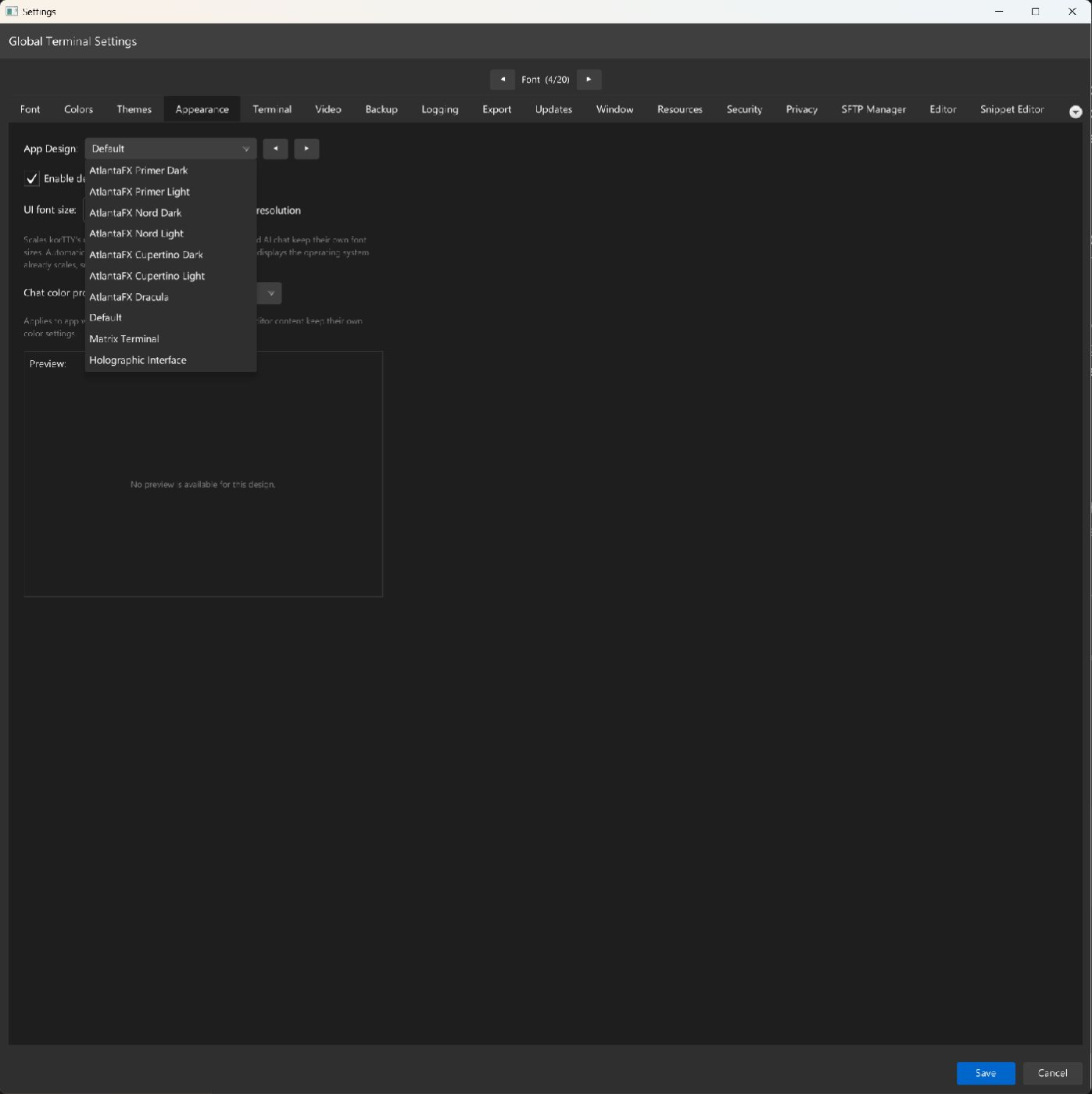
Customize the application window and dialog visual style.
| Setting | Type | Values | Default | Stored as |
|---|---|---|---|---|
| App Design | dropdown | AtlantaFX Primer Dark, AtlantaFX Primer Light, AtlantaFX Nord Dark, AtlantaFX Nord Light, AtlantaFX Cupertino Dark, AtlantaFX Cupertino Light, AtlantaFX Dracula, Default, Matrix Terminal, Holographic Interface, Klingon Tactical, Elegant Dark, Amber CRT, Synthwave '84, Gruvbox Retro, Nord Arctic, Dracula | AtlantaFX Primer Dark (new installations) | appDesign |
| Enable design animations | toggle | On, Off | On | appDesignAnimationsEnabled |
| UI font size | number | 80–160 % in steps of 5 | 100 % | uiFontScalePercent |
| Match display resolution | toggle | On, Off | On (new installations) | uiFontScaleAuto |
| Chat color profile | dropdown | Automatic (theme), Original, Paper, Midnight, Cyberpunk, Retrowave, Forest, Ocean, Terminal, GPT, Cute | Automatic (theme) | chatColorProfileId |
The ◀ and ▶ buttons next to the dropdown step backward and forward through the designs (wrapping around at the ends). When a design other than Default is selected, a preview image of that design is shown below the controls; the Default design has no preview and shows a short note in its place.
Enable design animations doubles as a reduce-motion switch: turning it off stops the animated design effects while leaving the colors in place.
The seven AtlantaFX entries apply AtlantaFX 2.1.0's Primer Dark, Primer Light, Nord Dark, Nord Light, Cupertino Dark, Cupertino Light, or Dracula user-agent theme to native JavaFX controls, with a small korTTY overlay for the main window chrome and korTTY-specific controls. They are grouped at the top of the dropdown, and a new installation starts with AtlantaFX Primer Dark. Existing settings are not migrated: an existing Default selection stays Default. Changing to Default or any older korTTY design restores JavaFX Modena before that design's stylesheet is applied. The change is live across open windows, dialogs, menus, tooltips, and completion popups.
Chat color profile themes the AI chat and swarm surfaces. The default Automatic (theme) derives its palette from the active terminal theme's agent-panel colors; the other profiles are fixed palettes.
Note
App Design applies only to korTTY's application windows and dialogs. Terminal sessions, the Monaco file editor, session-journal pages, and AI chat content retain their own independent color settings (configured via the Colors or Themes tabs or their own appearance controls).
UI font size
UI font size scales korTTY's own interface — the menu bar and its dropdowns, dialogs, form labels, buttons, tab titles, the dashboard, the file browser and the status bar. It takes effect the moment you save; no restart is needed, and windows that are already open resize with it. The main window's first-launch size grows along with it, and dialogs and the manual window that remember their size are re-measured after a change rather than reopening at a size that no longer fits their text.
It deliberately does not touch surfaces that already have their own size control, so the two never fight each other:
| Surface | Where its size is set instead |
|---|---|
| Terminal sessions | The Font tab, plus the View menu's zoom shortcuts |
| File editor | The Editor tab |
| AI chat, agent plan and activity panels | Their own A- / A+ buttons |
| The manual (Help → Manual) | The A- / A+ buttons in its own window — see below |
| Session journal page | The journal viewer's appearance popover |
Two further parts of the interface keep their size at every setting: the macOS application menu (the one in the system menu bar), because macOS draws it rather than korTTY, and the AI swarm status strip, whose labels are painted onto a canvas together with hand-computed positions.
Match display resolution derives the size from the primary display instead, and disables the number field while it is on. A new installation starts with it on, so korTTY fits itself to the screen before anyone visits this tab; updating an existing installation never changes it — whatever you had stays. The value comes from the display's logical height — the resolution the operating system reports after its own scaling:
| Logical screen height | UI font size |
|---|---|
| Below 1400 px | 100 % |
| 1400–1799 px | 110 % |
| 1800–2299 px | 125 % |
| 2300 px and above | 140 % |
This is why a Retina MacBook stays at 100 %: macOS already scales it, so it reports roughly 1100 logical pixels and needs no help. The case the option exists for is a 4K or 5K display running at 100 % operating-system scaling, where korTTY really does get the full 2160 or 2880 pixels to draw into.
Note
Automatic is a suggestion, not a measurement. JavaFX cannot report a display's physical size, so korTTY cannot tell a 27-inch 4K panel from a 32-inch one at the same resolution, even though they need different sizes. If the result does not suit you, turn the option off and set the percentage yourself — your manual value is remembered while automatic is on.
Automatic tops out at 140 % and the manual setting at 160 %. The ceiling is deliberate: a handful of dialogs size themselves from fixed pixel widths, and beyond that point their text starts to crowd. korTTY re-reads the display when you save the settings, so after changing your monitor setup, open Settings and save again (or restart) to pick up the new resolution.
Manual text size
The manual (Help → Manual, F1) has its own text size. Three buttons at the top left of its window control it: A-, the current percentage, and A+. The percentage is also the reset control. Click it to return to 100 %. There are keyboard shortcuts for all three: Cmd++, Cmd+-, Cmd+0. On Windows and Linux they are Ctrl++, Ctrl+-, Ctrl+0. They are registered on the manual's own window, so they never collide with the terminal zoom in the main window.
The range is 70–250 % in steps of 10, wider than the interface setting because the manual is a reflowing document rather than a layout built from fixed widths. The size is remembered across restarts, applies to the AI search answers next to the manual as well, and stays put as you navigate between pages. It scales the page as a whole — text, images and diagrams together — the way a browser's zoom does.
Note
This is separate from UI font size above, which governs the buttons and window chrome around the manual. If the manual's own toolbar looks too small, that is the setting to change.
Font tab
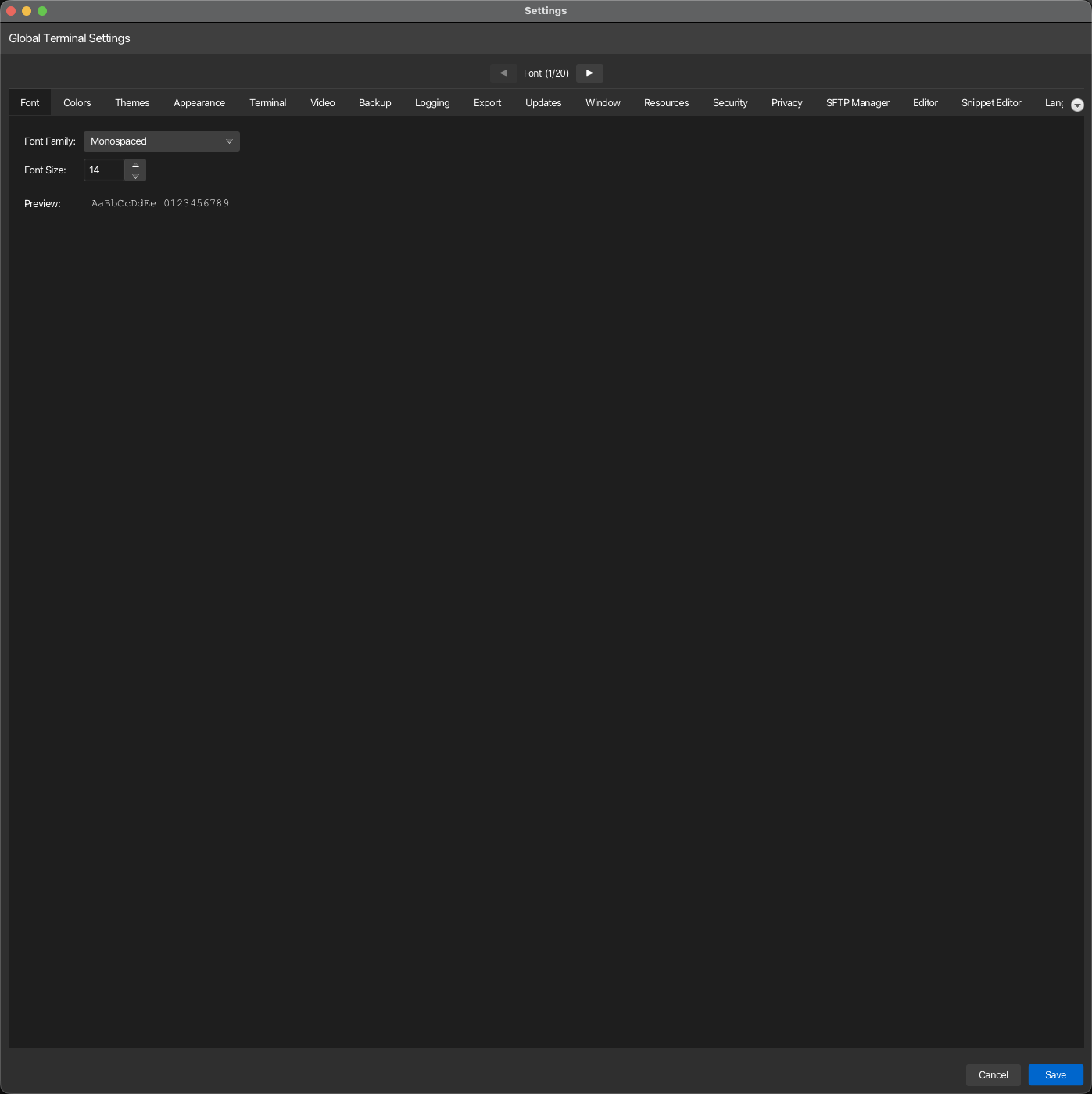
Set the terminal and editor typeface and size.
| Setting | Type | Values | Default | Stored as |
|---|---|---|---|---|
| Font Family | dropdown | Common monospace fonts (Monaco, Courier New, Menlo, Fira Code, etc.) and all system fonts | Monospaced | defaultTerminalSettings.fontFamily |
| Font Size | number | 8–72 pt | 14 | defaultTerminalSettings.fontSize |
Note
The Font tab sets global defaults for all new terminal connections. Individual connections can override these values via their own connection settings. A live preview is shown as you adjust the controls.
Themes tab
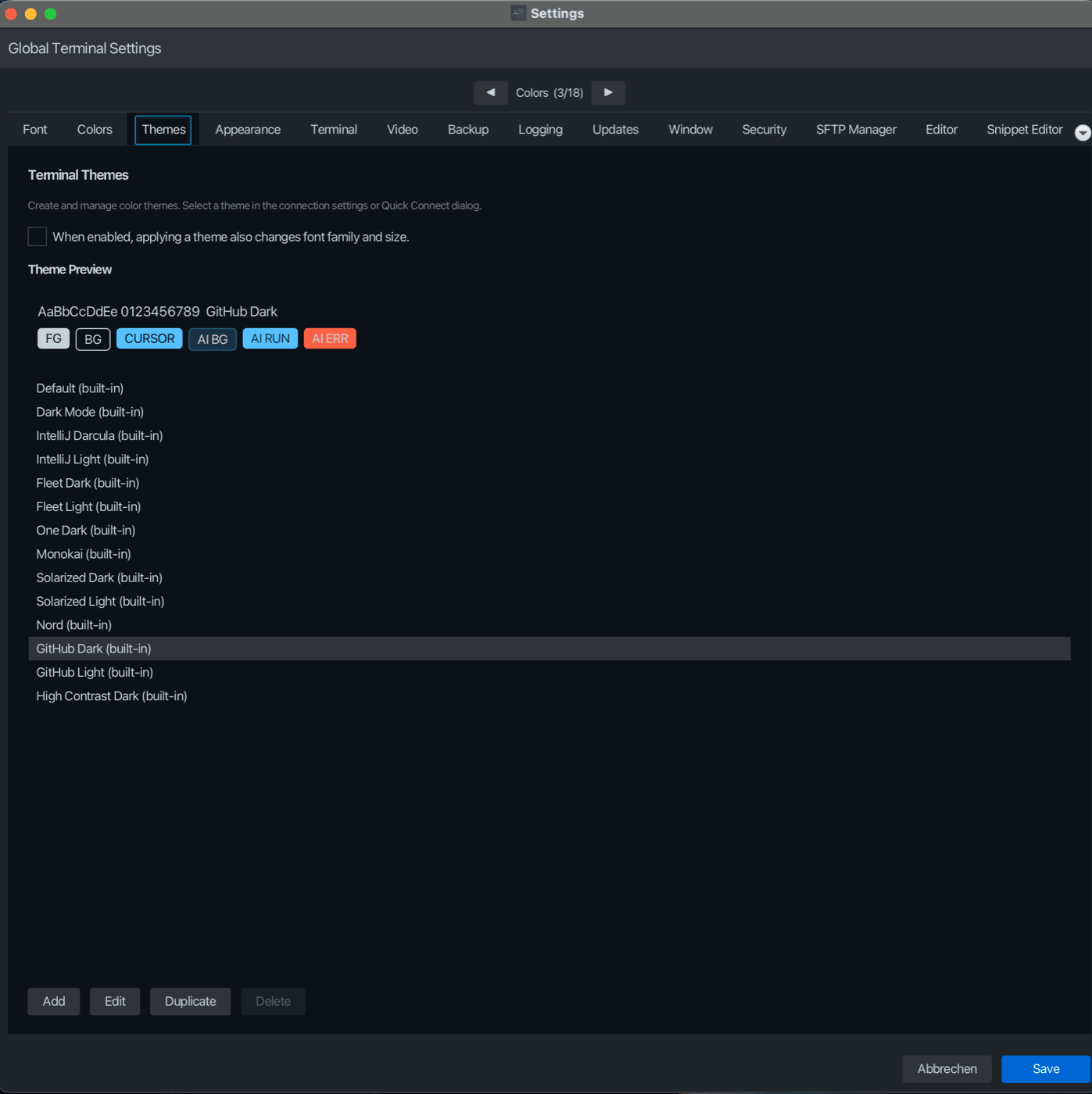
Create, edit, and manage terminal color themes. Themes define the text, background and cursor colors and the styling for all terminal sessions; the 16 ANSI colors and the selection color come from Colors. The theme list sits on the left with its buttons underneath; the rest of the tab is a preview of a terminal screen in the selected theme (see Theme preview).
Theme management
| Action | Description |
|---|---|
| Add | Create a new custom color theme |
| Edit | Open the selected theme in the theme editor, built-in themes included. The change is saved to ~/.kortty/themes.xml; an edited built-in theme keeps its (built-in) label and still cannot be deleted. Duplicate it first if you want to keep the original |
| Duplicate | Copy the selected theme as a new custom theme |
| Delete | Remove a custom theme (built-in themes cannot be deleted) |
Theme options
| Setting | Type | Default | Stored as |
|---|---|---|---|
| When enabled, applying a theme also changes font family and size. | toggle | Off | applyThemeFonts |
Note
When this option is enabled, selecting a theme from the Colors tab's color profile dropdown will also apply that theme's font family and size. When disabled, only the theme's colors are applied.
Built-in vs. custom themes
korTTY includes a set of built-in color themes (e.g., Default, Dark Mode, Solarized Light). Built-in and custom themes are stored together in a single file, ~/.kortty/themes.xml. All themes appear in the Colors tab's color profile selector and in connection-specific theme dropdowns.
Warning
Built-in themes can be edited but not deleted, and korTTY does not restore their original colors on its own. To keep the original, duplicate the theme first and edit the custom copy.
A theme's Terminal AI agent panel colors start out derived from its terminal colors: the panel keeps the terminal's background with a faint tint of an accent color, which is the theme's cursor color, or blue when the cursor is white or grey. The AI agent's designs use them.
Theme preview
To the right of the list, a mock terminal screen shows what a session looks like in the selected theme: a prompt and an ls --color listing (directories, an executable, a symlink and an archive in their usual colors), a git status, a compiler warning and error, a test summary, a row of all sixteen ANSI colors (normal, then bright) and a second prompt with the cursor in the theme's cursor color and shape (block, underline or bar). Background and text use the theme's colors; the font is the theme's own when applying a theme also changes font family and size is on, otherwise the Font tab's. The sixteen ANSI colors are taken from the Colors tab as it is set right now, unsaved changes included, so you can judge a theme and a palette together before saving. Below the mock, three swatches show the AI agent panel's background, run and error colors, which do not appear in a terminal session. The preview updates when you select, add, edit or duplicate a theme.
Cross-tab integration
- Colors tab: Choose a theme via the "Color Profile" dropdown; if the Themes tab's font option is enabled, the selected theme's font is also applied.
- Connection settings: Each individual SSH connection can override the global font and theme via its own settings (accessible in Connection Manager or Quick Connect).
- Terminal emulation: Font and theme colors affect only the terminal content; the application UI style (menu bar, dialogs, tabs) is determined by the Appearance tab's app design setting.