Terminal effect plugins
KorTTY terminal-effect plugins are Java ServiceLoader plugins that can change the appearance and runtime behavior of a terminal session. They are trusted local code that runs inside the KorTTY JVM and integrate through a clean SPI interface.
Capabilities
A terminal-effect plugin can:
- Apply terminal appearance values such as font, foreground/background colors, cursor color, and cursor style
- Add JavaFX overlay nodes above the terminal area (for example scanlines, noise, vignettes, or line highlights)
- Wrap the SithTermFX
TtyConnectorto observe, pace, or transform terminal output before the terminal emulator receives it - React to the user-selected terminal-effect animation speed
- Provide an animated preview that the plugin manager shows for the selected plugin (optional
createPreview())
Built-in Effects
KorTTY ships eleven built-in effects as two bundled, exportable plugin JARs: the MOTHER reference implementation (kortty-terminal-effect-mother.jar) and the effect pack (kortty-terminal-effect-pack.jar) with ten themed effects.
| ID | Name | Description |
|---|---|---|
mother |
MU/TH/UR 6000 | ALIEN-style green CRT terminal appearance with paced line output. |
amber-crt-90 |
Amber CRT '90 | Amber phosphor CRT monitor from the 90s with scanlines, glow, flicker and a rolling refresh band. |
commodore-blue |
Commodore Heritage | Classic C64 home computer look: light blue on blue with a chunky cursor and loader bars. |
neon-city |
Neon City | Cyberpunk neon look with glitch tears, RGB-split flickers and pulsing glow. |
digital-rain |
Digital Rain | Green-on-black matrix style with a faint stream of falling glyphs. |
hologram-hud |
Hologram HUD | Translucent sci-fi hologram with interference bands, HUD corner brackets and flicker. |
poltergeist |
Poltergeist | Haunted monochrome terminal with a breathing vignette, static bursts and ghostly flashes. |
vhs-1987 |
VHS 1987 | Worn VHS tape playback with tracking noise, rolling distortion and a PLAY overlay. |
synthwave-horizon |
Synthwave Horizon | Retro-80s synthwave palette with a glowing perspective grid on the horizon. |
deep-space-radar |
Deep Space Radar | Tactical deep-space console with a slow radar sweep, faint blips and frame corners. |
typewriter-noir |
Typewriter Noir | Sepia paper and ink noir look with per-character typewriter output pacing. |
All built-in effects override the terminal appearance (font, colors, cursor) while active and draw their animation as a mouse-transparent canvas overlay. Typewriter Noir additionally wraps the connector to pace output character by character. Effect names are proper nouns and stay untranslated; descriptions are localized through the plugin.terminalEffects.desc.* message keys with an English fallback.
Runtime Model
Terminal-effect plugins are loaded by de.kortty.core.TerminalEffectPluginManager in this order:
- Application classpath plugins
- Bundled plugin JARs listed by
bundled-plugins/terminal-effects.index - External JARs copied into
~/.kortty/plugins
If two plugins expose the same plugin ID, the first one wins and later duplicates are ignored. This is intentional because connection settings persist the plugin ID.
External plugins are loaded from one JAR at a time with KorTTY's application classloader as parent. Dependencies that are already part of KorTTY can be used from that parent classloader. Dependencies that are not part of KorTTY are not discovered from adjacent files automatically; either avoid them or shade them into the plugin JAR.
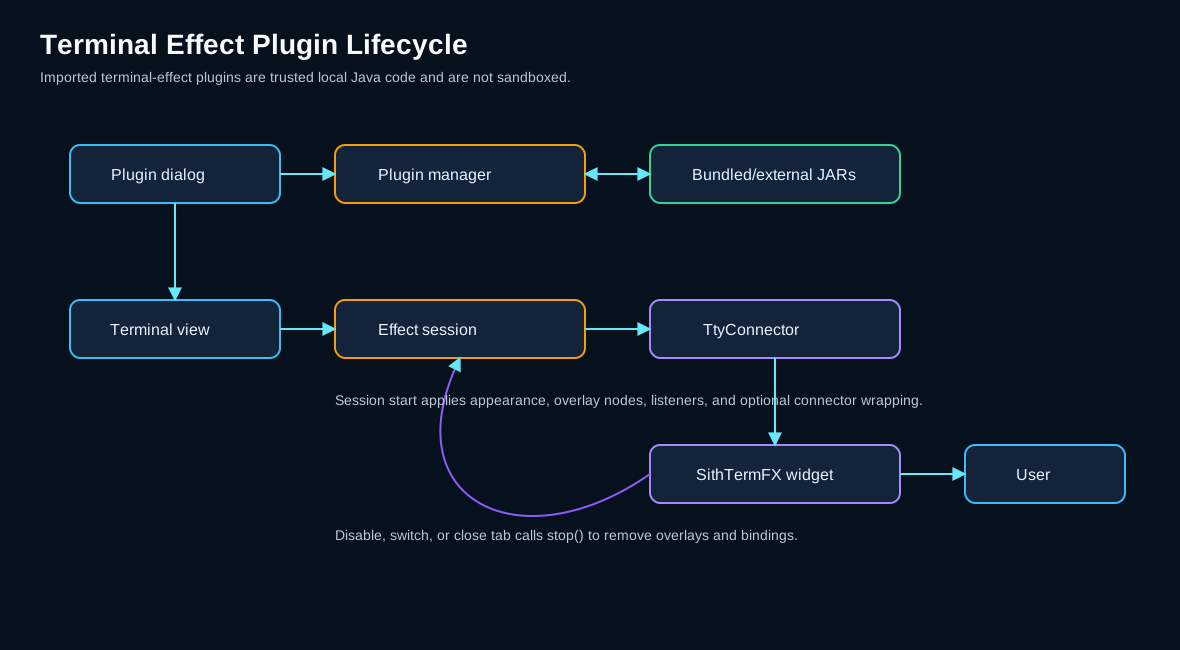
Warning
Terminal-effect plugins are trusted local Java code. KorTTY does not sandbox imported JARs. A plugin runs inside the KorTTY JVM with the same local process permissions as KorTTY itself. Only import plugins from sources you trust.
Plugin Management in the UI
Users manage terminal-effect plugins from Plugins > Terminal Effects.
The Terminal Effects manager window is resizable, so you can expand the plugin table and descriptions while keeping the live preview visible. If tool windows are configured to open as tabs, the manager instead uses the available main-window tab area.
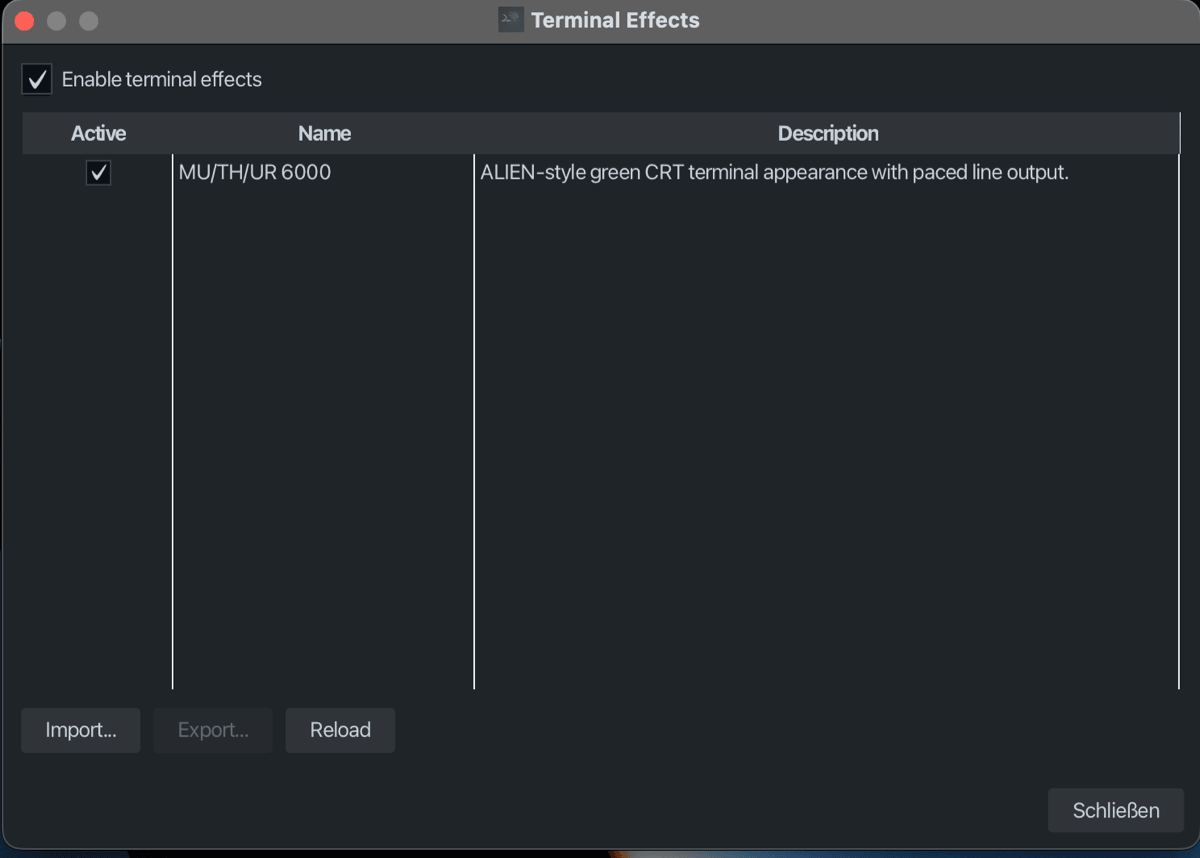
The dialog shows the loaded plugin list with:
- An Active check box per plugin
- Display name
- Short description
Next to the table, a preview panel plays a live animated preview of the selected plugin (a small fake terminal in the effect's colors with the effect overlay on top). If a plugin does not implement createPreview(), the panel shows a placeholder text instead. The preview stops when the selection changes, the global terminal-effects switch is turned off, or the dialog closes.
Users can:
- Enable or disable a plugin by ticking or clearing its Active check box
- Switch the whole feature off with Enable terminal effects at the top of the dialog; while it is off, the table, Import and Reload are greyed out and the preview stops
- Reload the plugins with Reload, for example after copying a JAR into
~/.kortty/pluginsby hand - Import an external
.jarplugin, which KorTTY copies to~/.kortty/plugins - Export plugins that have a source JAR (the bundled MOTHER and effect-pack JARs are exportable); Export is available for the selected row while the feature is on
Users select effects per terminal session from the terminal context menu or View > Terminal Effect, which offer the effects only while Enable terminal effects is on. Saved connections can also store the selected effect and animation speed through Quick Connect and Connection Manager. The speed slider covers 1x through 10x; the numeric field accepts values up to 99x.
SPI Classes
The public SPI lives under de.kortty.plugin.terminaleffects.
TerminalEffectPlugin
Implement TerminalEffectPlugin as the ServiceLoader entry point.
public interface TerminalEffectPlugin {
    String id();
    String displayName();
    default String description() { return ""; }
    TerminalEffectSession createSession(TerminalEffectContext context);
    default TerminalEffectPreview createPreview() { return null; }
}
Rules:
id()must be stable because connection settings and disabled-plugin state persist it- Valid IDs match the regex
[a-z0-9][a-z0-9._-]{0,63} displayName()must not be blankdescription()is shown in the plugin-management table and should be one short sentence- The provider class must be loadable by
ServiceLoader; use a public class with a public no-argument constructor createPreview()is optional; returningnull(the default) shows a placeholder in the plugin manager
TerminalEffectSession
createSession returns one TerminalEffectSession per terminal tab/effect activation.
public interface TerminalEffectSession extends AutoCloseable {
    default void start() {}

    default @NotNull TtyConnector wrapConnector(
            @Nullable SithTermFxWidget widget,
            @NotNull TtyConnector connector) {
        return connector;
    }

    default void stop() {}
}
Responsibilities:
- Allocate UI resources in
start() - Decorate connectors in
wrapConnector(...)when output pacing or filtering is needed - Remove listeners, stop timelines, unbind properties, and release references in
stop()
stop() must be idempotent. It can be called when a user disables the effect, switches effects, closes a tab, or reloads plugins.
TerminalEffectContext
TerminalEffectContext exposes the active terminal environment:
| Method | Purpose |
|---|---|
pluginId() |
The active plugin ID |
terminalView() |
The owning KorTTY terminal view |
overlayRoot() |
A JavaFX StackPane above the terminal area; add overlay nodes here |
widgets() |
Current SithTermFX widgets for the terminal view; split terminals can have more than one widget |
animationSpeed() |
User-selected speed normalized by TerminalEffectAnimationSpeed |
applyAppearance(TerminalEffectAppearance) |
Applies terminal appearance overrides |
restoreAppearance() |
Restores the baseline appearance captured before the effect was activated |
JavaFX scene-graph changes must run on the JavaFX application thread. If a callback can arrive from a terminal worker thread, use Platform.runLater(...) for overlay or UI updates.
TerminalEffectAppearance
TerminalEffectAppearance is a record with nullable fields:
public record TerminalEffectAppearance(
        @Nullable String fontFamily,
        @Nullable Integer fontSize,
        @Nullable String foregroundColor,
        @Nullable String backgroundColor,
        @Nullable String cursorColor,
        @Nullable String cursorStyle) {
}
Use only the fields your effect needs. null leaves the current value unchanged.
The current implementation passes color values as strings, for example #19FF4C. Cursor style is also a string; the MOTHER effect uses BLINK_BLOCK. Reuse values already accepted by KorTTY's terminal settings instead of inventing new names.
TerminalEffectPreview
createPreview() returns the animated preview shown in the plugin manager:
public interface TerminalEffectPreview {
    @NotNull Node node();
    default void start() {}
    default void stop() {}
}
Contract:
- One preview instance backs one displayed preview; the caller requests
node()once, callsstart()after attaching it, andstop()before discarding it - Do not construct JavaFX objects before
node()is called, so plugin metadata stays usable without a running JavaFX toolkit stop()must stop all timelines and release animation resources
TerminalEffectPreviewCanvas (same package) is a reusable implementation used by all built-in effects: a 360x220 fake terminal with configurable colors, fake shell lines, a blinking cursor, and an optional effect overlay canvas on top. Its builder collects plain data only and creates JavaFX nodes lazily in node().
TerminalEffectConnectorWrapper
If a plugin wraps a connector, implement TerminalEffectConnectorWrapper and delegate all TtyConnector methods to the wrapped connector unless the effect intentionally changes that method.
KorTTY uses this marker to unwrap effect connectors before applying another wrapper or before accessing the underlying SSH connector. Without it, reconnect, drag/drop upload, AI-agent current-directory tracking, or future connector-level features can see the wrong connector.
Minimal Plugin Example
Directory layout:
example-terminal-effect/
├── build.gradle.kts
└── src/main
    ├── java/com/example/kortty/effects/AmberTerminalEffectPlugin.java
    └── resources/META-INF/services/de.kortty.plugin.terminaleffects.TerminalEffectPlugin
ServiceLoader descriptor (META-INF/services/de.kortty.plugin.terminaleffects.TerminalEffectPlugin):
Example implementation:
package com.example.kortty.effects;

import de.kortty.plugin.terminaleffects.TerminalEffectAppearance;
import de.kortty.plugin.terminaleffects.TerminalEffectContext;
import de.kortty.plugin.terminaleffects.TerminalEffectPlugin;
import de.kortty.plugin.terminaleffects.TerminalEffectSession;

public final class AmberTerminalEffectPlugin implements TerminalEffectPlugin {

    @Override
    public String id() {
        return "amber";
    }

    @Override
    public String displayName() {
        return "Amber";
    }

    @Override
    public String description() {
        return "Amber monochrome terminal colors.";
    }

    @Override
    public TerminalEffectSession createSession(TerminalEffectContext context) {
        return new TerminalEffectSession() {
            @Override
            public void start() {
                context.applyAppearance(new TerminalEffectAppearance(
                        "Monospaced",
                        null,
                        "#FFB000",
                        "#050200",
                        "#FFD37A",
                        "BLINK_BLOCK"));
            }
        };
    }
}
This example changes appearance only. It does not need an overlay or connector wrapper.
Building and Packaging
This repository does not currently define a separately published terminal-effect SDK artifact. Plugin code must compile against the KorTTY classes that contain de.kortty.plugin.terminaleffects.* and against the same public libraries the plugin directly imports, such as SithTermFX or JavaFX.
For development inside this repository, use the MOTHER source-set pattern in build.gradle.kts:
- Put plugin sources under a separate source set
- Include
sourceSets.main.output.classesDirsandconfigurations.compileClasspathin that source set's compile classpath - Package only the plugin source-set output into a plugin JAR
- Include the ServiceLoader descriptor in the plugin JAR
The MOTHER and effect-pack tasks are the concrete, tested examples:
./gradlew motherTerminalEffectPluginJar
jar tf build/terminal-effect-plugins/kortty-terminal-effect-mother.jar

./gradlew effectPackPluginJar
jar tf build/terminal-effect-plugins/kortty-terminal-effect-pack.jar
A single plugin JAR can register several effects: the effect pack lists all ten provider classes in one ServiceLoader descriptor. Bundled JARs must additionally be listed in src/main/resources/bundled-plugins/terminal-effects.index, otherwise they are never extracted and loaded.
The generated JAR must contain:
META-INF/services/de.kortty.plugin.terminaleffects.TerminalEffectPlugin
de/kortty/plugin/terminaleffects/mother/MotherTerminalEffectPlugin.class
...
For an out-of-tree plugin, the same rule applies: produce one importable JAR containing your plugin classes and META-INF/services/de.kortty.plugin.terminaleffects.TerminalEffectPlugin. If you use libraries that KorTTY does not already ship, shade them into that same JAR or remove that dependency.
Connector Wrapping Guidelines
Use wrapConnector(...) only when the effect must observe, pace, or transform terminal I/O. Pure visual overlays and appearance changes should avoid wrapping connectors.
When wrapping:
- Preserve the
TtyConnectorcontract - Delegate
write,resize,waitFor,ready,getName,isConnected, andcloseunless the effect has a specific reason to change them - Delegate both
resizeoverloads:resize(TermSize, PixelSize)passes the size of the text area in pixels, which image tools need. Without an override, the default implementation discards the pixels. - Handle
InterruptedExceptionby restoring the interrupt flag and converting to an appropriate checked exception where theTtyConnectormethod requires it - Avoid unbounded buffering because terminal output can be large
- Avoid delaying control sequences such as ANSI CSI/OSC commands unless the effect intentionally changes terminal protocol behavior
- Implement
TerminalEffectConnectorWrapperso KorTTY can unwrap to the real connector
MOTHER's MotherPacedTtyConnector is the current reference for output pacing. It splits terminal output into immediate control sequences and paced visible characters, uses the user animation speed, and bypasses pacing for high-volume output to keep the terminal responsive.
Overlay Guidelines
Overlays should be JavaFX nodes added to context.overlayRoot().
Good overlay behavior:
- Set
setMouseTransparent(true)so the terminal keeps receiving mouse input - Set
setManaged(false)if the overlay should not affect layout - Bind width and height to the overlay root
- Stop timelines/animations and unbind properties in
stop() - Keep drawing cheap enough for repeated repainting
- Remove the overlay node from
overlayRoot()on shutdown - Release the canvas backing store while the tab is in the background: a full-window canvas texture per hidden tab can exhaust the Prism texture pool once several effect tabs are open, which crashes rendering. All built-in effects (MOTHER and the effect pack) unbind and shrink their overlay canvas to 0x0 while it is not visible in the scene and rebind when the tab is shown again
For split terminals, decide whether the overlay should cover the full terminal tab or track individual SithTermFX widgets. context.widgets() can return more than one widget.
Animation Speed
Animation speed is a shared user setting for terminal effects:
- Minimum:
1x - Slider maximum:
10x - Numeric maximum:
99x - Invalid, non-finite, or non-positive values normalize to
1x
Use context.animationSpeed() when computing effect timing. The convention used by MOTHER is:
Do not persist a separate speed value inside the plugin. KorTTY stores the connection/session speed and passes the normalized value through TerminalEffectContext.
Import, Export, and Persistence
External imports:
- The user selects a
.jarin Plugins > Terminal Effects > Import... - KorTTY copies it into
~/.kortty/plugins - The plugin manager reloads plugins immediately
Exports:
- A plugin is exportable when it was loaded from a real source JAR
- Bundled plugins are exportable because KorTTY copies their bundled JARs to
~/.kortty/bundled-plugins/terminal-effectsbefore loading them - Exporting one of the ten effect-pack effects exports the whole
kortty-terminal-effect-pack.jar, because the JAR is the export unit - Application-classpath plugins without a source JAR are not exportable
Persistence:
- Disabled plugin IDs are stored in
~/.kortty/terminal-effect-plugins.disabled - Saved connections and restored sessions store the selected terminal-effect plugin ID and animation speed
- If a saved plugin ID is unavailable or disabled, KorTTY cannot activate it and logs the issue
Compatibility and Safety Checklist
Before shipping a plugin JAR:
- Use a stable lowercase plugin ID matching
[a-z0-9][a-z0-9._-]{0,63} - Keep
displayName()anddescription()non-empty and user-readable - Include exactly one ServiceLoader descriptor for every provider class
- Keep JavaFX mutations on the JavaFX application thread
- Make
stop()safe to call multiple times - Remove listeners, timelines, bindings, and overlay nodes in
stop() - Avoid blocking the JavaFX application thread
- Avoid spawning unmanaged long-running threads
- Keep connector wrappers transparent and implement
TerminalEffectConnectorWrapper - Avoid logging secrets or raw terminal output unless the user explicitly chose that behavior
- Test with fast output, large output, ANSI color output, split terminals, reconnect, plugin disable/enable, and application shutdown
Manual Validation
Build and inspect:
./gradlew motherTerminalEffectPluginJar
jar tf build/terminal-effect-plugins/kortty-terminal-effect-mother.jar
Run KorTTY:
Validate plugin management:
- Open Plugins > Terminal Effects
- Confirm all built-in plugins appear with name and description
- Select a row and confirm the animated preview plays next to the table
- Disable and enable a plugin
- Export one and inspect the exported JAR with
jar tf - Import the exported JAR into a clean KorTTY config or another build
The terminalEffectPreviewSmoke Gradle task renders every built-in preview and the manager dialog headless into build/smoke/ for a quick offline check.
Validate session behavior:
- Activate the effect from the terminal context menu or View > Terminal Effect
- Select it in Quick Connect and in a saved Connection Manager entry
- Change animation speed with the slider and with the numeric field
- Run commands that produce slow, fast, colored, and large output
- Reconnect the tab and close it
- Check
~/.kortty/kortty.logfor plugin loading warnings, duplicate IDs, invalid providers, or stop/cleanup errors