Snippet manager
The Snippet Manager lets you store, organize, and quickly insert reusable code snippets, scripts, and configuration templates. It is one workspace: the snippet library on the left, the snippets you work on as editor tabs on the right, and — inside each editor — an AI analysis panel whose results are stored with the snippet. Manage snippets across multiple languages with syntax highlighting, advanced search, AI-assisted editing, placeholder variables, and flexible export options.
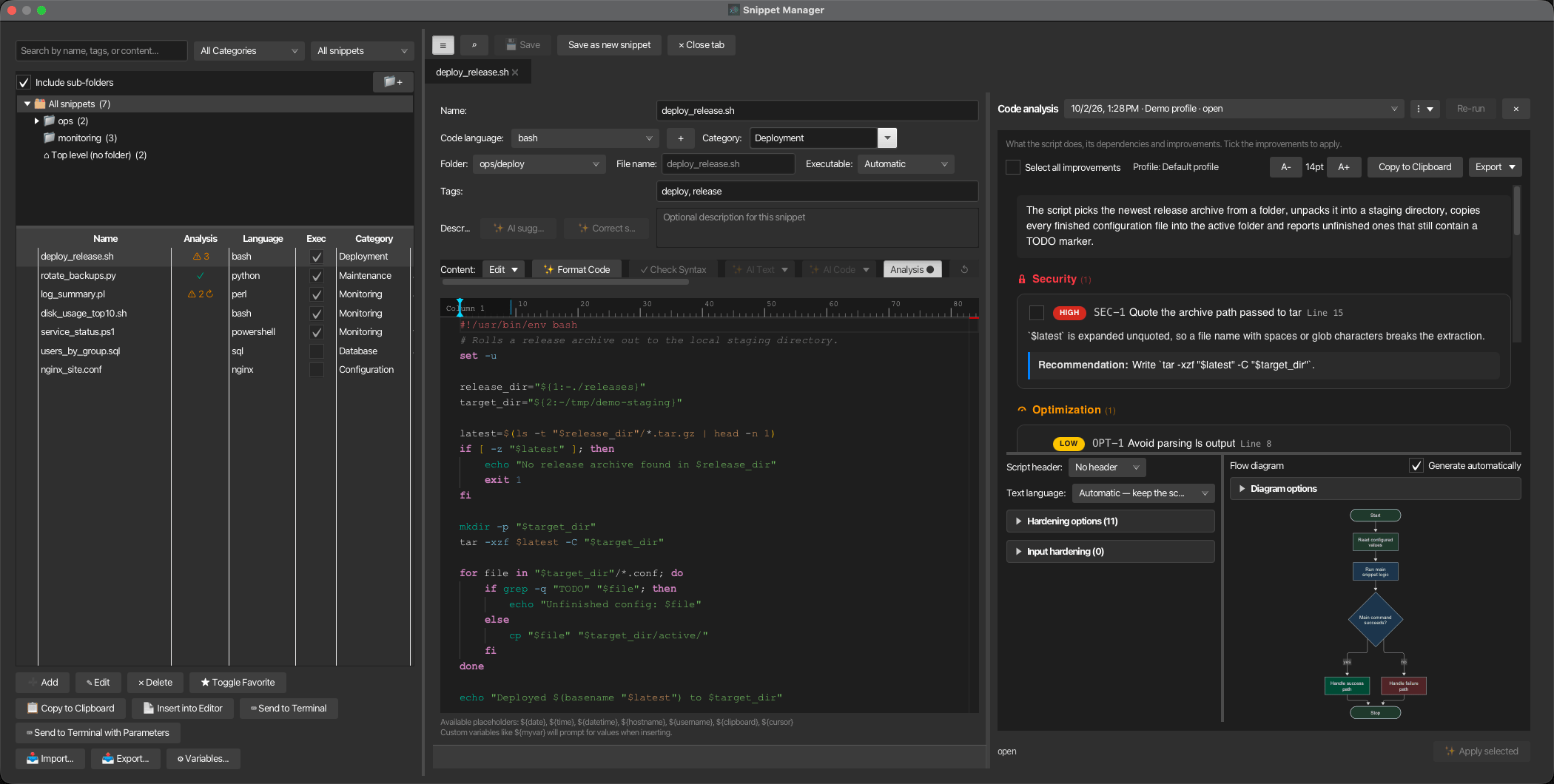
Overview
- Library — Search, category and analysis filters and a sortable snippet table with the actions for inserting, sending, importing and exporting snippets. See The library.
- Editor tabs — A read-only preview for browsing and one editor tab per snippet you edit, with quick open, keyboard shortcuts and tabs that come back the next time. See Browsing and editing.
- Nothing unsaved is lost — Every way of closing asks about unsaved changes, and an editor's unsaved form survives a crash as a draft. See Closing and unsaved changes.
- AI in the editor — AI text and code actions, code completion, and a non-blocking review of every AI change inside the editor; every AI request can be stopped and retried. See AI-assisted editor functions.
- Full code analysis — A stored analysis per snippet in the editor's side panel: apply selected findings in bounded stages, review the result in the editor, verify it, and export before/after reports. See Full code analysis.
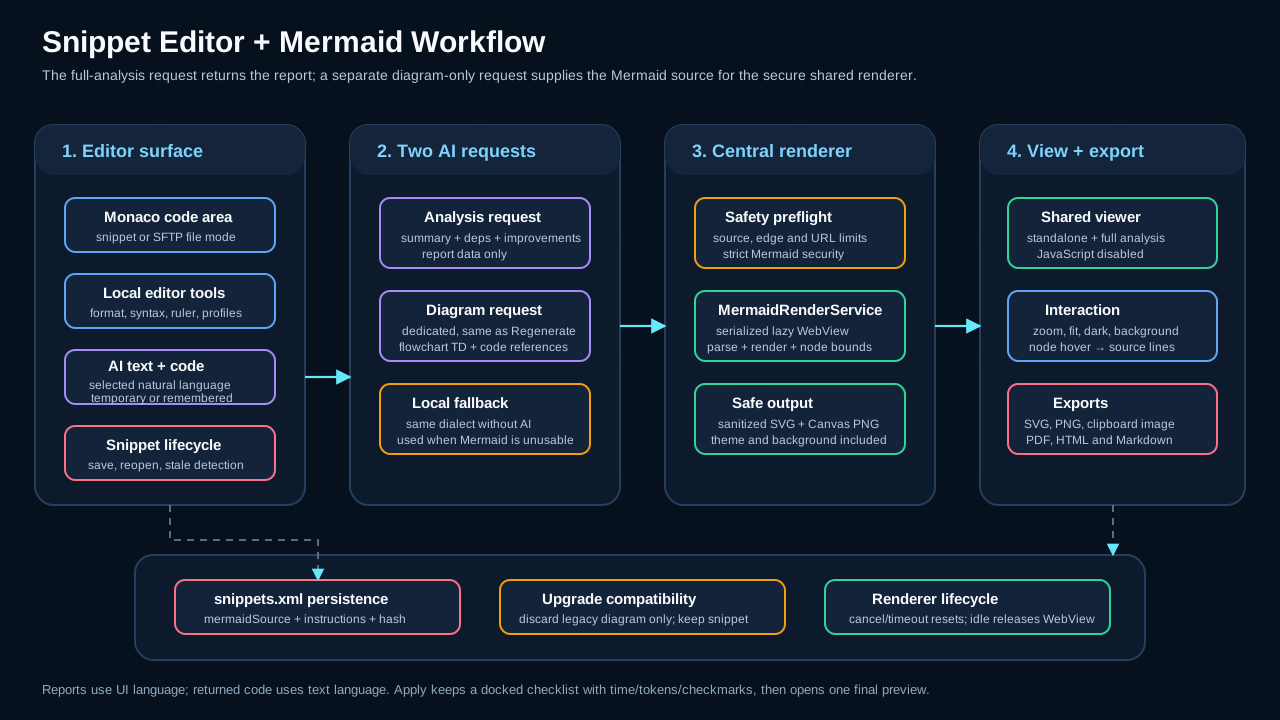
The Snippet Manager workspace
Opening the Snippet Manager
- Menu: Tools → Snippet Manager
- Shortcut: Ctrl+Shift+S (Cmd+Shift+S on macOS)
- Another window: Tools → New Snippet Manager Window
The Snippet Manager is one workspace: the snippet library (search, category filter, the snippet table and its actions) on the left, and the snippets you work on as tabs on the right. It opens as a window of its own, or as a tab when Open tool windows as tabs is on. Opening it again brings the open one to the front (the one you used last) and puts the cursor in the search field.
A Snippet Manager window never blocks the main window: the terminals stay usable while it is open, also while it asks a question or runs a Full code analysis. Tools → New Snippet Manager Window opens a further one — always as a window, also when Open tool windows as tabs is on — so you can keep the main window with its terminals on one screen and one or more Snippet Managers, for example with a running Full code analysis, on another. Each window can be moved, resized and put into full screen on its own screen independently of the main window. Closing a main window closes the Snippet Manager windows opened from it, after asking about unsaved changes as usual.
Opened as a window of its own, the Snippet Manager remembers its size and position, also when korTTY is quit or ends unexpectedly; as a main-window tab it follows the main window.
The library
The library lists every snippet in a table:
- System (OS) column — A sortable operating-system column for each snippet (Any, Linux, macOS, Windows). Auto-set when a snippet is created via Generate Workflow Script.
- Sortable columns — All columns (Name, Analysis, Language, Exec, Category, System, Tags, Lines, Last modified, Used) are sortable.
- Favorites — ★ Toggle Favorite, in the row of buttons below the table and in its right-click menu, marks the selected snippets with a ★ in the first column. The default order lists favorites first, then the snippets you use most.
- Exec column — Whether the snippet is written as an executable file when it is exported or copied to a server. A dimmed checkbox is the automatic value; clicking it sets the flag explicitly, and clicking back to the automatic value returns to Automatic. See Executable flag.
- Analysis column — Shows the state of each snippet's stored Full code analysis at a glance: ⚠ 3 — three findings of the newest analysis are not applied to the saved snippet yet; ◷ — a result waits for your review ("Review later"); ✓ — every finding was applied, or the analysis found nothing to fix; ✎ — an AI result was applied in the editor but the snippet was never saved with it, and korTTY remembers that state (see Applied but not saved); ↻ after the symbol — the snippet changed since that analysis. Hover a cell for the details and the date of the analysis. The column is filled in the background when the Snippet Manager opens and follows every new analysis, apply, discard and save, so even a library with hundreds of snippets opens without waiting. Sorting by it puts pending reviews first, then the snippets with a remembered unsaved result, then the snippets with the most open findings.
- Analysis filter — The drop-down next to the category filter narrows the list to the snippets that need attention: Open findings, Stale analysis or Review pending — an inbox for the decisions you still owe: results you kept for later and applied results you have not saved. All snippets shows everything again. It combines with the search and the category filter.
- Lines and Last modified — Lines shows the number of lines in the snippet, Last modified the date and time of its last change (the creation time for a snippet that was never edited).
- Resizable columns — Every column can be resized by dragging its header border; korTTY remembers the widths across sessions.
- Script-Header category — A fixed, non-deletable category containing reusable header templates for workflow-script generation.
- Deleting — A snippet with unsaved changes in an open editor cannot be deleted; korTTY shows that editor instead. The editor tab of a deleted snippet without unsaved changes closes.
The buttons below the table and its right-click menu insert, copy and send the selected snippet (see Sending snippets to the terminal), import and export snippets (see Import and export), open the Variable Manager and, for several selected snippets, export their stored analyses (see Exporting the reports of several snippets).
An unreadable snippet file is moved aside, not deleted
If snippets.xml cannot be read when korTTY starts, korTTY renames it to snippets.xml.corrupt-<date>-<time> next to the original, continues with an empty list, and says so once the first time you open the Snippet Manager. Restore the moved file or a korTTY backup to get its snippets back. Snippets are always written atomically, so an interrupted save cannot leave a half-written file behind.
Folders
Above the table, a folder tree organises the library. All snippets shows everything, each folder shows its snippets (with Include sub-folders ticked also those of every folder below it), and Top level (no folder) shows the snippets that are in no folder. The number after each entry counts its snippets. Folders are independent of categories: a snippet has one folder and, as before, one category.
- Create — The 📁+ button above the tree, or New folder in the tree's right-click menu, creates a folder below the selected one (at the top level when All snippets is selected). Folder names must be unique within their parent; path separators are replaced.
- Move snippets — Drag one or more selected rows from the table onto a folder. Dropping them on All snippets or Top level (no folder) moves them out of every folder. Move to folder… in the table's right-click menu does the same without the mouse.
- Move folders — Drag a folder onto another folder; a folder cannot be moved into itself or one of its sub-folders.
- Rename and delete — Rename folder (also F2) and Delete folder (also Del) in the tree's right-click menu. Deleting asks whether to Delete folder, keep snippets — its snippets and sub-folders move one level up — or Delete folder and snippets, which asks once more before it deletes them together with their stored analyses.
- Folder actions — The tree's right-click menu also offers Copy folder to terminal directory (see Copying files to the terminal directory), Export folder… (see Exporting a folder), Full code analysis (folder as project) (see Analysing a folder as one project) and Export analysis reports… for every snippet below the folder.
Executable flag
Every snippet has an executable flag that decides the file mode when it is exported or copied to a server: executable files get rwxr-xr-x (755), all others rw-r--r-- (644). Folders are always created as 755.
- Automatic (default) — A file with a script extension (
.sh,.bash,.zsh,.ksh,.py,.pl,.rb,.groovy,.ps1) or a first line starting with#!is executable; everything else is not. - Executable / Not executable — Set explicitly in the editor's Executable field, with the Exec column, or for several snippets at once with Executable flag in the table's right-click menu (which also offers Automatic to reset).
Browsing and editing
- Browse — Click a row, or move through the list with the arrow keys, to show the snippet in the read-only Preview tab. There is only one preview tab; browsing replaces its content and never starts an editor or an AI action.
- Edit — Double-click a row, press Enter in the list, click Edit, or simply start typing in the preview. The snippet then opens in its own editor tab, and the character you typed goes into it. A snippet is open in at most one editor tab, across all main windows; opening it again selects that tab. A snippet that is already open in another main window shows a Go to editor banner in the preview instead.
- Quick open — Ctrl+P (Cmd+P on macOS), or the ⌕ button, opens a search box over the snippet names and tags. The letters you type only have to appear in order (
dplyfindsdeploy.sh); names that start with or contain what you typed rank first. Up / Down choose, Enter opens the snippet in an editor tab, Esc closes the box. Keys the box does not use, such as F5 or Ctrl+D, stay in it and never reach the editor behind it. - Tabs — Tabs with unsaved changes show a dot (●) after the name, a small spinner shows that an AI action is running in that tab. Right-click a tab for Close, Close others, Close all, Show in list and Move to new window, which reopens the snippet — with its analysis panel — in a new Snippet Manager window; unsaved changes and a running AI action are asked about first, as when closing the tab.
- Actions — Save saves the active tab (also Ctrl+S, Cmd+S on macOS), Save as new snippet stores the active tab's form as a new snippet and leaves the original unchanged, Close tab closes it (also Ctrl+W, Cmd+W on macOS) and asks about unsaved changes. The ☰ button (Ctrl+B, Cmd+B on macOS) hides the library so the editor gets the full width, and brings it back. When an editor opens its analysis panel and the code would get narrower than about 640 pixels, the library folds away by itself and comes back when the panel closes; hiding or showing it yourself keeps your choice.
- Picking up where you left off — The editor tabs that were open when the Snippet Manager was last closed, and the active one, open again the next time. Snippets deleted in the meantime are skipped, and at most twelve tabs are reopened.
Closing and unsaved changes
- Closing — Esc never closes the Snippet Manager. Closing it (window close button, Ctrl+Q, or the × of its main-window tab) asks once for everything that is unsaved: the editor's own question for one snippet, or Save all / Discard all / Cancel for several.
- Unsaved changes are never lost silently — Every other way of closing asks the same question before anything closes: Ctrl+W (Cmd+W on macOS) on the Snippet Manager's or a snippet editor's main-window tab, Close all tabs, opening a project, closing the main window and quitting korTTY. Cancel keeps everything open. Quitting also asks snippet editor windows that belong to no main window, for example the one opened from the swarm window.
- A running AI action — Closing the Snippet Manager while an AI action runs in one of its tabs asks first, because closing cancels it.
- Unsaved changes survive a crash — While an editor has unsaved changes, korTTY keeps a draft of its form (name, language, category, tags, description and code) two seconds after the last change in
~/.kortty/snippet-drafts/, readable only by you and not part of the backup. Saving or discarding the changes removes the draft. If korTTY crashed or was killed, opening the snippet again shows Unsaved changes from … were found above the form with Restore and Discard; nothing is applied until you choose Restore, which fills the form and leaves the tab unsaved so you can review before saving. The banner also mentions when the snippet was saved differently since the draft was taken. Drafts of new snippets that were never saved are offered when the Snippet Manager opens (Unsaved new snippets found); Restore opens each one in a new editor tab. This applies to Snippet Manager tabs and to snippet editor windows opened elsewhere, not to editors of files from the SFTP Manager or the local file browser.
Note
Snippets opened from other places — the SFTP Manager, the local file browser, the terminal, the AI chat, the AI agent and the swarm window — open in their own editor window, or in a main-window tab when Open tool windows as tabs is on. A snippet that is open in such an editor is not opened a second time in the Snippet Manager; korTTY brings that editor to the front instead.
Creating and editing snippets
- Click Add in the library for a new snippet (it opens in a new editor tab), or open an existing snippet as described above.
- Fill in the fields:
- Name — A descriptive name.
- Code language — Select the programming language (Bash, Python, Java, JavaScript, TypeScript, SQL, XML, JSON, YAML, and more). Enables syntax highlighting. The add (+) button next to the list adds a language that is not offered yet: type its name once and it is stored and offered in every future snippet editor. A self-added language is used for the AI prompts and the file extension; syntax highlighting falls back to plain text unless korTTY happens to ship a grammar for it.
- Text language — What language AI-written code should use for comments and for messages shown to users, logged, or printed as help. The default, Automatic — keep the script's language, leaves the snippet's own prose alone: korTTY writes new text in the language the script already uses and translates nothing. Picking a language instead is a deliberate instruction to convert the snippet's existing text into it. It is independent of the korTTY interface language. Tick Remember as default to keep the choice for future snippets; otherwise it applies to this editor only.
- Category — Select an existing category or type a new one. The fixed non-deletable Script-Header category contains reusable header templates for generated workflow scripts.
- Folder — The library folder the snippet lives in; Top level (no folder) for none.
- File name — The name the snippet gets as a file when it is exported or copied to a server. Left empty, korTTY derives it from the name and the code language (the field shows that name as a hint), for example
deploywith Bash becomesdeploy.sh. - Executable — Automatic, Executable or Not executable; the tooltip says what Automatic means for this file. See Executable flag.
- System — Optionally select a target operating system (Any, Linux, macOS, Windows). Auto-set when created via Generate Workflow Script based on the agent's probed OS; you can manually override it for any snippet.
- Tags — Comma-separated keywords for searching (e.g.,
docker, deploy, backup). - Description — Optional free-text description of the snippet.
- Content — The snippet code. The editor provides live syntax highlighting based on the selected language.
- Click Save (or press Ctrl+S, Cmd+S on macOS). The tab stays open, and the library row updates in place and stays selected. When editing an existing entry, Save as new snippet stores the current content as a new snippet with a new ID and leaves the original unchanged; the new snippet replaces the original in the tab. If the original has stored code analyses, korTTY asks whether to take them along: Take along gives the new snippet a copy of them, the original keeps its own.
Editor toolbar and features
The snippet editor toolbar provides:
- Format Code — Format the content using local formatters or AI-assisted formatting.
- Check Syntax — Validate the syntax (local or AI-assisted).
- AI Text — Correct spelling, translate, or generate technical descriptions.
- AI Code — Complete code, run a full code analysis, improve a selection (readability, robustness, performance, comments, or a custom instruction), migrate the snippet into a single language, check security, or generate diagrams.
- One-liner — Export as a terminal one-liner.
- Editor zoom — Adjust text size with Ctrl++ and Ctrl+-, also when the editor is a main-window tab or a Snippet Manager tab.
- Editor profiles — Switch between built-in IntelliJ-inspired profiles and custom color schemes.
- Background brightness — Adjust editor background.
- Word Wrap — Toggle line wrapping.
- Line numbers — Toggle line-number display.
When the editor opens from the SFTP Manager for a local or remote file, the same toolbar remains available and the dialog uses file-mode save buttons.
Column ruler and line-width formatting
Above the content field, the column ruler keeps the current caret column fixed at the left as Column N and shows a live marker at the matching editor position. Moving the mouse over the live marker shows Position N. Click the ruler to set a maximum line-length marker (columns 20–240). Right-click that marker to format the content to the selected width or remove the marker.
Line-width formatting works locally only for formatters that support configurable width:
- Prettier-backed web formats (JavaScript, TypeScript, HTML, CSS)
- Python (Black)
- Perl (Perl::Tidy)
For languages without local line-width support, KorTTY asks whether to use AI-assisted formatting. Both local line-width formatting and AI-assisted formatting show a before/after review in the editor area before anything changes; see Reviewing an AI change.
Format Code
Format Code uses KorTTY's shared local formatter service:
- Built-in formatters: JSON, XML, YAML/YML, TOML, INI/properties, Groovy
- Bundled formatters: Java (google-java-format), Bash/shell (shfmt), Web/JS/TS/HTML/CSS (Prettier), SQL (sql-formatter), Perl (Perl::Tidy)
- Fallback: Optional PATH fallbacks for developer setups when a bundled formatter is missing
Prettier runs as its offline Standalone browser build with only the Babel, Estree, TypeScript, HTML and PostCSS plugins; SQL uses the bundled sql-formatter browser build. Both are initialized lazily in an isolated JavaFX WebView and need no installed or packaged Node.js runtime. Requests are serialized and retain the same 15-second timeout, provider display and configurable Prettier line width as the process backend; a failed or timed-out engine is discarded before the next request.
If local formatting is unavailable and the configured AI profile provides snippet AI capability, KorTTY asks whether to use AI assistance. AI formatting is applied only after the before/after preview is accepted.
Editor profiles
Switch between:
- Current custom colors — User-defined palette
- 10 built-in IntelliJ-inspired profiles — Predefined color schemes
- User-created profiles — Custom profiles you create
Profiles store foreground/background colors, syntax colors, cursor color, and cursor style.
AI-assisted editor functions
If AI is configured, the snippet editor offers additional actions:
Stopping and retrying AI requests
Every AI request in the snippet area can be stopped while it runs and repeated afterwards — the AI suggestion, spelling correction, text correction and translation, technical descriptions, every AI Code action (improvements, language migration, code assistant, security check and fixes, AI formatting, AI syntax check, compact one-liner), diagrams, the Full code analysis with its verification and apply runs, and alternative solutions.
- Stop — While a request runs, the editor's hint bar shows what is running, how long it has been running (for example
0:42) and a ■ Stop button. Esc does the same while the focus is anywhere in the editor or its analysis panel; it never closes the editor or the Snippet Manager, and a change review keeps its own Esc handling. The analysis panel repeats the running time and ■ Stop in its banner, the diagram pane shows them under its spinner, and the Alternative solutions window has its own ■ Stop (Esc there stops instead of closing the window). Stopping takes effect at once: korTTY closes the connection to the model — a local llama.cpp or MLX model stops generating when the connection closes — or ends a CLI provider together with every process it started, and whatever the model still answers afterwards is discarded. A stopped request is never stored, never applied and never reported as an error, and the editor is ready for the next action right away. - Retry — After a stop, a failure or a timeout the hint bar turns amber and reads Stopped: … or Failed: … with ↻ Retry and ✕ to dismiss it. Retry runs the same request again with the same input: the same profile, options, instructions and, for actions on a selection, the same selected range — korTTY selects it again for you. If the selected text has changed in the meantime, Retry is disabled and the strip explains why; select the text again and start the action anew. Actions on the whole snippet run on its current content. The analysis panel offers ↻ Retry in a banner for a stopped or failed analysis (the same profile, and for a verification the same compared analysis), the diagram pane offers it in place of the diagram, and the Alternative solutions window repeats the last request with its instructions and profile. A ghost-text completion can be stopped too, but offers no Retry: pausing again or Ctrl+Space asks anew.
- Apply runs — ■ Stop in the progress area (or the hint bar, or Esc) stops an apply of the Full code analysis; the run is recorded as cancelled and its checkpoint is kept, so Continue remaining stages is offered as described under Full code analysis. ↻ Start over repeats the whole run with the same selection, and a run stopped before its first stage finished offers ↻ Retry.
AI suggestions
- AI suggestion — Generates a file name, description, Code language and Text language from the current code content. A detected code language that is not in the list yet is added to it, so the detection is never silently dropped.
- Correct spelling — On the description field; sends only description text to the AI.
Text language
When AI is configured, Text language — directly below Code language in the editor form — chooses what language AI-written code uses for its comments and messages, and which language spelling correction works in.
Its default is Automatic — keep the script's language. korTTY works out which language the snippet's comments and messages are already written in and requires the AI to keep it: existing text is left as it is, and anything new is written to match. A script commented in English stays English even when you run korTTY in German. Identifiers, file paths, commands, options, configuration keys and other code tokens are never touched in either mode.
Selecting a language instead is an explicit instruction to convert the snippet's prose into it — the previous behaviour, now opt-in rather than automatic. A selection-based action applies the contract to its returned selection, a full replacement to the complete script.
When korTTY cannot tell which language a script uses — there is too little text to judge, or the comments mix languages — it asks before changing anything, rather than guessing. Tick Remember for this snippet in that dialog and the question is not asked again for that snippet. Dismissing the dialog cancels the action and leaves the code untouched.
All of this is independent of both the korTTY interface language and the Code language selector, which continues to define the programming language and syntax highlighting. Analysis reports, improvement descriptions and analysis-diagram labels always follow the korTTY interface language.
The list offers korTTY's own interface languages plus any AI-generated language you have added. AI suggestion can also fill it for you: it reads the snippet's comments and its printed output (echo, print, printf, Write-Host and similar) and preselects the language it finds — including a language korTTY has no interface translation for, which is then added to the list. A script without any human-readable text leaves the current choice untouched.
Leave Remember as default unticked for a temporary choice that applies only to the current editor window. Tick it to save the selected language as the default for newly opened snippet editors; this updates the existing Default language for AI text in code setting under AI → AI Manager → General. Other editor windows that are already open keep their own selection.
Spelling correction uses the selected language for grammar and spelling rules without translating the text. Translate selection… keeps its separate target-language dialog and initially selects the current text language. Local formatters and syntax checks are unaffected.
AI Text menu
- Correct spelling in selection — Fix typos in selected text.
- Translate selection… — Translate selected text to another language.
- Technical description — Generate documentation for selected code or the whole snippet.
Optional additional instructions
If enabled in AI → AI Manager → General, the editor shows a shared instructions field sent with spelling correction, translation, and technical description requests.
Last AI change toggle
The ↺ button switches between the original code and the last AI-generated editor change.
AI Code completions
The snippet editor offers two kinds of code completion, both inside the Monaco editor: a completion list you open on demand, and optional ghost text that appears on its own after a typing pause. The keys are listed under Keyboard shortcuts.
- Completion list — Press Shift+Tab with the cursor at the end of a line that has text on it, or Ctrl+Space anywhere in the editor (on macOS that is the physical Ctrl key; because macOS often reserves Ctrl+Space for switching input sources, Cmd+I and Alt+Esc open the list as well). The list opens at once with candidates harvested from the snippet itself — the arrays, hashes, variables and functions that fit the spot, followed by idioms of the language: after
for x inin a Bash script every array comes first, afteruse POSIXin Perl the usualqw(...)import lists. Up / Down move the selection, typing filters the list, Enter or Tab inserts the selected entry, and Esc closes the list. An idiom with placeholders is inserted as a template in which Tab jumps from one placeholder to the next. AI Complete in the AI Code menu and in the editor's context menu opens the same list. Tab still indents, and Shift+Tab anywhere but at the end of a non-empty line still outdents. The combination is yours to choose: Configuration → Global Settings → Snippet Editor has an AI Completion Shortcut field that records whatever you press — one key, or one key with up to three modifiers — and applies it to snippet editors opened afterwards, while Ctrl+Space keeps working; see Snippet Editor settings. - AI candidates — When an AI profile is configured, every list also asks the model for up to five completions. They are marked with a ✦ star, sort after the local entries, and join the open list as they arrive — the local entries are usable in the meantime, and the status line reports the request and how many candidates it added. The list's selection jumps back to its first entry when they arrive. While another AI action of the editor is running, the list shows only the local candidates.
- Auto AI Complete — A toggle in the AI Code menu that turns on ghost text: when you pause for a moment with the cursor at the end of a non-empty line, the model's continuation appears greyed out after the cursor. Tab accepts it, Esc dismisses it, and Alt+] / Alt+[ step through the alternatives (the physical
]and[keys of a US layout, whatever they print on yours). Off by default and remembered only for the current editor session; a data notice asks for your consent once per application start, not once per editor. While a ghost-text request runs, the hint bar shows it with a ■ Stop button; the list's own AI request reports in the status line only. - Language services — For JavaScript, TypeScript, JSON, CSS and HTML, Monaco's own language suggestions appear in the same list beside korTTY's candidates. The first list in such a snippet can take a moment while the language service starts.
A completion request never blocks the editor's other AI actions. Starting one of them — Full code analysis, an improvement, a security check, a diagram — cancels a running completion request, stops the ghost-text timer and hides visible ghost text, so the two cannot overlap. A completion request that has not answered after 30 seconds is abandoned, whatever timeout the profile allows. An accepted AI entry or ghost text counts as an AI change, so the ↺ button switches back to the text before it; local entries are ordinary edits.
AI Code actions
The AI Code menu groups the actions that read or rewrite the code itself:
- AI Complete / Auto AI Complete — AI Complete opens the completion list at the cursor, the same list Shift+Tab opens; Auto AI Complete toggles ghost text after a typing pause (see AI Code completions above).
- Full code analysis — Shows a rich, stored analysis in the editor's side panel: a plain-language summary of what the script does, its external dependencies, categorized improvement suggestions you can tick and apply, and an auto-generated flow diagram. See Full code analysis below.
- Improve readability / robustness / performance — Rewrites the selected code region toward one goal without unrelated changes. Before Improve robustness starts, it displays two optional panels for additional rules: Hardening options, Input hardening. If at least one rule is active, KorTTY rewrites the complete snippet so it can apply global prologue or epilogue changes.
- Optimize code comments — Comments the selected code region: the AI inserts explanations of what the code does and why directly above or beside the lines they belong to, using the language's own comment syntax, and replaces outdated or misleading comments. Executable code stays untouched. The comments are written in the editor's Text language. Available from the AI Code menu and from the editor's right-click menu on a selection.
- Custom improvement… — Rewrites the selected code region following a free-text instruction you type. It displays the same two optional rule panels: Hardening options, Input hardening. As with Improve robustness, KorTTY rewrites the complete snippet when any hardening rule is active.
- Migrate into one language… — Rewrites a mixed-language snippet so that all of it is written in one target language. KorTTY detects the mix locally and only offers what actually applies; an orchestration format (Azure DevOps pipeline, GitHub Actions, Jenkinsfile, Ansible, …) embeds shell by design and is therefore never migrated as a whole — only its script steps can be unified, and a platform conversion is offered but never preselected. See Language unification.
- Security Check — Generates a security report. Select findings to fix; KorTTY applies them with a before/after preview that highlights what changed and why. See Security Check below.
- Diagram — Opens the snippet's saved diagrams, or generates the first logical-structure flowchart when none exists yet. A snippet can store several diagrams across five families — logical structure, sequence, state, class, and ER. See Mermaid diagrams below.
The editor context menu also offers AI Assistant…, which opens an instruction dialog for the current cursor position: KorTTY sends the full snippet, cursor offset, line, column, and your instruction to the configured AI profile and shows the result as a before/after preview.
The context menu additionally has a Generate diagram submenu listing the five diagram families. With a code selection its label switches to Generate diagram from selection and the chosen family diagrams only the selected lines — the selection is snapped to whole lines and the resulting diagram remembers its line range. Without a selection the whole snippet is diagrammed. Every generated diagram is added to the snippet's saved diagrams; see Mermaid diagrams.
Readability, performance, comment optimization, and a custom improvement rewrite only the selected region when both hardening panels have no selected rules, so select a code region first. Improve robustness and Custom improvement instead rewrite the complete snippet whenever a classic hardening option or supported Input hardening guard is active, because those rules may need the prologue and epilogue. Every result is reviewed in the editor area before anything is applied (see Reviewing an AI change); an incomplete full-script response with an omission marker is refused.
Warning
Snippet AI actions send the current snippet content, selection or cursor metadata, and prompt instructions to the configured default AI profile (or, for Security Check, the dedicated security-check profile). Eligible actions can additionally send enabled, configurable AI Skills; the source-only diagram request sends no configurable library skill and instead always carries korTTY's compact built-in action skill for the chosen diagram family. Snippet AI actions do not enable internet tools, even when the selected profile has internet access. Code completion is more restrained: the local candidates in the completion list are computed by korTTY itself and never leave the machine, and an AI completion request sends only the code around the cursor — up to 6,000 characters before it and 1,500 after it — together with the names of the snippet's arrays, variables and functions, rather than the whole snippet. Completion requests skip knowledge stores; locally matched AI Skills still apply. Auto AI Complete repeats that request after every typing pause while it is on, so leave it off for sensitive snippets unless you trust the configured endpoint.
Reviewing an AI change
Improvements, Migrate into one language…, AI Assistant…, security fixes, AI-assisted formatting and line-width formatting never open a window of their own for their result. The review replaces the editor area, exactly like the review of a Full code analysis run: the action's name on top, its summary, the original and the rewritten code side by side with the changed lines highlighted, and Reject / Accept & apply at the bottom (++shortcut+enter++ accepts; Esc does nothing there, so it cannot close the editor by accident). Nothing waits in a blocking dialog, so terminal sessions, other snippet editor tabs and their reviews all stay usable while you read the diff.
- Only unchanged content is replaced — The editor stays editable while the AI works. If you changed the snippet before the result arrived, Accept & apply is disabled, because it would overwrite your edits. Run again on the current content repeats the AI action on what the editor holds now. It is offered when the action worked on the whole snippet; for a selection, select the region again and restart the action, and for line-width formatting simply format again.
- One review at a time — While a change waits for your decision, the other AI actions in that editor are disabled, so a second result can never replace the one you are looking at. A result that still arrives meanwhile — for example a stored Full code analysis review you reopen from the panel — waits in line and appears as soon as the current review is decided.
- Re-run with another profile — Where the action supports it, the review's toolbar has the transient AI-profile picker and Re-run; the current review is discarded and the action runs again.
- Undo — After Accept & apply, the ↺ button switches between the code before and after the accepted change (see Last AI change toggle).
The result windows that do not rewrite the code — the Security Check report, the technical description, the alternative solutions, the AI syntax check and the editor-profile dialog — open beside the editor without blocking it or the rest of korTTY. Each kind is open at most once per editor — a new result replaces the older window, and Alternative solution brings its open dialog to the front — and closes together with its editor.
Security Check
The Security Check report window lists each finding with a colour-coded severity badge (findings are sorted most-severe first). From this window you can:
- Adjust the reading font size with A− / A+ (remembered across sessions).
- Copy all findings to the clipboard.
- Select all findings at once, then apply the selected fixes.
- Choose a dedicated Security profile — the AI profile used for security checks. The choice is remembered permanently and is also available in Configuration → Global Settings → AI; leave it on Use default profile to reuse the default. Changing it takes effect immediately.
- Re-run check to repeat the review with the newly selected profile.
The report window does not block the editor or korTTY; Apply selected closes it and starts the fixes. The fixed code is then reviewed in the editor area (see Reviewing an AI change), with the original and corrected code side by side. Changed lines are highlighted automatically and carry a marker in the margin. Hover anywhere in a changed block to see which finding(s) it addresses — for example S1, or S1 + S2 when one block covers two findings — together with the reason for the change. Hover matching tolerates re-indented or case-shifted lines, and a reason whose anchor line cannot be found at all is attached to the remaining changed blocks in order, so explanations no longer go missing from the diff. The same explanations are also listed as cards below the diff: each card carries the finding's badge and colour-coded category icon (the same icons as the analysis sections) plus the line range it affects on the corrected side (for example Lines 23–40), so the reasoning stays visible even when a marker cannot be placed. A Highlight picker below the diff narrows the review to a single finding: pick SEC-1, a hardening requirement, or any other listed id and only that finding's places keep their marker and get a coloured line background, while every other changed block is muted to a neutral tint. The review scrolls to the first place and the explanation cards below shrink to that finding. The ◀ / ▶ buttons beside the picker walk the list one finding at a time — from All changes they enter it at either end, and the ends wrap into each other — so a report can be worked through without opening the dropdown for every step. All changes restores the full colouring. The picker appears once at least two findings carry a reason. Muted blocks stay visible and keep their change markers — the review is the approval step before the editor is touched, so a real change is never made invisible. The summary at the top of the review scrolls inside its own pane and sits above a draggable divider: a staged apply's summary runs to one paragraph per stage, and the divider decides how much of the review it may use. The divider position is remembered once you move it yourself — until then it follows the summary's own height, so a one-line summary never claims the room a multi-paragraph one needs. Accept & apply only replaces content that is unchanged since the fixes were requested; otherwise it stays disabled and Run again on the current content repeats the fixes. The preview font size can be zoomed and is remembered across sessions. The same review (and its explanation cards) is used when applying Full code analysis improvements.
AI profile, re-run and zoom
The Full code analysis panel and the AI-code report windows (Security Check, the technical-description and alternative-solution dialogs, and the change review) share a small toolbar:
- AI profile — Pick a different AI profile for the next run. The choice is transient: it resets to the default profile when the window or panel is opened again. (Security Check keeps its own permanently remembered Security profile instead.)
- Re-run — Repeat the request with the currently selected profile.
- A− / A+ — Adjust the reading or preview font size; the chosen size is remembered across sessions, separately per window type.
- Copy — Copy the report or content to the clipboard.
AI skills
When AI Skills are configured, the snippet editor shows an AI skills picker. Skills relevant to the snippet's language are pre-selected automatically, and any skill you tick here is applied to skill-relevant AI-code actions such as completion, analysis, improvement and security checks regardless of the skill's configured target. The fixed-contract Diagram action intentionally omits those configurable library skills to keep the source-grounded request small and predictable; korTTY always supplies its separate compact action skill for the requested diagram family, which is internal and therefore does not appear in the picker or count toward the 39 configurable built-in AI Skills. The picker appears only when at least one configurable AI Skill is enabled.
The Full code analysis panel surfaces this same selection as a row of chips — labelled (auto-selected) or (manual) — and lets you refine it just for that analysis through a searchable picker. Changes made there apply after you next click Re-run. See Full code analysis.
Text correction and translation
For selection-based text correction and translation, KorTTY only rewrites editable comment text, string literals, and user-facing text segments. A selection may begin or end inside such a segment: KorTTY uses the surrounding snippet to recognize the selected words and replaces only the overlapping text. It does not rewrite logical code structure.
Technical descriptions
- If text is selected, the AI describes only that region.
- If nothing is selected, the AI describes the whole snippet.
The description dialog lets you:
- Copy the generated description
- Format it with the comment syntax of the current snippet language
- Insert it into the snippet above the selected code or at the top
The dialog does not block the editor. If you changed the snippet while it was open, inserting at the originally computed line could land in the wrong place, so the description is copied to the clipboard instead and the status line says so.
Alternative solutions
Right-click a selected code region and choose Alternative solution to:
- Request multiple alternative implementations (up to the configured limit)
- Add a 3-line field for additional instructions
- Reload and regenerate new alternatives
- Stop a running request with ■ Stop or Esc, and repeat it with ↻ Retry
- Zoom an individual preview to the full dialog area
- Apply exactly the originally selected code when ready
The dialog does not block the editor; opening Alternative solution again brings the open dialog to the front. Apply replaces the original selection only while the snippet is unchanged — otherwise the chosen solution is copied to the clipboard instead.
Full code analysis
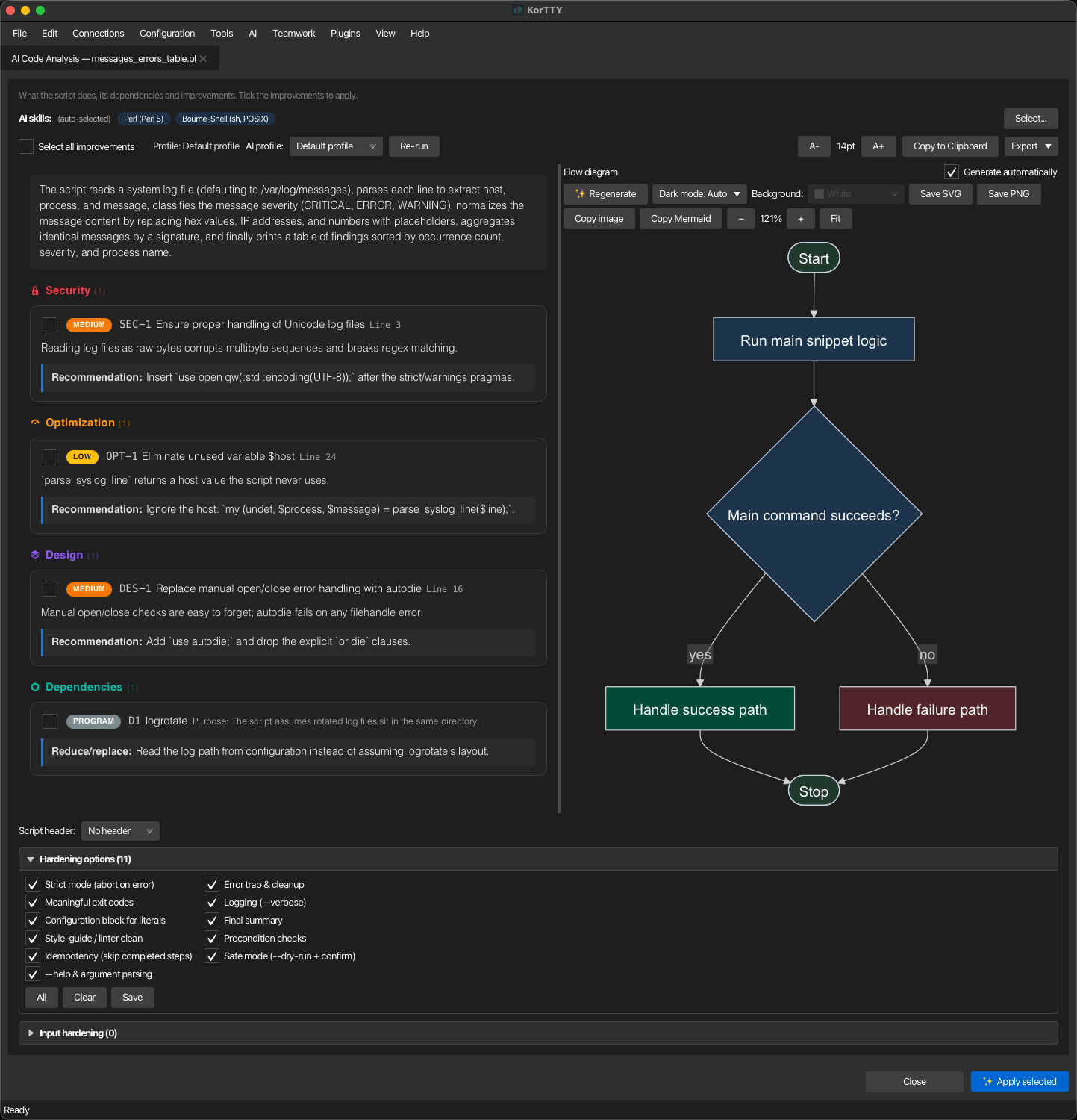
Full code analysis examines the whole snippet at once and offers concrete improvements you can apply. The result appears in the analysis panel, a side panel inside the snippet editor itself — no separate window opens, in the snippet workspace's editor tabs and in every standalone editor alike. Show or hide it with the Analysis button in the editor's content toolbar or AI Code → Show/hide analysis panel; the button carries a badge: ● when a stored analysis exists, ⚠ when the snippet changed since that analysis, and ⏳ while an analysis or an apply runs (also while the panel is hidden). Drag the divider to resize the panel; korTTY remembers its width and whether you left it open, and a standalone editor window grows once by the panel's width when the screen has room. Hiding the panel never cancels anything: a running apply keeps going and its progress shows in the editor's hint bar and on the badge.
Choosing the AI profile before the analysis starts
With more than one AI profile configured, AI Code → Full code analysis (and the same entry in the editor's context menu) does not send anything yet: it opens the analysis panel on a New analysis area, so you can see and choose the profile first. It offers the AI profile picker with every configured profile (the default profile is marked (default), and each entry's tooltip shows its connection type and model), the AI skills the analysis will include (the same chips and picker as in the result), a note when the editor has Additional instructions switched on, and a Start analysis button. Enter starts the analysis like the button. When an analysis already exists, the same area appears above the stored result with Back to result to leave it without starting.
- Remembered choice — The profile you start with is remembered per user and preselected the next time. If it has been deleted since, the default profile is preselected instead.
- One click with a profile — AI Code → Full code analysis with profile ▸ (and the same submenu in the context menu) lists the profiles and starts the analysis at once with the one you pick, without opening the New analysis area. That profile becomes the remembered one, too.
- One profile only — Without a choice to make, nothing changes: the plain entry starts the analysis immediately, the panel names the profile in use, and the submenu is not shown. The entries stay disabled, with their usual tooltip, when a policy turns AI off or no AI profile is configured.
- Propose modularization — With this option ticked, the analysis also asks the AI whether the code should be split into files. See Modularization.
- Same profile everywhere — The profile you chose is used for the analysis request, its flow diagram, Apply selected, Retry after a stop or failure and Verify; the panel's Profile: indicator, the history entry and the editor's hint bar (Reviewing code with …) name it. Re-run in the result still lets you switch the profile for the next run.
The analysis is told the snippet's file name and whether it is written as an executable file, and checks that its shebang line and the executable flag fit how the file is used. Right-click a snippet in the library and choose Full code analysis to open it in an editor tab and start the analysis there.
Stored script text
Besides the findings, a stored analysis keeps the script text it worked on: the analysed script, the text an apply started from, the proposed result and the accepted text (identical copies are stored once). That text is what powers the code preview and View changes of older entries, the plain-text script export, the excerpts and the appendix of the reports, Restore intermediate state and resuming an interrupted apply after a restart. Each copy is stored completely up to 1 MB (measured in bytes of UTF-8) by default. You can raise that up to 5 MB, or switch it Off, under Stored script size per analysis in the Snippet Editor settings; an administrator can cap it or forbid it with the enterprise policy.
A script larger than the limit is analysed like any other, and its findings, summary, diagram and reports are stored — only its text is not, and it is never cut in half. The panel then says so where the text would have been used (for example when View changes has nothing to show), together with the limit in force or the note that the organization does not allow storing script text. The immediate review of an apply result in the editor does not depend on storage. Lowering the limit deletes nothing: text that is already stored stays, and the new limit applies from the next analysis on. To keep one file from growing without bound, the text of the oldest analyses is dropped first when a snippet's stored text would exceed 30 MB; pinned analyses, results waiting for review, interrupted applies and remembered unsaved results keep theirs as long as possible.
Large scripts stay cheap to handle: the library's Analysis column and the status of every snippet are read without loading any script text, and only a few unused histories are kept in memory. The change preview of a very large script falls back gracefully — when the two versions differ in too many places to line up, the reports show the line counts instead of a diff.
Stored results and history
Every result is stored. The analysis is saved with the snippet the moment it arrives — independently of the editor's own Save or Cancel — together with the flow diagram once it is generated, the findings and options you tick, every apply run and every export. Close the editor, the workspace or korTTY itself and open the snippet again: the stored analysis, its diagram and your selection come back without any new AI request. Up to five analyses per snippet are kept by default (the newest is current); the number is set under Stored analyses per snippet in the Snippet Editor settings. When the snippet has changed since the shown analysis, a banner says so. A new, never-saved snippet keeps its analysis in memory until you save it (the panel says Not stored permanently yet), and analyses of external files and policy-managed snippets are kept only while their editor is open. Viewing and exporting always work; Re-run and Apply selected need AI, so they are disabled when a policy turns AI off or no AI profile is configured.
The analyses are kept in ~/.kortty/snippet-analyses/, one file per snippet. They are part of the configuration backup; restoring a backup adds missing analyses and never deletes local ones, and with Overwrite replaces a local file only when the backup's copy is newer.
History, pinning and discarding
The history list at the top of the panel lists every stored analysis of the snippet, newest first, as date · AI profile · status · tokens · duration (tokens and duration only when the provider reported them); a 📌 marks a pinned analysis. Picking an older entry only changes what the panel shows — the newest analysis stays the current one, and Show current in the banner returns to it. Everything in the panel follows the entry you pick, not just the report: its findings, the options and findings you had ticked, the applied marks and verification chips, the flow diagram, the banners (waiting review, stale, applied but not saved), the progress or result of its apply run, and Export. Every analysis has its own stored flow diagram; an entry without one says so and Regenerate creates it from that analysis' source code and stores it with that entry — even if you have moved to another entry meanwhile — never from whatever the editor holds now. An open enlarged diagram window follows the entry and closes when the entry has no diagram. A new analysis arriving while you look at an older entry does not move you; picking the newest entry follows the current one again.
The change review belongs to its entry too: while a review is open in the editor area and you pick another entry, the review goes back to the panel and stays waiting for review under its own entry (Review changes opens it again), so no preview of one analysis ever stays on screen under another entry's name. For an entry whose result was already decided, View changes in the run's area shows the stored before/after diff with the per-change reasons, read-only. Accepting a result under an older entry still requires the editor to hold exactly the content that result was made for; otherwise Accept is disabled and Re-plan on current content is offered.
The ⋯ menu next to the history list acts on the analysis shown:
- Pin this analysis / Unpin this analysis — A pinned analysis is never removed automatically, however many newer analyses arrive.
- Discard this analysis… — Removes this one analysis, for example a failed or pointless run.
- Delete all analyses of this snippet… — Removes the whole history; the snippet itself stays unchanged.
Discarding and deleting ask first in a strip at the top of the panel (Discard / Delete all or Cancel) instead of a dialog, and cannot be undone. Old analyses are otherwise only removed when a new analysis of the snippet arrives and the history is over the limit: the oldest ones go first, while pinned analyses and analyses with a result waiting for review or an interrupted apply are always kept.
Reading the report
A toolbar runs along the top of the panel and the report fills its upper part. Below the report, the script-header selector, the text language and the collapsible Hardening options, Input hardening and Code language panels are stacked on the left, and the flow diagram sits beside them on the right; both dividers can be dragged. The report area scrolls when the panel is short, while Apply selected stays in the panel's footer. Re-run never closes anything: the current result stays visible with a re-running banner until the new one arrives, which then becomes the current analysis while the old one stays in the history.
Toolbar
- Select all improvements — The first control at the far left ticks or unticks all Security, Optimization and Design improvements at once. Extra spacing clearly separates this bulk action from the following Profile: indicator. This control never changes any dependency selection.
- Profile in use — The name of the AI profile the analysis ran with is shown beside this checkbox (for the default profile its actual name is shown, e.g. Profile: LM Studio — not just "Default profile"), so you can always tell which model produced the report.
- AI skills — When AI Skills are configured, a row shows which skills were included and lets you change them; see AI skills for this analysis below.
- Re-run — A transient AI-profile picker plus a Re-run button repeat the analysis with the chosen profile and your current AI-skill selection. The picker resets to the default when the panel is rebuilt.
- A− / A+ — Adjust the reading font size (remembered across sessions).
- Copy — Copy the summary, improvements and dependencies to the clipboard as plain text.
- Export — Save the whole report (including the diagram) as a file; see Export the report below.
Report — analysis and improvements
- Summary — A short, plain-language description of what the script does. It is a description, not a pickable item, so it is shown as a plain block without a selection accent.
- Improvements — Suggestions grouped into Security, Optimization and Design sections. Each section title carries a colour-coded icon and a count — a padlock for Security, a gauge for Optimization, stacked layers for Design, and a module hexagon for Dependencies — and each suggestion has a severity badge, an explanation, and a concrete recommendation. Tick the ones you want; use Select all improvements to toggle every improvement at once. Empty sections are hidden.
- Dependencies — External programs, scripts or services the snippet relies on, each with its Purpose and a Reduce/replace suggestion. Tick each dependency independently to have its suggestion applied too; Select all improvements leaves these checkboxes unchanged.
Below the report — flow diagram
- An auto-generated Mermaid flowchart from a dedicated diagram-only request renders while a spinner is shown, then fills the pane. The diagram toolbar sits in a Diagram options panel above it that starts collapsed, so the diagram gets the room; korTTY remembers whether you left it open. The toolbar offers: zoom − / slider / + / Fit, Save SVG / Save PNG, Copy image / Copy Mermaid, a Dark mode control and a Background colour picker (both remembered), and Regenerate. Regenerate deliberately sends one new dedicated source-only diagram request using the profile of the shown analysis; configurable AI Skills and knowledge-store excerpts remain reserved for the analysis request, while the required built-in Mermaid action skill is always included. See Diagram appearance below.
- Orientation — The toolbar's Orientation control draws the flowchart top to bottom (Vertical) or left to right (Horizontal) and is remembered like the other view controls. See Diagram appearance.
- Hover code references — Moving the mouse over a diagram node shows the matching lines from the snippet, so you can trace each step back to the code — the same behaviour as the standalone Diagram window.
- Zoom window — Click the rendered diagram, or the ⤢ Enlarge button in its toolbar, to open it in a separate, resizable window that does not block the editor. It shows the same diagram large, with the zoom controls plus 100 % (the diagram's natural size), Ctrl++ / Ctrl+- to zoom, Ctrl+0 to fit, Ctrl+1 for 100 % (Cmd on macOS), Ctrl + mouse wheel, and panning by dragging or with the scroll bars. Clicking a node there selects its lines in the editor. The window re-renders the diagram from its stored Mermaid source — the AI is never asked again. Each editor has one zoom window: opening it again brings it to the front, it remembers its size and position, and it closes together with its editor.
- Generate automatically — A checkbox in the pane's header controls whether the diagram request starts on its own when an analysis without a stored diagram is shown. Untick it to skip the automatic AI request entirely — the pane then shows a hint instead, and Regenerate remains the manual way to request the diagram. Ticking the box while the panel is open fetches the diagram immediately. A stored diagram is always shown as it is, never regenerated behind your back. The choice is remembered across sessions (default: on) and does not affect the standalone Diagram window, which renders saved diagrams without an AI request.
AI skills for this analysis
When AI Skills are configured, a row at the top of the panel shows exactly which skills were included in the analysis, as chips, with an (auto-selected) or (manual) badge:
- Auto-selected — korTTY pre-selects the skills relevant to the snippet by matching each skill's tags, name and description against the snippet's language and content, and includes at most the two highest-scoring ordinary matches in the analysis. Explicitly pinned or connection-assigned skills remain outside that automatic limit. This is why the badge reads (auto-selected) on the first run.
- Manual selection — Click Select… to open a searchable picker: type in the search field to filter your saved skills by name, description or tags, then tick or untick the skills you want. As soon as you change the set, the badge switches to (manual) and korTTY keeps your choice instead of auto-selecting.
Changing the skills does not re-analyse immediately — the new set is applied to the report request on the next Re-run. That explicit snippet selection, together with any skills assigned to the active connection, is used as an allowlist: korTTY does not run global relevance detection again or append other skills. Skills you include here are sent to the analysis regardless of each skill's configured target; the separate diagram request intentionally omits those configurable skills and always uses its own immutable Mermaid action skill instead. The row appears only when at least one configurable AI Skill is enabled.
Hardening options
At the bottom, a collapsible Hardening options panel lets you attach production-quality techniques (strict mode, error traps, meaningful exit codes, logging, idempotency, --dry-run, --help, and more) to the fixes that get applied. The panel title includes the number of currently ticked options — for example Hardening options (11) — and korTTY remembers whether you left the panel open or closed and restores that state the next time the panel opens. See Hardening options for what each option means and how it is applied.
Input hardening
Below it, a second collapsible Input hardening panel asks the AI to build an input-validation guard block into the script when the fixes are applied: parameter allowlists and length limits, file format checks, a maximum input-file size controlled by an adjustable MAX_FILE_SIZE variable, security warnings in the script's own log, and a FORCE=1 / --force override. The size check uses metadata before file content is read, and 0 means unlimited. It is strictly opt-in — the master check box starts unticked — and its title counts only the sub-options that are effectively active. The panel is disabled for YAML/YML/Ansible snippets because a script-level guard does not apply to these declarative formats. See Input hardening for the full guard contract.
Script header
A Script header selector lets you prepend one of your saved Script-Header snippets (from the fixed Script-Header category) to the code when you apply the analysis. Pick a header — or leave it on No header (the default) — and its content, with variables substituted, is inserted at the top of the snippet, after an existing shebang / lead line, as part of the same change.
Applying the selected improvements
When you click Apply selected, korTTY first settles the Text language question (if the snippet's language cannot be detected, you are asked before anything starts), then processes the ticked improvements, dependency suggestions and hardening options as an atomic sequence on the AI profile that produced the analysis. When the snippet changed since the analysis, a banner first asks whether to Re-run first or Apply to current content. The progress appears in the AI processing column at the editor's right edge, directly beside the analysis panel, so the report keeps the whole panel; a standalone editor window grows once by the column's width when the screen has room. The AI processing switch in the panel's footer moves the progress to the bottom of the analysis panel and back into the column, and ✕ in the column's header does the same; neither stops the run, and korTTY remembers the choice for the next run. Hiding the analysis panel hides the column with it. Two independent progress bars at the top track Improvements and Code hardening, followed by elapsed wall-clock time and cumulative token usage reported by the provider; when a provider supplies no usage data, the value is explicitly shown as not reported rather than estimated. The checklist lists improvements first, then classic and Input-hardening requirements. Each analyzed improvement or dependency row places the report's matching colour-coded category icon directly after its ID. Descriptions in this compact checklist are limited to three lines with an ellipsis. The complete descriptions remain visible in the analysis report above it. The checklist no longer repeats category or severity text on the right; severity remains available in the analysis report, while hardening requirements need no redundant category label because they are already grouped under Code hardening. Pending entries use a neutral marker, all entries in the active provider batch are highlighted as running, a repair attempt is marked separately, each completed entry receives a green checkmark on its right, and the failed entry is marked if the sequence stops. If every entry completed and only the final verification rejected the combined result, the header names that instead of pointing at a marked entry. A ■ Stop button stops the run (so do Esc and the hint bar's ■ Stop). When the run ends — completed, failed or cancelled — the progress stays where it is shown, in the column or in the panel, with a run summary: the final duration, the token usage split into prompt, completion and total, the AI profile the run used, how many work items completed, and the number of repair attempts if there were any. Copy summary puts the same figures on the clipboard. Closing the editor mid-run stops the run and records it as interrupted; after a failure the report stays in the panel so you can inspect the stopped step and retry the selection.
In the panel, the progress area takes the height its checklist needs, up to about 60 % of the panel; the report above gives way first, and beyond that the checklist scrolls. The checklist keeps a minimum visible height even in a short panel. The finished summary scrolls below its work items, and progress content stays inside the panel so the dialog’s Close button remains clickable.
Reviewing the result: a fully completed sequence replaces the editor area with the review — the original and the rewritten script side by side, with changed lines highlighted and per-change reasons — until you decide with Accept & apply, Reject or Review later (++shortcut+enter++ accepts; Esc does nothing there, so it cannot close the editor by accident). The editor text changes only on Accept & apply, and only when it still holds exactly the content the run started from; if you edited the snippet in the meantime, Accept is disabled and Re-plan on current content starts a fresh apply of the same selection instead. Review later gives the editor area back and keeps the result stored: the panel shows A result is waiting for your review with Review changes, also after closing the editor or restarting korTTY. Accepted findings are marked ✓ Applied in the report; until you save the snippet, the analysis counts as accepted, not saved.
Applied but not saved
When you accept a result, korTTY stores the exact text the editor holds right after Accept & apply (script header included) with that apply run. If you then close the tab, the Snippet Manager or korTTY without saving, that intermediate state is not lost: the next time you open the snippet the panel shows Applied intermediate state from … is not saved with Restore intermediate state, which puts the remembered text back into the editor like an AI change (the ↺ toggle and undo work). If the editor holds other unsaved edits by then, an inline question asks whether to Replace them or Keep my edits. The history list marks such entries with ✎ intermediate state not saved, and the library's analysis column with ✎. The state is remembered until you save the snippet with exactly that text (also via Save as new snippet — the new snippet then counts as saved, the original keeps its own remembered state) or delete the analysis (Discard this analysis… or Delete all analyses…); automatic trimming of old analyses never removes an analysis that holds such a state. A recovered draft that offers the same text is not announced twice. For an accepted run the stored diff stays available with View changes, and reports after applying export it as before. The remembered text is capped like the other stored content (256 KiB per text); beyond that only the hash is kept and the offer is not shown.
If a stage's response stream is dropped mid-answer by the connection, korTTY retries that stage once automatically — distinct from the fragment-repair attempt below — before giving up. If a stage still fails, is cut off or returns an incomplete replacement — or you stop the run with ■ Stop — before the first stage has completed, korTTY discards the sequence, leaves the editor unchanged and offers ↻ Retry, which runs the same selection again. After at least one completed stage, the progress area shows an inline recovery offer instead of a prompt: Continue remaining stages resumes the run at the aborted stage and repeats it while keeping the completed stages' work — the checklist starts with those stages already checked off, and the final cumulative verification still covers the whole selection; Preview partial result opens the completed stages' combined rewrite in the review — each completed stage's requirements were already verified when that stage finished, and only the final cumulative re-check is skipped, because requirements of stages that never ran are missing by definition, while the degenerate-replacement guard still applies; ↻ Start over runs the whole selection again from the first stage; Discard hides the offer. If a resumed run aborts again, the offer reappears with the newer state. When every stage completed and only the final cumulative verification failed, the offer omits the resume choice, since re-running zero remaining stages would fail identically. A run interrupted by closing the editor keeps its partial result, so Preview partial result is offered again when the snippet is reopened. Continue remaining stages is offered then too — also after restarting korTTY — as long as the editor still holds exactly the content the run started from: korTTY rebuilds the run from what it stored (the ticked findings, your additional instructions, the hardening rules, the text language and the language or platform target) and continues after the last completed stage. If the code changed since, the offer says so and only the partial preview remains; if the rebuilt plan no longer has the stored number of stages, the offer reads Cannot resume and you apply again to re-plan.
At most one repair attempt is also allowed when a complete response fails to confirm every mandatory identifier and required literal. korTTY uses that complete returned script as the repair input, names the identifiers that still need verification or implementation, and asks the model to preserve every other change. If the repair answer fails again, the localized status names the still-missing requirements — each identifier with the rule it stands for, so the option to reconsider is obvious — and the editor remains unchanged.
Verifying the applied changes
Once you accepted changes from an analysis, Verify appears next to Apply selected. It analyses the editor's current content again with the same AI profile and compares the new result with the analysis you applied. The new analysis becomes the current one and shows a banner — n resolved · n still open · n new — while its findings carry chips: Still open (was SEC-1) for a finding that matches one of the verified analysis, New for one that did not exist before. The collapsible Resolved list above the findings names the findings that are gone. The comparison is a heuristic: AI finding ids change between runs, so findings are matched by category and by the similarity of their title and text. When the verified analysis describes exactly what you accepted, the after-apply report of that run contains the same comparison as its Verification section.
Exporting the report
The Export menu in the analysis panel saves the stored analysis as a self-contained report. Every export is built from what korTTY stored — the findings, your selection, the diagram and every apply run — so a result reopened days later exports without a new AI request, and switching snippets or editing while the export runs does not change it. The outcome is reported in a line above the report with Open and Show in folder, and every successful export is recorded with the stored analysis.
- Before applying — The analysis as it stands: summary, findings grouped into Security, Optimization and Design (most severe first), dependencies, the flow diagram, and which findings are ticked for applying. Each finding carries its ID, its severity and the analysed code around its line.
- After applying — One report per apply run (with several runs, pick the run: newest first, with date and outcome). It adds the run's outcome (accepted, partially applied, proposed and still awaiting review, rejected, failed), the AI profile, duration, token usage, retries, work items and hardening options, a status for every finding (applied, not selected, not reached, unconfirmed, rejected, failed), the AI's reason for each change, and the changes to the script as a coloured diff. When a later analysis of the applied code exists, a Verification section lists which findings were resolved, which are still present and which are new — matched by title and text similarity, so treat it as a guide. The entry is disabled until the analysis has an apply run.
- Append the full script to the report — Off by default, so a long script does not bloat the PDF. When switched on, the report appends the analysed script (before applying) or the resulting script (after applying). The choice is remembered, as is the folder of the last export.
- Analysed script as plain text… / Final script as plain text… — Saves just the script, unchanged, as its own file. The name keeps the snippet's extension (for example
deploy.final.sh). The final script is offered per apply run; the entry is disabled when the text was not stored.
Each report is available in four formats:
- PDF — A paginated A4 document: a cover with the script name, the analysis, apply and export times, key figures, a findings-by-category-and-severity chart and a linked table of contents, then one card per finding. Bookmarks mirror the sections and findings. The flow diagram is always drawn light on white at twice the resolution, on a landscape page when it is wide and split across pages when it is tall; if it cannot be drawn, the report says so instead of leaving it out. The footer and the optional diagonal watermark follow the Export settings.
- HTML — A single self-contained web page with the same content, in the language of the user interface, with a table of contents and print-friendly styling.
- Markdown — A
.mdfile with escaped text, a status table and the diff as adiffblock. The diagram is written both as amermaidblock — which GitHub and GitLab render — and as a PNG next to the report. If that PNG already exists, korTTY asks before replacing it. - JSON — The complete report as structured data (schema
kortty.snippetAnalysisReport/1) for other tools.
Exporting the reports of several snippets
Select snippets in the library, right-click and choose Export analysis reports…. The dialog says how many of them have a stored analysis and names the ones that will be skipped because they have none. Choose the format — PDF, HTML, Markdown or JSON — and the output:
- One combined file — PDF: a cover with a linked table of contents (one line per snippet with its page, followed by the skipped snippets), then each snippet's report as its own chapter with its own bookmarks entry. HTML: one self-contained page with a table of contents and one section per snippet, diagrams embedded as images. Markdown: one
.mdfile with a section per snippet; each diagram is written as a PNG next to it (<name>.01-diagram.png, …) and as amermaidblock, and korTTY asks before replacing existing images. JSON: an array with one report per snippet, each in the single-report schema. - ZIP archive with one report per snippet — Each report as its own file in the chosen format (Markdown with its diagram PNG), numbered in selection order, plus
skipped.txtlisting the snippets without an analysis.
Each snippet contributes its current analysis: the report after its newest accepted apply run when there is one (a verification made after it is included), otherwise the report before applying. Append the full script to the report works as in the single export. The export runs in the background with a progress bar and Cancel (a cancelled export writes nothing); when it is done, the dialog shows how many reports were written, with Open and Show in folder.
Each item also carries the snippet's library folder: in the ZIP archive every report lies in the directory of its folder (for example ops/deploy/01-deploy.sh-analysis-….md), and the combined files name the folder in front of the snippet in the table of contents.
Analysing a folder as one project
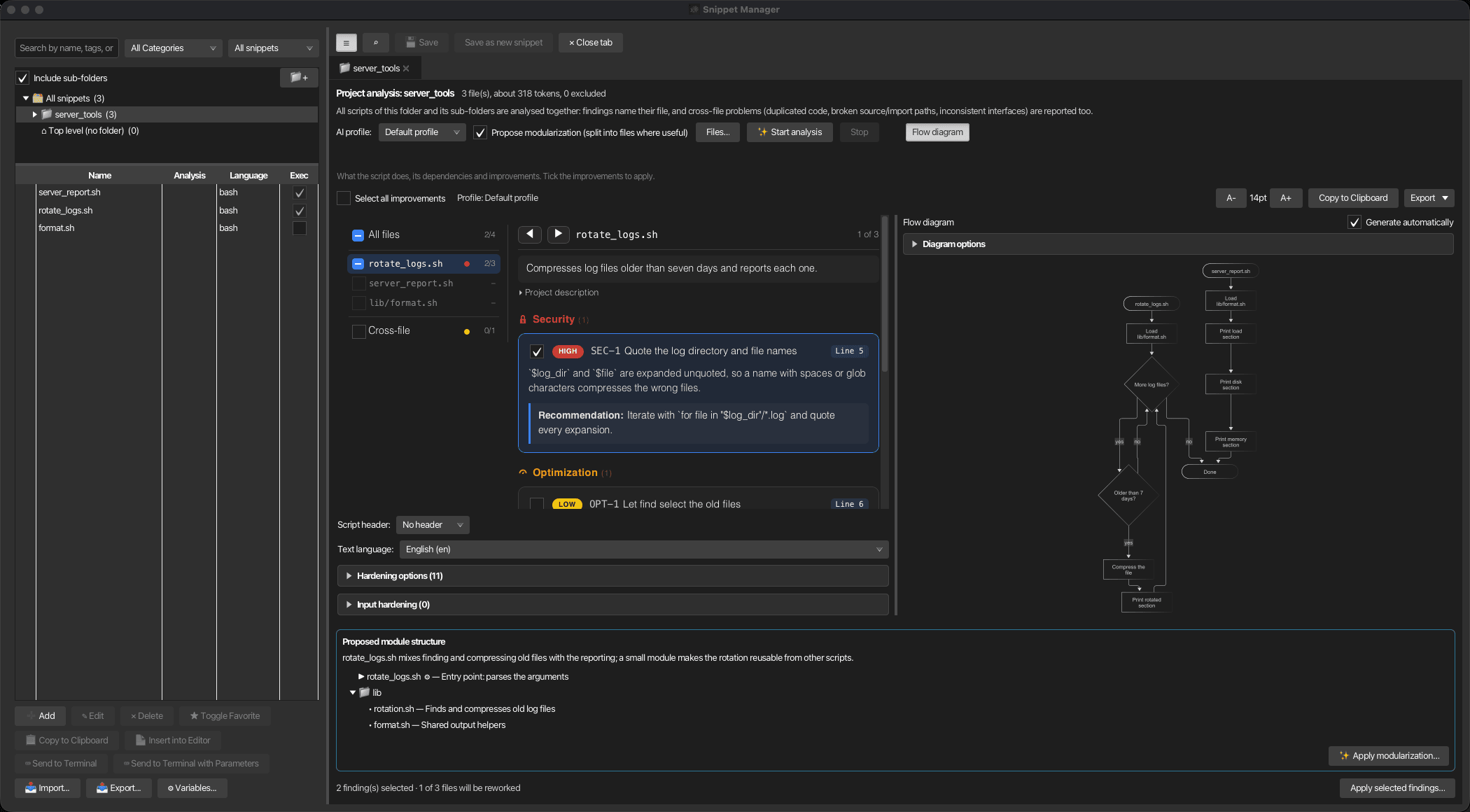
Right-click a folder in the library tree — the main folder of a script collection or any sub-folder — and choose Full code analysis (folder as project). A tab named after the folder opens next to the editor tabs; right-click it and choose Move to new window to give the project analysis a Snippet Manager window of its own, for example on a second screen. The stored report goes along; a running analysis cannot be moved until it has finished. Every script of that folder and its sub-folders goes to the AI together, so the analysis can see problems between files: duplicated code, broken source or import paths, inconsistent interfaces, and executable flags or shebang lines that do not match how a file is used. A right-click on a single script analyses only that script, as before.
- Before starting — The tab shows the folder, the number of files and an estimate of the tokens they take. Choose the AI profile, tick Propose modularization if wanted and click Start analysis; Stop cancels. Files… lets you leave files out. A folder larger than about 48,000 tokens — more than many models can read at once — opens that file choice first.
- The report — The same report as for a single script. The report and, below it, the script header, text language and the collapsible Hardening options, Input hardening and Code language panels form the left column; the flow diagram of the whole folder sits to the right over the full height. Flow diagram in the tab's toolbar shows or hides it, and korTTY remembers the choice.
- Findings by file — A file list sits on the left of the report. All files shows the project description and every finding; each finding names its file and line on the right of its title (
lib/util.sh:12). Select a file to see only its findings, a one-sentence description of what the file does and the folded Project description. Cross-file collects the findings that concern several files; applying one of them reworks every file of the folder. Each row shows how many of its findings are ticked and a dot in the colour of its most severe finding, and its checkbox ticks or clears all findings of that file. Step through the files with ◀ ▶ above the report or with Left / Right anywhere in the report. The list itself also reacts to Up / Down, and Space ticks or clears all findings of the selected file. When the report is narrow, the list becomes a drop-down next to ◀ ▶. Next to Apply selected findings… the tab says how many findings are ticked and how many files applying them will rework. Analyses made before this file list existed show no file descriptions. - Applying — Tick findings and click Apply selected findings…. korTTY rewrites each affected file one at a time, with the rest of the project as read-only context, and opens the result in the multi-file review. Accepted files replace the snippets' content; the previous content stays in each snippet's history.
- Stored with the folder — The result is kept like a single analysis, under the folder, together with its flow diagram, so reopening the tab shows both without a new AI request; Regenerate in the diagram options replaces the stored diagram. It survives restarts and backups. When files change afterwards, the tab says the analysis is out of date. Deleting the folder discards its analyses.
Modularization
Tick Propose modularization (split into files where useful) in the New analysis area or in a folder's analysis tab, and the analysis also asks the AI for a module structure. The choice is remembered. The AI proposes a split only where it helps — several responsibilities, a long script or reused code; otherwise it says why the code should stay one file.
- The proposal — Below the report, Proposed module structure shows the rationale and the planned file tree: the entry point (▶), each module with its purpose, and ⚙ for files that will be executable. No split recommended shows only the reason.
- Apply modularization… — korTTY writes the planned files one at a time — modules first, then the entry point, so it calls the modules by their real names — using the language's own mechanism to load them (Python packages, Perl
use lib, shellsourcerelative to the script). When a file comes back empty or a module is loaded by no other file, korTTY asks the AI once more to fix exactly that; anything still wrong is listed in the review. - Review and accept — The files open in the multi-file review: the entry point against the original script, the modules as new files.
- Result for a single script — A new folder named after the script is created next to it, sub-folders follow the planned paths (for example
lib/). The script itself becomes the entry point in that folder: it keeps its id, its history and its analyses, gets the planned file name, and its old content stays in its history. Each module becomes a new snippet with the planned file name and executable flag, the script's category, tags (plusmodule) and system; a module name already in use gets the folder path in front. A never-saved snippet is saved first. - Result for a folder — Planned paths that already exist update those snippets; new paths become new snippets in the folder.
Reviewing changes to several files
Results that change several files — applied project findings and modularizations — open in a review window instead of the editor:
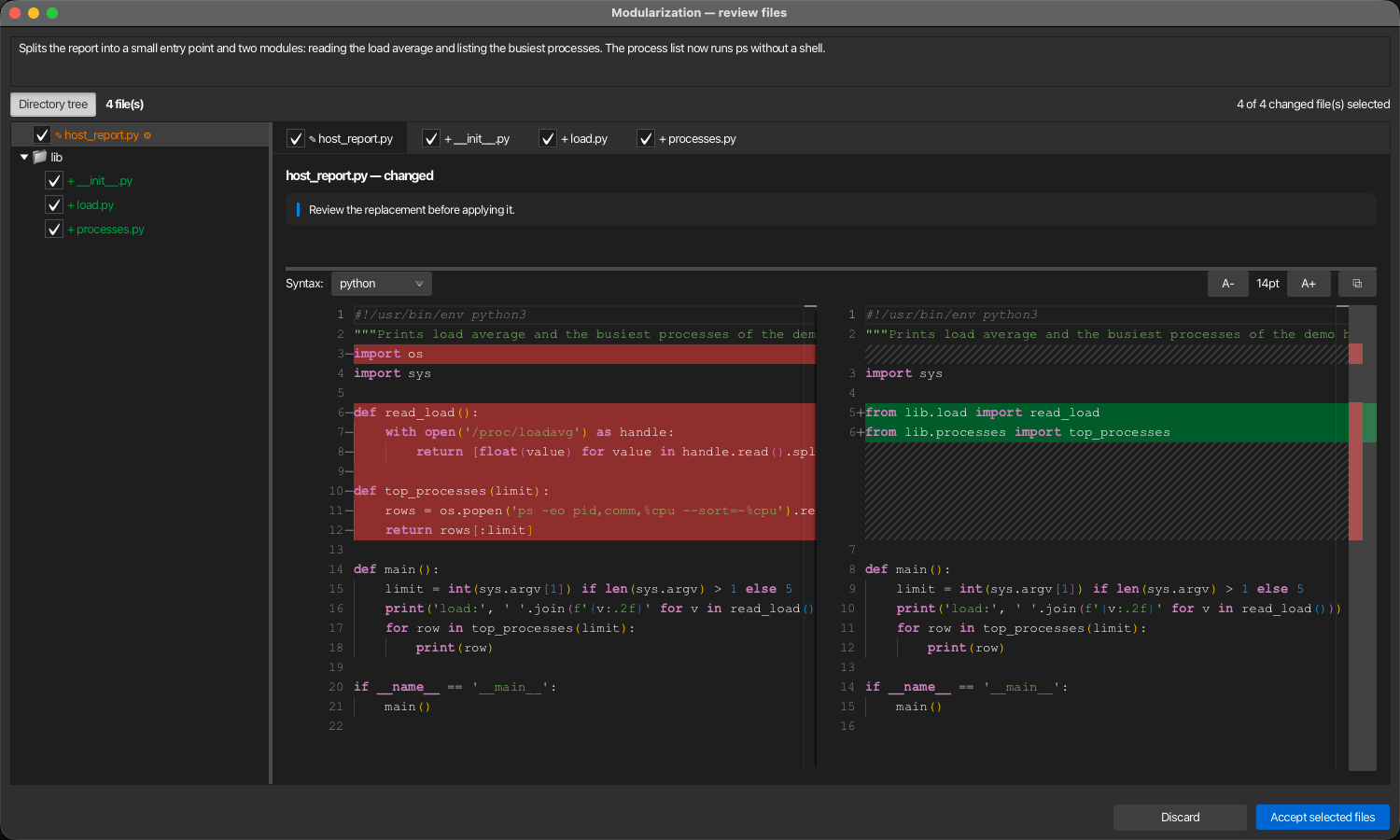
- Tabs — One tab per file with the usual side-by-side comparison; a new file is compared against an empty one. The tab shows the file's state: + new, ✎ changed, = unchanged.
- Directory tree — On the left, the folder structure of the result with the same marks and ⚙ for executable files. Directory tree in the toolbar shows or hides it; korTTY keeps that choice while it runs. Selecting a file in the tree selects its tab, and the tree follows the selected tab.
- Choosing files — The checkbox on each tab and in the tree includes or excludes a file; the toolbar shows how many changed files are selected. Unchanged files are never written.
- Accept selected files writes the included files; Discard writes nothing.
How the analysis works in detail
This section describes what korTTY sends to the model, how it checks what comes back, and what it logs — useful when you tune a model or read a log, not needed for everyday use.
Analysis and diagram requests
The report and the flow diagram are generated by two separate AI requests: the analysis request returns the summary, dependencies and improvements, and as soon as the report is shown the diagram pane starts its own dedicated diagram request — the same focused request Regenerate uses — while a spinner is shown. Each request carries one line-numbered copy of the script; neither repeats a second raw-script copy in the same prompt. The analysis request always sends the complete script. The diagram request sends it complete up to 400 lines and, above that, a condensed structural outline instead: its definitions and top-level flow with the elided runs marked and the original line numbers kept, so code references still point at real snippet lines. Sending every line of a four-thousand-line script made models transcribe it rather than summarize it. Over OpenAI-compatible HTTP, korTTY constrains the initial analysis report to a strict summary/dependencies/improvements JSON schema, and the diagram answer to its own title/mermaid/codeReferences schema — the diagram grammar requires quoted node labels, and an endpoint that honors the schema cannot lose their escaping. Both retry once without the schema only when the endpoint explicitly rejects structured output; a malformed analysis is not retried, and a rejected diagram is re-requested at most once, as described below. The diagram request is deliberately compact and source-grounded: it uses the fixed Mermaid schema, the script and label language, and an immutable built-in Mermaid action skill, but it does not add configurable library skills or knowledge-store excerpts. That required skill maps runtime control flow rather than declaration order, groups repeated same-purpose work, retains real decisions, error paths and loop exits, and requires every node to lie on a connected path from start to stop with an exact source range. If the none Reasoning value is available and the active profile has a fixed model selection, korTTY automatically sets that value for this request only; otherwise it keeps the profile's configured value, and the stored profile is never changed. An Auto profile is not overridden from previously discovered capabilities because its loaded model can change; an explicitly configured none value still applies. OpenAI-compatible HTTP, LM Studio native, and embedded llama.cpp/MLX transports cap the diagram response at 32,768 output tokens; Anthropic retains its separate provider cap. That cap covers the whole completion, so it deliberately leaves room for a thinking model's hidden reasoning: the diagram JSON itself is far smaller, but a model that reasons can otherwise spend the entire budget before emitting a single character. For embedded llama.cpp/MLX, korTTY does not repeat a response that is empty or contains only the model's reasoning. The automatic diagram request can be turned off with the Generate automatically checkbox in the diagram pane's header. Details are under Below the report — flow diagram below. Keeping the diagram out of the analysis request produces markedly more faithful flowcharts, especially with local models, and the report is readable while the diagram is still loading. Clicking Re-run repeats the analysis with the selected profile and configurable AI Skills and starts the separate dedicated diagram request with the same mandatory Mermaid skill. Starting another generation or closing the diagram view cancels its superseded client request.
The summary, dependencies, improvement descriptions and diagram labels use the current korTTY interface language. The separate Text language becomes relevant only after you click Apply selected, because that action returns a full replacement: by default the rewritten script keeps the language its comments and messages are already written in, and only a language explicitly chosen there converts them. The analysis panel carries its own Text language selector, pre-set from the editor's choice, so the decision sits where you tick the improvements. Apply selected and the equivalent security-fix apply action automatically request none Reasoning only when that value is available and the profile has a fixed model selection; an Auto profile keeps its configured or provider-default behavior unless none was explicitly configured. The saved profile remains unchanged. This prevents a reasoning model from consuming the bounded replacement budget before it emits the machine-parsed script. If a provider nevertheless reaches the output limit with no visible answer, korTTY records the usage, reports the localized output-limit failure and leaves the editor unchanged instead of misreporting an ordinary empty response or retrying the request.
Diagram validation and repair
Before accepting a fresh AI result, korTTY rejects disconnected nodes, backward terminal paths, incomplete decision branches, and a runaway node count — the diagram request states the snippet's node limit to the model (12 for snippets up to 200 lines, growing linearly to 24 at 1,000 lines or more), and the validator rejects a diagram only when it exceeds three times that limit (36, or 72), so an over-drawn summary keeps its diagram while a transcription of the script does not. A node declared more than once — a model that draws every node as a box in a chain and again as a decision on its own line — keeps its first declaration, and counts as one node when korTTY compares what the model drew with what the repairs kept. Only a diagram whose repairs leave fewer than half of the model's steps connected to the start (or none) is refused, because what remains would not be the model's diagram. A node without a valid source mapping no longer discards the diagram; it simply has no hover reference, and the log names the unmapped nodes. Code references are matched by node id: a reference whose label the model reworded still points at its node, and a reference to a node the diagram does not declare is simply dropped. A rejected diagram answer is kept whole under ai-answers/ in the log directory, like an unusable apply answer: the rejection names one broken rule, and whether the grammar could learn the shorthand the model wrote is only decidable on the whole answer. The general renderer stays backward-compatible with safe diagrams saved by older korTTY versions. If the answer's JSON envelope cannot be read — typically because the model wrote korTTY's required quoted labels into the JSON string without escaping them — the diagram is recovered from the answer's own text (inline <think> reasoning is skipped first), validated exactly like any other, and used without asking the model again. A model that escapes the mermaid value's line breaks twice — valid JSON whose value decodes to a single line of literal \n sequences — has those line breaks restored before the grammar reads it, wherever a diagram is validated, rendered or saved: no diagram korTTY accepts is a single line, so the sequences can only be the line breaks, and a source that already carries real line breaks is left exactly as written.
The restricted flowchart grammar reads the Mermaid that models actually write and turns it into its own canonical form before rendering or saving: nodes declared inline in an edge (start_1(["Start"]) --> n1["Print header"]), chained edges (a --> b --> c), labels as -->|yes| or -- yes -->, the :::class shorthand, unquoted labels and Mermaid's other node shapes — rounded ("…"), circles, subroutines, cylinders and the like, all read as actions — plain %% comment lines, graph TD or another direction as the header, and the slips models make — a label whose pipe became a bracket, a shape closed one character early. The canonical flowchart draws what Mermaid draws: an action may branch into several steps, branches may merge, and a step may loop back to an earlier one; only yes/no branches make a step a decision, and their labels are written in the diagram's language. What the shorthand cannot express is repaired where the intent is unambiguous: a node the model forgot to class gets the neutral default, a second class or a second declaration for the same id is ignored, a decision with one labelled branch gets the complementary label of the response language, a diamond with a single exit is an action, an id that only appears in an edge becomes a node, a stray terminal becomes an action and every dead end continues to stop_1, a start_1 that is missing or never connected is wired to the flow's real entry (the node nothing leads to that reaches most of the diagram), a statement written with a stray class prefix is still read, an edge into start_1 is dropped, an edge that leaves stop_1 in the middle of a chain (c{"Ok?"} -->|yes| done --> stop_1 -->|no| failure) is read as the other branch of the decision before it, and a step nothing leads to is left out. Before any of this, a local repair fixes the syntax small local models break: a label continued on the next line is joined, several quoted parts of one label become one label, a shape left open at the end of its line is closed, a stray backslash at a shape edge and <br> inside a label are removed, and a line that still cannot be read at all — an id with a space in it, a bare id, a subgraph — is left out and named in the log instead of costing the whole diagram. classDef, style and linkStyle lines in a fresh answer are dropped rather than rejected — korTTY styles the four semantic classes itself, and a model told to assign them often defines them with colors as well; the log counts what was removed, and a saved diagram is still validated unchanged. The safety screen is unchanged by all of this: directives (%%{init}), click callbacks, links, URLs, url(…), javascript:, HTML and image or icon shapes refuse the whole diagram — a classDef or style line that carries a URL or script is refused rather than quietly dropped — and only the canonical form rebuilt from the parsed structure, with plain-text edge labels and node labels cut at 160 characters, is ever rendered or saved. The last gate is Mermaid itself: the bundled parser checks the diagram before it is shown. When the diagram cannot be used — a syntax slip, a flow without connections, a diagram Mermaid cannot parse — korTTY asks the model once more, with the exact error and its own diagram, to fix only the syntax and keep the structure; an oversized or unsafe diagram, or a prose answer without any diagram, is instead requested once more from scratch, naming the rejection reason, because a sampled answer can derail on its own and a second sample is usually sound. There is never more than this one extra request, and when both answers are unusable the first rejection reason is the one reported. If the provider reports that the diagram response was cut off at its cap, the request fails or the repair round's answer cannot be used either, korTTY keeps the analysis and shows its deterministic local fallback diagram. The fallback is labelled: a notice above the diagram says in a few words of the interface language why the AI diagram could not be used (for example invalid diagram syntax or diagram too large), its tooltip and the log carry the exact technical reason, so a fallback is never mistaken for an AI result; the fallback also recognizes indented conditional blocks in common scripting languages. The other diagram families follow the same principle: a sequence diagram may use a participant before declaring it (Mermaid creates it, and it still counts against the cap) and any of Mermaid's message arrows, a state diagram needs no initial [*] transition, and plain %% comments are skipped everywhere.
Staged apply
korTTY batches selected analysis items and dependencies into apply stages of up to three items each — six in edit mode, where the three-item limit that keeps a whole-script answer finishable does not apply — then handles classic hardening and Input hardening separately in batches of at most three mandatory requirements. Every stage sends the whole script, so the number of stages is what an apply costs in prompt tokens and time. In edit mode the line-numbered script comes before everything that is specific to the stage or the attempt — the items, the requirements, the repair paragraphs and the line count — so every request of a run shares one prefix: system prompt, contract, language lines, and the script up to the first line the previous stage changed. An endpoint with a prefix cache serves that prefix without processing it again (MiniMax reports it as cached tokens; LM Studio and llama.cpp reuse their KV cache), which is time on a local model and money on a metered one; a repeated attempt with unchanged input shares the whole script. Measured before this order, consecutive stages shared 128 tokens, because the stage's items sat in front of the 62,000 tokens of script. Every stage receives the complete result of the previous stage and must preserve its existing behaviour.
This uses more model calls and can consume more total input tokens than one oversized request, but each individual task is substantially smaller for local models. Every selected classic and input-hardening rule keeps one stable, separately numbered mandatory identifier across the stages. Each stage confirms its completed identifiers in one compact list instead of repeating a full change explanation for every rule. The final validation checks the cumulative identifier set, while explicit flags and guard literals such as --dry-run, --yes, --help, --verbose, MAX_FILE_SIZE, FORCE, --force, and SECURITY: must still occur in the final code when their rules are active. Because every stage rewrites the whole script, each one is additionally checked against the literals of the rules earlier stages already delivered: a stage that removes earlier hardening work while implementing its own is rejected on the spot and gets its one repair attempt, which names exactly what to restore. That keeps such a regression from surfacing only in the final validation, where the remaining stages could no longer be resumed. Every stage returns the complete script as a JSON array with one source line per entry, avoiding one large escape-sensitive JSON string. Over OpenAI-compatible HTTP, a strict response schema also requires a conservative minimum number of returned source lines. korTTY repeats a stage without that schema only when the endpoint explicitly rejects the structured-output capability. If structured output is unavailable and a local model emits source escapes such as \s without valid JSON escaping, the compatibility parser preserves those code characters and still verifies the mandatory checklist. Every stage requires one complete rewritten script, including every code section that needs no intentional change copied from its input. Every stage carries the same Text language contract: by default the script's own prose language, which the stage must preserve rather than translate, or a language you chose explicitly, into which it must convert the text. OpenAI-compatible HTTP, LM Studio native, and embedded llama.cpp/MLX transports choose a per-stage completion safety ceiling from 32,768 to 65,536 tokens based on the current source size. Anthropic retains its separate provider cap. This ceiling prevents unbounded output, but it is not a capacity guarantee for arbitrarily large scripts: a very large full-script replacement can be refused when the provider reports truncation. Any response that introduces an omission marker such as rest unchanged, collapses a substantial script into a short fragment, or otherwise fails to contain the complete replacement is rejected before the next stage or preview. A short non-truncated fragment receives exactly one repair attempt for the same stage, and the progress checklist identifies that retry. If the repair answer is also bad, korTTY aborts the sequence. The code in the editor remains unchanged throughout. A valid final result goes to the review described above. The editor remains unchanged until you choose Accept & apply there. Any chosen Script header is prepended to the result before it is shown. A header on its own — with no improvements, dependencies or hardening ticked — is inserted directly, without an AI round-trip, and still shown in the review first.
For a snippet of up to 400 lines each stage returns the complete rewritten script. Above that it works in edit mode: the stage receives the line-numbered snippet and returns only the changed regions — edits with a 1-based startLine/endLine range and the replacement lines — which korTTY applies locally before running exactly the same verification as for a returned script. Replacement lines are taken exactly as returned — their indentation, blank lines and a repeated closing keyword are the code, not noise — and an edit with an entry that is not a string is left to the repair round. A 4,000-line script returned complete is around 60,000 output tokens, at the model's completion cap and twelve minutes per stage, and one lost quotation mark in that much JSON lost all of it; the changed regions are a few hundred lines at most. An edit whose range starts outside the snippet, reaches more than one line past its end, overlaps an earlier edit, or is hollow — a range of three or more lines whose replacement is nothing but its own unchanged first line, the signature of a model that emitted one entry and stopped; a range shortened by its last lines is a deletion and is applied — is left out with a note in the log while the trustworthy edits are applied. So that the repair round really asks for what a dropped edit was meant to do, a changes entry whose anchor line comes from a dropped edit and from no applied one is ignored, which leaves its analysis id unechoed. An edit-mode stage whose answer ran into its output-token limit gets one second attempt as well, asking for the changed regions only: such an answer holds the changed regions alone, so the limit is a runaway answer rather than the stage's real size, and how long an answer the model writes varies per attempt.
A whole-file answer still fails there, since for a large script the limit is the real constraint. A stage none of whose edits can be applied, or whose edits collapse the script — seen live as two edits "covering" 1,199 lines with an omission marker in place of the code; in edit mode the omission-marker check looks at each edit (a range of three or more lines replaced by nothing but such a comment) rather than at the whole script, since a comment that merely mentions unchanged code among real lines is just a comment — gets one second attempt whose request says what was wrong with the first answer (the answer is archived like an unusable one), the same single second chance a collapsed whole-file answer gets, and is refused like an incomplete script if that fails too. An applied edit that shrinks a region of a hundred lines or more to less than a tenth is named in the log. An edit-mode answer whose JSON does not parse is read tolerantly before it is requested again.
Live answers from MiniMax-M3 showed what actually breaks: a quotation mark inside a code line left unescaped, an escape JSON does not know such as \$, a missing ] before an edit's closing brace or a missing } between two edits, a trailing comma, a newline inside an entry, and the summary written as a nested object. The recovery reads every edit's line range and replacement lines from the text itself. When every replacement line sits on its own line the line end is the boundary and nothing can mislead it; in a compact one-line answer the boundary is the answer's own delimiter — "," or ", ", whichever style the model used for its keys — and a bracket only closes the array when structure, not code, follows it. Whatever the read cannot be certain about fails it: a compact entry left with an odd number of raw quotes (the split fell inside a quoted pair — unless the entry plus one quote is a line of the snippet, the signature of a closing quote the model swallowed, as in res="" written as res="; a code line ending in a quote whose escaped last quote the model fused with the closing quote, as in body="{" written as body=\"{\" followed by the next entry, is read the same way when the snippet knows the line, and so is a known line in which the model escaped one quote and left the others raw). The transport judges an edit answer with the same snippet oracle before deciding on a schemaless retry, so an answer the stage can read is never requested a second time, a bracket followed by anything but stacked closers and the next key or edit, a scan that runs into the answer's own keys (the array was never closed), a raw quote pair in the other delimiter style, a wrapped line holding several entries, a bare } line inside an entry that a raw line break split, and two entries of which one plus the delimiter is part of a line of the snippet (a code line such as awk -F"," that was split in two, even when the model also changed it). It is all or nothing: every edit in the answer must be readable, each with exactly one endLine, or the answer goes the retry route rather than applying half of what the model meant. The log says when edits were recovered this way.
The analysis answer gets its own, simpler repair: its fields are prose, where a quote that is not followed by a JSON terminator is content, so a raw quote pair inside a title, detail or suggestion — which once cost a complete 24,000-character analysis of a 4,000-line script — is escaped and the answer read; an analysis korTTY still cannot use is archived like an unusable edit answer. The contract deliberately does not ask the model to put every entry on its own line: tested live, MiniMax-M3 read that as one entry per edit and answered with ranges replaced by their first line, or with hundreds of one-line edits up to the output cap. On endpoints that accept response_format and ignore it, such as MiniMax, the JSON-only reminder that only the schemaless retry used to carry is sent with the first attempt as well. When the retry does happen, the log names how the first answer failed — an unparsable JSON-shaped answer, one the model abbreviated itself with ... or etc, one that was cut off, a fenced block, prose — together with the place the JSON broke (Gson's line, column and path such as $.edits[3].replacementLines[7], and the text around it), and the complete answer is kept as a file under ai-answers/ in the log directory (the twenty most recent, and never longer than the log retention days, since they hold script regions in plain text), named in the same log line, so a failed stage can be diagnosed from a report without debug logging. A streamed answer that the endpoint never closed — no finish_reason and no [DONE] — is logged as such, with the raw stream kept in the same place, because an answer that stops mid-string a few thousand tokens in reads as "cut off" and only the raw stream tells whether the model stopped or the connection did. The request log shows the prompt tokens an endpoint served from its prefix cache when it reports them. The log names how many edits covered how many lines, and the output cap for an edit-mode stage is 32,768 tokens so a model that transcribes the file anyway is stopped early.
Every stage also opens with one log line — its number, phase, analysis ids, requirement ids, line count and mode — and a stage whose result is kept but gets the repair attempt for work it did not verify says so, naming the requirements not verified, the earlier requirements it dropped, or the analysis ids it did not echo, so a log alone maps every request to its stage and to the reason for a fourth request in a three-stage run. An improvement the model did not echo in changes[].finding opens that repair round; a dependency suggestion it did not echo does not — a reduce/replace suggestion ("consider consolidating", "prefer dig") may rightly leave the code alone, and a model that changed nothing seldom echoes the id, so asking again cost two full requests in a 47-item run for nothing the items needed. Such a stage is accepted with the unechoed suggestions named in the log. When another cause does open the repair round, the suggestions it did not echo are named in that request as suggestions — implement where it applies, otherwise leave the code and do not echo — not as items to apply. A suggestion whose edit was dropped (hollow, overlapping, out of range) still opens the round like an improvement, since the model did try to change it; and an id that names an improvement counts as one even when a suggestion shares it, because the ids are the model's own. Intermediate scripts are never inserted into the editor.
Mermaid diagrams
Mermaid diagrams are stored with the snippet, and a snippet can keep several of them side by side. If the snippet content changes after diagram generation, KorTTY marks a diagram as possibly outdated and offers regeneration.
- Diagram families: Five families can be generated, each restricted to a compact, safe dialect: Logical structure (
flowchart TD— the control-flow view and the default), Sequence diagram (sequenceDiagram— who talks to whom at runtime: the script, remote hosts, external commands, APIs), State diagram (stateDiagram-v2— observable states and transitions such as connection lifecycles and retry logic), Class diagram (classDiagram— types, members and relations declared in the code), and ER diagram (erDiagram— data entities and relations the code implies, such as SQL tables). - Saved diagrams dialog: The list on the left shows every stored diagram with its family, title and — for a selection-scoped diagram — its line range. New diagram is a menu offering the five families, Regenerate re-runs the selected diagram with its original family and scope, and Delete removes the selected diagram after a confirmation. Diagrams are persisted when the snippet is saved.
- Diagrams from a selection: The editor context menu's Generate diagram from selection entries diagram only the selected lines. The selection is snapped to whole lines, the AI sees just that region, and the stored diagram remembers the line range: its code references point at the absolute snippet lines, and Regenerate re-reads the same lines from the current content.
- Generation: Logical-structure diagrams use stable node IDs with the semantic classes
setup,work,success, andfailure, complete decisions with localized yes/no edge labels, and a source mapping from every node to exact snippet lines; the request asks for a complete mapping, and a node the model leaves unmapped keeps its place in the diagram without a hover reference. The other families keep source references optional: entries that name a declared participant, state, class, or entity are stored, incomplete mappings are simply dropped. Every family's AI request carries its own small internal action skill with family-specific quality rules — grouped runtime behavior for flowcharts and sequence diagrams, observable states instead of statements, only declared types and members, no invented schemas. Hover code references and click-to-code navigation are a logical-structure feature. - Rendering: Local only — the SHA-256-pinned Mermaid 11.17.2 browser bundle is included with KorTTY and runs in an isolated, lazily created JavaFX WebView. No rendering server, Graphviz installation, Java subprocess, or first-use download is required.
- Dialog features: Sanitized SVG display with JavaScript disabled, scaling without distortion, zoom slider and buttons with fit, SVG/PNG export, image and Mermaid-source clipboard copy, hover code references, and the shared Diagram appearance controls.
- Safety and recovery: A diagram whose JSON envelope is unreadable is recovered from the answer text and then validated like any other, so a mis-escaped reply costs no second request. KorTTY rejects frontmatter, directives, links, callbacks, external images/icons, oversized sources and overly complex graphs before any rendering, and validates every generated diagram against its family's restricted grammar with per-family compactness caps (for example at most 12 sequence participants, 12 states, 12 classes, or 12 entities; a flowchart may declare 12 action/decision nodes for a snippet of up to 200 lines and up to 24 for a script of 1,000 lines or more). A diagram korTTY cannot use is requested exactly once more, naming the rejection reason — a sampled answer can derail on its own, and a second sample is usually sound: a syntax or structure slip gets a repair round with the exact error and the model's own diagram, while an oversized or unsafe diagram, or an answer without one, is requested again from scratch; a cut-off answer is not repeated. If the second answer is unusable too, the first rejection reason is kept and a whole-snippet logical-structure result falls back to the deterministic local flowchart, and the editor's status line names the reason in a few localized words together with the fallback; selection-scoped and non-flowchart generations report the failure and its reason instead, and nothing broken is ever saved. A response that was cut off at the output-token cap is reported as such rather than as an ordinary failure, because the usual cause is a thinking model spending the whole budget on reasoning — a smaller selection or a model that reasons less then helps. Safe restricted diagrams saved by older korTTY versions remain renderable even when they predate these stricter generation-quality rules. Requests are serialized with a 30-second timeout; cancellation or timeout discards the renderer, and the hidden WebView is released after idle time.
- Upgrade cleanup: Saved legacy diagram entries are discarded without removing their owning snippets or chats. KorTTY also removes its retired diagram-renderer download cache and abandoned temporary render directories without following symbolic links.
Diagram appearance
Both diagram views — the standalone Diagram dialog and the Full code analysis flow diagram — share the same zoom controls and three view controls; the view controls remember their setting across sessions:
-
Zoom — − and + step the scale, the slider between them sets it directly, and Fit returns to the size that shows the whole diagram in the pane. The slider's track runs in powers of two, so the fitted size sits exactly in its middle and one step to either side halves or doubles it; the percentage beside the slider is the resulting scale, which for a large diagram fitted into a small pane starts below 100 %. Dragging the slider redraws the diagram a few times a second rather than on every pixel, so a large flowchart follows the drag without stuttering, and the diagram is always redrawn at the value you let go on. Zoom is deliberately not remembered: every diagram opens fitted to its pane. Holding Ctrl (Cmd on macOS) while turning the mouse wheel zooms as well. The analysis diagram can also be opened in its own zoom window.
-
Dark mode — A Dark mode button with three choices:
- Auto — follows the operating system's light/dark appearance. When you switch the OS to dark mode the diagram follows on the next render (and when the window regains focus).
- Light — always light.
- Dark — always dark.
A manual choice is permanent until you change it. Dark mode recolours the whole diagram — a dark canvas, darkened node cards with light text, and light connectors and labels — not just the page margin. - Orientation — An Orientation button with two choices: Vertical draws the flowchart top to bottom, Horizontal draws it left to right, which suits a wide window or a long chain of steps. Switching redraws the stored diagram locally and fits it to the pane again; the AI is not asked again, the stored diagram keeps its original source, and the code-reference tooltips and click-to-code keep working. Copy Mermaid copies the source in the direction you see; reports exported from the analysis always show the diagram top to bottom. Only the flowchart has a direction to choose: the button is disabled for sequence diagrams, state diagrams, class diagrams and ER diagrams. - Background — A colour picker for the page/canvas colour in light mode. It applies to the diagram itself and to any exported SVG/PNG. The picker is disabled while dark mode is active, because dark mode drives the appearance.
Placeholder variables
Snippets can contain placeholders written as ${name}. When you copy, insert or send a snippet, korTTY replaces exactly two kinds of them: the built-in variables below and the variables declared in the Variable Manager. Every other ${...} reaches the editor, the clipboard or the shell exactly as written, so shell expansions such as ${HOME}, ${1:-default}, ${#array[@]} and ${file%%.*} keep working. The same rules apply everywhere a snippet is used: copying, inserting into an editor, both terminal sends, scheduled jobs, AI Swarm script runs and script headers.
Built-in variables
These variables are automatically replaced:
| Variable | Replacement |
|---|---|
${date} |
Current date in YYYY-MM-DD format |
${time} |
Current time in HH:MM:SS format |
${datetime} |
Current date and time in YYYY-MM-DD HH:MM:SS format |
${hostname} |
Local machine hostname |
${username} |
Current system username |
${clipboard} |
Current clipboard content |
${cursor} |
Where the caret goes: Insert into editor places the caret there; copying and sending remove the marker |
Built-in names are written in lower case and matched exactly, and they win over a declared variable of the same name.
Custom variables
A custom variable is a name declared in the Variable Manager. When a snippet uses it:
- If the variable has a stored value, the value is inserted without asking.
- If its value is empty, korTTY asks for it every time. Declare a variable with an empty value for anything that changes from one use to the next, such as a ticket number. Only a script header, which is added without a dialog, inserts such a variable as empty text.
- The dialog that asks has a Remember check box next to every field. It is off by default, so the value you type is used once and not stored; tick it to store the value in the Variable Manager for the next use.
A name that is not declared is never asked for and stays as written, so declare a variable in the Variable Manager before you use it in a snippet. Declared names are matched ignoring case: a declared path also replaces ${PATH}.
Stored values are plain text
The Variable Manager keeps every value, including the ones you remember from the dialog, unencrypted in ~/.kortty/snippet-variables.xml. Do not store or remember passwords, tokens or other secrets there.
Escaping a placeholder
Write $${name} to get the literal text ${name}, for example for a shell variable that has the same name as a built-in ($${date}) or as a declared variable. The escape works for every placeholder, including $${cursor}. Text that must keep a literal $${name}, as a Makefile or a Compose file does, is written $$${name}.
Scheduled and swarm runs
JobScheduler snippet jobs and Run script… in the AI Swarm cannot ask for a value, so two more rules keep a variable nobody answered from silently turning into empty text: a declared variable without a stored value blocks the run, and so does an undeclared simple name such as ${target}. Shell forms such as ${1:-default}, ${#array[@]} and ${file%%.*}, positional and special parameters such as ${1} and ${@}, and the environment variables ${HOME}, ${USER}, ${PATH} and ${PWD} pass through. Write any other shell variable with the escape, for example $${HOSTNAME}.
Variable Manager
Variables... in the Snippet Manager opens the Variable Manager, where stored values are added, edited and deleted. The add/edit dialog explains both fields: the Name is what a snippet references as ${name}, the Value is the stored default inserted for it — leave the value empty to be asked every time. Several variables can be selected at once for deleting or exporting.
- Export... — Saves the selected variables, or all variables when none is selected, as JSON, XML or YAML.
- Import... — Reads variables from a JSON, XML or YAML file (the stored
snippet-variables.xmlcan be imported directly). When imported variables already exist, you choose whether to overwrite their values or keep the existing ones.
Sending snippets to the terminal
The Snippet Manager can send a selected snippet directly to a terminal of its main window: the selected terminal tab, or — when the Snippet Manager is itself the selected tab — the terminal tab you used last (or the only one that is open). korTTY then switches to that tab and shows Sent to … in the status bar. Insert into Editor picks the file editor tab the same way. The snippet is written to the tab's first pane, the one the tab opened with, also when another pane of a split tab has the focus. A snippet you run from the command palette goes to the focused pane instead.
Without opening the Snippet Manager, the command palette runs a snippet the same way: press Ctrl+Shift+P (Cmd+Shift+P on macOS), type $ and part of the snippet's name, and press Enter. View → Snippet Palette… opens the palette with $ already typed. Each row names the terminal it runs in, and Alt+Enter (Option+Enter on macOS) opens the snippet here instead.
Send to Terminal
- Replaces the placeholders like every other use; a declared variable without a stored value is asked for before anything is sent, and cancelling the dialog sends nothing
- Supported script languages are embedded as a terminal one-liner where possible
- Other snippets use the existing fallback path
Send to Terminal with Parameters
- Opens a dialog with every declared variable the snippet uses, pre-filled with its stored value and editable for this send, and a field for script arguments
- A variable that already has a stored value starts with Remember ticked, so a changed value replaces the stored one; untick it to use the new value for this send only
- Script arguments are entered one per line; empty lines are ignored
- If you confirm without script arguments, the result is the same as Send to Terminal, with the variable values you set in the dialog
Script arguments
Supported for Bash/shell, Python, Perl, and Ruby snippets:
- Arguments are passed individually and shell-quoted
- Not appended as raw shell text
- If arguments are entered for unsupported languages, KorTTY shows an information message and sends nothing
Terminal display
For embedded/base64 one-liners, the terminal shows the KorTTY snippet: ... label instead of echoing the full generated command.
Copying files to the terminal directory
Instead of sending a script's text, korTTY can copy snippets as files into the current directory of the terminal:
- Copy as file(s) to terminal directory in the table's right-click menu copies the selected snippets. Snippets in sub-folders of the folder shown in the tree keep those sub-folders.
- Copy folder to terminal directory in the tree's right-click menu copies the whole folder, including its own name and every sub-folder (also empty ones).
For an SSH session the files are uploaded over the session's SFTP channel into the directory the shell is in (korTTY follows cd and the OSC 7 directory reports of the shell; ~ is resolved to the login directory). For a local shell they are written directly into the shell's current directory. korTTY first shows the target directory and the number of files; when files already exist there, it lists them and offers Overwrite, Skip existing or Cancel. Each file is written with LF line endings and the mode of its executable flag, so scripts can be run right away. A progress window shows each file and can cancel the copy. Telnet and serial tabs cannot receive files. When the pane seems to run as another user or host, for example after su, sudo -i or a nested ssh, korTTY refuses the copy with a message, because the terminal directory may then belong to someone else.
Import and export
Snippets can be imported and exported in multiple formats.
Data format exports
Use Export to save selected snippets, or all snippets when nothing is selected. The format dialog proposes Plain text script files first. Use Import to merge snippets from a file. The data formats keep each snippet's folder path, file name and executable flag; importing them recreates missing folders.
| Format | Extension | Use case |
|---|---|---|
| JSON | .json |
Data interchange, programmatic access |
| XML | .xml |
Structured data, tool integration |
| YAML | .yaml |
Human-readable, configuration-friendly |
Importing text files
Import also accepts plain text files such as data_test.pl, deploy.sh or notes.txt, and several files can be selected at once. Each file becomes one snippet named after the file, and korTTY fills in the language from the file extension (for example .pl → Perl, .py → Python, .sh → Bash), falling back to the shebang line. A .json, .xml or .yaml file is imported as a snippet export only when it contains a snippet collection; any other such file is imported as a text snippet. Binary files and files larger than 5 MB are skipped and listed in the result message. An existing snippet name gets a numbered suffix such as deploy.sh (2).
Script-focused exports
For script-specific exports, choose:
Plain text script files
- Opens a target-folder chooser
- Writes one file per snippet, in sub-directories for snippets in sub-folders of the folder shown in the tree
- The file name is the snippet's File name, else derived from the name and the code language
- Unsafe path characters are sanitized
- Duplicate names in one directory receive a suffix such as
script-2.sh - Files get the mode of their executable flag where the file system supports it
ZIP script archive
- Writes one ZIP containing one script file per snippet
- Use extension from Name column keeps each file's own name, or choose one forced extension for all files
- With their own names, the files keep their sub-folders and their executable flag (
unziprestores the mode); a password-protected archive carries the mode only where the file system has POSIX permissions - Supported forced extensions:
.sh,.py,.pl,.rb,.ps1,.sql,.txt, or custom
Exporting a folder
Export folder… in the tree's right-click menu exports the folder with every sub-folder. Choose ZIP script archive (with the encryption options below), Plain text script files into a directory, or JSON, XML or YAML. ZIP and directory exports keep the folder structure, including empty folders, and the executable flags.
ZIP encryption options
- No encryption — Standard ZIP archive
- Password encryption (ZIP) — Password-encrypted with AES-256
- GPG encryption — Creates a
.zip.gpgfile; requires localgpgcommand and a usable public key
Tip
Select two snippets, export them as plain text and confirm the created files use the names from the Name column. Then export the same selection as a ZIP with a forced .txt extension and verify all ZIP entries use .txt. For password export, confirm the ZIP requires the password before extraction. For GPG export, decrypt the .zip.gpg with your local GPG setup and inspect the ZIP entries.