Terminal AI agent & tools
korTTY's Terminal AI Agent is a controlled automation workflow that enables safe, intelligent command execution on remote servers — and, since the execution engine was decoupled behind an AgentCommandRunner abstraction (SSH exec-channel and local-process backends), in local shells on Windows, macOS and Linux too. Unlike naive automation, the agent probes the session state, reasons about each step, and waits for human approval before executing system-changing commands.
SSH vs. local shells
In local shells, commands use a native local backend (PowerShell via -EncodedCommand, cmd.exe, or POSIX /bin/sh) and the environment probe and system prompt are platform-aware. The agent captures the interactive shell's current directory when a run starts and uses that same snapshot for its probe and every command in the run. In the Flatpak package, these processes run on the host through flatpak-spawn --host rather than inside the Freedesktop runtime sandbox. Local-shell limitations: no sudo/administrator elevation on Windows. The JobScheduler's headless AI-agent action stays SSH-only.
RAG is explicit for autonomous work
Knowledge stores assigned to normal Text/Coding requests do not automatically expand the Terminal AI Agent, Planning, Swarm, or scheduled job context. Those autonomous flows require an explicit RAG opt-in; see RAG knowledge stores. This prevents a background workflow from reading indexed local sources merely because the same model profile is used for interactive chat.
Command variants
The Terminal AI Agent is triggered via shortcut commands at the shell prompt. When enabled in AI > AI Manager > General, KorTTY intercepts these commands locally instead of sending them to the server:
The base command name is configurable in AI > AI Manager > General. If you rename agent, KorTTY automatically derives the matching -ask and -plan commands. The same settings page can:
- Make the command name case-insensitive
- Disable the per-run setup dialog (uses the configured default profile when disabled)
Note
KorTTY recognizes these shortcuts in the connector input path before normal shell execution. Keyboard input and clipboard paste are assembled from the same byte stream, so pasted file names and Unicode text are included in the request, the complete prompt is saved in agent history, and one Enter produces exactly one agent run. Only what you type or paste is recognized: text that the server prints, for example a file shown with cat that contains a crafted escape sequence, cannot start an agent run.
Command purposes
agent <goal>— Execute safe terminal commands to accomplish a goal. The agent inspects the session, plans non-interactive commands, requests approval when needed, and (by default) writes the final answer back to the terminal. The run dialog offers a Show final answer in the terminal too option: leave it on to mirror the answer into the terminal, or turn it off so the answer stays only in the AI agent activity panel. Either way the commands still run and their output and any files they create remain on the server; only the display of the final answer text changes. The last choice is remembered as the default.agent-ask <question>— Get a non-executing answer about the current session context without running any commands. When started from the terminal right-click menu (AI → Ask Agent...) with text selected, the selection is sent along as context, so the question is answered about the selected output or script.agent-plan <task>/agent -plan <task>— Enter planning mode first. The agent asks clarifying questions, proposes approaches, generates a final plan, and runs implementation only after you click Implement.
Examples
agent show the 10 largest XML files in this directory
agent update groesste_xml.pl so the -r flag searches subdirectories recursively
agent check why nginx failed to start and suggest the safest fix
agent-ask what user and directory am I currently using?
agent-plan migrate this host from package X to package Y
TAB completion and prompt history
At the shell prompt, TAB completion is enhanced for agent commands:
- Type the agent command name (e.g.,
agent) then press Tab to show command variants (agent,agent-ask,agent-plan). - Type the command + a space (e.g.,
agent) then press Tab to show recent agent-prompt history. Each row displays the prompt and the date/time it was last run, de-duplicated by prompt text (newest first). - Prompts longer than 60 characters are shortened with an ellipsis for readability; the full prompt is still inserted when selected.
- The history popup is resizable — drag the grip in the bottom-right corner — and remembers its size across restarts. It shows a vertical scrollbar when the history exceeds the popup height.
- In the history popup, click a row's ✕ button (or press Del on keyboards with a forward-delete key) to remove a single prompt, or use Clear all (two-step confirm) to wipe the entire history. Deletions are saved immediately.
- Outside this context, Tab remains normal shell completion.
History size is configurable in AI > AI Manager > General (default 20, range 5–100).
How the AI Agent works
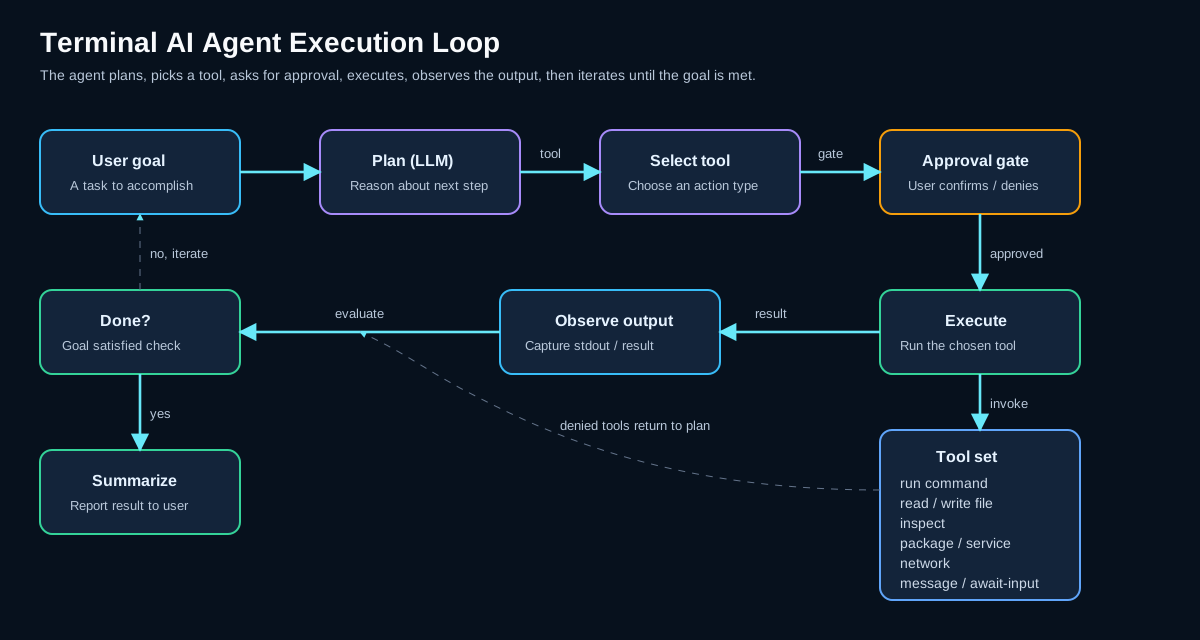
The Terminal AI Agent follows a strict, safe execution loop:
- Probe the session — KorTTY probes the active terminal session with a non-interactive command and records compact context: current user, host, operating system, active terminal working directory, sudo availability, disk path, and recent command state.
- Send context to the model — KorTTY sends the user task, probe snapshot, previous command results, active AI Skills, and optionally web-tool availability to the selected AI profile.
- Model returns a JSON decision — The model must return a strict JSON response: run commands, ask for confirmation, finish, or block.
- Validate the decision — KorTTY validates the JSON schema and command constraints. Invalid responses are repaired once; unsafe or unsupported decisions are rejected.
- Execute approved commands — KorTTY runs approved commands through the active backend: SSH exec channels for SSH sessions, or a fresh local process for local shells. Each command starts in the tracked active terminal directory captured for this run. A
cdinside a one-shot command does not persist to the next command, while an interactivecdcompleted before the run is included in the captured directory. - Iterate or conclude — Command output is added to the activity panel and to the next model turn until the task completes, is blocked, cancelled, or the turn limit is reached (8 turns maximum).
What the agent can call
The model answers each turn with one decision, and korTTY carries out only the decisions and tools listed here:
run_commands— Up to 3 non-interactive shell commands for the active backend. System-changing commands go through the approval gate described under Approval gates.needs_confirmation— Asks you to confirm a command set before it runs.doneorblocked— Ends the run with the final answer, or with an explanation of why the task cannot continue.web_searchandweb_extract— Only with the KorTTY Tavily Tool internet mode (see Internet access). The search returns five short results; the page read returns the text of one web page, up to 12,000 characters.
Suitable tasks
- Inspecting files, directories, package state, logs, service state, and system configuration
- Creating or modifying scripts and configuration files when the task asks for it
- Running tests, syntax checks, linters, or read-only diagnostic commands
- Summarizing command output and explaining findings
- Planning multi-step operational changes before implementation
Not suitable for
- Interactive full-screen programs such as
vim,nano,top,less,ssh, or commands that wait for prompts - Long-running daemons or commands without clear completion
- Secret exfiltration or blind destructive commands
- Web research for local files unless the user explicitly asks for external/current information
Tip
For local file review tasks, name the file in your prompt. The agent should then inspect it with shell commands such as sed -n, cat, file, or language-specific syntax checks. When an internet-enabled profile is active, KorTTY still keeps web tools away from local file planning unless your task clearly asks for current or external information.
Activity panel
How terminal-targeted agent runs are shown is chosen under Plugins → AI Agent Design: by default as a block in the terminal with a metro-line bar below it, and per connection on the connection editor's AI tab. The Classic combination shows them in the inline activity panel described here, at the bottom of the current terminal split.
Panel features
- Run tabs — Multiple concurrent runs appear as closable tabs. Click a tab to select it; only the selected tab's run is controlled by run-control keys and buttons. Up to 5 concurrent runs per split.
- Controls — Each run has reload, pause/resume, cancel buttons, and per-row copy/snippet actions. The reload button re-runs the command with the currently active AI profile, so switching profiles between runs takes effect on the rerun.
- Details — The panel shows the user prompt in a two-line scrollable field, agent messages, read/run actions, task timing, reported token usage, semantic activity markers, and collapsible details.
- AI profile row — Every run log starts with an
AI profile: <name> (<model>)entry, so the protocol records which profile and model produced the run. - Model reasoning — Expanding a 💭 thinking row shows the model's full reasoning when the provider exposes it (Anthropic extended thinking when the profile's Reasoning effort is enabled, OpenAI-compatible
reasoning_content, LM Studio reasoning output, or<think>blocks from local CLI models). Models without exposed reasoning keep the short decision summary. - Status bar — When collapsed, the panel shows a compact status bar with the run prompt, state, pause/cancel buttons, and expand button. A spinner shows while the agent is working; a bold ✋ marker signals when user input is required.
- Keep collapsed — Use Keep collapsed to make the panel start minimized and stay collapsed when new activity or input prompts arrive. You can still expand manually.
- Resizing — Drag the resize handle to change panel height. Enable Remember size to persist height and font size across application restarts.
- Parallel splits — Different splits can run their own agent tasks in parallel; each split has its own activity panel.
- Font controls — Use A− and A+ to change the activity font size.
- Export — Save the current run or all panel-history runs as Markdown, plain text, YAML, XML, JSON, PDF, or Asciidoctor. Exports include the AI profile, model/LLM, reasoning status, run timestamps, total runtime, per-activity runtimes, token usage, and detail text.
- Expand all — Keep activity details open instead of compacting them. This option is saved globally.
Panel placement
Use View → AI Agent Panel to choose where the activity panel appears:
- At Bottom (default) — The activity panel appears below the terminal split where the run was started.
- Dock Left / Dock Right — The panel appears as a resizable side panel docked to the main window (like the file browser). In side mode there is one outer tab per terminal of the active tab, with runs stacked vertically. Dragging the divider resizes the dock; placement and width are remembered across restarts. Switching to another terminal tab swaps the dock to that tab's terminals.
- Ask in Spotlight… — Opens a field in the middle of the focused terminal that asks the agent, with a profile to choose; see Floating displays.
- Show or Hide Status Bar — Shows the status display of the focused terminal again after it faded out, or hides it.
- Design... — Opens Plugins → AI Agent Design.
Status indicators
A per-terminal AI-agent status icon appears in the Dashboard and prefixed to the terminal tab title, aggregated across that terminal's runs and refreshed about once a second:
- ✋ — Awaiting user input (approval or sudo password)
- ⚡ — Working (agent is actively planning or running commands)
- ⏸ — Paused (run is parked at a safe checkpoint)
- ✓ — Finished (run completed successfully)
Activity icons
Activity rows use semantic emoji icons (static, non-blinking):
| Icon | Meaning |
|---|---|
| 💾 | Action: write or create a file |
| 📖 | Action: read file/directory |
| ▶️ | Action: run/execute command |
| 📁 | Action: directory operation |
| 📦 | Context: package manager |
| ⚙️ | Context: service or system |
| 🌐 | Action: network operation |
| 🔍 | Action: inspect/analyze |
| 💭 | State: thinking/reasoning |
| 💬 | Output: message or result |
| ✋ | Required: awaiting user input (sudo/approval) |
| ❌ | State: error or failed activity |
| 🚫 | State: cancelled activity |
Red styling is reserved for error and failed states.
Safety and failure handling
KorTTY enforces multiple guardrails around agent execution:
Connections without the agent
For a connection where the agent must never run commands, such as a production system, turn on Disable AI agent for this connection on the AI tab of the connection editor. korTTY then refuses every agent run on that connection with a message naming it: from the menu, the terminal context menu (which leaves out the agent entry), the agent ... shortcut, an accepted plan, an AI swarm member and a scheduled AI Agent job. Ask Agent, AI Planning and the other AI features, such as explanations and AI command completion, stay available. The switch is read from the saved connection, so it applies to tabs that are already open, and it is kept when the connection is duplicated, exported or imported.
Command limits
- Per-turn limit — A maximum of 3 commands per turn prevents runaway automation.
- Non-interactive only — The agent rejects interactive commands (like
vim,less,su) that would hang in a non-interactive command backend. - Mutating-command detection — A command that starts with one of
chmod,chown,chgrp,rm,rmdir,mv,cp,mkdir,touch,ln,tee,dd,truncateorinstall(after;,&,|or(too) is treated as changing the system and flagged for confirmation unless the agent has auto-approval bypass.
Privilege handling
- Sudo detection — The agent detects whether the current user has sudo access and whether a password is required.
- Passwordless sudo — When
sudo -n(no-password sudo) is available, the agent uses it without prompting. - Password prompts — When a password is required, the agent requests it via an activity-panel password input field (masked, not echoed to the terminal).
- Password retries — Up to 3 wrong-password retries are allowed before the run cancels.
- No
sudo -S— KorTTY does not allowsudo -S(stdin password) or other interactive password methods in automated runs. - Session caching — Sudo passwords can be cached for the current session so you don't re-enter them for every command in the same run.
Approval gates
- Mutating commands — By default, the agent asks for approval before running commands that modify the system (unless auto-approval is enabled in settings).
- Confirmation dialog — The approval dialog (AI Agent Approval) shows the planned commands and their purposes. You can choose Allow Once, Allow Always for the remaining commands in the run, or cancel.
- Sudo preflight — After accepting a planning report, if the plan requires sudo and your SSH session requires a sudo password, KorTTY performs the preflight check immediately after acceptance so execution is not interrupted later.
Directory tracking
- Active directory — Terminal shortcut runs use KorTTY's tracked current directory for both SSH and local shells. For a local run, korTTY refreshes the shell process directory on macOS/Linux, accepts an existing absolute path from a native PowerShell/cmd prompt, then uses the last trusted directory or the connection's start directory only when no directory-changing command made that fallback stale.
- Stable run snapshot — The directory is captured outside the JavaFX thread when the run begins. The environment probe and all commands in that run use the same snapshot even if the interactive shell changes directory later.
- Unknown or foreign directory — After
cd,pushd,popd, orSet-Location, an unknown directory is an error rather than a silent fallback. WSL, Git Bash, Cygwin, and custom commands remain best-effort on Windows; if their path namespace cannot be mapped to the local filesystem, korTTY stops the action instead of targeting a same-named file elsewhere. - SSH directory loss — If a tracked remote directory no longer exists, korTTY retries the probe from the SSH default directory and reports the issue.
Typing during execution
- Not locked — While a terminal-targeted run is active, normal typing is still allowed. You can keep typing in the shell prompt and launch new
agentcommands (they open new tabs). - Run-control keys only — Only run-control keys are intercepted:
- Esc or Ctrl+C — Cancel the selected run's tab
- Ctrl+R — Toggle the selected run's thinking details
Web tools
- Explicit failures — Web-search failures, HTTP errors, authentication errors, empty results, and timeouts are surfaced as explicit tool errors instead of the model making up facts.
JSON schema repair
- One repair attempt — If the AI response does not match the required JSON schema, KorTTY asks for a repair. If repair also fails, the run is blocked with an explanation.
Masking what the agent sends
- Everything that leaves is masked — Before the agent sends a prompt to a profile other than an integrated model (llama.cpp, MLX) or a trusted local endpoint, korTTY replaces the secrets it recognizes with
***: the connection's password, a sudo password typed during the run, your organization's replacement rules and well-known token formats (see Masking secrets before sending). This covers the environment probe, the output of every command, the planning questions, options and report, the repair retries and the final answer at the turn limit. - The run keeps the original — Only what goes to the model is masked. The terminal, the activity panel, the approval dialog and the session journal show the real commands and their real output.
- Count in the activity panel — A Masked before sending entry says how many different values were masked in the run. A value that comes back every turn, because the agent resends its command history, counts once.
- No commands with the placeholder — The model is told that
***stands for a masked secret. If it still plans a command that contains***, korTTY does not run it, notes this in the transcript and tells the model in the next turn, because the command would run with the three literal characters instead of the secret.
Solution options
Before it runs a request, the agent can show how to proceed. Estimate complexity in AI > AI Manager > General sets when this happens. Automatic (the default) makes one small AI call with the run's memory before each run and offers options only when the request looks complex; Always offers options for every run; Never runs the request as it is. If the check fails, gives no usable answer or takes longer than 120 seconds, the request runs as asked. Swarm runs and scheduled jobs never offer options.
The card gives the reasons why the request looks complex, if it does, and two or three options with the recommended one first. Each option shows its feasibility, risks, prerequisites, steps and alternatives in its details.
| Control | Effect |
|---|---|
| An option | Selects the approach that Proceed with selection runs |
| My own idea | Replaces the options with your own approach or instruction. With it selected, your text is the plan; otherwise it is added to the chosen option |
| Permanent rule | An optional rule that korTTY keeps for later requests. Save to chooses Global memory, This connection, the skill it is about or a new skill |
| Proceed with selection | Runs the request with the selected option or your own idea. Only this button saves a permanent rule |
| Run as requested | Runs the request as written, without options |
| Cancel | Cancels the run |
A rule that korTTY cannot save, for example one that holds a possible secret, keeps the card open with the reason, and the run does not start. If nothing is chosen within 10 minutes, the request runs as asked. The card appears in the classic agent panel, in the run tab of the chat window and in the strip of an agent design.
Memory in agent runs
Each agent run and planning step sends the korTTY memory: the global memory and, for a connection, that connection's memory, budgeted and masked like the rest of the prompt. The Sent along line in the run's panel lists the memory entries, skills and reference files that were sent, with their token counts. In the agent's prompt dialog, Remember as rule… saves a rule that you write, without an AI call. See AI memory.
Continue a run in an AI chat
A finished terminal run can be taken into an AI chat: the bar under the terminal and the run menu offer Continue in AI chat, and with every design except the classic panel the terminal's context menu offers it under AI → Last agent run. The chat keeps the task, the final answer and the steps of the run, masked like everything else korTTY sends, and you can ask follow-up questions in it. See Continue a run in an AI chat and Chats from AI agent runs.
Generate Workflow Script
After a finished agent run completes successfully, a Workflow button converts the run into a single self-contained, reproducible script in a chosen language (Bash, Python, Perl, Ruby, PowerShell, Ansible playbook, Windows-CMD batch, or AppleScript) with robust error handling, detailed comments, and a deterministic metadata header (script name, creator, date/time).
For fleet-wide tasks, the AI Swarm tab has its own Generate multi-server workflow dialog that additionally handles host lists and multi-server hardening options, shows the generated script with syntax highlighting and a live elapsed counter, keeps a history of additional instructions, and saves to Snippets with a pre-filled name.
Script generation capabilities
- Auto-load matching AI Skills — Skills like language-quality guidelines for the target language are automatically included.
- Hardening options — A collapsible panel of production-quality techniques (strict mode, error traps, meaningful exit codes, logging, idempotency, dry-run,
--help, and more) that are baked into the generated script. All are on by default; untick any you don't want. See Hardening options for what each one means. - Input hardening — A second collapsible panel that asks the AI to build an input-validation guard block into the generated script: parameter allowlists and length limits, file format checks, a maximum input-file size controlled by the adjustable
MAX_FILE_SIZEscript variable, security warnings in the script's log, and aFORCE=1/--forceoverride. The guard checks file metadata before it reads content, and0means unlimited. Strictly opt-in — the master check box starts unticked. See Input hardening. - Eight target languages — Bash, Python, Perl, Ruby, PowerShell, Ansible, plus Windows-CMD (
.cmdbatch —@echo off,REMheaders,errorlevelchecks) and AppleScript (.applescript—osascriptshebang,--comments,try/on error). - Multiple language variants — Generate several language variants and suggestions as inline tabs within the workflow dialog.
- Adjustable font size — Each generated-script editor has A− / A+ buttons and supports Ctrl + mouse wheel (Cmd on macOS); the chosen size is remembered across sessions.
- Header templates — Use reusable headers from the fixed non-deletable Script-Header snippet category.
- Mermaid diagram — Optionally include a Mermaid flowchart depicting the script logic. Its dedicated source-only request omits AI Skills and knowledge-store excerpts and sets the request-scoped Reasoning value to
noneonly when the provider advertised that value; the saved profile remains unchanged. A working spinner is shown while the diagram is generated. - Snippet Manager — Save the generated script into the Snippet Manager with a short auto-generated name and correct file extension. Scripts are de-duplicated by full name including extension.
- Workflow tagging — The snippet is tagged as
workflowfor easy filtering. - OS detection — The System (OS) column is auto-set from the agent's probed OS (any Linux distro → Linux).
- No internet access — Internet access is forced OFF during generation regardless of the profile's internet mode.
- Resizable dialog — The workflow dialog remembers its size and position for future use.
Terminal-targeted behavior
Current working directory
The agent tracks the current directory for the active SSH or local-shell session. Local runs freeze the best trusted directory once at run start and use it for the probe and every command, so generated files are created where the interactive shell was working when the run began.
Input requirements
When user input is required (sudo password or command approval):
- Auto-expand — The activity panel auto-expands and selects the run that needs input.
- Masked input — Sudo password input is masked in the activity panel.
- Submit — Press Enter or click the submit button to send the password.
- Up to 3 retries — Wrong passwords can be retried up to 3 times before the run cancels.
- Bold badge — The run tab shows a bold ✋ "input required" badge while waiting.
Terminal output
Final terminal-agent answers are written back to the terminal area so the shell transcript contains the answer, not only the activity panel state.
Transcripts
Dedicated agent and planning tabs can copy and save their transcript for later review or sharing.
Running commands
To start an agent task:
-
At a shell prompt in an active SSH or local-shell terminal, type your agent command:
-
The agent probes the session — It immediately collects the current user, OS, working directory, and sudo status.
-
For planning mode, the agent asks clarifying questions and proposes approaches before you approve:
- Answer the questions or propose your own approach
- Review the final plan
-
Click Implement to start execution
-
The activity panel appears at the bottom of the split showing:
- The user prompt
- Each decision made (which commands to run)
- Real-time command output as it runs
-
Any approval or password requests
-
Approvals — When the agent needs approval to run system-changing commands, click Allow Once (just this set) or Allow Always (all remaining sets in the run), or click Cancel.
-
Sudo password — When prompted, enter your sudo password. It can optionally be cached for the session.
-
The run completes when the task succeeds, is blocked by an error, or is cancelled by the user.
-
After completion, a Workflow button appears if you'd like to convert the successful run into a reusable script.
Keyboard shortcuts
| Shortcut | Action |
|---|---|
| Tab at agent command | Show agent, agent-ask, agent-plan variants |
Tab after agent |
Show recent agent-prompt history |
| Esc or Ctrl+C during run | Cancel the selected run's tab |
| Ctrl+R during run | Toggle thinking details for the selected run |
| Activity panel ⏸ button | Pause the selected run at a safe checkpoint |
| Activity panel ▶️ button | Resume a paused run |
Planning mode
Planning mode (agent-plan or agent -plan) offers an advisory workflow before execution:
- Clarifying questions — The agent asks follow-up questions to understand your requirements.
- Propose options — Based on your answers, the agent suggests one or more approaches with feasibility, risks, and prerequisites.
- Final plan — After you select an approach, the agent generates a detailed final plan with steps, success criteria, and risks.
- Implement — Only after you review and click Implement does execution begin.
- Sudo preflight — If the plan requires sudo and a password is needed, KorTTY checks the password immediately so execution is not interrupted later.
Settings and configuration
Configure the Terminal AI Agent in AI > AI Manager > General:
| Setting | Effect |
|---|---|
| Enable AI Agent execution | Enable or disable executable agent runs and plan implementation; AI Planning and Ask Agent stay available |
| Agent command name | The base command (default: agent); other variants are derived automatically |
| Match agent command name case-insensitively | Make command matching case-insensitive |
| AI agent task target | Terminal window (the activity panel at the terminal split) or New chat window |
| Show terminal agent setup dialog before each run | Show a setup dialog before each run (disabled uses the default profile) |
| Estimate complexity | Automatic (default), Always or Never: when the agent offers solution options |
| Terminal agent input history size | Number of recent prompts to remember (5–100, default 20) |
| Default profile | The AI profile used when the setup dialog is disabled |
The panel placement is set under View → AI Agent Panel, and Keep collapsed is an option of the activity panel itself (see Panel placement and Panel features).
Which profile a run uses follows the most specific choice. The profile picked in the run's setup or plan dialog, or named in the agent command, comes first. Then come the connection's own AI profile, the AI agent profile role under AI > AI Manager > Local AI > Profile roles, the Coding profile and finally the default profile. An empty AI agent profile role means the previous behaviour: the Coding profile, then the default profile. Ask Agent… uses the same order. See Text, coding, translation, and embedding roles.
AI Skills
AI Skills are reusable local instruction blocks that the agent can use. For agent runs, enable or disable skills globally, or let KorTTY automatically match only relevant skills to the task. Skills can cover:
- Operational policies and standards
- Security best practices
- Language-specific coding guidelines
- System administration conventions
See the AI Skills section in the main AI documentation for setup and management details. The rules you confirmed for a skill are sent with that skill; see AI memory.
Internet access
The agent can optionally use web tools when the task clearly requires current or external information:
- Disabled (default) — No web tools or MCP integrations are sent with agent requests.
- KorTTY Tavily Tool — Direct web search and page reading through the Tavily API (
web_searchandweb_extract, see What the agent can call). - LM Studio MCP modes — Integrate Tavily, Bright Data, Brave Search, SearXNG, or LM Studio Toolpack through LM Studio's native MCP support.
Configure internet access per AI profile with the Internet access field of the profile editor; the Tavily key and the other web-tool settings are entered under AI > AI Manager > General > Internet access.
Warning
Web tools are withheld from local file/script review tasks unless your prompt clearly asks for current or external information. Inspecting a local file should use shell commands like sed, cat, find, or language-specific tools, not web search.