Coding agents
KorTTY recognises when a terminal-based coding agent — Claude Code, Codex, Gemini CLI, MiniMax Code, Qwen Code, OpenCode, Cursor Agent, Aider, Amp, Goose, Crush, Kiro CLI, Continue, Grok CLI, Jules, GitHub Copilot CLI, Grok Build, Antigravity CLI, Cline or Kilo — is running inside one of your local shell tabs and keeps track of what it is currently doing: working, waiting for your answer, finished, or sitting idle at its prompt. The analysis happens entirely inside korTTY on your own machine. What it finds is shown wherever you look: as a glyph in the tab title, as chips and accents in the dashboard, in a dockable Coding Agents panel with quick answers and a prompt box, as a strip in the status bar, as a count on the app icon and, when you are not looking at the pane, as a desktop notification. This page explains what is detected, how each of these surfaces works, how to switch things off, and how to adjust or extend the screen rules when an agent changes its user interface.
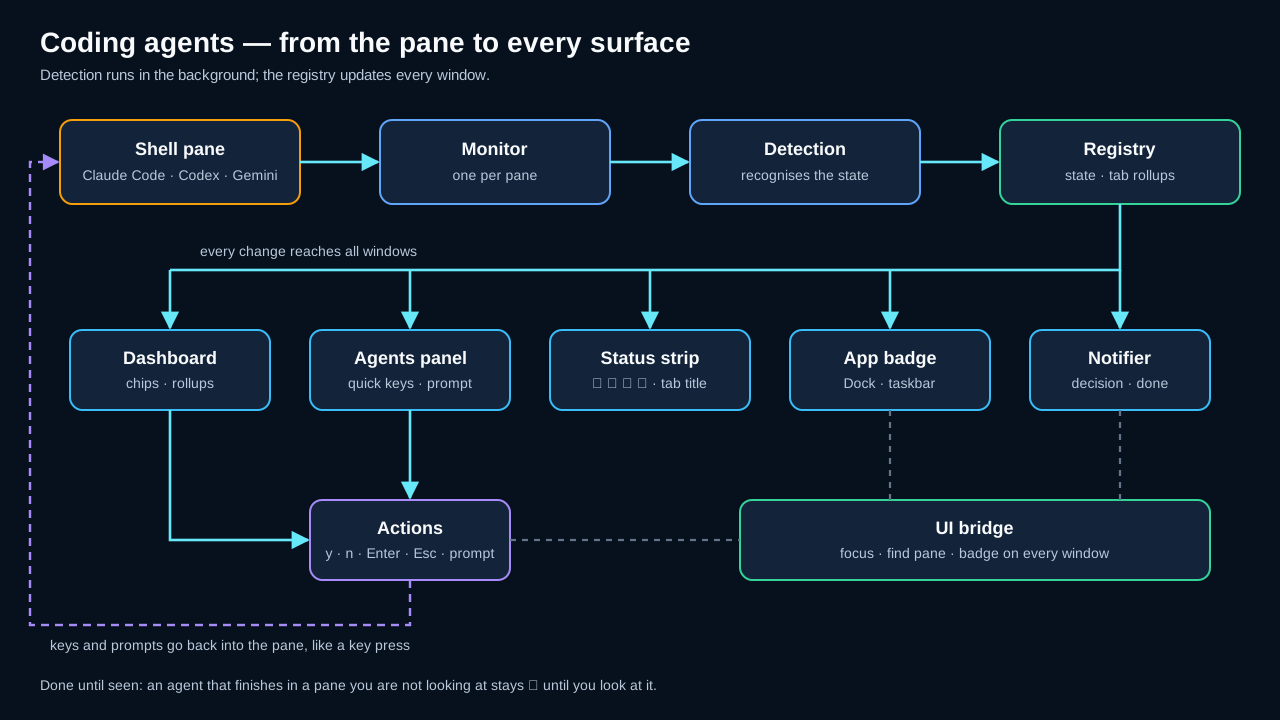
What it detects
Detection covers the twenty agents below, started from a Local Shell tab — directly, through a package-manager wrapper such as npx, or as a node, bun, deno or python script. SSH and Mosh tabs are not analysed, because the agent runs on the remote machine and korTTY cannot see its process; an agent on a server can still tell you that it waits for you with a terminal notification, see Notifications from programs.
| Agent | Recognised executables |
|---|---|
| Claude Code | claude, claude-code |
| Codex | codex |
| Gemini CLI | gemini (Google no longer lets personal Google accounts sign in to Gemini CLI; it keeps working with a paid Gemini API key or a Gemini Code Assist Standard or Enterprise licence — personal accounts move to Antigravity CLI) |
| MiniMax Code | mcode (the running agent renames its process to minimax-code; korTTY reads that process title when node reports no script) |
| Qwen Code | qwen, qwen-code |
| OpenCode | opencode |
| Cursor Agent | cursor-agent, and the bundled node script under …/cursor-agent/versions/<version>/index.js (the launcher runs it; korTTY recognises that install path) |
| Aider | aider (a Python console script, also python -m aider) |
| Amp | amp (its screen rules are not yet verified against live sessions; Amp shows up from its first working or approval screen) |
| Goose | goose (Block's goose CLI; the database-migration tool of the same name is never reported) |
| Crush | crush |
| Kiro CLI | kiro-cli, kiro-cli-chat (its screen rules are not yet verified against live sessions; Kiro's shell wrapper kiro-cli-term is never counted as an agent) |
| Continue | cn (a node script of the npm package @continuedev/cli) |
| Grok CLI | grok as a node script (Superagent's open-source grok-cli, npm package @vibe-kit/grok-cli) |
| Jules | jules (Google's asynchronous agent: its sessions run in the cloud, so korTTY watches the local jules dashboard that lists them; the screen rules are not yet verified against live sessions) |
| GitHub Copilot CLI | copilot |
| Grok Build | grok as a native program (xAI's Grok Build, installed as ~/.grok/bin/grok, or the grok-<os>-<arch> binary it points to; the installer's agent alias is not recognised; its permission dialog preselects always-approve, so Enter alone approves every later tool call — reject with ↓, ↓, ↓, Enter) |
| Antigravity CLI | agy (Google's successor to Gemini CLI; Homebrew's antigravity-cli links its antigravity binary as agy, and that name is recognised too) |
| Cline | cline as a node script (npm package cline; the script stays alive while the native program it starts runs the session; Cline starts with Auto-approve all switched on and keeps the Shift+Tab toggle across runs, so with it on no approval dialog appears; while a reply taller than the screen is still streaming, its spinner can scroll out of view and the pane briefly shows as idle) |
| Kilo | kilo or kilocode as a node script (npm package @kilocode/cli, a fork of OpenCode; the script stays alive while the native program it starts runs the session; Reject in its permission dialog first asks what Kilo should do differently — the pane stays waiting for you until you confirm with Enter, with or without a reason) |
Every split pane is tracked on its own, so a tab with two panes can show one agent working while the other waits for a permission decision. A pane that runs no agent, or whose agent has exited, simply has no detection result.
States
A detected agent is always in exactly one of five states. The list is ordered by urgency: when several panes are summarised, the most urgent state wins.
| State | Meaning |
|---|---|
| BLOCKED | The agent is waiting for you — a permission dialog (Do you want to proceed?), a question picker, or a (y/n) prompt is on screen. |
| DONE | The agent has finished. Either it shows an explicit completion screen that a rule recognises, or — far more often — it went from WORKING back to its empty prompt while you were not looking at its pane. KorTTY then keeps it marked DONE (✓) until you look at the pane; the moment its tab is selected and its pane focused in the front window, it becomes IDLE. |
| WORKING | The agent is thinking, running a tool or streaming output — typically recognisable by its spinner line and the esc to interrupt hint. |
| IDLE | The agent is running and its input box is empty, waiting for your next instruction. |
| UNKNOWN | The agent process is present but the screen matches none of the rules and the rule file asks for a strict result instead of a fallback. |
Dashboard marking
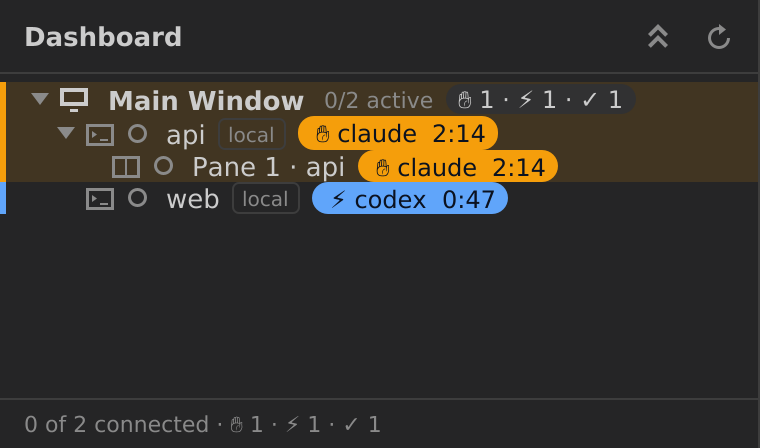 Open the dashboard with View → Show Dashboard (Ctrl+Shift+D) and every connection row that hosts a coding agent shows a chip after the protocol badge: the state glyph, the agent's short name (or the alias you gave it) and, for an agent that is waiting, working or done, how long it has been in that state (
✋ claude 2:14). An idle agent gets a dim, outlined chip so you still see that one is present. A row that also runs korTTY's own AI agent merges both marks into one chip.
The row itself carries a coloured accent bar on its left edge — amber while the agent waits for you (the row is tinted as well), blue while it works, green when it is done — and the status dot of a waiting agent pulses while the window is in front and animations are enabled. Group and environment rows above a marked connection show a rollup chip such as ✋ 1 · ⚡ 2 and take the accent of their most urgent child, and the footer appends the same rollup to the connection count (3 of 5 connected · ✋ 1 · ⚡ 2), so a waiting agent is visible even when its group is collapsed.
A split tab grows pane rows below the connection (Pane 2 · api, named after the pane's working directory, with your home directory written ~ as the shell writes it), one per pane, so each pane can be reached on its own. Every pane is listed, whether or not an agent was detected in it: a split where one pane runs an agent and the other does not is the ordinary case, and showing only the agent's pane would hide half the tab. A pane without an agent carries no chip and no accent. An unsplit tab gets no pane rows, because its connection row already is the pane. When an agent becomes blocked, the dashboard expands the tree down to its row once per transition — a waiting agent is never hidden inside a collapsed group — and respects Collapse all afterwards.
The context menu of a marked row adds Focus Pane, which selects the tab and focuses exactly that pane, Show in Coding Agents Panel, which docks the panel and selects the agent, and, while the agent waits for you, Send Enter, Send Esc and Interrupt (Ctrl+C) to answer the dialog without leaving the dashboard. The tab title shows the same glyph as the chip — ✋ waiting, ⚡ working, ✓ done, merged with korTTY's own AI-agent glyph where both apply.
The Coding Agents panel
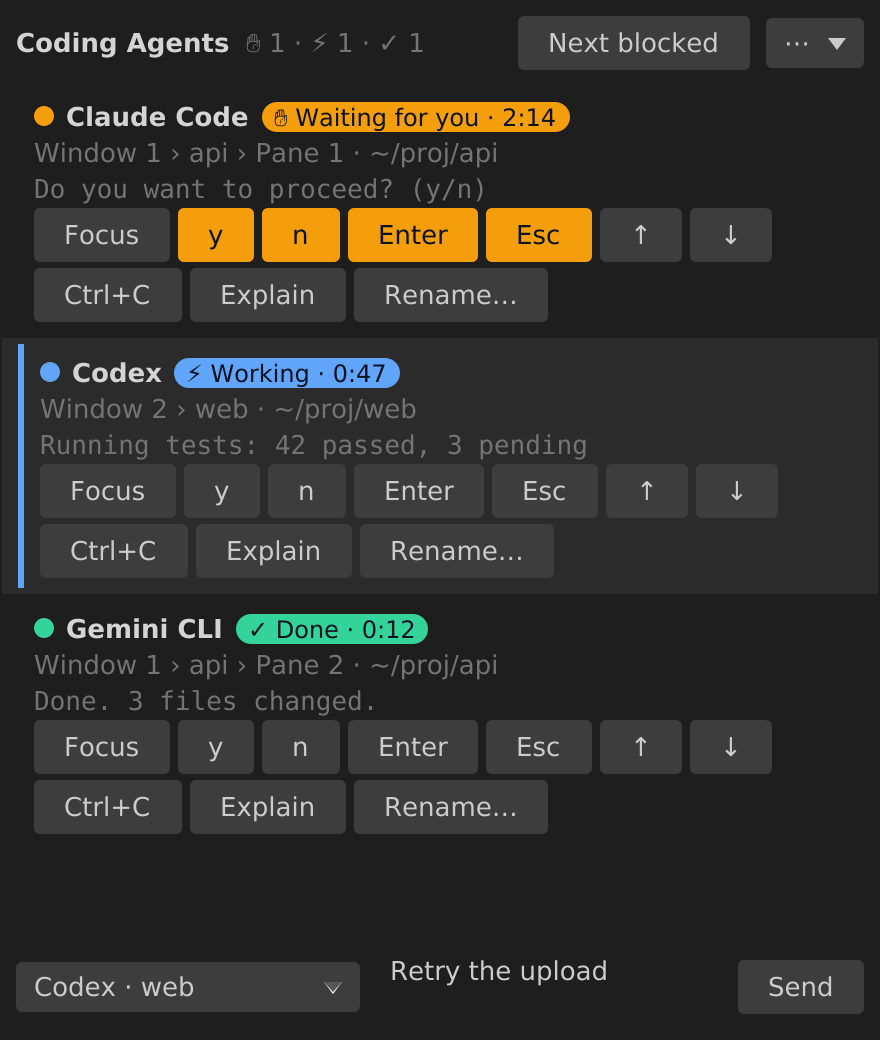 The panel lists every detected agent of every korTTY window in one place. Open it with View → Coding Agents → Dock Left / Dock Right, toggle it on its last-used side with Show/Hide (Ctrl+Alt+G), from the ⋯ menu inside the panel, from the status strip's context menu, or with Show in Coding Agents Panel in the dashboard. By default, the sidebar opens on the right when the first agent is detected in that window and hides when no agents are detected in any korTTY window. An idle agent is still detected, so finishing a task alone does not hide the sidebar. Choosing the left side keeps that choice for subsequent automatic openings, including after a restart. An already open sidebar stays visible while another window still has agents. A manual hide lasts until the next detection session in its own window. Disable Automatically show and hide the coding-agent sidebar under Settings → Terminal → Coding agents to control visibility entirely yourself. The minimum and initial width are 750 pixels; a wider size is remembered across restarts. Agents that wait for you are listed first (longest waiting on top), then the working, done and idle ones in window, tab and pane order; the row of the pane you are currently in carries a left accent.
Every row shows the state dot and name, a state chip such as ✋ Waiting for you · 2:14, the location line (Window 2 › api › Pane 2 · ~/proj/api) and the last screen line that matched a rule — the evidence. Below them sit the quick keys: Focus brings the pane to the front, YES, NO, Enter and Esc answer a dialog (they are highlighted while the agent waits for you), ↑ and ↓ move through a question picker, Ctrl+C interrupts, Explain opens a drawer with the full detection explanation (agent, state, matching rule, evidence, process and time in state), and Rename… gives the agent an alias that replaces its name in every chip, row and notification — an empty alias restores the agent name, and the alias survives a reconnect but is dropped when the pane closes. Every key goes to the pane's own terminal connection, exactly as if you had typed it there; the buttons are disabled while the pane is not connected.
YES and NO send the complete uppercase words followed by Enter, so one click answers and submits; Enter on its own confirms whatever the agent has preselected. For a menu such as MiniMax Code’s approval dialog, follow the footer shown by the agent: ↑ / ↓ choose an option, Enter confirms it and Esc denies it. Focus is navigation inside korTTY, so it may appear unchanged when that pane is already selected. Explain opens or closes the row’s detection details (matched rule, screen evidence, process and time in state); it does not ask the coding agent to explain its work. The explanation collapses automatically after 60 seconds, or earlier when you click Explain again or hide the sidebar. Both actions work independently of the agent provider.
The prompt box at the bottom sends longer text to the agent selected in the target list: Enter sends, Shift+Enter inserts a line break. A single line is sent followed by Enter. A multi-line prompt is wrapped in bracketed paste — so the agent receives it as one pasted block instead of several submitted lines — but only when that agent has switched bracketed paste on, which Claude Code, Codex, Gemini CLI, MiniMax Code, Qwen Code, OpenCode, Cursor Agent, Aider, Goose, Crush, GitHub Copilot CLI, Grok Build, Cline and Kilo all do at their prompt; otherwise the lines are sent as typed. Bracketed-paste markers inside the prompt text itself (ESC[200~, ESC[201~ and their 8-bit forms) are removed before sending, so a prompt can never end the paste early and have its remaining lines submitted one by one. Two prompts are refused with a message in the panel's status line instead of being sent: while the agent is waiting for a decision the Send button stays disabled, because the text would land inside the permission dialog — answer it with YES, NO, Enter or Esc first; and a prompt whose first line starts with korTTY's own AI shortcut (the command name configured under Settings → AI, agent by default) is rejected, because korTTY's shortcut filter would divert that line to its own AI agent instead of the coding agent — rephrase the line. Errors of a quick key or prompt (pane closed, not connected, write failed) appear in the same status line for a few seconds, never as a dialog, and a successful send confirms with Sent to Claude Code.
The Next blocked button in the panel header jumps to the next agent that waits for you, across all windows and wrapping around; it is the same action as Ctrl+Alt+N and a click on the status strip.
Status strip
 The right end of the status bar shows a compact strip while at least one coding agent is known: up to three chips for waiting, working and done agents (
✋ 1 · ⚡ 2 · ✓ 1, zero counts are omitted), with the waiting dot pulsing while the window is in front. A click jumps to the next agent waiting for you — or, when none is waiting, to the first agent in display order — and a right-click offers Show/Hide for the panel and Next Blocked Agent. The tooltip summarises the counts. The strip disappears together with the status bar when you hide it under View.
App icon badge and notifications
 The number of agents waiting for a decision — across all windows — is shown as a badge on the app icon so you notice it while working in another application. How the badge is drawn depends on the platform: on macOS the packaged app sets the Dock badge; on Windows korTTY draws the count into its own taskbar and title-bar icon; on Linux it emits the launcher-entry signal that KDE Plasma, Ubuntu Dock and Dash to Dock render on the launcher icon — this needs an installed desktop file (the deb, rpm or pacman package) and a reachable session bus, which korTTY talks to directly. Stock GNOME Shell without a dock extension shows no launcher counters at all. Wherever no icon badge is available — an unpacked archive,
 ./gradlew run, an unsupported desktop — korTTY falls back to the window title, which becomes (2) KorTTY while two agents wait and returns to KorTTY at zero. When an agent becomes blocked while no korTTY window is focused, the app additionally asks for attention once (the Dock icon bounces, the launcher entry is marked urgent).
A desktop notification is shown when an agent needs a decision or finishes while you are not looking at its pane — that is, while its tab is not the selected tab of the front window, or its pane is not the focused one. The title names the agent (Claude Code needs a decision, Claude Code finished), the body shows the location and working directory followed by the matching screen line. A blocked state has to persist for a moment before it is reported, an agent is reported at most once every ten seconds, the same transition is never reported twice, and nothing is shown for the pane you are looking at. Notifications use the operating system's own service: the Notification Center on macOS, the tray balloon on Windows, and the desktop's notification server on Linux, also from the Flatpak package. Nothing leaves this computer — the text is the screen line korTTY already read.
Clicking a notification takes you to the agent: korTTY brings the window to the front, selects the tab and focuses the agent's pane, as the panel's Focus button does. If the pane has closed in the meantime, the click does nothing. Where the click works:
| Operating system | Notification | Click |
|---|---|---|
macOS, installed korTTY.app |
Shown as korTTY, with its name and icon in Notification Center | Jumps to the pane. The first notification asks once for permission; if you choose Don't Allow, korTTY shows none until you allow them in System Settings → Notifications → korTTY |
macOS, started with ./gradlew run |
Shown as korTTY Notifications, a native helper built by Gradle using Xcode Command Line Tools |
Jumps to the pane of the running korTTY instance. Allow korTTY Notifications when macOS first asks; its permission is separate from the installed app’s |
| Windows 10 and 11 | Tray balloon, shown as a toast in the notification centre | Jumps to the pane of the latest notification; double-clicking korTTY's tray icon does the same |
| Linux | Through the notification server of the desktop (GNOME, KDE Plasma and others), grouped under korTTY | Jumps to the pane when the server supports actions; without a session bus, through notify-send from libnotify 0.7.10 or later |
| Linux, Flatpak | Through the notification server of the desktop, which the package is allowed to reach (org.freedesktop.Notifications) |
Jumps to the pane when the server supports actions; if that permission was taken away with flatpak override, through notify-send on the host, from libnotify 0.7.10 or later |
Both surfaces are on by default. The badge toggle is under Settings → Terminal → Coding agents and the notification toggle is under Settings → Messaging → Coding agents (see Enabling detection). Switching the badge off clears it immediately; switching notifications off stops new ones without touching the badge.
Keyboard shortcuts
| Shortcut | Action |
|---|---|
| Ctrl+Alt+G | Show or hide the Coding Agents panel on its last-used side (right by default) |
| Ctrl+Alt+N | Jump to the next coding agent waiting for a decision, across windows |
| Enter / Shift+Enter | In the panel's prompt box: send the prompt / insert a line break |
On macOS use Cmd where Ctrl is shown.
How detection works
KorTTY only believes an agent is present when two independent observations agree — this double evidence keeps a stray claude in a shell script or a quoted prompt fragment from producing false alarms:
- Process tree. The pane's local shell has a known process ID. KorTTY walks that process's descendants and looks for the newest live one whose executable name — or, for
node,bunanddeno, the script it runs — belongs to one of the supported agents. - Screen rules. The text currently visible in the pane (never the scrollback), together with the window title the agent sets and whether it switched to the alternate screen, is matched against the rule file of that agent. The first rule match confirms the process; from then on the rules decide the state.
The screen is re-evaluated about 200 ms after the first change in a burst of output — further changes inside that window are coalesced — so a long stream of output triggers one evaluation per 200 ms window instead of one per line, and a short burst exactly one. A slow heartbeat additionally notices when the agent exits without printing anything, when the tab disconnects, or when you switch detection off. Rules are evaluated by priority; the first rule whose conditions all hold determines the state. If the agent process is confirmed but no rule matches, the rule file's fallback state (IDLE for the bundled files) is reported.
Privacy
Screen text is analysed only inside korTTY, in memory, on this computer. Nothing is sent to any service, written to disk, or handed to the AI assistant — detection is plain pattern matching against local rule files. If you prefer not to have local shell screens inspected at all, switch the feature off under Settings → Terminal → Coding agents.
Enabling detection
Detection is on by default. Detection, automatic sidebar visibility and the app badge are configured in Settings → Terminal, section Coding agents. Desktop notifications for detected agents are controlled separately under Settings → Messaging → Coding agents. Changes take effect for all open tabs when you save — no restart or reconnect is needed.
| Setting | Type | Values | Default | Stored as |
|---|---|---|---|---|
| Detect coding agents (Claude Code, Codex, Gemini CLI, MiniMax Code, Qwen Code, OpenCode, Cursor Agent, Aider, Amp, Goose, Crush, Kiro CLI, Continue, Grok CLI, Jules, GitHub Copilot CLI, Grok Build, Antigravity CLI, Cline, Kilo) in local shell tabs | toggle | — | On | codingAgentDetectionEnabled |
| Automatically show and hide the coding-agent sidebar | toggle | — | On | codingAgentPanelAutoVisibility |
| Show the number of agents waiting for a decision on the app icon | toggle | — | On | codingAgentAppBadgeEnabled |
To disable messages about waiting or finished agents, turn off Desktop notification when a coding agent needs a decision or finishes while you are not looking at its pane under Messaging settings. The separate notification switch does not turn off detection, sidebar controls or the app badge.
When the detection toggle is off, korTTY neither walks the process tree nor reads the screen of any pane, and the dashboard marks, panel, strip, badge and notifications all fall silent. The panel's placement and width are not settings-dialog options: they follow the View → Coding Agents menu and are stored as codingAgentPanelPlacement (HIDDEN, LEFT or RIGHT) and codingAgentPanelWidth (750–1,200 pixels, default 750). The chosen side is retained as codingAgentPanelSide (LEFT or RIGHT, initially RIGHT) even while the panel is hidden.
Custom rules
Each agent's screen rules live in a small JSON file. KorTTY ships one bundled file per agent and lets you replace it with your own copy under your configuration directory:
~/.kortty/coding-agents/claude-code.json
~/.kortty/coding-agents/codex.json
~/.kortty/coding-agents/gemini-cli.json
~/.kortty/coding-agents/minimax-code.json
~/.kortty/coding-agents/qwen-code.json
~/.kortty/coding-agents/opencode.json
~/.kortty/coding-agents/cursor-agent.json
~/.kortty/coding-agents/aider.json
~/.kortty/coding-agents/amp.json
~/.kortty/coding-agents/goose.json
~/.kortty/coding-agents/crush.json
~/.kortty/coding-agents/kiro.json
~/.kortty/coding-agents/continue.json
~/.kortty/coding-agents/grok.json
~/.kortty/coding-agents/jules.json
~/.kortty/coding-agents/copilot.json
~/.kortty/coding-agents/grok-build.json
~/.kortty/coding-agents/antigravity.json
~/.kortty/coding-agents/cline.json
~/.kortty/coding-agents/kilo.json
An override replaces the bundled file for that agent as a whole — there is no merging, so start from the bundled file and edit it. The file must be a regular file (symbolic links are not followed), and its kind must match the file name. An invalid file — malformed JSON, an unknown key, a bad regular expression, a duplicate rule id, or a rule without any condition — is ignored with a warning in the log and the bundled rules stay in effect, so a typo can never silently disable detection. Rule files are read at startup; restart korTTY after editing one.
Rule file schema
The schema is strict: every key not listed here is an error, so misspelt keys are reported instead of being ignored.
{
  "kind": "CLAUDE_CODE | CODEX | GEMINI_CLI | MINIMAX_CODE | QWEN_CODE | OPENCODE | CURSOR_AGENT | AIDER | AMP | GOOSE | CRUSH | KIRO | CONTINUE | GROK | JULES | COPILOT | GROK_BUILD | ANTIGRAVITY",
  "version": 1,
  "comment": "optional free text, e.g. the agent version the rules were written against",
  "fallbackState": "IDLE | WORKING | BLOCKED | DONE | UNKNOWN (optional, default IDLE)",
  "rules": [
    {
      "id": "unique-rule-id",
      "state": "WORKING | BLOCKED | DONE | IDLE",
      "priority": 100,
      "region": { "bottomNonEmptyLines": 8 },
      "anyLineRegex": ["Java regex, matched per line"],
      "regex": "Java regex, matched against the whole region",
      "contains": ["literal text that must all be present"],
      "notContains": ["literal text that vetoes the rule"],
      "title": "Java regex matched against the window title",
      "alternateScreen": false
    }
  ]
}
| Field | Required | Meaning |
|---|---|---|
kind |
yes | The agent this file describes; must match the file name (claude-code, codex, gemini-cli, minimax-code, qwen-code, opencode, cursor-agent, aider, amp, goose, crush, kiro, continue, grok, jules, copilot, grok-build, antigravity, cline, kilo). |
version |
yes | Schema version; currently always 1. |
comment |
no | Free text for your own notes, for example which agent version the rules were verified against. |
fallbackState |
no | State reported while the agent process is present but no rule matches. Defaults to IDLE; UNKNOWN makes detection stricter. |
rules |
yes | The list of rules, evaluated by descending priority; ties keep file order. May be empty. |
rules[].id |
yes | Unique within the file; letters, digits, ., _ and -. Shown in diagnostics so you can see which rule fired. |
rules[].state |
yes | The state this rule reports: WORKING, BLOCKED, DONE or IDLE. |
rules[].priority |
yes | Higher values are checked first. |
rules[].region |
no | { "bottomNonEmptyLines": N } restricts matching to the bottom N non-empty screen lines; 0 or absent means the whole screen. |
rules[].anyLineRegex |
no | Regular expressions tried against each line of the region; the first matching line becomes the rule's evidence. |
rules[].regex |
no | One regular expression tried against the region joined with newlines (multi-line, dot matches newline). |
rules[].contains |
no | Literal substrings that must all occur in the region. |
rules[].notContains |
no | Literal substrings whose presence anywhere in the region vetoes the rule. |
rules[].title |
no | Regular expression that must match the window title set by the agent; never matches while no title has been received. |
rules[].alternateScreen |
no | When present, the pane's alternate-screen flag must equal this value. |
A rule must declare at least one of anyLineRegex, regex, contains, title or alternateScreen. All conditions of a rule must hold for it to match.
Regular expressions use Java syntax and are compiled with Unicode case folding; put (?i) at the start of a pattern to make it case-insensitive. Remember that JSON requires backslashes to be doubled, so \s is written as "\\s". Patterns in anyLineRegex are searched within a line (they need not match the whole line), and ^ and $ anchor to the line. Most agents keep their status line and prompt at the bottom of the screen, so a small bottomNonEmptyLines region keeps rules fast and prevents older output from matching.
Example: bundled Claude Code rules
{
  "kind": "CLAUDE_CODE",
  "version": 1,
  "comment": "Permission dialogs (Bash, Edit, Write, MCP) and the AskUserQuestion picker are BLOCKED; a tool call showing 'Running…' or the spinner status line with 'esc to interrupt' is WORKING; the empty input prompt with '? for shortcuts' is IDLE. The onboarding menus (theme picker, login method) intentionally match no rule. Claude Code does not use the alternate screen, so no rule depends on that flag. Re-verify against live sessions after an agent update.",
  "fallbackState": "IDLE",
  "rules": [
    {
      "id": "permission-prompt",
      "state": "BLOCKED",
      "priority": 1000,
      "region": { "bottomNonEmptyLines": 20 },
      "anyLineRegex": [
        "Do you want to (proceed|make this edit|create|run|allow)",
        "Do you want to allow this connection\\?",
        "Would you like to proceed\\?"
      ],
      "regex": "^\\s*[│┃]?\\s*❯?\\s*1\\.\\s*Yes\\b",
      "notContains": ["esc to interrupt"]
    },
    {
      "id": "question-picker",
      "state": "BLOCKED",
      "priority": 950,
      "region": { "bottomNonEmptyLines": 20 },
      "anyLineRegex": ["(?i)\\bEsc to cancel\\b"],
      "regex": "(?i)Enter to (select|confirm)|Arrow keys to navigate|↑/?↓ to navigate|Review your answers",
      "notContains": ["esc to interrupt", "Enter to set as default"]
    },
    {
      "id": "working-tool-running",
      "state": "WORKING",
      "priority": 910,
      "region": { "bottomNonEmptyLines": 12 },
      "anyLineRegex": ["^\\s*⎿\\s+Running…"]
    },
    {
      "id": "working-spinner",
      "state": "WORKING",
      "priority": 900,
      "region": { "bottomNonEmptyLines": 8 },
      "anyLineRegex": [
        "(?i)esc to interrupt",
        "^\\s*[✻✳✶✽✢·\\*]\\s+\\S.*…"
      ]
    },
    {
      "id": "idle-prompt",
      "state": "IDLE",
      "priority": 100,
      "region": { "bottomNonEmptyLines": 6 },
      "anyLineRegex": ["^\\s*[│┃]?\\s*[❯>]\\s*$", "\\?\\s+for shortcuts"],
      "notContains": ["esc to interrupt"]
    }
  ]
}
The two BLOCKED rules combine a per-line pattern with a whole-region regex, so a permission dialog is only reported when both the question and its 1. Yes option are on screen, and a question picker only together with its navigation footer — the onboarding menus of a fresh installation show a similar list but neither footer, and must not count as blocked. The notContains veto on the BLOCKED and IDLE rules matters too: while Claude Code is working, its status line stays on screen together with older dialog text, and the veto keeps the higher-priority prompt rules from firing on stale lines.
Maintaining rules
Agents change their interfaces often, and a rule that matched last month may silently stop matching after an update. KorTTY's bundled rules are therefore pinned by screen fixtures: for every agent, the repository keeps captured terminal screens with the state and rule they must produce, and the test suite fails as soon as a bundled rule no longer matches its fixture or a rule has no fixture at all. When you notice a wrong or missing state, the most useful report is the visible screen text of the pane at that moment, the agent and its version, and the state you expected — it becomes a new fixture and a rule fix in the next release. Until then, a local override file lets you correct the rule for yourself immediately.
The repository ships a recorder for exactly this purpose: scripts/capture-coding-agent-fixtures.py runs an agent inside a pseudo-terminal and passes your keyboard through, so the session behaves like a normal terminal. Press F12 at every interesting moment — the permission dialog, the spinner, the empty prompt — and the visible screen is written to a fixture file; Ctrl+] stops the recording. Each file starts with a expect state=REVIEW rule=REVIEW line: set the state and rule id you expect there, and drop the file into src/test/resources/coding-agents/<kind>/ (claude-code, codex, gemini-cli, minimax-code, qwen-code, opencode, cursor-agent, aider, amp, goose, crush, kiro, continue, grok, jules, copilot or grok-build). From then on the test suite guards the rule against that screen, and a rule change that would break it is caught before release.
Driving agents from a script
Everything the Coding Agents panel does — listing agents, reading their state, prompting them, answering their questions, renaming them, starting a new one in a split pane — is also reachable from a local script or another coding agent through korTTY's control API and its kortty-cli client. It is off by default; the agent.* commands need a detected agent, so they need detection switched on as well.
Limitations and troubleshooting
- Flatpak. In the Flatpak package the local shell runs on the host through
flatpak-spawn, so the process ID korTTY holds belongs to the sandbox-side helper and the agent's process tree is not visible. No agent is detected in Flatpak local shells. - Remote clients as the shell command. A local shell tab whose configured shell command is itself
sshormoshruns the agent on another machine; the process tree ends at the client and no agent is detected. The same applies to any SSH or Mosh tab. - Unusual wrappers. An agent started through a launcher that korTTY does not recognise — a custom shell script that
execs into a differently named binary, a container, or a terminal multiplexer running outside the tab — is not identified, because the executable name in the process tree does not map to a known agent. - Wrong or flickering state. The agent's screen has changed, or a dialog is rendered in a way the bundled rules do not cover. Copy the bundled rule file to
~/.kortty/coding-agents/<agent>.json, adjust the pattern, restart korTTY, and report the screen text so the bundled rules can be fixed. - No state at all although the agent is running. Check that the toggle in Settings → Terminal → Coding agents is on, that the tab is a Local Shell tab, and look for a coding-agents warning in the log — an invalid override file falls back to the bundled rules, but a bundled rule file that never matches your agent version leaves the agent unconfirmed.
- No badge on GNOME. Stock GNOME Shell renders no launcher counters, and korTTY cannot detect whether a dock extension that would is installed, so the count is emitted but may stay invisible; the window-title fallback is used only where korTTY knows for certain that no icon badge exists (no installed desktop file, no reachable session bus,
./gradlew run). - No notification although the agent waited. Notifications are suppressed for the pane you are looking at, for a blocked state that lasted less than a moment, for a second report of the same transition, and within ten seconds of the previous one for that pane; on Linux a notification server must be running on the session bus, or
notify-sendmust be on the PATH; on macOS notifications for korTTY must be allowed in System Settings → Notifications; an enterprise policy can turn desktop notifications off; and the notification setting under Settings → Messaging → Coding agents must be on. - Clicking a notification does nothing. The terminal pane of the agent has been closed since the notification was shown, korTTY was started outside its app bundle without the development notification helper (the legacy fallback belongs to Script Editor), or the Linux notification server does not support actions and there is no
notify-sendfrom libnotify 0.7.10 or later. - The prompt was refused. A waiting agent must be answered first (
YES,NO, Enter or Esc), and a first line that begins with korTTY's own AI shortcut command must be rephrased — see The Coding Agents panel.