Session journal
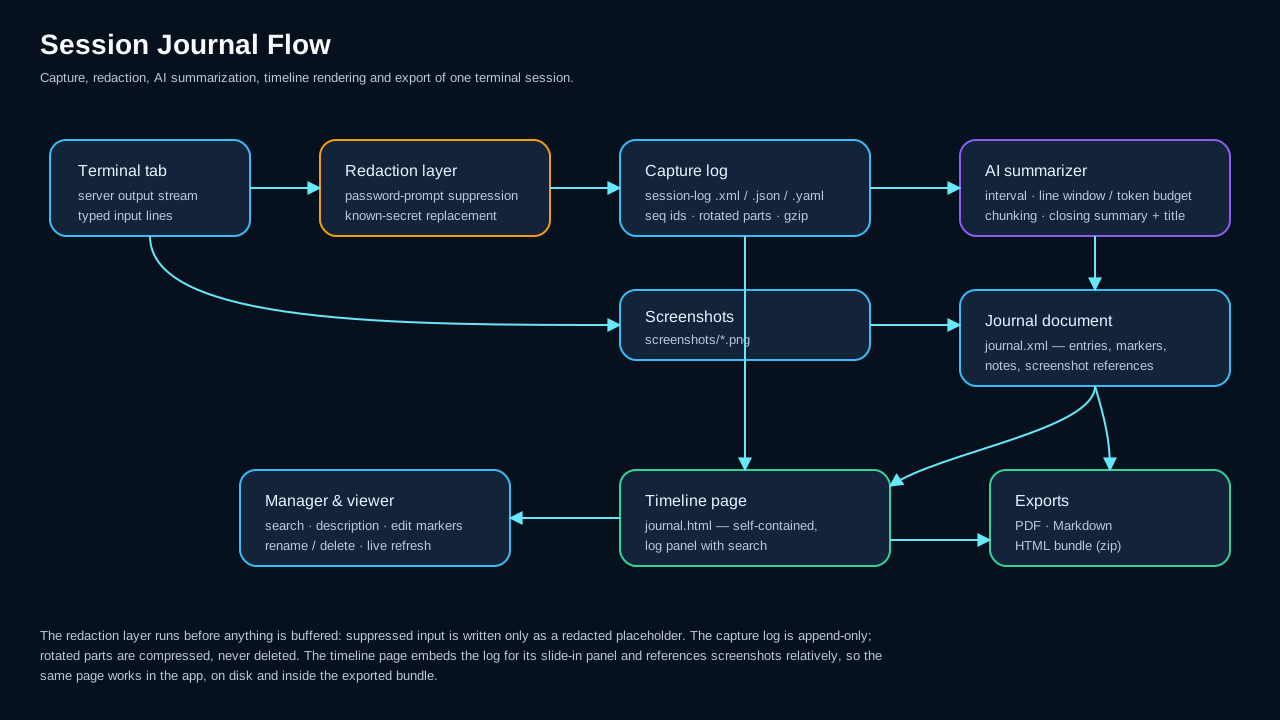
The session journal documents a terminal session as a readable timeline: every server output line and every command you type is written to a capture log, an AI periodically condenses the activity into short journal entries, and the result is rendered as a self-contained HTML page with connection details, color-coded excerpts, screenshots and your own notes. Journals are managed like saved chats — in their own manager window with search, editing and export.
Storage and formats
Each journal is one self-contained directory under ~/.kortty/journals (configurable in Settings > Logging > Session Journal):
| File | Purpose |
|---|---|
journal.xml |
The curated journal document: metadata, AI summaries, markers, notes, screenshot references |
session-log.json / .xml / .yaml |
The append-only capture log — timestamped server output and typed input lines with sequence ids |
session-log-2.json.zst, … |
Rotated log parts; closed parts are zstd-compressed automatically, the journal never deletes history. Journals recorded by older versions keep their .gz parts and remain fully readable |
journal.html |
The generated timeline page, regenerated automatically after every change |
screenshots/*.png |
Screenshots you attached during the session |
The capture-log format is selectable in the journal manager's Options dialog: JSON (JSON Lines, the default), XML or YAML. All formats carry the same fields, and every entry is exactly one line, so a crash never corrupts more than the last line. JSON is the default because log tooling reads it without needing a parser of its own — not because it saves space. Size barely separates the three: for ordinary output XML is about 9 bytes per entry smaller, for output full of <, > and & JSON is roughly 10 % smaller (XML has to escape those, JSON does not), and once a finished part is compressed all three land within 2 % of each other. YAML is the largest, since it writes JSON mappings with a - prefix. The active log part stays uncompressed for live reads; rotation (default 25 MB per part) and session end compress finished parts to .zst (zstd — journals from older versions keep their .gz parts and open exactly as before).
Two more things keep long, noisy sessions small and complete. Consecutive identical output lines (progress loops, tail -f repeats) are coalesced syslog-style: the first occurrence is written immediately, follow-ups are counted and stored as one entry with a repeat count. The viewer shows such a run compactly as line ×12, while copying or exporting the log reproduces the original lines in full. And when server output arrives faster than the log can persist it, the capture applies backpressure instead of dropping lines — the terminal may briefly slow down under an extreme flood, but the journal stays complete.
Rotation is configurable per connection on the Journal tab: Maximum size per log part (MB) (default 25) and Maximum rotated log parts (default 20). After the configured number of parts, output capture stops with a note in the journal; input, screenshots and notes continue. An enterprise policy can cap the part count via max-log-parts.
Enabling the journal
Automatically for a connection
- Open Connections > Manage Connections and edit a connection
- On the Journal tab, enable Enable session journal for this connection
- Optionally adjust Capture typed input lines, Generate AI summaries, the per-connection Summary interval, and the rotation pair Maximum size per log part (MB) and Maximum rotated log parts
Every future connection of this server then starts its journal automatically. The journal survives reconnects — one journal per tab lifetime, with a reconnect marker in the log.
Retroactively for a running session
Use Tools > Start/Stop Session Journal (Ctrl+Alt+T), the tab context menu (Session Journal > Start journal) or the journal bar's Start journal button. The existing scrollback is imported into the journal as seed entries first, so the timeline covers what already happened, then live capture attaches.
AI connection test before the journal starts
A journal whose summaries can never be written is of little use, so when the journal would call the AI (summaries switched on globally and for the connection, and allowed by policy), korTTY first checks that the AI profile answers. A successful test is remembered for ten minutes per profile, so opening further tabs does not ask the provider again.
- Starting the journal by hand — the journal bar, the tab menu or Ctrl+Alt+T — shows Testing the AI connection… and starts the journal only after the test passed. Output printed meanwhile is not lost: the scrollback is imported when the journal starts. If the test fails, a dialog names the profile and the reason (for example a missing API key or a refused connection) and offers Test again, Record without AI — the journal records raw activity and can be evaluated later — or Cancel.
- Journals that start automatically on connect begin capturing right away, so the terminal is never blocked; the test runs in the background. If it fails, a red bar below the terminal shows the profile and the reason, with Test again, Record without AI and End journal.
- Automation runs test the AI once per run before their closing pass. If it does not answer, the run is kept as a log only and a timeline entry AI not reachable says why — evaluate it later from the journal manager.
The journal bar
While a journal is available, a bar below the terminal shows its state (Journal active since HH:MM) and offers Stop journal, Screenshot and Note:
- Screenshot (Ctrl+Alt+C, also Tools > Add Journal Screenshot and the terminal's right-click menu) snapshots the terminal — in a split layout, the right-click menu captures exactly the pane under the cursor — and files it into the journal timeline.
- Note opens the note editor for a free-text remark that appears as its own timeline entry at the current position.
Writing notes
Notes are written in the same editor everywhere they are edited — the journal bar's Note button, the live panel's, the entry form in the viewer, and the screenshot editor:
- The field holds at least six lines and the dialog can be resized, so a note can be a paragraph instead of a single line.
- Links are clickable. Any
http://orhttps://address in a note becomes a link on the journal page — click it and the address opens in your system browser, never inside the journal view. Only those two schemes ever become links. Web addresses in AI summaries (https://…or a barewww.host, never a file name) are clickable too — the summarizer has already dropped every statement naming a host the session does not show; terminal excerpts stay literal. To keep every address plain text, clear Make web addresses in journals clickable in Settings > Logging > Session Journal; an administrator can enforce that with theclickable-linkspolicy key, which locks the checkbox. The change applies the next time a journal page is opened. - Translate hands the note to the AI and replaces it with the translation in the language picked next to the button. The list offers the interface languages and any language korTTY has translations for, and it accepts a typed language it does not list. Your choice is remembered for the next note. The translation runs on the profile assigned to Text and translation profile in the AI manager — the same role the snippet editor's translation uses — falling back to your default profile when that role is unset. Internet access stays disabled for it, exactly as for the summaries; Cmd+Z / Ctrl+Z brings the original back. Without a usable AI profile the button is disabled and says so.
When the connection ends
A journal is bound to its tab, not to a single connection. When the connection ends while the journal is running — a reboot, a dropped network, or the server closing the session — the tab stays open and a red decision bar appears instead of the tab closing silently:
- Reconnect re-establishes the connection and the journal simply continues, with a reconnect marker in the capture log. Work that resumes after a server reboot lands in the same journal.
- End journal stops the journal and writes its closing summary (and, if enabled, the AI title) exactly like the journal bar's stop button. The tab then shows the plain reconnect bar, so reconnecting is still possible — with journaling enabled for the connection, that new session starts a fresh journal.
Closing the tab instead also ends the journal with its closing summary. Without a running journal the behavior is unchanged: a cleanly ended connection closes the tab, an error keeps it open with the reconnect bar (double-click to reconnect).
Journals of automation runs
JobScheduler jobs — including scheduled AI Swarm jobs — and runs started in the AI Swarm tab can record a session journal for every run on their own, without a terminal tab: one journal per target server, holding the commands the automation sent, their output, its summary and the outcome on that server. They are set up per job in the JobScheduler — see Session journal per run for the settings (AI summaries always / only for failed runs / off, keep always / only failed runs, automatic deletion after N days or on a date, maximum runs and disk space, discarding runs identical to the previous one) and the cost warning shown when they are switched on.
Jobs whose command runs in the virtual terminal also add screenshots of that invisible screen; the AI describes them in the closing pass when the AI mode applies. Automation journals are titled after the job, the server and the start time, and their AI summaries run once after the run has finished — on their own worker, so they never delay the summaries of the terminal you are working in. AI profile for automation journals in Settings > Logging > Session Journal picks the profile they use when a job does not choose its own; Same as for summaries uses the journal profile described under AI summaries. A cheap or local model keeps unattended runs affordable.
Administrators can forbid these journals or cap them with the automation-allowed, automation-max-retention-days, automation-max-storage-mb and automation-max-journals keys of the enterprise policy; the JobScheduler section then says so and its controls are limited.
Expired automation journals are deleted automatically — a minute after korTTY starts and then every hour — as are the oldest runs of a job beyond its maximum number of runs or disk space. Running journals, journals whose summary is still being written, pinned journals and interactive journals are never touched. In the journal manager the Deleted on column shows when a journal goes, and Keep (pin) in a journal's right-click menu exempts it from automatic deletion (Release pin undoes it).
The live journal panel
View > Live Journal (or Ctrl+Alt+L) docks the running journal's full journal page — the same page the viewer shows — to the left or right of the terminal, kept up to date in real time. Selecting the checked side in the menu hides the panel again; the divider next to it adjusts the width, and side and width are remembered across restarts.
Two things update live while the session runs:
- The live log — the Live Log button in the panel header opens the page's log panel in follow mode, streaming the capture log as it is written: command output, the commands you typed, notes and screenshot markers, each with a timestamp. It starts hidden; lines accumulate either way, so opening it later shows everything. Scrolling up pauses following, scrolling back to the bottom resumes it, the ✕ in its corner hides it again (the button stays in sync), and dragging its top edge adjusts the height — which is remembered. The view keeps the newest 5000 lines; everything stays in the capture log and in the entry cards' log excerpts.
- The timeline — new cards (AI summaries, notes, screenshots) and edits appear moments after they happen, without losing your scroll position. A terminal AI-agent run adds its own AI agent card the moment it finishes: your prompt as the title, the agent's final answer as the body, and a meta line with the model, the run duration and the reported token count. Long answers collapse to a preview — click the text (or Show full answer) to expand. Agent work is part of the journal record even though the summarizer treats the agent's inline terminal text as noise. When the run was continued in an AI chat, the card also carries that chat, see AI agent cards and their AI chats.
Because it is the real journal page, everything the viewer's page offers works right here: click an entry card to see its log excerpt, search the journal, jump between marked entries, and right-click a screenshot to open the annotation editor (pen, box, unreadable, text and a note) or copy it — the edited picture appears in the panel as soon as you save. Right-clicking an entry offers the same marker picker as the viewer. The cards adapt to the panel width, so the text stays readable however narrow or wide you drag it.
Jumping to a time
The ◷ button in the page header opens a time field: type a time and the timeline scrolls to the entry closest to it and highlights it briefly. The input is lenient — 19:00, 19.00, 1900 and 19 all mean the same, and a date can be prefixed (13.08. 19:00, 13.08.2026 19:00 or 2026-08-13 19:00). Without a date the time is matched against each entry's own day, so a session running past midnight jumps to the nearest occurrence rather than always the first day.
The panel's header adds the instant controls: Note and Screenshot act on the shown journal exactly like the journal bar — a note you add appears in both the timeline and the live log — Live Log shows or hides the log view, and Open Viewer opens the full viewer window for editing, search & replace and exports. The ⋯ menu switches the page between light and dark, refreshes it, and opens the page appearance settings.
The panel follows your tabs with a memory: it shows the journal of the current tab, and when you switch tabs it only switches along if the newly selected tab also has a running journal — otherwise it keeps showing the journal it already displays. When the shown journal is stopped or its tab is closed, the page stays visible with a Journal stopped / Tab closed badge until you select another tab with a live journal.
Everything shown has already passed password protection — suppressed input and redacted secrets never reach the panel.
AI summaries
While the journal runs, the AI summarizer periodically reads the capture log written since its last entry and appends compact journal entries (title, summary and a suggested marker: info, important or error). It reads the log command by command: a command is the line you typed at the shell prompt together with everything it printed until the prompt came back, and an entry never splits one. What you type into a running program — the password sudo asks for, the y for Is this ok [y/N] — belongs to that command, not to a new one. Short commands that follow each other share an entry; a command with more output than one AI evaluation takes (see Max. terminal lines below) gets an entry of its own. A period in which nothing was typed and nothing but the shell prompt appeared adds no entry at all, and neither do mistyped commands or commands that only show help. A typo — an attempt the shell answered with command not found or, for a script, No such file or directory — and a help call such as ls --help, docker run --help, git help log, man crontab or help cd are removed before the AI sees the excerpt; -h counts as a help call only when the command printed a usage text, since for df -h it means human-readable. Neither is counted in the journal's Commands, which also leaves out the replies typed into running programs. The capture log and the log panel keep everything, typos and help calls included. The summaries only state what the session shows — every URL, host, file and command a summary names is checked against the capture log, the journal entries and the screenshot analyses, and a statement naming something they do not contain is dropped. Defaults and limits:
| Option | Where | Default |
|---|---|---|
| Summary interval | Settings > Logging > Session Journal (global) or per connection | 5 minutes |
| Max. terminal lines per AI evaluation | Journal manager Options | 100 |
| Token budget for context fill | Journal manager Options, visible when max lines is 0 | 130000 |
| Read long commands in full, in several prompts (chunking) | Journal manager Options | off |
| AI profile for summaries | Journal manager Options or Settings > Logging > Session Journal | Default profile |
| Analyze screenshots with AI (description and tags) | Journal manager Options | on |
| Semantic journal search (embeddings) | Journal manager Options | off |
Summaries use your default AI profile unless you pick a dedicated journal profile. That choice is available in three equivalent places: the journal manager's Options dialog, Settings > Logging > Session Journal, and AI > AI Manager > Local AI > Profile roles next to the Text and Coding roles. The Text/Coding role profiles themselves are deliberately not used for the journal.
Max. terminal lines limits what one AI evaluation reads; setting it to 0 switches to context filling, where the configured token budget is the only limit. A command with more output than that is condensed: the AI reads its first lines, the lines just before each reply you typed into it (where a program asked something, such as dnf's transaction summary right before Is this ok [y/N]), the lines that report errors or warnings, and its last lines, and is told where lines were left out. With chunking enabled such a command is read in full instead, in consecutive parts of the configured size, one AI prompt each, and the parts still end in a single entry.
A command that is still running is not summarized yet: the summarizer waits until the shell shows its prompt again, so a long dnf upgrade becomes one entry when it is done, not one per interval. A command that runs longer than 15 minutes — a tail -f, a long build — gets an entry tagged still running, renewed every 15 minutes and replaced by the final entry once the command ends. Where the shell reports its commands itself through shell integration (OSC 133), korTTY knows exactly where a command ended and passes its exit status to the AI; without it the prompts in the output decide.
The summaries are written impersonally: the user you logged in as is not named, because the whole journal is theirs. A user is only named when commands ran under another account — after su, sudo -i, sudo -s or sudo -u — and an entry whose commands ran in a root shell carries a red ROOT tag at the right of its title. A single sudo <command> does not count as a switch.
Every command a summary mentions is printed in bold; a web address it opened is shown separately as a link that opens in your browser — links www.heise.de becomes links and a clickable www.heise.de. Hovering over it shows what the program is — for links, an open-source text-mode web browser — and, where it matters, where it comes from: Not part of the distribution for a custom script, a local program or a command the shell did not find, or Script from the snippet manager with the snippet's name when the command matches a snippet's file name or name in your Snippet Manager.
Warning
Chunking can take very long on large sessions and is not recommended for everyday use — it is intended for power users with capable hardware and a powerful LLM.
When the session ends — you stop the journal, close the tab or end the journal after a lost connection — the summarizer finishes it in the background: it summarizes the commands not yet covered, a command that was still running as far as its output got (tagged session ended), and then writes a closing session summary entry — the accomplished tasks and the errors as a bullet list, followed by a line korTTY adds itself with the total duration and the users the session ran under — and extracts up to twelve verbatim keywords — hostnames, script and file names, error classes — into the journal metadata, where the manager's filter, keyword chips and AI search pick them up. Optionally — Let the AI title the journal when the session ends in the Options dialog — a final AI call names the journal, unless you renamed it manually. While that runs, the journal's row in the journal manager is marked finishing and the manager's status line shows its progress, as for a re-evaluation; you can keep working, and quitting korTTY does not wait for it. A journal korTTY could not finish — because you quit korTTY before it was done, or korTTY or the computer stopped while the journal was recording — is finished the same way, in the background, the next time korTTY starts.
Note
The journal works without AI: if no AI profile is available, AI features are disabled, or summaries are switched off, the timeline records raw activity entries instead. AI summary prompts never use internet-access tools; the terminal excerpt goes only to the configured AI profile.
AI screenshot analysis
When the journal's AI profile accepts images, screenshots are analyzed as well: the model writes a short description (one or two sentences: the application and what it shows, without its menus, key bars and hint lines) and up to four lowercase tags — the application's name first — shown to the right of the thumbnail on the journal page. Tags are clickable chips — clicking one starts a journal search for that tag — and both texts are found by the manager's Search contents scan, rewritten by search and replace and the automatic redaction rules, and included in the Markdown and PDF exports. Like the summaries, the analysis — tags and command explanations included — answers in the language the journal was created under; Re-evaluate with AI… answers in the language korTTY is set to now. Colours, the interface language, the user and host names, the operating system and generic words such as terminal or ssh are left out of the tags, because they are the same on every screenshot and find nothing.
- Analyze screenshots with AI (description and tags) in the journal manager's Options dialog controls the automatic analysis on capture (on by default). It runs only when AI summaries are enabled for the connection and the profile can take images; otherwise the screenshot is simply filed unanalyzed.
- Whether a profile can take images follows its Image input (vision) setting in the AI manager. With Auto (detect), korTTY relies on the model metadata or the model name (for example GPT-4o/GPT-5, Claude, Gemini, Qwen-VL, MiniMax-M3). For a model it does not recognise, set Enabled — otherwise its screenshots stay undescribed, and
kortty.logsays so once per journal. Screenshots recorded meanwhile can be analyzed later with Analyze screenshot with AI or Re-evaluate with AI…. - Analyze screenshot with AI in the right-click menu of a screenshot analyzes one picture on demand — the way to analyze screenshots in journals recorded earlier, to retry a failed run, or to re-run the analysis after making something unreadable in the annotation editor. The analysis always reads the annotated picture, never the untouched
.orig.pngcapture.
Whether a profile can take images is a per-profile property: Image input (vision) in the AI settings defaults to Auto — for a local LM Studio endpoint korTTY reads the answer from the model metadata (during the same refresh that discovers the reasoning options), for cloud endpoints it recognizes the common vision-capable model names — and can be overridden with Enabled/Disabled for models the detection misjudges.
Warning
The automatic analysis sends the screenshot at capture time — before you had a chance to make anything unreadable. The picture goes only to the configured AI profile and never through internet-access tools, but for sessions whose screen content must not leave the machine, switch the option off or have your administrator forbid the analysis via enterprise policy — the policy mandate also disables the manual run.
Asking the AI about a journal
AI Q&A in the viewer's toolbar opens a chat panel next to the journal page. Ask anything about this session — "Were screenshots taken that show errors from result_complex.pl?" — and the AI answers from what the journal already collected while the session ran: the AI summaries, screenshot descriptions and tags, and your notes. The raw capture log is never sent to the model.
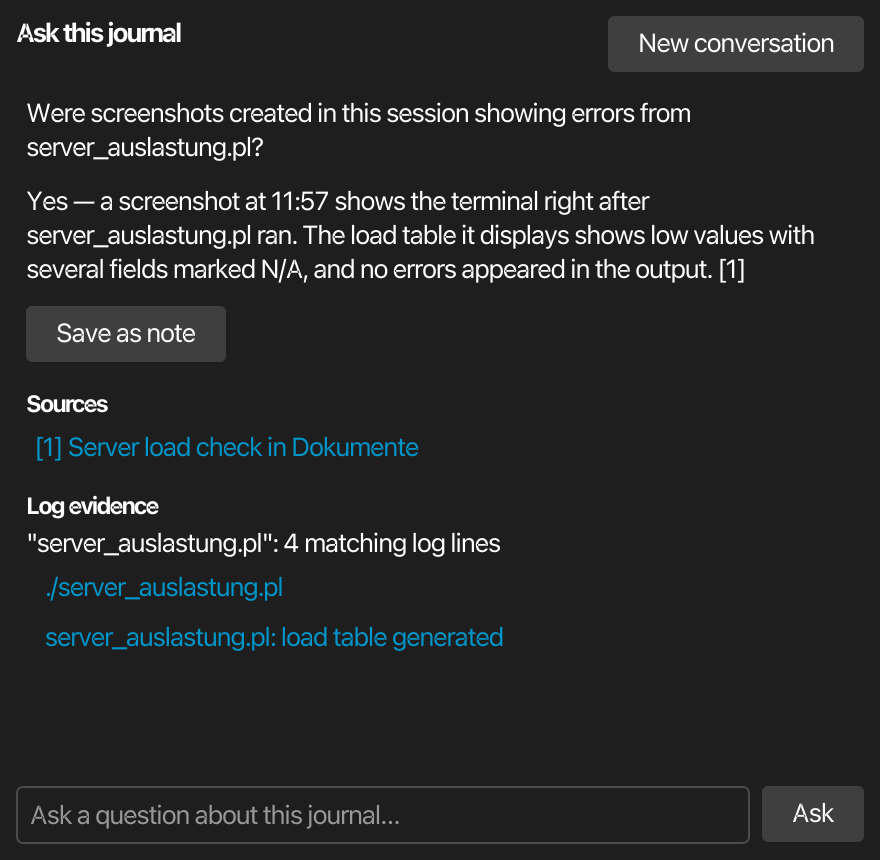
When a question needs hard evidence from the log — exact error lines, whether a script really failed, how often something occurred — the model names a few literal search strings, korTTY's own streaming search scans the capture log for them, and only the match counts plus a handful of sample lines go back to the model for the final answer. The panel shows both next to the answer:
- Sources — the journal entries the answer cites; clicking one scrolls the timeline to that entry.
- Log evidence — per search string the exact number of matching log lines, with clickable samples that open the log panel scrolled to the very line.
Follow-up questions continue the conversation (the panel keeps the recent exchanges as context); New conversation starts over. Save as note appends a question-and-answer pair to the journal timeline as an entry, so a finding becomes part of the record.
Note
If no AI profile is reachable or the request fails, the panel degrades instead of erroring out: it extracts the identifiers from your question, runs the internal text search, and shows the matching entries and log lines with a notice that no model was involved. The Q&A never uses internet-access tools, and administrators can forbid it entirely (ai-ask under enterprise policy).
AI token usage and cost
Every AI call made for a journal — periodic summaries, the closing session summary and title, screenshot analysis and questions in the AI Q&A panel — adds its token usage to the journal's running totals. The journal page shows the total in its header as AI tokens (for example 12.3k · ≈ 0.04 €), and the journal manager has an AI tokens column whose tooltip breaks the number down into input and output tokens, number of AI calls and the profile used. The money amount appears when the profile has a price per 1M tokens; a profile running locally shows local instead. Each call is priced with the profile's price at the time of the call.
The same calls also count towards the AI profile's token quota, so journal summaries show up in the quota bar of the AI Manager like any other AI request. Journals recorded before this tracking existed show no AI tokens.
AI agent cards and their AI chats
A terminal run that is continued in an AI chat (see Continue a run in an AI chat) is linked to its AI agent card, if the session journal records that terminal at the time. A run without a card, because the journal started after the run or the run gave no answer, gets a new AI agent card when you continue it while the journal records. The card then shows an AI chat tag. In korTTY it also shows an Open in AI chat button, which opens the chat, or the journal's copy of it when the chat is gone. Below the card's answer, a collapsed Show AI chat (N messages) · as of transcript shows the chat's messages; under each answer of the chat a nested, collapsed Steps (N) list shows the steps of the run. The card's own question and answer are unchanged, whether or not the chat is included in an export.
The journal keeps a copy of the chat, not a link alone. While the journal records, the copy follows the chat: about two seconds after the last change to the chat, the journal's copy is rewritten, so a burst of changes is written once. The copy is masked like the rest of the journal. When the journal stops, the copy is written one last time and marked (final) in its as-of line; the same happens when korTTY closes while the journal records. Nothing is written back from the journal to the chat. A very long chat is shortened in the journal page, with a note that the full chat is in the AI chat.
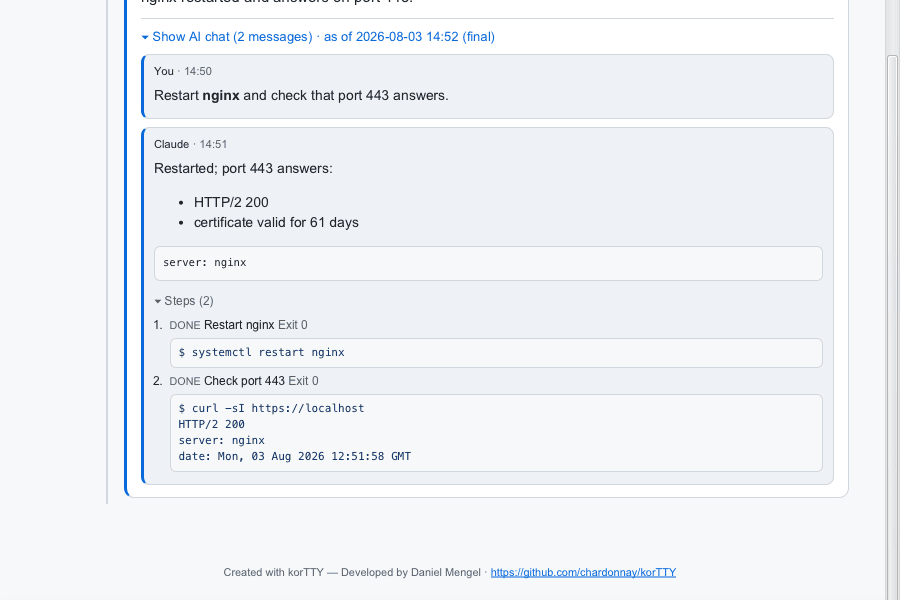
If you delete the chat, the journal keeps its last copy and marks it (final), since the chat cannot change any more. Open in AI chat then opens that copy read-only, with the note that the chat is no longer in the AI chat history, and nothing is saved from it.
Copies made by older versions
A journal rewritten by a korTTY version from before the AI chat link does not know the link or the copy, so it drops both when it saves the journal. Keep the journal written by the current version, or open it with the current version before it is saved again.
Redaction applies to the copy as to every other text of the journal. The copy is masked when it is written, the organisation's automatic replacement rules rewrite it as they rewrite the card, and the journal-wide Search & replace changes its title, messages and steps as well.
Search. The messages of a linked chat are searchable: the search bar on the journal page highlights hits inside the transcript and opens the closed transcript to show them, and the AI search across all journals indexes the messages of the chat as well, each message in its own section of the journal's digest.
Note
The Open in AI chat button is offered only in korTTY. A copy of the journal page opened in a browser shows the transcript, but has no button to open a chat.
Password protection
Typed input is captured only as complete submitted lines, and several layers keep passwords out of the journal:
- When the server output ends in a password prompt (
password:,[sudo] password for …,passphrase,PIN, and localized variants), the next submitted input line is suppressed and logged as a redacted placeholder — the typed text is never buffered or written. - The connection's own stored password is additionally replaced by
***wherever it would appear in captured text. - Capture typed input lines can be disabled per connection entirely; commands then only appear as the server's echo in the output stream.
Warning
The prompt detection is a heuristic — a remote terminal cannot reliably know when the server disabled echo. Exotic or full-screen password prompts may not be recognized, and secrets pasted into visible commands (other than the connection's own credentials) are captured like any other text. Treat journals of sensitive sessions accordingly.
If something slipped through anyway, the viewer's search and replace removes it from the entries and the capture log after the fact. Administrators can also have korTTY redact patterns automatically — see Enterprise policy below.
The journal page
journal.html is fully self-contained (no external resources) and works in the built-in viewer, in any browser, and inside the exported bundle:
- A sticky header shows who was connected to which server, start time, duration, and counts for entries, commands, errors and screenshots, plus the journal description. Live journals show a live badge. The line below the title only carries what the title does not already say, so a journal named after its endpoint states the connection once instead of three times.
- The timeline groups entries by day; each entry carries its time, a marker dot and badge in the colour you gave that marker, the AI title and summary with its commands in bold, a red ROOT tag when the commands ran in a root shell, and color-coded input (green) and output (blue) excerpts.
- Clicking an entry slides a log panel in from the bottom with the exact capture-log range behind that entry. The panel has its own scrollbar, a search field with a match counter and ▲/▼ navigation (Enter / Shift+Enter also cycle matches, Esc closes), and colors input and output lines differently.
- Screenshot entries show thumbnails; clicking one opens a full-size lightbox. If the AI screenshot analysis ran, its description and tag chips sit to the right of the picture, and a chip click searches the journal for that tag.
- The page renders dark by default, follows the system light/dark preference and has its own theme toggle.
- Screenshots, excerpt panels, the timeline column and the log panel size themselves to the window, so the page stays readable in a narrow viewer tab as well as full screen. Long excerpts scroll inside their own box instead of stretching the timeline.
Searching the journal
The magnifier in the header opens a search bar directly under the connection details (Ctrl+F works too). Typing a term or a whole sentence highlights every occurrence across the timeline — entry titles, AI summaries, AI screenshot descriptions and tags, input and output excerpts, notes and timestamps — and shows a match counter; ▲ and ▼ or Enter / Shift+Enter jump between the hits, Esc or ✕ closes the bar and clears the highlighting.
- Several terms narrow the search:
nginx errorfinds the entries that contain both words, in any order and place, and highlights each of them. Put a phrase in quotes —"config error"— to search it exactly. - Only matches next to the counter switches to filter mode: entries that do not contain every term disappear, together with day dividers left without entries, and the bar shows how many entries match (for example 2 of 164 entries). Clearing the field or closing the bar shows the whole timeline again.
The search runs entirely in the page, without AI — it works the same way in an exported HTML bundle opened in any browser.
Note
This searches the journal entries. The raw capture log has its own search inside the log panel, the journal manager can search across all journals with Search contents or the AI search, and the viewer's AI Q&A answers questions about this journal.
Jumping between marked entries
When at least one entry carries a marker, the header gains a ◆ button that opens a marker bar. Pick All markers or a single one, then step through the matches with ▲ and ▼ — the list wraps around, and the current entry is scrolled into view and briefly outlined. Alt+Down and Alt+Up do the same without the mouse, and Alt+M toggles the bar; Esc closes it.
A journal without markers ships neither the button nor the bar, so the header stays as it was.
Picking a time range with the mouse
Inside korTTY the header also carries a ⇥ button that switches the timeline into range mode. Click the first entry, then the last one — everything between them is highlighted and the bar shows the span and how many entries it covers. The order does not matter: clicking the later entry first works just as well.
- Add another window puts the current selection aside and starts a new one, so several windows can be collected in one pass.
- Use for export opens the export dialog with those windows already filled in.
- Cancel or Esc leaves range mode.
While range mode is on, clicking an entry selects instead of opening the log panel. The button is absent in an external browser, because exporting needs the app.
In the edit mode's entry table the same thing is available without the timeline: select several rows, right-click and choose Use selection as time window.
Copying content
Every entry carries a copy button in its top-right corner: text entries copy the whole entry, screenshot entries copy the image. The log panel has the same button for the log section it currently shows.
Right-clicking the page opens a copy menu with more targeted actions, depending on what you clicked:
| Action | Copies |
|---|---|
| Copy selection | The currently selected text (shown whenever a selection exists) |
| Copy summary | The entry's time, title and AI summary |
| Copy entry | The same plus the input/output excerpts and your note |
| Copy screenshot | The screenshot itself, as an image, onto the clipboard |
| Copy screenshot path | The screenshot's path inside the journal folder |
| Copy log section | Every line of the log range currently shown in the panel, with timestamps |
Inside korTTY the copy actions use the app's clipboard, so images land on the system clipboard ready to paste. In an external browser text still copies normally; copying an image may fall back to its path, because browsers block reading local image data from a file:// page.
Appearance
The A−, A and A+ buttons in the page header scale the whole page between 70 % and 250 %. korTTY remembers the size and applies it to every journal page it renders afterwards, so a page that regenerates (a new AI summary, an edited marker) comes back at the size you chose. Opened standalone in a browser the page remembers the size per browser instead.
The viewer's Appearance button opens a small panel with the rest:
| Setting | Effect |
|---|---|
| Colour scheme | Automatic keeps the page's own dark/light pair and follows the operating system. Follow the terminal theme derives the page colours from your terminal's background and foreground. The remaining entries (Paper, Midnight, Ocean, Forest, Retrowave, High contrast) are fixed palettes. |
| Text font | The font for headings, summaries and notes. (default) restores the page's own stack. |
| Monospace font | The font for the input/output excerpts and the log panel. |
| Text size | The same 70–250 % as the A−/A/A+ buttons. |
Changes preview immediately in the viewer and are saved for every journal page. With a fixed scheme the page's ◐ toggle stays visible but is disabled, since the scheme already decides the colours.
Managing journals
Tools > Session Journals… (Ctrl+Alt+J) opens the journal manager: all journals sorted by start time (newest first) with title, duration, connection, server, entry count, AI tokens and, for automation journals, the date they are deleted automatically (or "kept" when pinned). Running journals are marked and cannot be renamed or deleted while live.
Interactive journals are single rows. The journals of automation runs are grouped so it stays clear what belongs together: one row per source — Job: …, AI Swarm: … or Scheduled swarm: … — with its runs below, and below each run one journal per server; a run of a single server shows that journal directly. Group and run rows show the totals of the journals below them (runs, journals and disk space in the connection column, summed entries, AI tokens and cost, the next deletion date); double-click expands them, and selecting one selects all its journals for Export and Delete. The drop-down next to the filter field shows All journals, only Interactive, JobScheduler or AI Swarm journals, Failed runs or Pinned journals.
Small badges next to each title say what a row is at a glance:
| Badge | Meaning |
|---|---|
| Interactive · Job · Swarm · Scheduled swarm | Where the journal comes from |
| Success · Failed · Blocked · Cancelled | The outcome of the run on that server (the most severe one on group and run rows) |
| AI · Log only · AI on failure | The AI mode the run was recorded with |
| local | The summaries came from a local model (no token costs) |
| ×N identical | N runs produced exactly this output; the later ones were discarded in favour of this journal |
| 📷 N | The journal holds N screenshots of the job's virtual terminal |
| 📌 Kept | Pinned: never deleted automatically |
| deleted in N d · deleted today | Time left until automatic deletion (highlighted when less than two days are left) |
| policy limit | An administrator caps the retention, disk space or number of automation journals |
Right-click an automation row for Keep (pin) / Release pin — on a run or group, Keep all (pin) / Release all pins — and, for job journals, Open job in JobScheduler. The journal page of an automation journal also shows its source, run outcome and deletion date in the header.
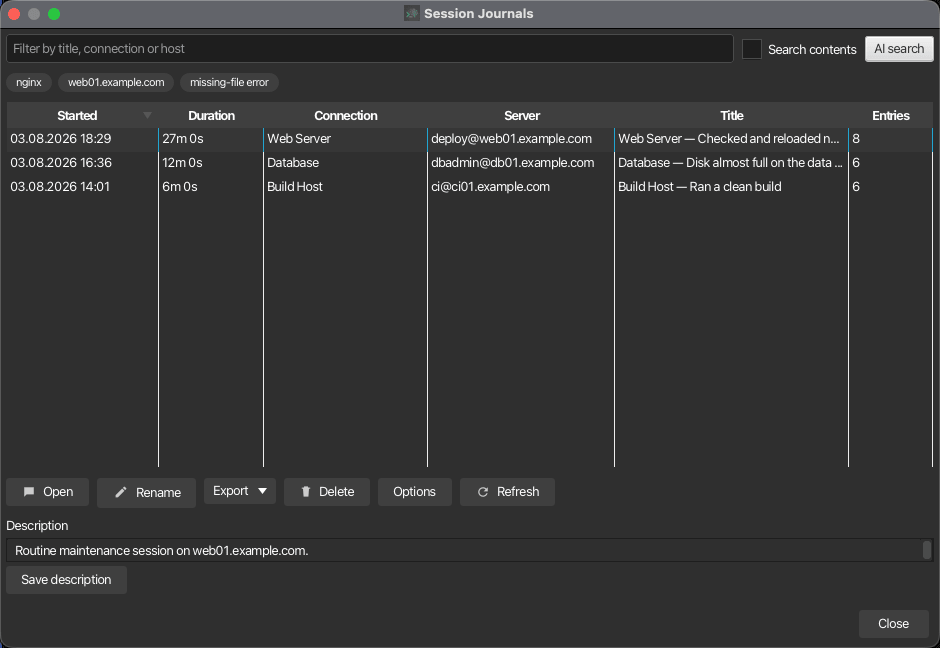
- The filter field matches title, connection, host, user, description and the AI keywords; enabling Search contents additionally scans the journal entries — including AI screenshot descriptions and tags — and capture logs of every journal in the background (the logs are read streaming, part by part, so even huge journals do not load into memory).
- Below the filter field, clickable keyword chips show the most common AI keywords across the listed journals — with exactly one journal selected, that journal's own keywords. Clicking a chip filters by it. The keywords come from the closing session summary, which extracts up to twelve verbatim search terms (hostnames, script and file names, error classes) into the journal metadata.
- Open (or double-click) opens the journal viewer; Rename changes the title; Delete asks for confirmation and then permanently removes the journal folder including the log and all screenshots.
- Several journals can be selected at once (Ctrl / Shift click) to delete or export them in one step. Running journals cannot be renamed or deleted.
- The Description area below the table stores a free-text description per journal; it appears on the journal page and in every export and is included in the content search.
- Re-evaluate with AI… (button and right-click menu) summarizes the selected closed journals again with a profile you pick — see Re-evaluating a journal with AI.
- Options holds the global capture and AI settings described above, plus Catch up summaries: it counts the closed journals that were never summarized (recorded while summaries were off or no model was reachable) and, on demand, runs the regular summarizer over them one by one behind a progress dialog — cancellable between journals, and an interrupted run resumes where it stopped.
Re-evaluating a journal with AI
When a summary turned out poor, or the AI was not reachable while the journal was recorded, select the journal — or a run or group, which stands for all its journals — and choose Re-evaluate with AI…. The dialog offers every AI profile (preselected: the profile that wrote the journal, else the journal profile), and, for journals with screenshots, Describe the screenshots again.
The chosen profile is tested first; if it does not answer, nothing is changed. Otherwise the previous AI summaries and the closing session summary are replaced: the whole capture log is summarized afresh, including new keywords. Notes, screenshots, agent and system entries stay as they are. Should the AI fail midway, the affected windows are kept as raw activity entries, so the timeline never ends up empty. The tokens used count towards the profile's quota like every other journal AI call. Running journals cannot be re-evaluated.
The evaluation runs in the background, so you can keep working. A progress window shows the journal being evaluated, the current step (a section of the capture log, the session summary, the title or a screenshot), a progress bar, the time elapsed and an estimate of the time left. The bar moves with every AI call of the run, not only from journal to journal. The estimate appears once the first call has finished: korTTY measures how long the model takes and weighs the remaining calls by the size of their prompts. It is a rough guide, since local models in particular vary; a later run with the same profile estimates from the start.
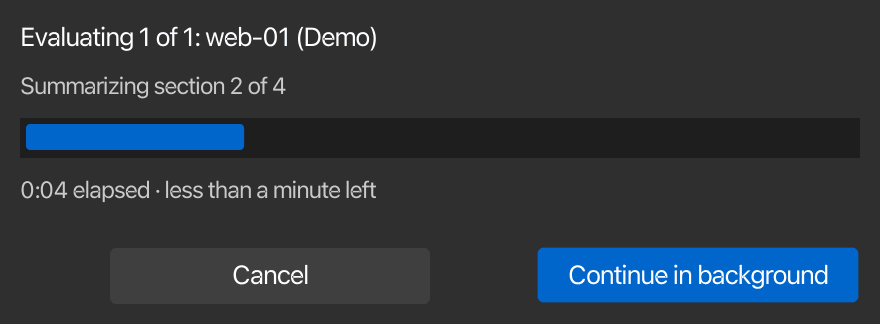
Continue in background or the window's close box hides the window, and the run goes on. The journal manager shows the run in a status line below the table, with the journal, the percentage, the elapsed and remaining time, Show progress and Cancel, and marks its row with a re-evaluating badge; journals still waiting for their turn show waiting to re-evaluate. These journals cannot be deleted or re-evaluated until the run is over. A re-evaluation started while another one runs waits for it. When the run is over, the status line shows the result until you hide it or open it with Show report.
Cancel stops before the next AI call; the call in progress still finishes. Journals already done keep their new evaluation. The journal in progress keeps what was finished, and the rest stays as terminal activity without an AI summary, so run Re-evaluate with AI… again for it. Quitting korTTY during a run asks first, because quitting stops the run in the same way.
AI search across all journals
AI search next to the filter field opens a search panel under the table. Ask a question across every stored journal — "In which journals did result_complex.pl exit with an error?" — and korTTY answers in two stages: a fast local ranking picks the most relevant journals from their metadata and collected entries, then a single AI request over those candidates writes the summary and selects the journals that actually answer the question. As with the per-journal Q&A, the model only ever sees the collected entries, never the raw logs; exact log positions come from the internal streaming search.
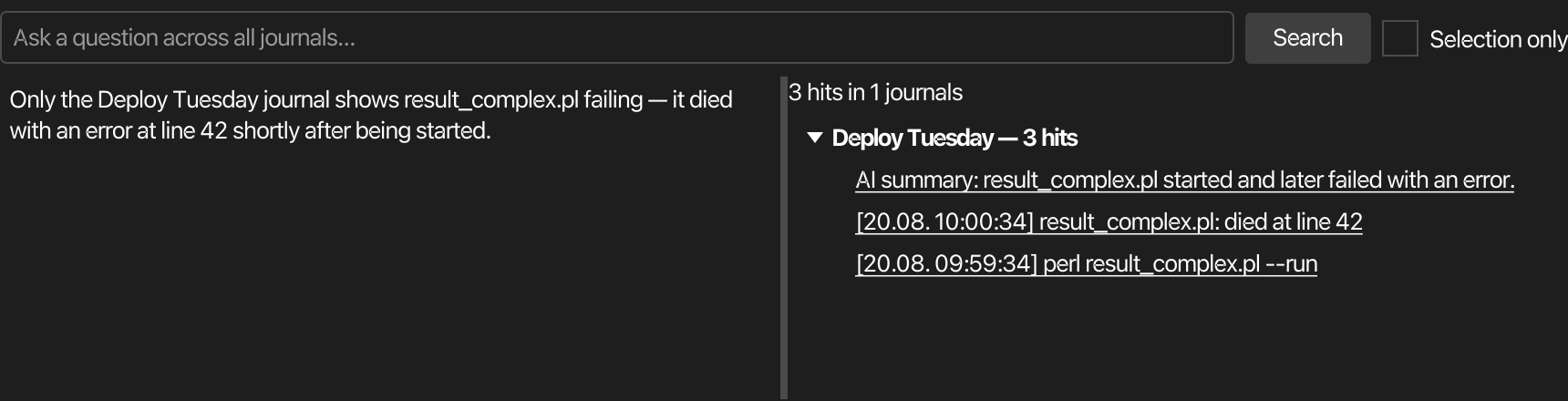
The result appears on both sides of the panel:
- The answer chat on the left supports follow-up questions about the same results.
- The hit tree on the right lists each matching journal with its total hit count (hovering shows the AI's one-sentence reason), and under it the individual hits — matching entries and exact log lines with timestamp and snippet. Clicking a hit opens the journal and jumps straight to that entry or log line; double-clicking a journal's own row opens the whole journal. Hits you have already opened turn muted with a check mark, and that marking survives new searches and restarts — orientation for working through a long hit list.
- The header shows the total: n hits in m journals. Repeated identical output lines are stored coalesced, and the count includes their repeat factors, so it reflects real occurrences.
The table itself stays complete: journals with hits get a sorted Hits column and a row highlight instead of filtering everything else away. Selection only restricts the search to the journals selected in the table.
Note
Without a reachable AI profile the search still works: the question's identifiers are matched against the journals and logs directly, only the AI summary and journal selection are skipped (a notice says so). Optionally, Semantic journal search in the Options dialog adds embedding-based ranking on top of the lexical one — it requires a local embedding model configured in the knowledge stores and falls back to the lexical ranking silently whenever embeddings are unavailable.
The viewer and editing
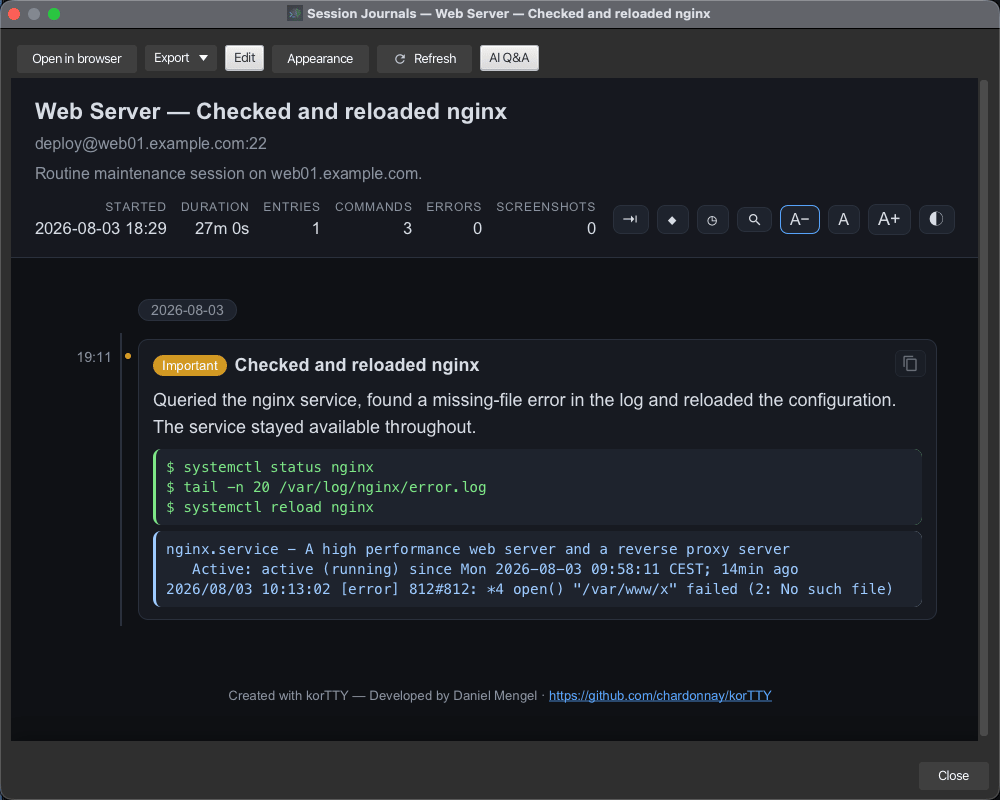
The viewer shows the journal page in an embedded browser and refreshes automatically while the journal is still being written. Open in browser hands the page to your system browser. Edit splits the view: an entry table next to a form with the entry's Title, Summary, a marker picker and a notes field. Editing lets you correct or categorize entries — flag failures, highlight important findings, or rewrite a summary. Saving regenerates the page at the edited entry's position; a marker you set manually is never overwritten by the AI or by a rule.
The quickest way to mark a single entry is the timeline itself: right-click it and choose Set marker….
Screenshot notes and annotations
A screenshot on its own rarely says why it was taken. Right-clicking one — the thumbnail in the timeline or the full-size lightbox — offers two actions of its own:
| Action | What it does |
|---|---|
| Edit screenshot… | Opens the editor described below |
| Analyze screenshot with AI | Runs the AI screenshot analysis for this picture; offered when an image-capable AI profile is configured and policy allows the analysis |
| Export screenshot… | Saves the picture, with its marks, to a file you choose |
Edit and export also sit in the context menu of the edit mode's entry table, and double-clicking a screenshot row opens the editor directly. These actions only appear inside korTTY: a standalone page in a browser can neither rewrite the journal nor reach a file dialog.
Inside korTTY the journal's title is editable from the page too: double-click it, or right-click it and choose Rename journal… — the same rename the manager offers, subject to the same organisation policy.
The editor itself:
| Tool | What it does |
|---|---|
| Pen | A thick freehand stroke for circling or underlining something |
| Box | A rectangle you drag to whatever size you need |
| Unreadable | A rectangle whose contents are coarsened into blocks until they cannot be read — for hiding a value while leaving the surrounding context in place. Width sets how coarse the blocks are. |
| Text | A label with a dark halo, so it stays readable on a light terminal background |
Colour applies to the next mark (red to start with), Width sets the pen thickness and scales the text labels with it. Undo removes the last mark, Remove all clears them. Below the picture sits a five-line Note field for the remark that belongs to the screenshot; it is the same note the entry carries elsewhere in the journal.
Marks are stored as data and are re-editable at any time — reopening the editor shows them again rather than a flattened picture. The annotated version becomes the image the timeline, the PDF, the Markdown export and the HTML bundle all show; the unmarked capture stays in the journal folder as shot-000004.orig.png.
Warning
Annotation draws on top of the picture — Unreadable included. It is not redaction. The unmarked capture remains on this machine inside the journal folder as shot-000004.orig.png. It is never copied into an export, so a box you drew over something sensitive does hold in an exported document, but anyone with access to the journal folder itself can still open the original. To remove something from a journal for good, use Search and replace or the redaction rules — and delete the .orig.png by hand if a screenshot is the problem.
Markers
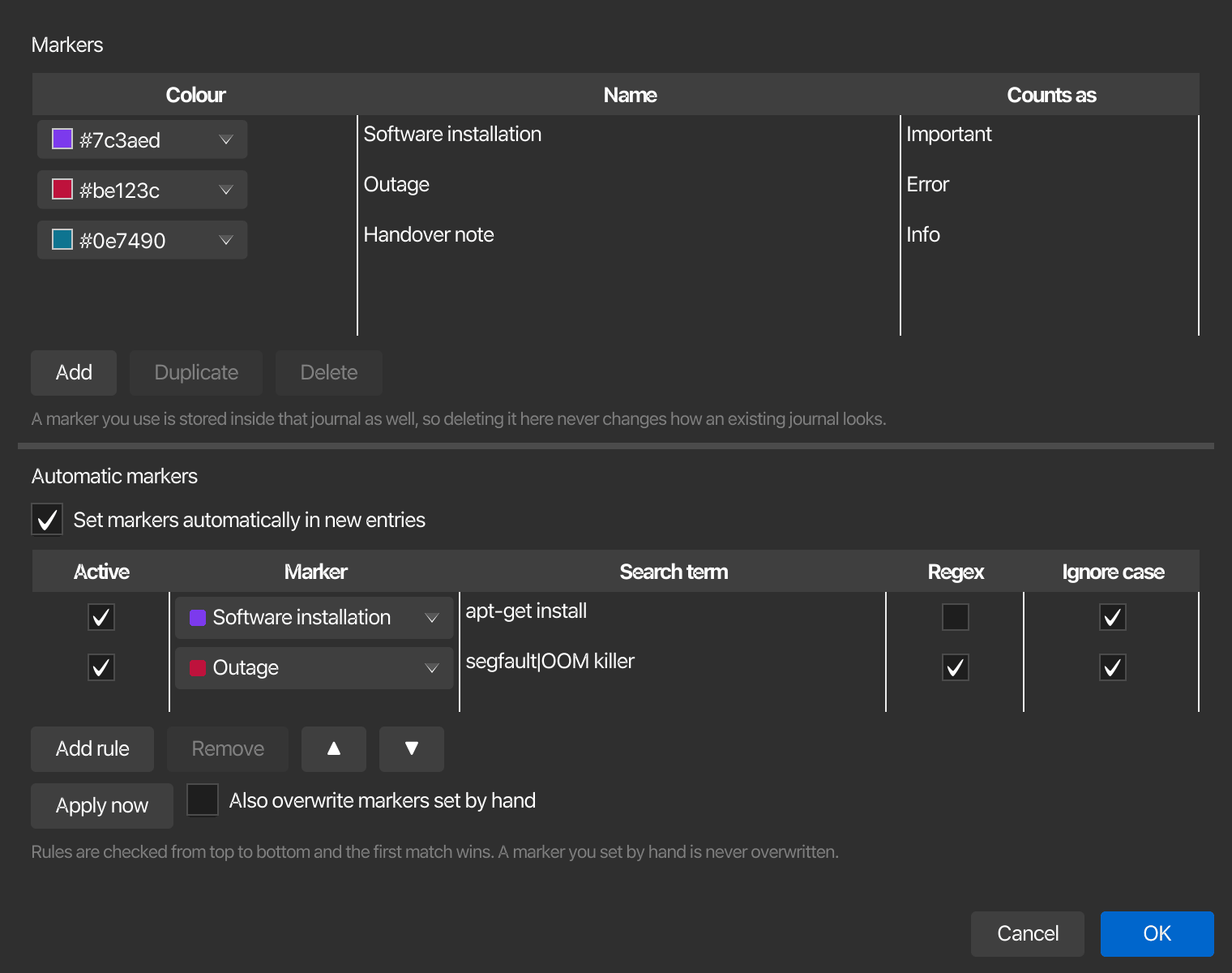
Beyond the four built-in markers (None, Info, Important, Error) you can define your own — a name like Software installation and a colour of your choice. Manage markers… next to the marker picker opens the editor:
- Colour, Name and Counts as. The last one decides which built-in value the marker degrades to, which is what keeps a journal readable in an older korTTY and what makes an Outage marker count towards the error total.
- Add, Duplicate and Delete. Deleting also removes the rules that pointed at that marker, so no rule is left silently doing nothing.
Markers live in your settings and are available in every journal. A marker you actually use is additionally stored inside that journal, so an exported or shared journal renders in the right colours on its own — and deleting a marker later never changes how an existing journal looks.
Automatic markers
The lower half of the same dialog holds rules that set markers on their own. Switch on Set markers automatically in new entries, then add a rule per search term:
| Column | Meaning |
|---|---|
| Active | Whether the rule is applied at all |
| Marker | Which marker to set |
| Search term | A word or a whole sentence; with Regex off it is matched literally |
| Regex | Treat the search term as a regular expression |
| Ignore case | On by default |
Rules are checked from top to bottom and the first match wins — use ▲/▼ to order them. They look at the entry's title, summary, note and the input/output excerpts, never at the raw capture log, and they run after the redaction rules, so a redacted secret can never trigger one.
A marker you set by hand is never overwritten; a marker the AI suggested may be. Apply now runs the rules over the journal that is currently open and reports how many entries changed — that also works while the session is still running. Tick Also overwrite markers set by hand only if you really want your own choices replaced.
Search and replace
Searching finds a term. Search & replace rewrites every occurrence. Use it to erase something that must not stay in the journal — a password pasted into a visible command, a token in a server response — or simply to correct a recurring word.
It is reachable from two places: the Search & replace… button in edit mode, and the Replace… button in the search bar on the journal page, which opens the same dialog with the term you were searching for already filled in. That button only appears inside korTTY — the page is generated from the journal files, so a copy opened in a browser can search but has no way to rewrite anything.
| Option | Effect |
|---|---|
| Search for / Replace with | The text to find and what to put in its place (*** by default) |
| Regular expression | Treats the search text as a regex; $1 in the replacement inserts a captured group |
| Ignore case | Matches every casing |
| Rewrite the capture log as well | On by default. Off changes only the journal entries and leaves the raw log untouched |
| Count matches | A dry run over the real journal: reports how many entry fields and log lines would change, without writing anything |
Replacing covers every entry title, AI summary, note and excerpt, the copy of a linked AI chat (its title, messages and steps), and — unless you turned it off — every capture-log part including the compressed ones. The file header and every untouched line are preserved exactly, so the log keeps its structure.
Warning
Replacing rewrites the journal files in place and cannot be undone. Use Count matches first, especially with a regular expression. Documents you already exported are separate files and are not changed — export them again afterwards. A journal that is still being written cannot be rewritten; stop the session first.
The search text is never written to korTTY's own log, because for a redaction it is the secret.
Deleting an entry
Delete entry removes the selected timeline entry after a confirmation, and a screenshot entry's image file with it. It does not touch the capture log — to remove a text from there as well, use Search & replace.
Exporting
The Export menu in the manager and the viewer offers three formats:
| Format | Content |
|---|---|
| The simple journal: header with connection details and statistics, day-grouped entries with marker badges, input/output excerpts, notes — and, if selected, downscaled embedded screenshots | |
| Markdown | The same simple journal as a .md file; screenshots and the files of linked AI chats are written into a sibling <name>-files/ folder |
| HTML bundle (complete) | A zip archive of the whole journal — journal.html, journal.xml, the decompressed capture logs and all screenshots — laid out so the page works immediately after unzipping |
PDF and Markdown ask whether screenshots should be included.
AI chats in exports
The export dialog has an Include AI chats check box, on by default, for every format. It decides whether the chat copies of AGENT cards go into the export; see AI agent cards and their AI chats. The question and answer of the card stay in the export either way. With the box cleared, no chat text reaches any file of the export, the journal.xml included.
- PDF — After the entries, an AI chats appendix starts on a new page. It has a heading for every chat, each with its as-of time (and final once the journal stopped), its messages and their steps; the headings are bookmarks in the PDF outline. The card itself says AI chat: see the AI chats appendix.
- Markdown — Each AGENT card links to its own file
chat-<entry>.md, with the chat's title, its as-of time and its messages and steps. The files are written into the<name>-filesfolder beside the Markdown file, next to the screenshots, so each one also reads on its own. - HTML bundle — The transcript stays collapsed in the page, with its steps under each answer. The Open in AI chat button is hidden in the bundle, because a browser has no chat to open.
A filtered export carries the chats of the entries it keeps, see Exporting only part of a journal.
Exporting only part of a journal
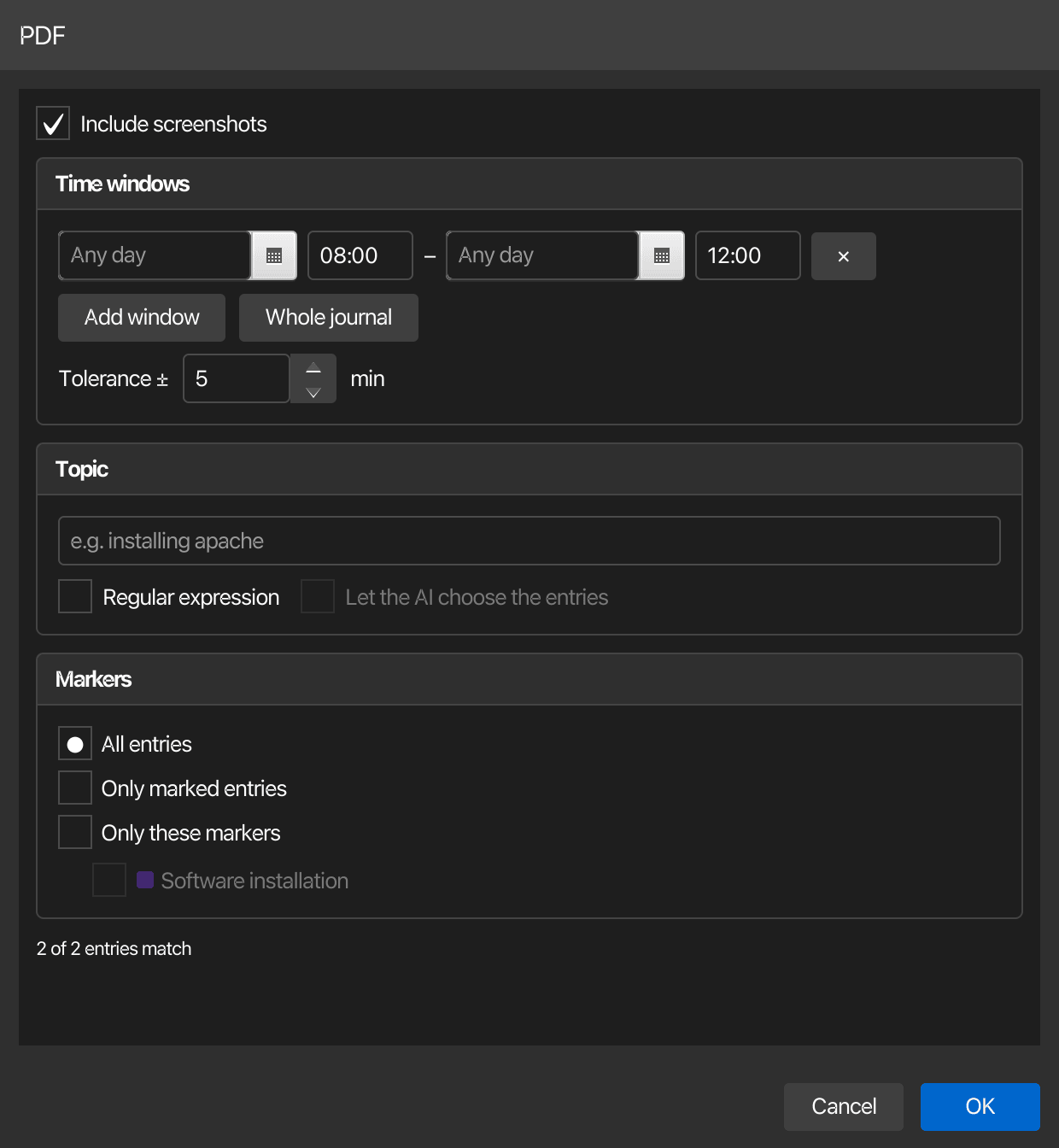
The export dialog can narrow down what actually goes into the document. Every filter is optional, and the footer keeps a live count of how many entries would be exported.
Time windows. Add as many as you like; an entry only has to fall into one of them, so 08:00–12:00 plus 14:00–16:00 exports both blocks of a day. Leaving the dates empty applies the window to every day the journal spans, and a window whose start is later than its end runs across midnight.
The times may be approximate — that is the point:
- The input is forgiving:
8,08,8:00,8.30and0800all work. - Each window is widened by the Tolerance (± 5 minutes by default, set it to 0 for exact boundaries).
- An entry summarizes everything since the previous one, so an entry written at 12:03 that covers 11:58 onwards still belongs to a window ending at 12:00. Without that, the entry on the boundary — usually the interesting one — would fall out of every window.
Topic. A word or a sentence, matched against titles, summaries, notes and excerpts; Regular expression switches to regex matching. Let the AI choose the entries hands the topic and the entries to the AI instead, which finds installing Apache even where none of those words appear literally. It needs an AI profile and is greyed out otherwise; if the model is unreachable or answers with nonsense, the export falls back to the text match and says so rather than failing.
Markers. All entries, only marked ones, or only the markers you tick. The list shows the markers that journal actually uses.
Filtered HTML bundles
Without a filter the HTML bundle stays the verbatim copy it always was. With one it is rebuilt:
journal.xmlholds only the exported entries, and the marker definitions travel with them.- The capture log is rewritten to the sequence ranges those entries reference, clipped to the requested time windows. This is not optional — a bundle is the artefact you hand to someone else, and twelve entries next to eight hours of terminal output would be exactly the leak the filter is meant to prevent.
- Only the screenshots still referenced are copied, and
journal.htmlis re-rendered so its deep links resolve. - The header counts are recalculated to match what the bundle shows.
Every filtered export — PDF, Markdown and bundle alike — carries an Excerpt banner naming the range and the entry count, so nobody mistakes it for the complete session.
Exporting several journals
With more than one journal selected, the export writes a single zip archive that keeps each journal separate: one PDF or Markdown document per journal, or one folder per journal for the HTML bundle. Names are taken from the journal titles, with a numeric suffix if two titles collide.
Filters apply to every selected journal. A journal in which the filter matches nothing is skipped and reported afterwards, so one empty result cannot kill a ten-journal export; only if every journal comes out empty does the export refuse — before writing a file.
Encrypting an export
Journals contain full terminal transcripts, so every export can be encrypted. Pick the protection next to Include screenshots at the top of the export dialog:
| Encryption | Result |
|---|---|
| No encryption | The file as described above, unencrypted — a deliberate choice for transcripts |
| Protect with a password (ZIP, AES-256) | An archive (HTML bundle, several journals) is encrypted directly. A single PDF or Markdown file is packed into a password-protected ZIP archive. |
| Encrypt with GPG | The export — PDF, Markdown or ZIP — becomes a .gpg file for the key you pick in Select a GPG key, one of the keys under Security > GPG-Keys...; only the owner of the matching private key can decrypt it (gpg --decrypt). |
GPG needs gpg installed. korTTY encrypts for the key file it manages, so the key does not have to be in your GPG keyring. Without stored keys the option explains where to add one. While a protected export is written, the unencrypted version exists only in a private temporary folder that is deleted right afterwards, also when encryption fails.
Warning
The password is not stored anywhere. korTTY cannot recover an encrypted archive if you lose it — nor a GPG export without the private key.
Footer and watermark
By default every exported document carries a footer stating that it was created with korTTY, with a link to the project repository — at the bottom of each PDF page, at the end of the Markdown file, and in the footer of the journal page inside the HTML bundle. PDFs can additionally carry a diagonal watermark, which is off by default.
Both are configured under Configuration → Global Settings → Export, where you can change the footer text, turn the footer off, enable the watermark and choose its text and colour. The same settings apply to AI chat exports.
Enterprise policy
Administrators can deny the feature (session-journal under [rule.features]), or mandate its behavior via [rule.session-journal]: force a journal for every connection, fix the log format, AI line window or storage directory, forbid renaming or deleting journals, prescribe a naming template, enforce the closing AI title, force the AI screenshot analysis on or off — a forced off also disables the manual per-screenshot run — and forbid the on-demand AI over journal content (ai-ask = false removes the viewer's Q&A panel and the manager's AI search while leaving the summaries untouched). See Policy configuration for the keys.
Automatic redaction
A [[rule.session-journal.replace]] list makes korTTY apply search-and-replace automatically, with regular expressions if the administrator wants them — for cloud access keys, internal hostnames, ticket numbers, anything that must never end up in a transcript:
[[rule.session-journal.replace]]
pattern = "AKIA[0-9A-Z]{16}"
replacement = "***AWS-ACCESS-KEY***"
regex = true
label = "AWS access keys"
These rules run on the capture thread, before a line is written, so a matching text never reaches the log file in the first place; they are applied to AI summaries, notes and the copies of linked AI chats as well. Every rule of every matching policy tier applies — a rule adding a pattern never switches another one off. The dialog above tells you how many mandated rules are in force. Journals written before a rule existed are not rewritten retroactively; use Search & replace for those. See Policy configuration for every key.