Terminal
Configure terminal display and behavior settings, including dimensions, scrollback, character encoding, keyword highlighting, links, paste protection, shell integration, and SSH connection management. Open via Configuration → Global Settings → Terminal; stored in ~/.kortty/global-settings.xml.
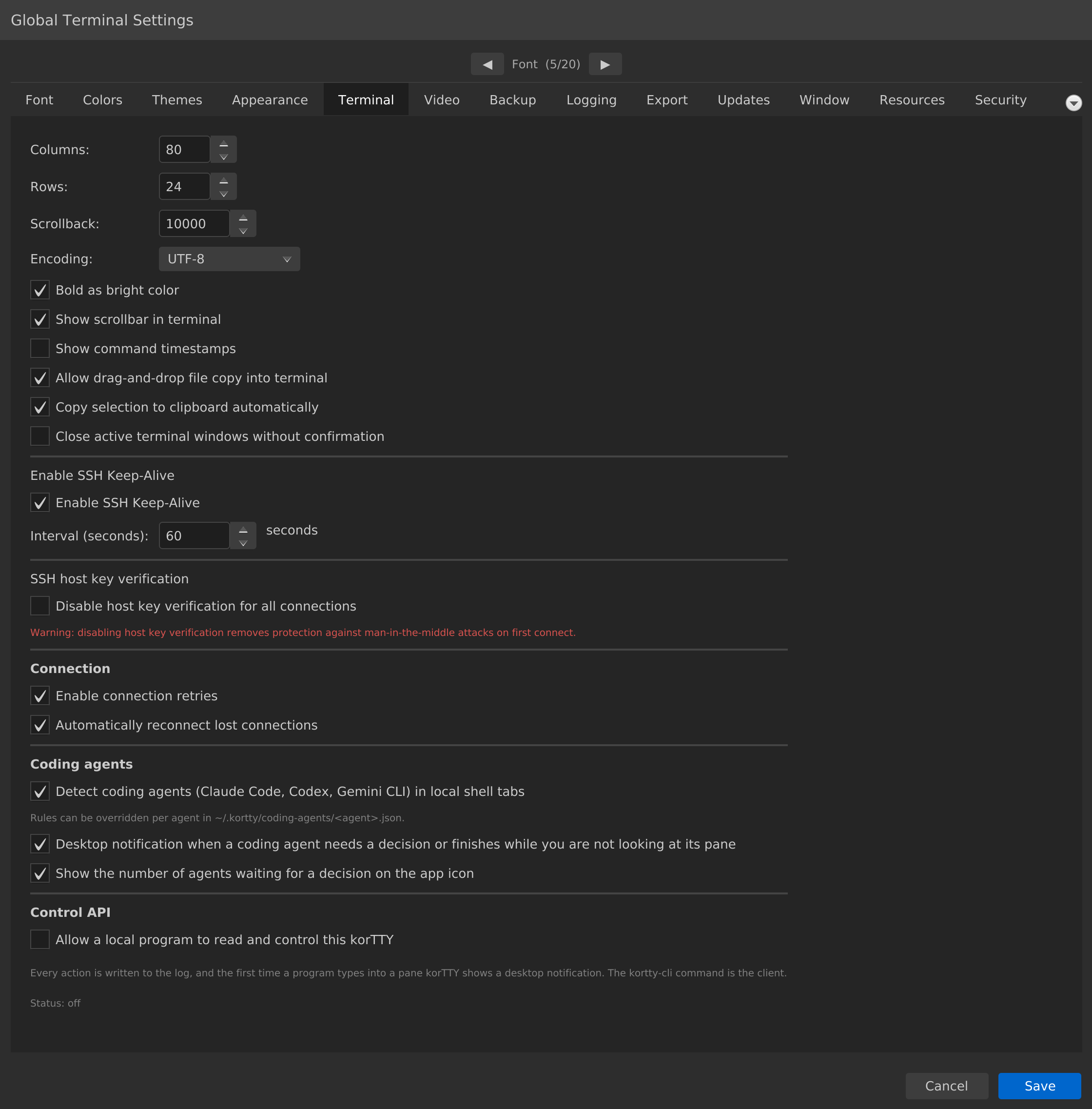
| Setting | Type | Values | Default | Stored as |
|---|---|---|---|---|
| Columns: | number | 40–500 | 80 | terminalColumns |
| Rows: | number | 10–200 | 24 | terminalRows |
| Scrollback: | number | 100–100,000 | 10,000 | scrollbackLines |
| Scrollback memory: | slider | 1–50 MB | 10 MB | scrollbackMemoryMb |
| Compress the scrollback in the background while idle | toggle | — | On | scrollbackCompression |
| Encoding: | dropdown | UTF-8, ISO-8859-1, ISO-8859-15, Windows-1252 | UTF-8 | encoding |
| Bold text: | dropdown | Bold font, Bright colors, Bold font and bright colors | Bold font | boldTextMode |
| Show scrollbar in terminal | toggle | — | On | showTerminalScrollbar |
| Show command timestamps | toggle | — | Off | commandTimestampsEnabled |
| Allow drag and drop into the terminal (files copy over SFTP, text is pasted) | toggle | — | On | terminalDragDropEnabled |
| Copy selection to clipboard automatically | toggle | — | On | terminalCopyOnSelectEnabled |
| Let programs in the terminal copy text to the clipboard (OSC 52) | toggle | — | Off | osc52ClipboardWriteEnabled |
| Let programs in the terminal ask to read the clipboard (OSC 5522) | toggle | — | Off | osc5522ClipboardReadEnabled |
| Close active terminal windows without confirmation | toggle | — | Off | closeActiveTerminalWindowsWithoutConfirmation |
| Highlight keywords in terminal output | toggle | — | On | terminalHighlightingEnabled |
| Also highlight in full-screen programs (vim, less, htop) | toggle | — | Off | terminalHighlightAlternateScreen |
| Default rule set: | dropdown | None, Errors and warnings, Network addresses, Network devices, or a set of your own | None | defaultHighlightRuleSetId |
| Edit Rules… | button | opens the rule-set editor | — | highlightRuleSets |
| Run actions of highlight rules (notifications, snippets) | toggle | — | On | terminalTriggersEnabled |
| Detect web addresses, e-mail addresses and file paths in terminal text | toggle | — | On | terminalLinkDetectionEnabled |
| Quick select label letters: | text | 2–26 different lowercase letters a–z; empty for the default |
empty (asdfqwerzxcvjklmiuopghtybn) |
terminalQuickSelectAlphabet |
| Quick select patterns: | text, one per line | up to 16 regular expressions of up to 512 characters each | none | terminalQuickSelectPatterns |
| Warn about multi-line pastes: | dropdown | Off, Unless the program uses bracketed paste, Always | Unless the program uses bracketed paste | pasteWarningMode |
| Warn about pastes larger than: | number | 0–10,240 KiB (0 = off) | 5 | pasteLargeWarningKiB |
| Pause after each pasted line: | number | 0–1,000 ms (0 = off) | 0 | pasteLineDelayMs |
| Use the command marks of shells set up for shell integration (OSC 133) | toggle | — | On | shellIntegrationEnabled |
| Set Up Shell Integration… | button | opens the window with the shell snippets | — | — |
| Remote files sidebar: | dropdown | Hidden, Left, Right | Hidden | terminalRemoteSidebarPosition (width: terminalRemoteSidebarWidth, 200–1,200, default 300) — see Remote files sidebar |
| Enable SSH Keep-Alive | toggle | — | On | sshKeepAliveEnabled |
| Interval (seconds): | number | 5–600 | 60 | sshKeepAliveInterval |
| Enable connection retries | toggle | — | On | connectionRetriesEnabled |
| Automatically reconnect lost connections | toggle | — | On | autoReconnectEnabled |
| Disable host key verification for all connections | toggle | — | Off | hostKeyCheckDisabledForAllConnections |
| Detect coding agents (Claude Code, Codex, Gemini CLI, MiniMax Code, Qwen Code, OpenCode, Cursor Agent, Aider, Amp, Goose, Crush, Kiro CLI, Continue, Grok CLI, Jules, GitHub Copilot CLI, Grok Build, Antigravity CLI, Cline, Kilo) in local shell tabs | toggle | — | On | codingAgentDetectionEnabled |
| Automatically show and hide the coding-agent sidebar | toggle | — | On | codingAgentPanelAutoVisibility |
| Show the number of agents waiting for a decision on the app icon | toggle | — | On | codingAgentAppBadgeEnabled |
| Allow a local program to read and control this korTTY | toggle | — | Off | controlApiEnabled |
| MCP server | toggle | — | Off | mcpServerEnabled |
| Allow write tools | toggle | — | Off | mcpWriteToolsEnabled |
Notes
Desktop notification preferences, including coding-agent messages, are on the separate Messaging page.
Encoding
The character encoding korTTY decodes the output of an SSH session with and encodes what you type and paste in. It applies to every SSH connection that does not choose its own Character encoding on the Connection tab of the connection editor (see Character encoding). Local shells use UTF-8 unless their connection sets an encoding, and Mosh always uses UTF-8 because mosh-server and mosh-client require it. Pick the encoding the programs on the server actually write, usually what locale reports there. A change applies the next time a tab connects or reconnects; open tabs keep their encoding. Characters the chosen encoding cannot represent are sent as ?.
Earlier versions ignored this setting, so a value chosen back then is not applied on its own: SSH sessions stay UTF-8, and a note under the dropdown says so, until you save the settings after opening the Terminal page. Choose UTF-8 before saving if you do not want the old value.
Bold text
Sets how text that a program prints in bold is drawn. Bold font (the default) draws it in a bold font in its own color. Bright colors draws bold text in one of the 8 basic ANSI colors in the matching bright color of the palette instead, in the normal font weight, the way xterm does: bold red becomes bright red. Bold font and bright colors does both. Only the 8 basic colors are brightened, including colors 0–7 that a program selects from the 256-color table; the default text color, the bright colors, the other 256 colors and true colors stay as they are. The bright colors come from the palette on the Colors tab, so a customized palette applies. Inverse bold text gets a bright background, while the selection, search-match and link highlight colors never change. A saved change applies to every open terminal at once, and terminal recordings with Capture terminal colors in recordings use the same colors as the screen. Settings files from before this option load as Bold font; the earlier Bold as bright color switch affected recordings only and is no longer used.
Scrollback
Scrollback sets how many lines of output each terminal pane keeps in its scrollback buffer. The value is read when a terminal is created, so a change applies to newly opened tabs and split panes — already-open terminals keep their current line count.
Scrollback memory sets the most memory the scrollback of one pane may use, from 1 to 50 MB. Whichever limit a pane reaches first, the line count or the memory, drops its oldest lines. The memory is an estimate of what the lines take up in korTTY's Java heap. A saved change also applies to open terminals: lowering the limit drops the oldest lines of every open pane at once.
With Compress the scrollback in the background while idle, korTTY packs the scrollback lines that are not on screen into compressed blocks once a terminal has had no output for about one and a half seconds. It works in the background, a few milliseconds at a time, so the same memory holds several times as many lines: in our measurements, 100,000 lines of ls -l or log output took 7 to 9 MB instead of 59 to 67 MB. The lines on screen, a screenful around them and the newest screenful of the scrollback stay unpacked, and nothing is packed while the find bar shows results. A packed line is unpacked as soon as you scroll to it or search the scrollback. When the scrollback of a terminal reaches its memory limit, older lines are packed first and only then dropped. A saved change also applies to open terminals; switching compression off leaves packed lines packed until they are shown.
Settings files from before these two options load with 10 MB and compression on.
Copy selection to clipboard automatically
When enabled, text you select in a terminal is copied to the clipboard as soon as you select it. On Linux it also becomes the X11 primary selection, so a middle-click pastes it in other applications such as xterm or gedit. With the enterprise policy's internal clipboard mode the selection stays inside korTTY on every platform.
Programs copying to the clipboard (OSC 52)
With Let programs in the terminal copy text to the clipboard (OSC 52) on, programs such as vim, Neovim and tmux, also on a server over SSH, can put up to 256 KiB of text at a time on your clipboard with the OSC 52 escape sequence, and the status bar names the tab each time. They can never read the clipboard with OSC 52, because korTTY never answers the OSC 52 query. The same switch governs writes with OSC 5522, kitty's clipboard protocol. It is off by default, because any program whose output reaches the terminal could replace what you copied; while it is off, the status bar says when a program tried. With the enterprise policy's internal clipboard mode what programs copy stays inside korTTY. The setting is read on every write, so a change applies to open tabs as soon as you save. See Programs copying to the clipboard.
Programs reading the clipboard (OSC 5522)
With Let programs in the terminal ask to read the clipboard (OSC 5522) on, programs that speak kitty's clipboard protocol can ask for the text on your clipboard. KorTTY asks before every read, with Deny as the default button, and names the tab and the program; a paste into a program that asked for paste events counts as your consent. Only text is handed out, and the internal clipboard mode hands out korTTY's own clipboard. It is off by default. See Programs reading the clipboard.
Keyword highlighting
Highlight keywords in terminal output is the master switch of keyword highlighting. While it is off, no pane is highlighted, whatever was chosen in a menu, with Ctrl+Shift+H (Cmd+Shift+H on macOS), for a connection or as the default rule set, and the highlighting menus are greyed out. It is on by default, but nothing is highlighted until a rule set is chosen.
Default rule set is the set every terminal pane shows unless its connection has a rule set of its own (see Rule set per connection) or you choose another one for that pane. It is None by default, so highlighting stays off until you opt in here, for a connection in the connection editor, in View → Highlighting, in a pane's context menu or with the shortcut. A set chosen for a pane in one of those places stays on top of the default until the pane is closed, and None chosen there keeps that pane plain whatever the default is. If the stored default names a rule set that no longer exists, the dropdown shows it as missing and panes show no highlighting.
Also highlight in full-screen programs extends highlighting to programs that use the terminal's alternate screen, such as vim, less and htop. It is off by default because these programs redraw their screen constantly and bring their own colors, so highlights can flicker there and fight the program's colors. Switching it off leaves the highlights a running program already shows until it redraws them.
All three apply to open terminals as soon as you save.
Edit Rules… opens the rule-set editor, where you create your own rule sets and look at the built-in ones. It stays available while the master switch is off, so you can prepare sets before switching highlighting on. The editor saves its changes when you confirm it, whether or not you then save the settings dialog, and afterwards the Default rule set dropdown lists your sets as they are now. If you delete the set the dropdown shows, it falls back to None.
Run actions of highlight rules (notifications, snippets) lets rules whose action is Desktop notification mark their tab and notify when their pattern appears in new output in a tab you are not looking at (see Notifications for matching output), and rules whose action is Run a snippet run their snippet in the pane where the pattern appears, after asking you once per connection (see Running a snippet when output matches). It is on by default, because a rule only gets an action when you give it one; switched off, such rules only highlight. It is greyed out while the master switch is off, and it is read on every match, so a change applies to open terminals as soon as you save. The enterprise policy key terminal-triggers locks it in the position the policy chose (see Enterprise policy).
Links
With Detect web addresses, e-mail addresses and file paths in terminal text on, Cmd + click (macOS) or Ctrl + click (Windows, Linux) opens a web address, an e-mail address or a file path that a program printed as plain text: a web address in your default browser, an e-mail address as a new mail in your mail program, and in SSH and local-shell tabs a file path as text in the Snippet Editor. A plain click still only selects text. A change applies to the open terminals at once. Links that a program marks up itself with OSC 8 open with the same click either way. See Links in terminal output.
Quick select label letters and Quick select patterns adjust quick select (Edit → Quick Select): the letters its labels are made of, in the order they are used, and regular expressions, one per line, whose matches it labels too, such as ticket numbers or host names. The letters must be at least two different lowercase letters from a to z, because Shift with a label opens its match and every other key ends quick select; leave the field empty for the default. Up to 16 patterns of up to 512 characters each are accepted, and blank lines are skipped. A problem, such as a pattern that is not a valid regular expression, one that also matches empty text or holds an invisible control character, a repeated letter or an uppercase one, is explained in red under its field, with the line number for a pattern, and Save keeps the dialog open until it is corrected. A pattern that takes too long on what the screen shows is skipped for that quick select instead of holding up the window. Both apply the next time quick select starts; see Your own patterns and label letters.
Paste protection
Decides which terminal pastes ask before they reach the pane; the dialog itself is described under Paste protection. Warn about multi-line pastes decides when a paste with a line break asks: Unless the program uses bracketed paste (the default) asks only when the program in the pane would receive each line break as Enter, Always asks for every paste with a line break, and Off never asks. Whenever it is not Off, a paste with control characters (such as Escape or Ctrl+C) or with invisible characters that change the text direction asks too, bracketed or not. Warn about pastes larger than asks for every paste above that size in KiB, whatever the dropdown says; 0 turns the size check off. Both apply to the next paste. They are stored as pasteWarningMode (off, unless-bracketed or always; an unknown value counts as unless-bracketed) and pasteLargeWarningKiB. A connection can choose its own warning and pause in the Terminal behavior section of the connection editor, which then wins for its panes; the size check always comes from here (see Paste protection per connection).
Pause after each pasted line is for devices such as switches, routers and console servers that lose input arriving too fast: a paste with several lines is sent one line at a time, with this many milliseconds after each line. While it runs, the pane takes no keyboard input and Esc stops the paste (see Pasting into slow devices). 0 sends every paste at once. It is stored as pasteLineDelayMs.
Whether a program uses bracketed paste is what the server reports, and any output can switch it on, also in a shell such as sh that does not handle it. Pasted line breaks then run without a warning, so choose Always if you work on production servers.
Shell integration
With Use the command marks of shells set up for shell integration (OSC 133) on, korTTY reads the invisible marks that a shell with korTTY's snippet in its startup file prints around every prompt and command, and Cmd+Shift+Up / Cmd+Shift+Down (Ctrl+Shift+Up / Ctrl+Shift+Down on Windows and Linux), Edit → Previous Prompt / Next Prompt and the terminal's right-click menu jump between the prompts. The snippets for bash, zsh and fish are on the Shell integration page, and Set Up Shell Integration… opens a window with them and a Copy button, also while the setting is off. Without a snippet in the shell's startup file nothing changes. The marks also tell korTTY that an SSH session is at its prompt, for the AI Agent's agent commands and the question before closing a busy tab; this setting replaces Use OSC 133 prompt markers when the shell already provides them, which AI → AI Manager → General used to show and which changed nothing. Switched off, the prompt keys reach the program in the terminal, the right-click menu has no shell-integration entries, and korTTY tells that a session is at its prompt from the prompt's text alone. The setting is read on every mark and key press, so a change applies to open tabs as soon as you save.
For local shell tabs, a connection can also add the snippet by itself: Add shell integration automatically in the connection editor starts bash, zsh or fish with korTTY's shell integration and leaves your startup files unchanged. It needs this setting on; see Adding it to local shells automatically.
SSH Keep-Alive
When enabled, korTTY sends periodic keep-alive packets to prevent SSH sessions from timing out during idle periods. The interval setting controls how often (in seconds) these packets are sent. The spinner range is 5–600 seconds; the interval is disabled if SSH Keep-Alive is toggled off.
Disable host key verification for all connections
This is the global, lowest-precedence host-key setting: it relaxes verification to accept-new for every connection that does not set its own or its group's override. Accept-new still hard-blocks a changed key on a host already pinned, and a jump server's own key is always verified strictly — but disabling first-use verification removes protection against a man-in-the-middle on the very first connection. Off by default. Per-connection and per-group overrides are set in the Connection Manager; see Security → Relaxing host-key verification.
Drag and drop into the terminal
When enabled, you can drop files or folders from your file manager (Finder on macOS, Explorer on Windows) directly into the terminal window. The files will be copied to the remote SSH server via SFTP.
Text dropped onto a terminal pane, from a browser, an editor or another korTTY window, is pasted into the pane under the pointer, through paste protection like any other paste; see Dropping text. A drag that carries files and their path as text copies the files. With the enterprise policy's internal clipboard mode, text dragged from another application is refused. When this setting is off, the terminal takes neither files nor text.
Command Timestamps
When enabled, a sidebar appears on the left side of the terminal displaying the date and time each command was entered, useful for audit trails and session logging.
Each mark stays on its command line when the scrollback is full and the oldest lines are dropped, and a mark whose line has left the scrollback disappears with it. Clear Buffer in the terminal's right-click menu, and a clear that also empties the scrollback, remove all marks; the next command gets a fresh one. Opening and quitting a full-screen program such as vim or less does not move the marks. The day and month above each mark and the full date in the hover popup follow the korTTY UI language (for example 02.10. in German, 10/02 in English), as does the elapsed time in the popup.
In a shell set up for shell integration, the sidebar also shows how each command ended: ✓ for exit status 0, ✗ for any other and … while it runs, with the command's real runtime next to the date and the exit status in the hover popup. The time such a command finished comes from the shell instead of from the first half second without output. The exit statuses are not saved with a project; the timestamps are.
Connection Retries
When enabled, failed SSH connections are automatically retried. Disabling this prevents automatic reconnection attempts for failed connections.
Retries only cover failures that a further attempt could resolve. A changed host key, a refused login, an SSH key file that is missing or cannot be read, a jump server whose stored password cannot be used or whose setup is incomplete, a Mosh connection configured with a jump server, or a missing Mosh runtime is refused immediately regardless of this setting.
Automatically reconnect lost connections
When enabled and an established SSH connection is lost (network drop, server gone), the tab reconnects on its own with increasing delays — 3, 5, 10, 20, 30, then every 60 seconds — and the red status bar counts down to the next attempt. A double-click on the bar still reconnects immediately, and a successful reconnect or closing the tab stops the automatic attempts. Failed logins and other permanent failures (authentication, host key, configuration) are never retried automatically, and a connection that never got established is not retried by this setting either — that is what Enable connection retries covers. See Terminal sessions → Connection loss.
Allow a local program to read and control this korTTY
This is the Control API, and it is the only setting in this tab that is off by default. While it is on, any program running under your user account on this computer can list your windows, read every open pane — local shells and SSH sessions alike — and type into them, including pressing Enter. Nothing is reachable over the network and no other user of the computer can connect, but that is the extent of the boundary: within your own account it is the same power as sitting at your keyboard. A status line under the checkbox reports what the listener is actually doing, because the checkbox and the listener can legitimately disagree — enterprise policy can deny the feature, and a start can fail because another korTTY already owns the socket. Every action is logged with byte counts only, never terminal text, and the first time a program types into a pane you get one desktop notification. See Control API for the security model and Control CLI for the kortty-cli client that speaks it.
MCP server and Allow write tools below it let an AI assistant reach korTTY through kortty-cli mcp: the first offers read-only tools with secrets masked and output capped, the second adds tools that type into a pane, each of which korTTY asks you about first. Both are off by default, greyed out while the Control API is off and locked when the enterprise policy denies mcp-server. See MCP clients.
Detect coding agents
When enabled, korTTY watches every local shell pane for a running Claude Code, Codex, Gemini CLI, MiniMax Code, Qwen Code, OpenCode, Cursor Agent, Aider, Amp, Goose, Crush, Kiro CLI, Continue, Grok CLI, Jules, GitHub Copilot CLI, Grok Build, Antigravity CLI, Cline or Kilo and tracks whether it is working, blocked on a question, done or idle. The screen is analysed locally and nothing leaves the computer; the change applies immediately to open tabs. The other two toggles in this section control automatic sidebar visibility and the count of waiting agents on the app icon (or in the window title where no icon badge exists). Coding-agent desktop notifications are controlled separately under Messaging; all changes apply to open sessions when you save. See Coding agents.