Window
This tab configures toolbar icon size, window geometry behavior, dashboard state retention, the frame around the terminal of a colored connection, whether terminal tabs take the title the shell sets, the order in which Ctrl+Tab switches tabs, and what korTTY does at startup with the windows and tabs that were open before. Open via Configuration → Global Settings → Window; stored in ~/.kortty/global-settings.xml.
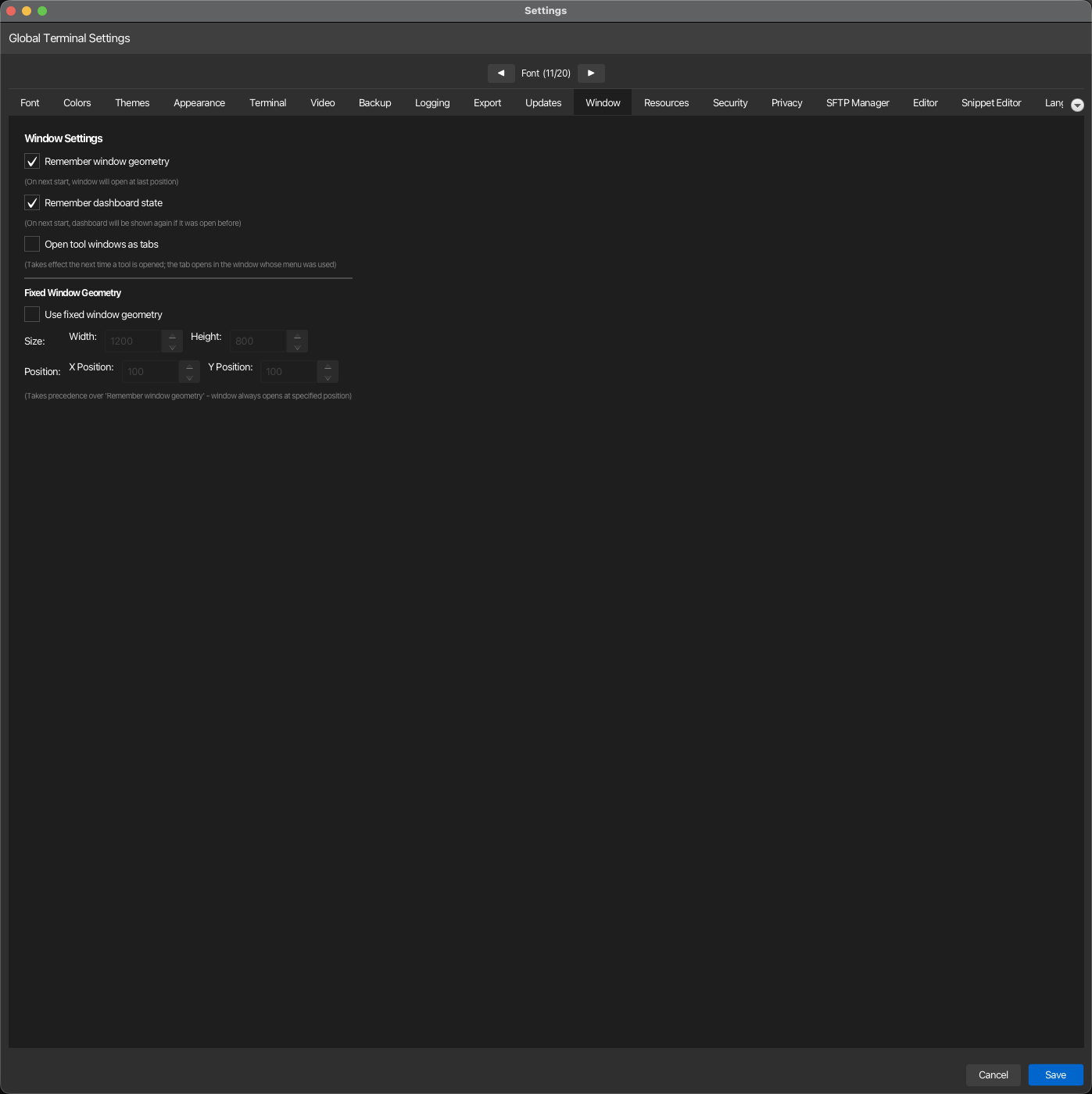
| Setting | Type | Values | Default | Stored as |
|---|---|---|---|---|
| Toolbar icon size (px): | slider with live icon preview | 16–64 px | 24 px | toolbarIconSize |
| Remember window geometry | toggle | — | On | rememberWindowGeometry |
| Remember dashboard state | toggle | — | On | rememberDashboardState |
| Open tool windows as tabs | toggle | — | Off | openToolWindowsAsTabs |
| Frame the terminal in its connection's tab color | toggle | — | On | connectionColorBorderEnabled |
| Frame the split pane the keyboard is in | toggle | — | On | splitPaneFocusRingEnabled |
| Name terminal tabs after the title the shell sets | toggle | — | On | tabTitleFromShellEnabled |
| Ctrl+Tab switches tabs in the order they were last used | toggle | — | Off | tabSwitchMostRecentFirst |
| At startup: | choice | Offer to restore the previous session / Restore the previous session automatically / Do nothing | Offer to restore the previous session | sessionRestoreMode (ask / auto / off) |
| Also restore the output of each terminal pane (encrypted) | toggle | — | Off | sessionRestoreScrollback |
| Lines of output per pane: | number | 100–5000 | 1000 | sessionRestoreScrollbackLines |
| Use fixed window geometry | toggle | — | Off | useFixedWindowGeometry |
| Width: | number | 400–4000 | — | fixedWindowGeometry.width |
| Height: | number | 300–3000 | — | fixedWindowGeometry.height |
| X Position: | number | 0–5000 | — | fixedWindowGeometry.x |
| Y Position: | number | 0–3000 | — | fixedWindowGeometry.y |
With Remember window geometry enabled, KorTTY stores the position and size of every user-resizable application window and named dialog separately. Reopening a window restores the geometry chosen for that window type; if its previous monitor is no longer connected, KorTTY moves it back onto an available screen, and a main window that was maximized opens maximized there. On macOS, a main window's saved bounds are reapplied after its native unified title bar is ready so the system cannot shift the restored position while opening it. A changed UI font scale keeps the remembered position but lets the window calculate a fresh size so translated or enlarged labels still fit. Short-lived confirmations and progress notices keep their content-derived size.
Note
When Use fixed window geometry is enabled, it takes precedence over Remember window geometry for main terminal windows. Dialogs continue to use their own remembered geometry.
Note
The Remember dashboard state setting preserves whether the dashboard panel was open or closed the last time you closed the application, and restores that state on the next launch.
Note
With Open tool windows as tabs enabled, management tools (Snippets, JobScheduler, AI Manager, Saved Chats, Session Journals, Credential/GPG/SSH key management, Video Manager, Teamwork settings, Terminal Effects) open as tabs in the main window instead of separate windows. The tab opens in the window whose menu you used, so with several main windows open each window collects its own tool tabs. Reopening a tool focuses its existing tab. The Snippet Manager is one tab per main window and opens the snippets you edit as tabs inside itself; a snippet editor opened from elsewhere (for example the SFTP Manager, the file browser or the terminal) and the session journal viewer open a new main-window tab each time, but a snippet that is already open in an editor is brought to the front instead of opening twice. The Full code analysis is a side panel inside the snippet editor, not a tab of its own. The setting takes effect the next time a tool is opened.
A tool hosted as a tab has no separate window geometry. Its available size follows the main window and its saved main-window geometry.
Toolbar icon size (px) changes the vector icons in the action toolbar, connection toolbar and customization catalog. Move the slider to see the example icon and pixel value update immediately; this preview does not change the saved value. Save to apply it immediately to every open window; it also survives restarts. Existing configurations keep the 24 px default. The toolbar and catalog adapt their button sizes and keep at least two complete catalog rows visible.
Tabs
Frame the terminal in its connection's tab color draws a 3-pixel frame around the terminal of every tab whose connection has a tab color, in addition to the colored dot on the tab, so a production server stands out right where you type. The frame surrounds the whole tab content — all split panes and the status bars below them — and connections without a tab color never get one. A split pane opened to a connection whose tab color differs from the tab's gets a frame of its own color at its edge, which does not resize its terminal (see Tab color). Switch the setting off to keep only the dot; it removes the panes' frames as well. The change applies to the open tabs of every window as soon as you save.
Note
The frame takes 3 pixels on each side of the terminal. Turning it on or off therefore resizes the open terminals of every colored connection, and giving a connection a tab color or removing it resizes that connection's terminals: the remote side receives the new size, and full-screen programs such as vim, htop or less redraw.
Frame the split pane the keyboard is in shows the focus ring in a tab with two or more split panes: a blue ring around the pane you type into and a dimmer one around the pane the menu commands act on while the keyboard is elsewhere. Switch it off to drop both rings; the active pane then shows only by its cursor. The ring never resizes a terminal, and switching it off leaves the frames in a connection's tab color in place. The change applies to the open tabs of every window as soon as you save.
Name terminal tabs after the title the shell sets lets a terminal tab show the title that the shell or another program in it sets with the OSC 0 or OSC 2 escape sequence, such as user@host: directory, in place of the connection's name; a tab with split panes shows the title of its focused pane. A name you gave a tab with Rename Tab still comes first. The server decides this title, so it is cleaned of control and bidi characters, capped at 80 characters and never changes the tab color; pointing at such a tab shows the connection it belongs to. Switch it off to keep the connection's names on every tab. The change applies to the open tabs of every window as soon as you save. See Title from the shell.
Ctrl+Tab switches tabs in the order they were last used changes what Ctrl+Tab and Ctrl+Shift+Tab do (Ctrl on macOS too). Off, they go to the next and the previous tab of the tab bar. On, Ctrl+Tab goes back to the tab you used before the current one, so one press switches between your two latest tabs. Keep Ctrl held and press Tab again to go further back through the tabs, from the most to the least recently used, add Shift to step the other way, and release Ctrl at the tab you want; Ctrl+Shift+Tab on its own starts at the tab you used longest ago. Only the tab you stop at counts as used, so the tabs you pass on the way keep their places in the order. Pressing any other key, choosing a tab with the mouse or switching to another window also ends the step-through at the tab it reached, and the key you pressed then acts on that tab. The order is the one the command palette lists the tabs in: it lasts as long as the window and is never saved. The change applies to every window as soon as you save; the palette's Next Tab and Previous Tab follow it too.
Session Restore
At startup: decides what korTTY does with the windows and tabs that were open before this start, which it keeps in the session snapshot while it runs:
- Offer to restore the previous session (the default) shows a bar above the status line of the window with Restore and Dismiss, for example Restore the windows and tabs from before this start? Windows: 2, tabs: 6. It never blocks the window, and nothing opens until you choose Restore.
- Restore the previous session automatically reopens them by itself as soon as no dialog is open, so the questions their connections may ask never come on top of another dialog; if a dialog stays open for a minute, korTTY offers them in the bar instead.
- Do nothing shows nothing at startup.
File → Restore Previous Session opens the previous session in every mode. Either way the tabs open without asking anything: a tab that needs a password, a new temporary SSH key or the locked vault waits in the restore bar. If korTTY ends unexpectedly within a minute of a restore, the next start offers the session instead of restoring it automatically, so a session that makes korTTY crash cannot do so at every start. A missing or unknown value in global-settings.xml means Offer to restore the previous session, so a damaged file never opens connections by itself. Your organization can set the mode with the session-restore key of its enterprise policy; the dropdown is then locked with the "Managed by your organization" hint. The setting takes effect at the next start. See At startup.
Also restore the output of each terminal pane (encrypted) keeps the newest lines of every terminal pane with the session snapshot, and a restored tab or pane shows them again, dimmed and above its new session; they are only shown on your computer, never sent to the server or typed into the shell. It is off by default, because terminal output can hold secrets: korTTY writes it only encrypted with the key of your master password, readable only by you and never into backups or project files. Without a master password, or while the vault is locked, nothing is saved or restored, and the status bar says so when a restore finds saved output it cannot read. Lines of output per pane sets how many of the newest lines are kept, from 100 to 5000. Turning the option off deletes the saved output at once, and so do a change of the master password and restoring a backup. Your organization can set the option with the session-restore-output key of its enterprise policy; the switch and the lines are then locked with the "Managed by your organization" hint. See Restoring the output.