ASCII art
Create ASCII art in three ways: render text as a FIGlet banner, let the AI draw a picture from a subject such as "house in the forest", or convert an existing image file. All three sit in one dialog behind their own tab, share a zoomable preview, and copy to the clipboard — plain, as a code comment, or as ready-made print statements — for use in terminal scripts, login banners, or documentation.
Accessing the tool
Open the dialog from Tools > ASCII Art... in the menu bar, or press Ctrl+Shift+A (Cmd+Shift+A on macOS).
Text Banner tab
Style
Choose a FIGlet font style from the dropdown. Standard and Slant come from the jfiglet library; 3-D, banner, big, block, cosmic, Digital, Lean, roman, script and small are bundled FIGfonts. A style whose font file cannot be loaded is left out of the list.
Switch between styles with the dropdown, with the arrow keys (Left, Right, Up, Down) while the dropdown has focus, or with the ◀ and ▶ buttons beside it.
Text
Type or paste the text to convert into the Text field. Multi-line input is supported — each line is converted on its own, and blank lines stay blank.
The Preview re-renders as you type and whenever you change the style.
AI Picture tab
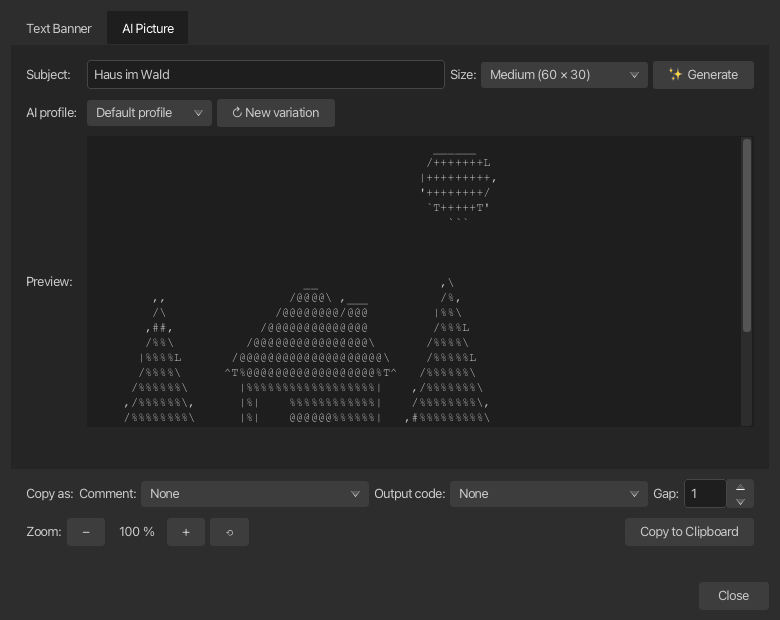
Instead of lettering, this tab asks a model to draw the subject as a small vector drawing (a restricted SVG), which korTTY then converts into ASCII characters itself — a model is far better at describing shapes than at typing aligned characters.
| Control | What it does |
|---|---|
| Subject | The thing to draw, for example house in the forest. Pressing Enter starts the generation. |
| Size | The character grid the picture is fitted into: Small (40 × 20), Medium (60 × 30), Large (80 × 40) or Extra large (100 × 50). Remembered between sessions. |
| Generate | Requests a picture for the subject. |
| AI profile | Which profile handles this run. The choice is transient and does not change your default profile. |
| New variation | Redraws the same subject with a different treatment — viewpoint, level of detail, scene context, geometric style, proportions, contrast or tones — asking for something different again on each retry. |
| Cancel | Stops the running generation; the previous picture stays. |
The tab needs at least one configured AI profile and the AI features switch enabled; otherwise its controls stay disabled and the status line says so.
The status line names the current step: asking the AI for a drawing, converting it to characters, asking once more, or asking the AI to type the picture directly. If an answer holds no usable drawing, korTTY asks once more and tells the model what was wrong; if that fails too, it falls back to asking the model to type the ASCII picture directly and says so in the status line. Errors, a cut-off answer and "no usable picture" replies are reported there as well, together with the reason.
Note
The model returns a drawing rather than characters: korTTY draws it off-screen, fits it into the chosen size and picks one printable ASCII character per cell, so the result is always plain ASCII that fits the grid, with blank edge rows and columns trimmed. A drawing is checked before it is shown — it must contain shapes, lie inside its canvas, be neither blank nor one solid block, and be large enough. Only the direct-typing fallback shows the model's own characters, cleaned as before and cropped to the chosen size: a fenced code block is unwrapped, reasoning blocks and control characters are removed, tabs become spaces, and blank leading and trailing lines are trimmed. For this action korTTY switches the model's reasoning off where the profile allows it, caps the answer length and skips knowledge stores, because a picture gains nothing from either.
Image File tab
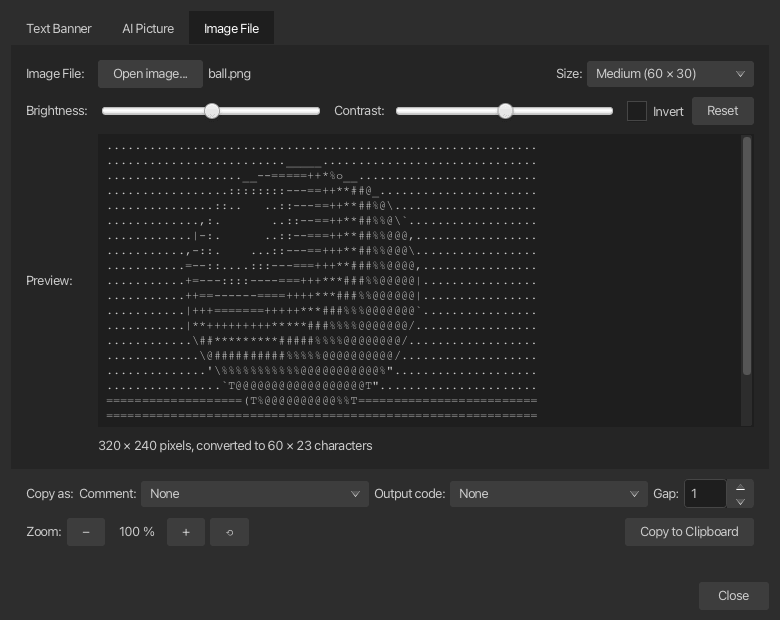
This tab converts an existing picture — a photo, a logo, an icon — into ASCII art on your machine; no AI profile is involved. Open a file with Open image… or drop it onto the tab. PNG, JPEG, GIF and BMP are read.
| Control | What it does |
|---|---|
| Size | The character grid the picture is fitted into, keeping its aspect ratio: a landscape photo uses fewer rows, a portrait one fewer columns. Remembered between sessions. |
| Brightness | Shifts all tones lighter or darker. |
| Contrast | Spreads or flattens the tones around mid grey. |
| Invert | Swaps light and dark. ASCII ink is dark on light, so a light subject on a dark background reads correctly only when inverted. |
| Reset | Returns brightness, contrast and inversion to neutral. |
Every change converts again immediately, and the status line shows the source size in pixels and the result size in characters.
Note
Before your adjustments apply, korTTY stretches the picture's own tonal range to full contrast (ignoring the darkest and lightest percent of pixels), because photos cluster in the mid tones and would otherwise become one grey block. Transparent pixels count as white paper. Very large files are reduced to 1600 pixels on the long edge when they are opened; more detail cannot reach the character grid anyway. Freestanding subjects, logos and icons convert well; busy photographs need a large size and usually some contrast.
Preview zoom
All tabs share one zoom level, so a banner and a picture are always shown at the same size.
| Action | Controls |
|---|---|
| Enlarge | + button, Ctrl++, or Ctrl and scroll up over the preview |
| Shrink | − button, Ctrl+-, or Ctrl and scroll down over the preview |
| Reset | ⟲ button or Ctrl+0 |
The percentage between the buttons shows the current level, from 50 % to 333 %, where 100 % is the default 12 px monospace size.
Copying to clipboard
Copy to Clipboard copies the preview of the tab that is currently open, so you get the banner from the Text Banner tab and the picture from the AI Picture or Image File tab. The Copy as row above the buttons decides the shape of what lands on the clipboard, so a picture can be pasted straight into program code:
| Control | What it does |
|---|---|
| Comment | Puts a comment marker in front of every picture line, or wraps the picture in a block comment, so it can sit inside source code without being executed. |
| Output code | Turns every picture line into a print statement of the chosen language, with the quoting and escaping that language needs, so a script prints the picture as-is. |
| Gap | The number of spaces placed before every picture line — between the comment marker and the picture, or inside the printed string — to align the picture. 0 to 20, default 1. |
Comment and output code exclude each other: choosing one resets the other to None. All three choices are remembered between sessions, and the copy button's tooltip shows the first line as it will be copied.
Comment styles
| Style | Languages |
|---|---|
# |
Bash, Perl, Python, Ruby, YAML, TOML, PowerShell |
// |
Java, C, C++, JavaScript, TypeScript, Go, Rust, Kotlin, Swift, PHP |
-- |
SQL, Lua, Haskell, Ada |
; |
Lisp, Clojure, INI, assembler |
% |
LaTeX, MATLAB, Erlang |
' |
VB, VBA |
REM |
Batch |
/* … */ |
C-style block comment; every picture line is prefixed with * |
<!-- … --> |
XML, HTML, SVG, Markdown |
[ "…", … ] |
JSON string array — the picture as a list of string values |
Output code
| Language | Statement per picture line |
|---|---|
| Bash / sh heredoc | cat <<'KORTTY_ASCII_ART' … KORTTY_ASCII_ART — no escaping at all |
| Bash | echo '…' |
| POSIX sh | printf '%s\n' '…' |
| Perl | print '…', "\n"; |
| Python | print("…") |
| Ruby | puts '…' |
| PHP | echo '…', PHP_EOL; |
| JavaScript | console.log("…"); |
| Java | System.out.println("…"); |
| C | puts("…"); |
| C# | Console.WriteLine("…"); |
| Go | fmt.Println("…") |
| Rust | println!("…"); |
| Kotlin | println("…") |
| Swift | print("…") |
| Lua | print("…") |
| PowerShell | Write-Output '…' |
| Batch | echo(… |
Note
A few characters have to change so the copied text stays valid: inside a C-style block comment */ becomes +/, inside an XML comment every second hyphen of a -- run becomes = because XML forbids -- in comments, JSON strings escape backslashes and quotes, Rust doubles { and }, Kotlin escapes $, C rewrites ?? so it is not read as a trigraph, and Batch escapes ^ & | < > ( ) " and doubles %. Line comments and the Bash heredoc copy the picture unchanged. Three cases stay outside what escaping can fix: with a gap of 0, Bash's echo swallows a picture line that is exactly -n or -e (use the heredoc, printf, or the default gap of 1); a Batch file with delayed expansion enabled still interprets !, and a REM line still expands %~; and a // comment whose last picture line ends in a backslash would swallow the next source line in C and C++, so korTTY appends an empty // line in that case.
Example
The banner style with the input text "Nostromo":
 #     #
 ##    #  ####   ####  ##### #####   ####  #    #  ####
 # #   # #    # #        #   #    # #    # ##  ## #    #
 #  #  # #    #  ####    #   #    # #    # # ## # #    #
 #   # # #    #      #   #   #####  #    # #    # #    #
 #    ## #    # #    #   #   #   #  #    # #    # #    #
 #     #  ####   ####    #   #    #  ####  #    #  ####
Dialog state
The dialog remembers its window position, its size, the preview zoom level, the picture sizes of the AI Picture and Image File tabs, and the copy settings between sessions.