JobScheduler
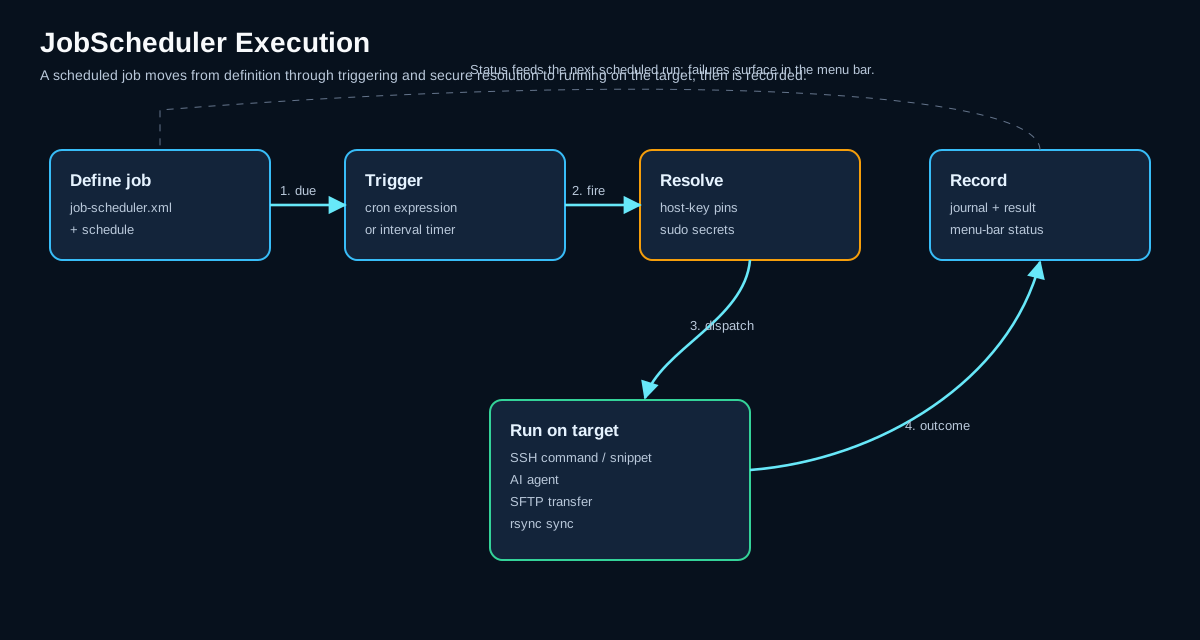
The JobScheduler runs unattended background jobs while KorTTY is open. It does not require an operating system service or an active SSH terminal tab. Jobs execute automatically on a configured schedule using saved SSH connections from the Connection Manager.
On macOS and Windows, an enabled job with a future run keeps the computer from entering system sleep while korTTY is running when Configuration > Prevent System Sleep is enabled, so the scheduled time remains reachable. The Scheduler uses a single wake-up for the next due run and owns no polling timer when no enabled future job exists. With no terminal connection, future or running Scheduler job, or active AI request, system sleep remains available even while the setting is checked. While a job is running, macOS does not put korTTY into App Nap. Display sleep is not blocked. Linux power inhibition is not yet supported.
Open it with Tools > JobScheduler.... The dialog remembers its window position and size. Its job list has New, Save, Delete, Run now, Run with successors, Disable chain, Dependency diagram and Webhook targets... buttons and the Show Jobs status in menu bar check box; Run now saves the selected job and starts it at once. The Depends on column lists the jobs each job depends on (see Job Dependencies). Delete asks for confirmation first. The German interface now translates all labels, action names, status values, validation messages, target selectors and supporting prompts; technical protocol and format names such as SFTP, Rsync, ZIP, TAR, stdout and stderr remain unchanged.
Overview
JobScheduler supports six types of actions:
- COMMAND — Run a non-interactive remote shell command
- SNIPPET_SCRIPT — Execute a SnippetManager script on the target with optional parameters
- AI_AGENT — Run a headless AI agent with explicit auto-approval
- AI_SWARM — Broadcast one AI-agent task to all selected targets in parallel and store the combined answer as a saved swarm chat
- SFTP — Upload, download, sync, delete, rename, create directories, set permissions, change ownership, remote-copy, or create archives
- RSYNC_SYNC — Synchronize directories via external
rsyncover SSH
Job Configuration
The JobScheduler dialog has three tabs: Job, Action, and Journal.
Job Tab: Targets and Schedules
Use the Job tab to define where and when a job runs.
| Field | Description |
|---|---|
| Enabled | Enables or disables the job. |
| Name | Display name shown in the job list, journal, and menu-bar status. |
| Connection | Opens the Connection Manager selection dialog. Select individual SSH TCP servers, whole groups, or both. Mosh connections are not supported. |
| Working directory | Optional remote directory. Use Browse... to connect to the target and pick a directory when the path is not known. |
| Journal | LIMITED_REDACTED stores bounded, redacted excerpts. FULL stores full output/transcripts (KorTTY-managed secrets are still redacted). |
| Active from / Active until | Optional date range for the job. The job will not run outside this range. |
| Window start / Window end | Time window for the job (e.g., 09:00 to 17:00). Values are selected from validated time lists. |
| Interval minutes | Optional repeated interval inside the active window. If set, the job runs every N minutes between window start and end. |
| Fixed times | Optional explicit start times (e.g., 09:30, 12:00, 15:30). Values are selected from validated time lists. |
| Weekdays | Optional weekday filter. Use the all-toggle to select or clear all weekdays at once. |
Schedule calculations use the local system time zone. If no fixed time and no interval are configured, the next run is the window start on an allowed date.
Note
Scheduler jobs support saved SSH TCP connections only. Mosh targets are blocked as unsupported and the reason is written to the journal.
Job Dependencies
A job can depend on other jobs, for example job3 may only run when job1 and job2 finished without errors. Open the collapsible Dependencies section on the Job tab, click Add... and select the predecessor jobs; Remove drops the selected ones. Jobs that would create a cycle (the job itself, or a job that already depends on it directly or indirectly) are not offered, and saving a cycle is refused. Click Save to keep the changes.
| Setting | Description |
|---|---|
| Depends on | The predecessor jobs. Every one of them must have succeeded. |
| Mode | Condition (own schedule): the job keeps its own schedule, and a scheduled run is blocked unless the last finished run of every predecessor succeeded. Chain (start after predecessors): the job starts automatically as soon as every predecessor has succeeded since this job last ran; its own schedule is optional and is checked like a condition. |
| Max. age of success (min) | A predecessor's success only counts if it finished at most this many minutes ago. 0 means unlimited. |
A blocked run is recorded in the Journal tab with status Blocked and the reason per predecessor, for example job1 last finished FAILED or job2 has never run, and notifies like any blocked run. A job started by a chain shows the start reason Started by dependency.
Run now does not block on dependencies: when a predecessor is not satisfied, korTTY lists the reasons and asks whether to run the job anyway. Run with successors runs the selected job and then every job that depends on it, directly or indirectly, in dependency order, each one as soon as all its predecessors within this run have succeeded, regardless of their mode. Predecessors outside this run must satisfy the usual condition. When a job fails, the jobs below it are not started and are recorded as Blocked with the failed predecessor's name.
Deleting a job that other jobs depend on shows a warning listing those jobs. When you confirm, the dependency is removed from them, so they no longer wait for the deleted job.
Disable chain switches off the selected job together with every job that depends on it, directly or indirectly, after a confirmation that lists them. Disabled jobs are neither scheduled nor started by a chain or by Run with successors; jobs that are already running finish normally. While the selected job is disabled, the button reads Enable chain and switches the same jobs on again. A single job can still be switched with Enabled.
Dependency Diagram
Dependency diagram opens a window that draws the job dependencies as a flowchart, rendered locally with the bundled Mermaid library. Each box shows a job's name and the result of its last run, colored by status: green for successful, red for failed, yellow for blocked, orange for cancelled, blue for running and gray for never run; a disabled job has a dashed frame. A solid arrow is a chain dependency, a dashed arrow a condition. The diagram updates when jobs change or runs finish.
| Control | Description |
|---|---|
| Orientation | Vertical (top to bottom, the default) or Horizontal (left to right). korTTY remembers the choice. |
| Dark mode | Auto (follows korTTY's design), Light or Dark. korTTY remembers the choice. |
| Show | All jobs, Only jobs with dependencies, or Selected job and its chain (the job selected in the job list with everything it depends on and everything depending on it). |
| − / 100 % / + | Zoom the diagram. |
| Save SVG / Save PNG | Save the rendered diagram as an image. |
| Copy Mermaid | Copy the diagram's Mermaid source to the clipboard. |
Session Journal per Run
The collapsible Session journal per run section at the bottom of the Job tab records a full session journal for every run of the job — one journal per target server, with every command the job sent, its output, the job's summary and the outcome on that server. Unlike the short run history in the Journal tab, it keeps the complete output, can be summarized by the AI, searched, exported and asked questions like any interactive journal, and it is deleted automatically when its retention ends. SFTP and rsync actions send no shell command; their journal records the action and its result instead.
| Setting | Description |
|---|---|
| Create a session journal for every run | Switches the journals on for this job. |
| AI summaries | Off (log only, no tokens), For every kept run (default) or Only for failed runs. The summaries run once, after the run has finished, so a run whose journal is discarded never costs tokens. They also need AI summaries to be switched on in Settings → Logging → Session Journal. |
| AI profile | The profile for the summaries. From the settings uses the AI profile for automation journals (see Session journal); pick a cheap or local profile to keep unattended runs affordable. The list shows each profile's price per 1M tokens, or that it runs locally. |
| Keep journals | Always, or Only when the run fails — the journal of a successful run is then deleted right away; failed, blocked and cancelled runs are kept. In a job with several targets the decision is made per server. |
| Delete automatically | After a number of days (default 14), on a fixed date, or never. |
| Max. runs / Max. disk space | Keep at most this many runs, or this much disk space (MB), of this job's journals; the oldest runs are deleted first, and the newest run is never deleted. 0 means unlimited. |
| Discard a run identical to the previous one (keep a reference) | When a run records exactly the same commands, output and outcome on a server as the previous kept run of that server, its journal is deleted and the run history points to the earlier journal instead ("= identical to an earlier run"). The earlier journal is then kept at least as long as the new run would have been. On by default. |
| Record the commands sent | Records the commands in addition to their output. |
Below the settings a status line shows the tokens and cost of the last run and of all kept runs, and the disk space the job's journals use. The job list has a Journal tokens column with the total per job.
Session journals of automations can become very expensive
Switching the journal on — and switching its AI summaries on — first shows a warning: the journal is written on every run and for every server without anyone watching, and with AI summaries every kept journal makes at least two AI calls. The warning estimates the tokens per run (from the job's earlier runs, or a rough upper bound when there are none), per day and per month from the schedule and the number of targets, the cost in money when the AI profile has a price per 1M tokens, and what is left of the profile's quota. Cheaper options: a local AI profile, Only for failed runs, Only when the run fails, and discarding identical runs. Cancel keeps the journal (or its AI summaries) off.
Pinned journals (right-click in the journal manager → Keep (pin)) are never deleted automatically. An administrator can forbid automation journals or cap their retention, disk space and number of runs; the section then says so and its controls are limited — see Enterprise policy.
Host Keys, Sudo, and Secrets
Host-key verification is secure by default. Before unattended SSH/SFTP/Rsync execution, select the target and click Confirm host key so KorTTY stores the pinned fingerprint and OpenSSH public-key material.
The checkbox Disable host-key verification for this job disables host-key verification only for the selected job. This is unsafe and should only be used when the risk is understood.
Sudo passwords can be stored for one server or for a server group:
- Server-specific sudo passwords are used first.
- Group sudo passwords are used as fallback.
- Stored sudo passwords are encrypted with the master password.
- If the master password is locked and a job needs SSH, sudo, API, or archive secrets, the job is blocked and journaled.
For Rsync jobs, Use sudo means passwordless remote sudo only through sudo -n rsync. Stored sudo passwords are not used by the current Rsync integration.
Action Tab: Job Types and Configuration
Use the Action tab to choose what the job does. The tab shows only the fields that the selected action can use, so unrelated fields are hidden. The action selector includes:
| Action | Purpose |
|---|---|
| COMMAND | Run a non-interactive remote command. |
| SNIPPET_SCRIPT | Run a SnippetManager script on the selected target. The Snippet search field filters the script dropdown by snippet name, category, language, or ID; Snippet parameters passes additional arguments as one argv value per line. |
| AI_AGENT | Run the headless scheduler AI agent. Unattended command execution requires AI agent may change the server without runtime confirmation on the job. |
| AI_SWARM | Run the AI Swarm headlessly on every selected target in parallel and combine the answers into one comparison table. |
| SFTP_UPLOAD | Upload a local path to a remote path. |
| SFTP_DOWNLOAD | Download a remote path to a local path. |
| SFTP_SYNC | Synchronize local and remote paths in the selected upload/download direction. |
| SFTP_DELETE | Delete a remote path. |
| SFTP_RENAME | Rename a remote path. |
| SFTP_MKDIR | Create a remote directory. |
| SFTP_CHMOD | Change permissions. Numeric modes such as 755 and symbolic modes such as u+rw,o-w are accepted. |
| SFTP_CHOWN | Change owner and/or group. Owner and group buttons can query the target and show available values. |
| SFTP_COPY_REMOTE | Copy a remote path to another remote path on the same target. |
| SFTP_ARCHIVE | Create a remote archive. |
| RSYNC_SYNC | Synchronize one or more directories via external rsync over SSH. |
Each action shows only these fields besides the Action selector. The Sudo field is a check box labelled Use sudo:
| Action | Fields |
|---|---|
| COMMAND | Command, Virtual terminal, Sudo |
| SNIPPET_SCRIPT | Snippet search, Snippet script, Snippet parameters, Virtual terminal, Sudo |
| AI_AGENT | AI profile, AI prompt, AI agent may change the server without runtime confirmation, Sudo |
| AI_SWARM | AI profile, AI prompt, AI agent may change the server without runtime confirmation, Swarm parallelism, Swarm read-only |
| SFTP_UPLOAD, SFTP_DOWNLOAD | Local path, Remote path, Sudo, and SFTP sudo staging while Use sudo is ticked |
| SFTP_SYNC | Local path, Remote path, Sync direction, Sudo, and SFTP sudo staging while Use sudo is ticked |
| SFTP_DELETE, SFTP_MKDIR | Remote path, Sudo |
| SFTP_RENAME, SFTP_COPY_REMOTE | Remote source, Remote destination, Sudo |
| SFTP_CHMOD | Remote path, Permissions, Sudo |
| SFTP_CHOWN | Remote path, Owner, Group, Sudo |
| SFTP_ARCHIVE | Archive sources, Archive excludes, Archive path, Archive format, Archive password (password-protected ZIP only), Compression (not for TAR), Archive download, Archive download path (while Archive download is ticked), Sudo |
| RSYNC_SYNC | Rsync direction, Rsync sources, Rsync target root, Delete missing files |
Path fields provide local Finder/Explorer selection where the path is local and remote directory browsing where the path is remote. Remote browsing requires a selected target and host-key verification unless the job explicitly disables host-key verification.
Virtual Terminal and Screenshots
COMMAND and SNIPPET_SCRIPT actions can run in an invisible virtual terminal: the command gets a pseudo terminal on the server, korTTY interprets its output locally with the same terminal emulator a terminal tab uses, and screenshots of that screen are added to the run's session journal. No window opens and no terminal you are working in is touched, so progress bars, top or AI coding tools in non-interactive mode (for example claude -p … or codex exec …) become visible in the journal.
| Setting | Description |
|---|---|
| Run in an invisible virtual terminal (PTY) and take screenshots for the session journal | Switches the virtual terminal on for this action. Needs the job's session journal; without it the command runs as usual. |
| Size | Columns × rows of the virtual terminal (default 120 × 40). |
| Screenshot every … s (0 = off) / and when the screen changes | A screenshot at a fixed interval (default 10 s) and/or whenever the screen changed, at most every two seconds. An unchanged screen is never captured twice; the final screen is always captured. |
| Max. screenshots per command | Upper limit per command, including the final screen (default 30). |
| Runtime limit … s (0 = none) / count reaching the limit as success | Stops the command with Ctrl+C after this many seconds — for monitors such as top that never exit on their own. Without the second option a run stopped by the limit counts as cancelled. |
The run history keeps the final screen as the output. The AI describes the screenshots in the closing pass when the journal's AI mode applies (every kept run, or only failed runs), with the journal's AI profile — so the cost warning counts the screenshots in its estimate.
A job cannot operate a program
Nothing is typed into the program besides what the command itself sends. Interactive programs (Midnight Commander, an editor, a prompt waiting for an answer) therefore run only until the runtime limit — you get their screenshots, but the job cannot use them. A command that sends a stored sudo password always runs without the virtual terminal: a password sent to a pseudo terminal can be echoed onto the screen and would end up in a screenshot.
Snippet Script Jobs
Snippet script jobs use the selected SnippetManager entry without requiring an open terminal tab. KorTTY resolves the snippet's placeholders before execution with the same rules as the Snippet Manager: built-in variables and declared variables with a stored value are replaced, and shell forms such as ${1:-default} or ${HOME} are handed to the shell as written. Missing snippets, a declared variable without a stored value, an undeclared simple name such as ${target} (write $${target} to pass it to the shell), and unsupported snippet languages block the job and write the reason to the journal; see Scheduled and swarm runs. Additional snippet parameters are entered one per line so values with spaces are passed as single script arguments.
AI Swarm Jobs
AI Swarm jobs run one AI-agent prompt on all selected targets in parallel over background SSH sessions — no terminal tabs are opened. Beyond the shared AI profile, AI prompt, and AI agent may change the server without runtime confirmation fields, two swarm-specific fields apply:
| Field | Description |
|---|---|
| Swarm parallelism | How many targets run concurrently (1–16, default 4). |
| Swarm read-only | Restricts every agent to non-mutating commands. On by default. |
Results are stored twice: the journal records the run outcome, and the full conversation — including the combined per-server comparison table — is saved as a swarm chat that can be reopened from the AI Manager's Swarm Chats section.
The fastest way to create an AI Swarm job is the Schedule… button in the AI Swarm tab: it prefills a new job with the tab's current targets, prompt, AI profile, and read-only setting. See that page for recommended swarm/scheduler usage scenarios.
Warning
A scheduled swarm with Swarm read-only off and AI agent may change the server without runtime confirmation on changes systems unattended. Test the prompt interactively in the AI Swarm tab before enabling such a job.
SFTP Archive Jobs
SFTP archive jobs support ZIP, password-protected ZIP, TAR, and TAR.BZ2. Archive sources and exclude patterns accept one path or pattern per line. With Archive download ticked, the archive is downloaded to Archive download path after it is created. With Sudo ticked, the archive commands run through sudo.
SFTP Sudo Staging
With Use sudo and Use sudo staging for SFTP paths ticked, an upload, download or sync stages its files in a temporary location and moves them into place with sudo (mv for an upload, cp for a download). Cleanup failures are written to the journal.
Rsync Jobs
RSYNC_SYNC supports upload and download between the local filesystem and saved SSH TCP connections.
- Upload: local source directories are synchronized under the remote target root.
- Download: remote source directories are synchronized under the local target root.
- Multiple sources are supported.
- Delete missing files adds
--delete; it is off by default. - For downloads from multiple group targets, KorTTY writes each target into its own subdirectory below the local target root to avoid overwriting files from another server.
KorTTY builds Rsync execution as a ProcessBuilder argument list instead of shell-concatenating the command. The command uses -a --itemize-changes; --delete is added only when the job checkbox is enabled.
Rsync Prerequisites
rsyncis taken fromPATH, unless an explicit binary path is configured in Settings > SFTP > JobScheduler Rsync.sshmust be available inPATH.- Host-key pinning is required unless the job explicitly disables host-key verification.
- Password and private-key passphrase authentication use a temporary owner-only
SSH_ASKPASShelper. Secrets, helper paths, and temporary secret-file paths are redacted before journaling. - A temporary SSH key is written to an owner-only file in the system temp folder for the external
sshand deleted when the job ends or its connection fails.
Journal Tab
The Journal tab lists job runs with local KorTTY timestamps, status, job name, session journal, and summary. The columns Started, Status, Job, Session journal, and Summary are sortable; the default order shows the newest started entries first.
For jobs with a session journal per run, the Session journal column shows how many journals the run kept and their AI tokens and cost, "= identical to an earlier run" when the run was discarded as a duplicate, or "deleted (retention)" once the journals are gone. The detail area lists each journal with its status, token breakdown and deletion date, and Open session journal opens the run's journals (or the identical earlier run's) in the journal viewer.
The search row can match all persisted journal fields or only selected columns such as status, job, summary, stdout, stderr, and detail. Enter multiple whitespace-separated terms when every term must occur somewhere in the selected search scope; use * inside a term as a wildcard, for example backup*fail.
Selecting a row shows stdout, stderr, and detail text. Use Delete selected to remove selected journal entries. By default, KorTTY automatically deletes scheduler journal entries older than 14 days; set the retention value to 0 to keep entries indefinitely.
The protocol/detail area below the table is separated by a vertical splitter. Resize it to give the output more or less height; KorTTY stores that divider position in the global settings. In the detail text area, mark text and right-click to copy the selected text to the clipboard.
Journal statuses include successful, failed, blocked, cancelled, and running/system entries. Reasons such as locked master password, missing host-key pin, missing rsync/ssh, unsupported Mosh target, or shutdown drain are written as journal details.
Run Notifications
When a job run fails or is blocked, korTTY shows a desktop notification, also while the JobScheduler window is closed. The notification is titled korTTY · Job followed by the job's name, and its text only says how the run ended, its exit code when it had one, and how it was started (manually, by its schedule, by a dependency, or with its predecessor's successors), for example Failed · Exit code 2 · Scheduled run. It never contains the run's output, detail or summary, because those can name servers, paths or secrets and a notification can appear on the lock screen. Control characters and invisible direction-changing characters are removed from the job name.
Successful runs and recoveries (a successful run right after a failed or blocked one) do not notify by default, and cancelled runs never do. A job shows at most one notification per minute, so a job that fails every minute does not flood the desktop; its journal still records every run. Notifications use the same desktop notification service as the terminal, so where the operating system offers none, nothing is shown.
Choosing When a Job Notifies
Each job has a Notifications section on its Job tab, just above the session journal section. Under Notify when a run:, tick the run results that notify: Fails and Is blocked are on for every job, Recovers (succeeds after a failure) and Succeeds are off until you tick them. Show a desktop notification switches the desktop notification off for this job, for example for a job that only reports to a team channel. Below, under Send to these webhook targets:, tick the webhook targets this job sends to; no job sends to a webhook until you tick one. The section warns when nothing is ticked or when the enterprise policy blocks the ticked webhooks. Click Save to keep the changes.
Webhook Targets
A webhook target is a receiver that gets a message for every matching run, also when korTTY is in the background: a Slack channel, a Microsoft Teams channel, or any service that accepts JSON over HTTPS. Click Webhook targets... in the job list or in the Notifications section to add, edit or delete targets. Each target has a Name, a Format and a URL:
| Format | Sends | URL to paste |
|---|---|---|
| Slack | a Slack message with the job name and the run's status, exit code and start reason | a Slack incoming webhook URL, which starts with https://hooks.slack.com/services/ |
| Microsoft Teams (Workflows) | an Adaptive Card version 1.4 (schema http://adaptivecards.io/schemas/adaptive-card.json) for a Teams Workflows webhook |
the URL of a Teams workflow that posts a card to a channel when a webhook request is received; the retired Office 365 connectors are not supported |
| Generic JSON | korTTY's own JSON document, schema kortty.job-run/1, with the job's id and name, status, recovered, exitCode, trigger (manual or scheduled; runs started by a dependency count as scheduled, runs started with successors as manual) and finishedAt |
any HTTPS endpoint of your own |
Webhook URLs carry their credential in the path, so korTTY treats them as secrets. The URL is stored encrypted with the master password, the URL field is masked and never shows a stored URL (leave it empty to keep the stored one), and neither the journal nor korTTY's log ever contains more of it than the host. Only https:// URLs are accepted, and http:// only for a receiver on localhost or a loopback address; URLs with a user name or password are refused. While the master password is locked, webhooks are skipped and the journal records notification skipped: master password locked. A target can be switched off with Enabled without deleting it, and deleting a target removes it from every job.
Messages never contain the run's output, stdout, stderr or detail. Include the run's summary (masked) adds the run's one-line summary; it is off by default because a summary can name servers, paths or text written by an AI, and it is sent to a third-party service. When it is on, known secret patterns and the job's own secrets are masked, control characters are removed and the summary is cut to 1,000 characters, but masking cannot catch everything.
Send test sends a sample successful run, named after the selected job, to the target as it is in the editor, also with a URL you have typed but not saved yet, and reports the result below the buttons: delivered, refused with the HTTP status, or blocked. It runs in the background and is the only message you send by hand.
Delivery runs in the background and never holds up the job or the window. A message that times out after 10 seconds, cannot reach the receiver, or is answered with HTTP 429 or a 5xx status is retried up to 3 attempts in all, honouring the receiver's Retry-After up to 60 seconds; other refusals are not retried, and redirects are never followed. A message that still fails is recorded in the journal as notification failed: webhook delivery unsuccessful with the job, the target's name, the host, the number of attempts and the HTTP status. Webhooks are not throttled: every matching run sends one message.
Administrators can forbid job webhooks with the policy feature job-webhooks and limit the hosts they may reach with webhook-host-allowlist; a blocked message is recorded as notification blocked by policy. See [rule.job-scheduler].
Menu-Bar Status and Cancellation
When Show Jobs status in menu bar is enabled, KorTTY shows the scheduler status after Help only if an enabled scheduler entry exists or a job is currently running. The status shows the running job, cancellation state, or the next job with a live countdown.
Click the status menu to see:
- Open JobScheduler...
- running jobs and cancel entries
- up to five next queued jobs with start time and live countdown
Right-click the status label for a compact menu with cancel actions for running jobs and a shortcut to open JobScheduler. Cancellation requests are journaled and running SSH/Rsync work is interrupted cleanly where possible.
Quitting KorTTY While Jobs Run
If KorTTY is about to exit while JobScheduler jobs are running, it shows a warning with the active job names. Choosing Cancel keeps KorTTY running. Choosing Wait and quit starts shutdown drain mode:
- new scheduled or manual job starts are blocked;
- the shutdown wait is written to the journal;
- KorTTY waits for running jobs to complete or cancel;
- KorTTY exits automatically after the drain finishes.
Security and Secrets
- Host keys are pinned by default to prevent man-in-the-middle attacks on unattended execution.
- Sudo passwords are stored encrypted with the master password.
- SSH key passphrases and archive passwords are stored encrypted.
- KorTTY redacts managed secrets (passwords, passphrases, archive credentials) from journal output before persistence.
- In an AI Swarm job, each server's password is redacted from the journals as soon as its background session connects, so output captured while the swarm is still running is covered too.
- What AI jobs send to a cloud AI profile is masked: the AI Swarm agents and the request that combines their answers (see Masking what the agent sends), and the request of an AI Agent job, where the server's stored password and the job's sudo password become
***. The AI Agent job's request holds only the server name, the working directory and the job prompt, so the masking there only catches a secret typed into the prompt. Integrated models and a trusted local endpoint get the original text. - If the master password is locked when a job needs SSH, sudo, API, or archive secrets, the job is blocked.
- Webhook URLs are stored encrypted with the master password and are never written to the journal or the log; only their host is.
- AI Agent and AI Swarm jobs follow your organization's enterprise policy. When the policy denies AI, the AI agent or (for swarm jobs) the AI Swarm, or sets
ai-agent-executiontoread-only, the job ends as BLOCKED before it connects to any server, and the journal names the reason. Underai-agent-execution = "confirm"a person must approve every server-changing command, which an unattended job cannot ask for: an AI Agent job blocks at the first planned server-changing command and runs nothing of it, and an AI Swarm agent that plans one is stopped and counted as blocked, even when AI agent may change the server without runtime confirmation is on. Read-only commands still run.
Troubleshooting
Warning
JobScheduler job is blocked: Open Tools > JobScheduler... > Journal and inspect the selected entry's detail text. Common causes are:
- Locked master password
- Missing host-key pin
- Unsupported Mosh target
- Missing rsync or ssh in PATH
- Old host-key pin without OpenSSH public-key material for Rsync
- An AI Agent or AI Swarm job that your organization's enterprise policy does not allow: the detail text says whether AI, the AI agent or the AI Swarm is disabled, whether the agent is limited to read-only, or which server-changing commands were blocked because the policy requires a person to approve them
JobScheduler Rsync cannot start: Verify local rsync --version and ssh -V, or configure the Rsync binary path in Settings > SFTP > JobScheduler Rsync.
JobScheduler remote browser cannot open: Select exactly one target and confirm the host key first, unless the job explicitly disables host-key verification.