Main window overview
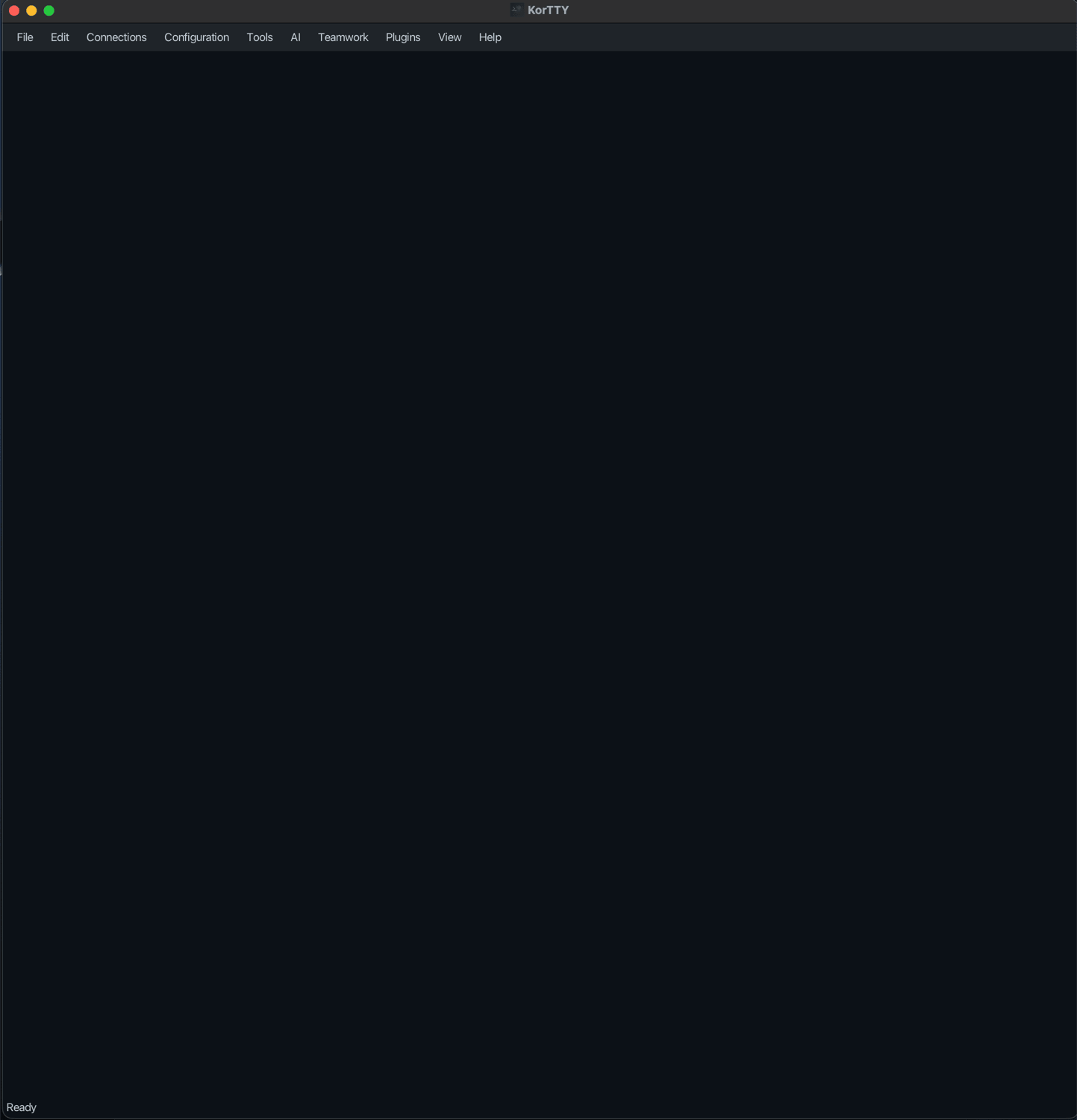
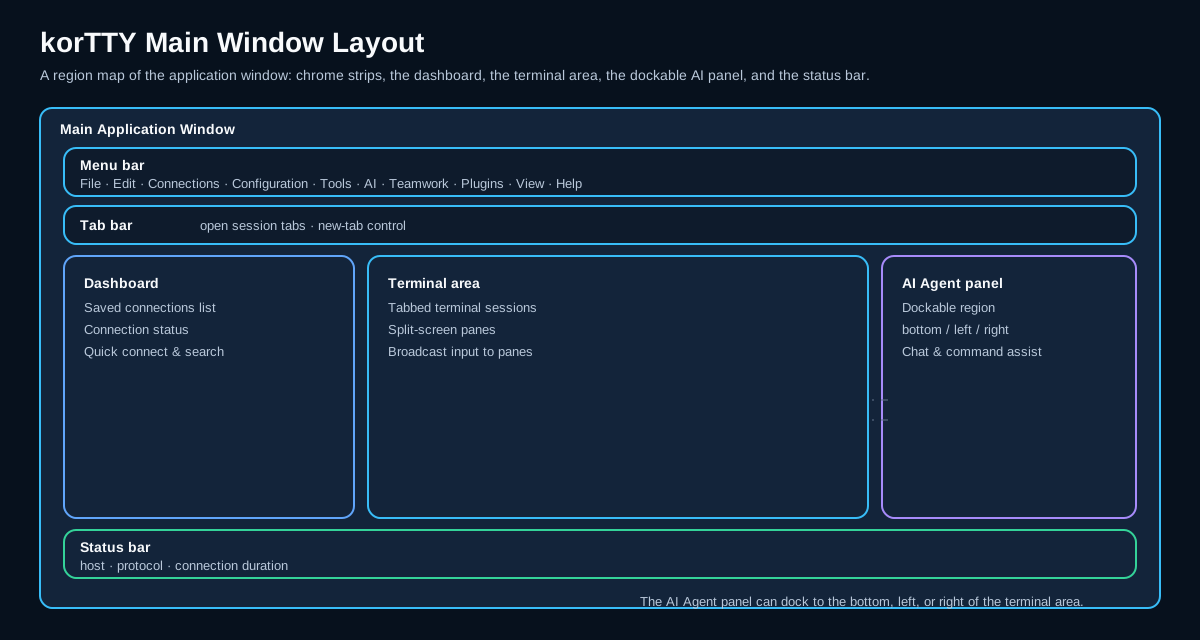
A fresh korTTY window: the customizable icon toolbar, the terminal area (where session tabs and the optional dashboard appear once you connect), and the status bar. The following diagram maps the same regions:
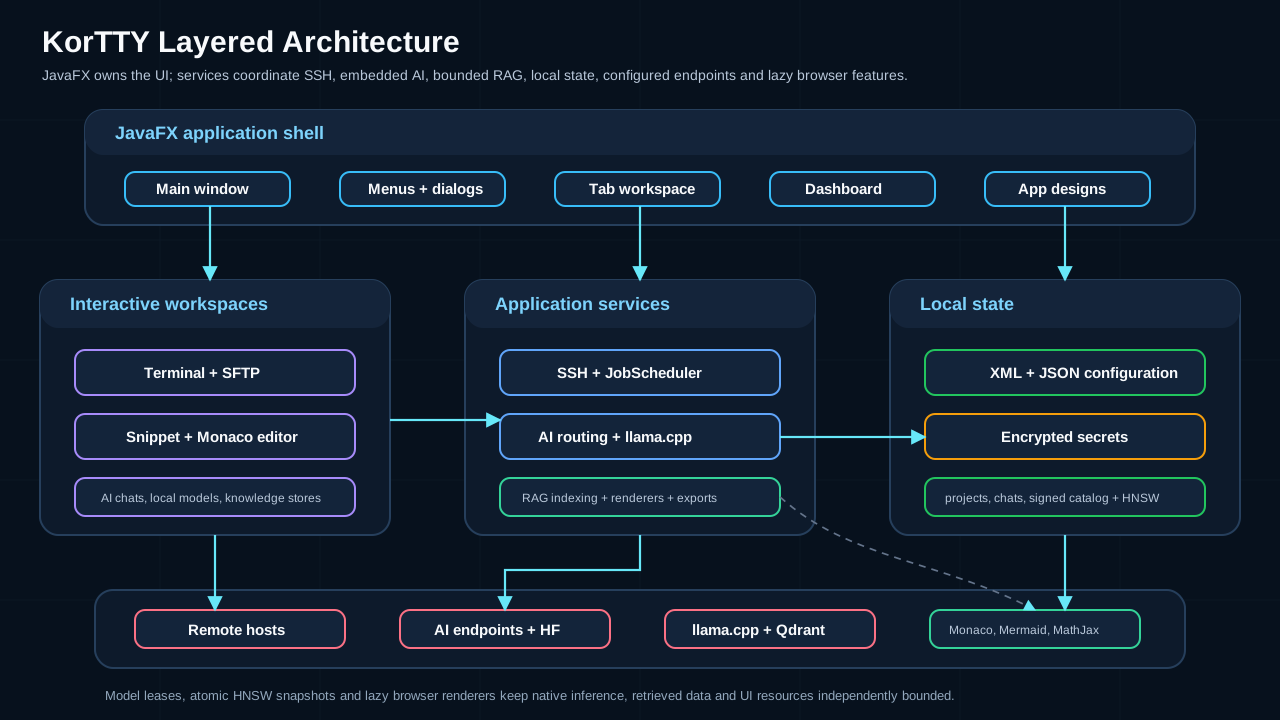
korTTY's main window has these regions:
- Icon toolbar — direct actions grouped into Terminal, Tools and Settings above the menu bar, with a separate row for your saved server and group buttons. See Customizing the icon toolbar.
- Menu bar — visible by default in each new window. Right-click either icon-toolbar row and choose Show/hide menu bar to show or hide it for this window; its check mark reflects the current state. You can also use Ctrl+Shift+L (Cmd+Shift+L on macOS). Visibility is a session choice and is not saved. The macOS system menu bar remains available. The in-window menus are File · Edit · Connections · Configuration · Tools · AI · Teamwork · Plugins · View · Help. All features are reachable here and via keyboard shortcuts, and the command palette (Ctrl+Shift+P, Cmd+Shift+P on macOS) finds and runs any menu command by name, also while the menu bar is hidden, runs the terminal's right-click commands such as Clear Buffer, switches to any open tab, the ones you used last first, connects to any saved connection and runs any snippet in the terminal. A live JobScheduler status menu appears after Help when a scheduled entry is active. While a guide translation runs, a progress indicator (bar, percentage and estimated time remaining) sits at the right end of the menu-bar row and stays visible even when the menu bar itself is hidden.
- Tab bar — each SSH/Mosh session runs in its own tab, named after its connection, or after the title its shell sets or a name you give it with Rename Tab. Ctrl+T opens Quick Connect for a new tab; Ctrl+Tab / Ctrl+Shift+Tab switch tabs, in tab bar order or, if you switch it on in the Window settings, in the order you last used them, and Ctrl+1 to Ctrl+8 jump to the first to eighth tab and Ctrl+9 to the last one (Cmd on macOS). A colored dot in front of a tab's title, and a frame of the same color around its terminal, show the tab color of its connection, or of its credential's environment; the frame can be switched off in the Window settings. An amber fork icon after it marks a tab whose typing goes to other panes, through multi-exec or broadcast mode; its tooltip says which. With Open tool windows as tabs enabled (Window settings), management tools such as Snippets, the JobScheduler or the AI Manager open here as tabs too — in the window whose menu you used — instead of as separate windows. The Snippet Manager keeps the snippets you edit as tabs of its own inside its tab.
- Dashboard (toggle Ctrl+Shift+D) — a side panel listing every open connection with status dots, protocol badges and AI-agent badges. See Dashboard below.
- File browser (View → File Browser ▸ Show on Left / Show on Right) — a dockable local file manager with navigation toolbar, path bar, filter, type icons and a folder/file/selection counter. Its side, width, hidden-file state and last directory are restored on the next launch. See File browser.
- Live journal panel (View → Live Journal, Ctrl+Alt+L) — the active tab's running session journal as its full journal page, docked and updating in real time; side and width are restored on the next launch.
- Coding Agents panel (View → Coding Agents, Ctrl+Alt+G) — docks beside the terminal area on the left or right and lists every coding agent detected in any korTTY window. It shows and hides itself with agent detection unless Automatically show and hide the coding-agent sidebar is switched off, and it keeps its last side and width. See Coding agents.
- Terminal area — the active terminal, with optional split-screen and broadcast input.
- Status bar — connection state, host/IP, active protocol, temporary SSH-key timer and connection duration. While panes take part in multi-exec, an amber chip in every window counts them, with the tabs and windows they are in, and its Stop link ends multi-exec everywhere.
Terminal-only fullscreen
Press Ctrl+Shift+F (or View → Terminal-only Fullscreen) to show the whole korTTY window — menus, tabs and status bar included — kept at its previous window size and centered on an empty fullscreen background, so the desktop and other windows stop competing for attention. View → Hide terminal scrollbars in fullscreen removes the scrollbars too. A transparent terminal background becomes opaque while fullscreen is active and returns to its saved level when you leave. Press Ctrl+Shift+F again to restore.
Customizing the icon toolbar
The icon toolbar is visible by default, including when upgrading a configuration that has no toolbar settings yet. Its original vector icons use theme-colored outlines with small colored details, so they remain recognizable in light and dark designs. View → Action toolbar and View → Connection toolbar independently show or hide the two rows. The same switches and Show/hide menu bar are available when you right-click either row. If the menu bar is hidden, right-click the status bar to restore either toolbar. Both visibility preferences and button placement are shared across windows and survive restarts. Older configurations keep their previous visibility for both rows until you change them separately.
The first row groups New Tab and New local shell under Terminal; Connection Manager, SFTP, Snippet Manager, Session Journals, Logfile Manager, AI Manager, JobScheduler and Video Manager under Tools; and Font, Colors, Keyboard, Logs, Window, Terminal and AI shortcuts under Settings, in that order. The Global Settings button is available in the customization catalog but is not included in the default layout. New Tab opens Quick Connect. New local shell immediately starts a tab with the existing platform-default shell preset. Tooltips name each action and its current keyboard shortcut, where one exists. Buttons that do not fit remain reachable through the toolbar overflow menu. Set Toolbar icon size (px) from 16 to 64 in Global Settings → Window; the default is 24, and saving updates both rows and the customization catalog in every window.
On Windows with Git for Windows installed, the catalog also offers New Git Bash in the Terminal section. Its icon is the terminal of New local shell with the prompt in orange, the colour of the Git logo, and the button immediately opens Git Bash in a new tab. Without Git Bash the button is not offered.
When the window is too narrow for the action row, whole groups move to another line instead of being squeezed, so every button stays directly clickable. The overflow menu, shown as a double arrow (»), is only used by the connection row and by a group that is wider than the whole window.
On Windows, the Terminal section of the default layout also has the buttons New PowerShell and New Command Prompt, right after the New local shell button. Both buttons have their own icon. PowerShell shows a blue prompt in a slanted frame. The Command Prompt shows C:\ in a console window.
A saved toolbar layout on Windows gets both buttons once, after New local shell, or at the start of the toolbar when Terminal has no buttons. Buttons you already placed stay where they are, and removing them later is remembered.
When an older saved toolbar layout is loaded for the first time, korTTY automatically adds the Logfile Manager button after Session Journals in Tools, or at the end of Tools if Session Journals is absent. Existing buttons, separators, their order and the visibility of both rows are preserved. A Logfile Manager button you already placed stays where it is, without adding a duplicate. After this migration, removing the button through customization is remembered. In the same way, the Connection Manager button is added once at the start of Tools, or as a new Tools group at the end if the layout has none; a Connection Manager button you already placed stays where it is, and removing it afterwards is remembered as well.

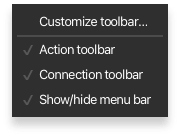
Right-click the toolbar and choose Customize toolbar…. Both rows appear as editable destinations, including a row you have hidden, and a catalog opens underneath them, filtered by the name you type in its search field, with room for at least two complete button rows, including wrapped labels. Catalog buttons wrap at spaces or hyphens and widen for words that would otherwise be cut off. Finishing or cancelling customization restores each row’s saved visibility. Choose Actions, Settings or Connections in its category list. Click a catalog button to append it to its default section, or drag it to the desired position. The Settings category offers one shortcut for each main tab of Global Settings. Add connection opens the Connections category, populated from the Connection Manager. Separator adds a movable divider.
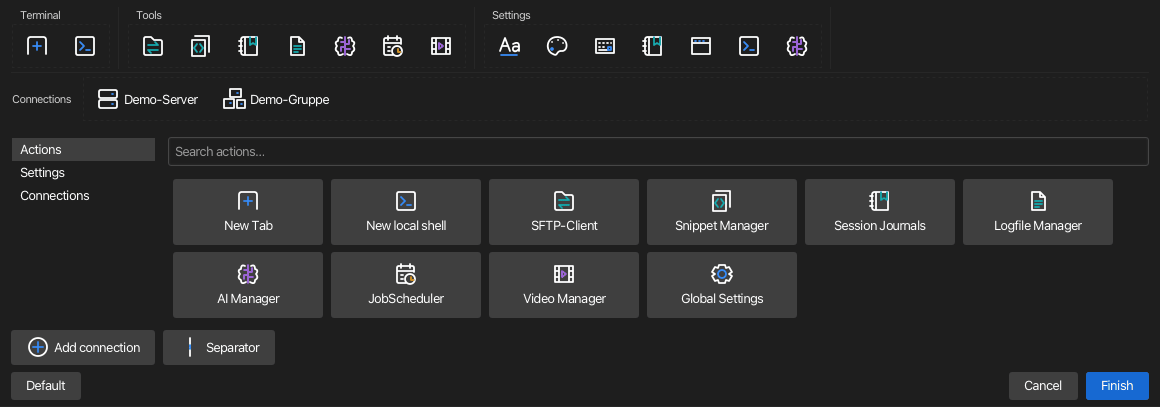
Drag an existing button to move it. Click or right-click it for Remove button, Move left, Move right and Move to section. With an editable button focused, Alt+Left / Alt+Right moves it and Del or Backspace removes it. Actions can move among the three task sections; saved server and group buttons stay in the connection row. In this mode, clicking a destination button never starts its action or a connection.
Finish saves the edited layout. Cancel discards it. Default restores the standard layout in the editing preview, so it can still be cancelled. A deliberately empty configuration stays empty and offers Customize toolbar…. While View → Connection toolbar is switched on but the connection row holds no servers or groups yet, it shows an Add connection button that opens customizing with the connections catalog; the row is always available while customizing.
Server buttons show the saved connection name and connect through the existing sign-in flow. Group buttons show the full group path and open only its direct members, one tab each; they do not include subgroups. Existing policy restrictions remain enforced. As with Quick Connect's group action, password-authenticated group members without a stored password are skipped with a message. Renaming a group in the Connection Manager updates toolbar references. Deleted or unavailable targets remain disabled and can be removed or replaced while customizing. Toolbar settings store references, never copies of passwords or keys.
Dashboard
Toggle the dashboard with Ctrl+Shift+D or View → Show Dashboard. It slides in on the left, sizes its width to the longest entry, and follows the active App Design's colors.
The header shows the panel title with two buttons: a collapse/expand toggle (collapses everything while any node is open, expands everything otherwise) and a refresh button. Below it, connections are organized as a tree:
- Main window — the root node, with an active/total session count.
- Environments — connections whose stored credential has an environment (for example Production or Test) are clustered under an environment node; connections without one sit directly under the main window.
- Groups — tabs assigned to a connection group appear under their group node. Saving a changed group in the Connection Manager updates open tabs immediately.
Each connection row shows a type icon, a status dot, the server name, and a protocol badge (ssh, mosh or local). The status dot distinguishes three states: filled green for a healthy connection, filled red for a connection that dropped unexpectedly (including a Mosh network interruption), and a hollow outline for a session that ended normally. Terminals with AI-agent runs carry the same ✋/⚡/⏸/✓ badge as elsewhere. Hovering a row shows user@host and the connection state; double-click (or Enter) focuses the session's tab.
Right-click a connection for Focus, Duplicate, Reconnect, SFTP-Client... (connected sessions only) and Close. Close asks first, like the tab's close button, when the session has split panes or a command is still running. Multi-exec: Include All Panes of This Tab on a connection row, and Multi-exec: Include This Pane on the row of one pane of a split tab, let those panes take part in multi-exec from any window, without switching to them; the check mark shows whether they take part, and an amber fork icon marks their rows. A footer keeps a running "connected of total" count, and an empty panel shows a placeholder until the first session opens.
macOS Dock menu
On macOS, right-click (or Control-click) the korTTY icon in the Dock for quick actions without switching to the app — they apply to the current (focused) window, opening one first if none is open:
- New Window
- New Tab in Current Window
- Manage Connections… (Connection Manager)
- Open Project…
- Manual (the in-app guide)
- About korTTY
See the menu reference for every menu item and the keyboard-shortcuts reference for the full list of accelerators.