Backup
Configure backup retention, the encryption method and the automatic backup. Open via Configuration → Global Settings → Backup; stored in ~/.kortty/global-settings.xml.
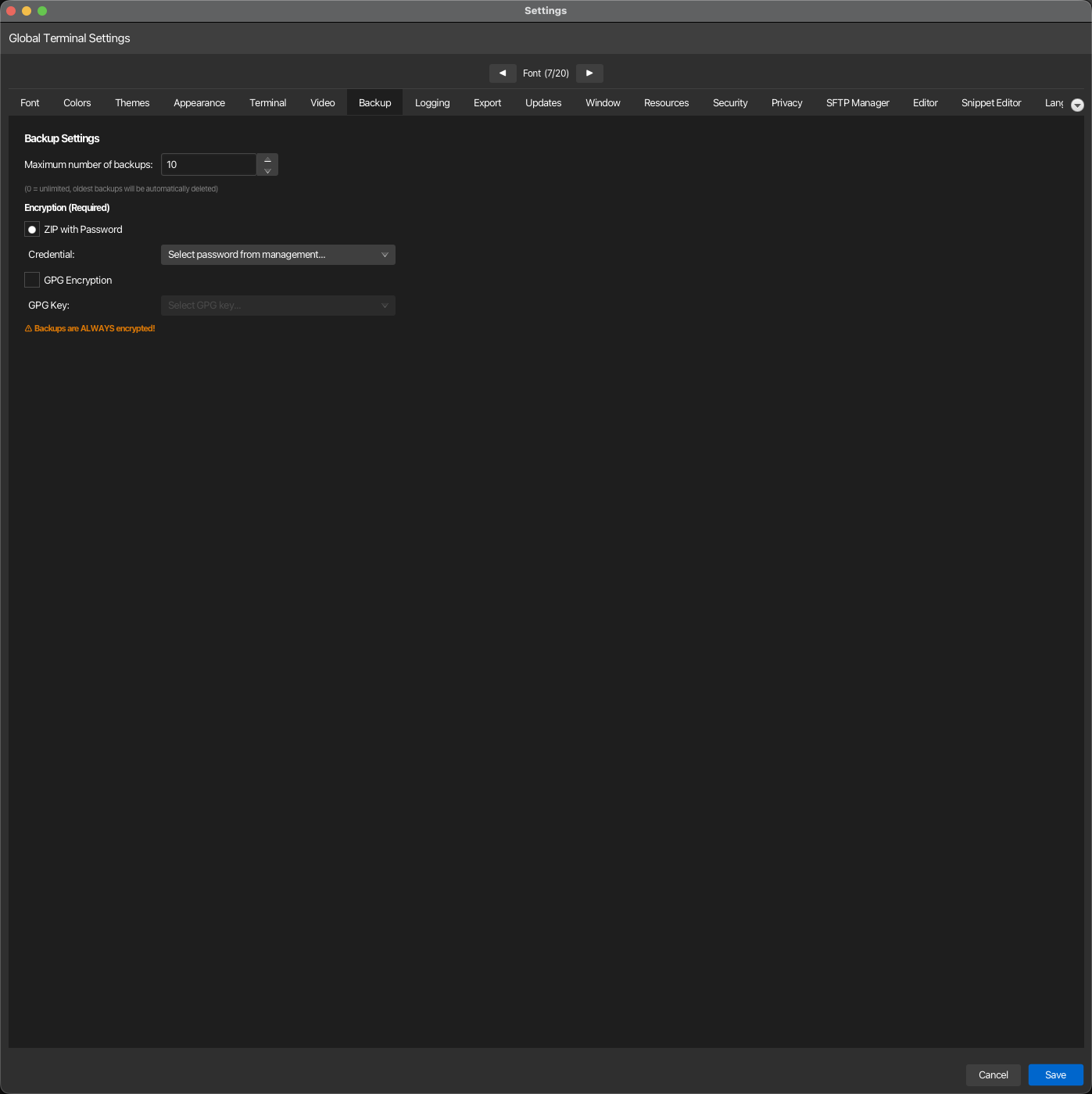
| Setting | Type | Values | Default | Stored as |
|---|---|---|---|---|
| Maximum number of backups | number | 0–100 (0 = unlimited) | 10 | maxBackupCount |
| ZIP with Password | radio (one of two) | — | On | backupEncryptionType (PASSWORD) |
| Credential | dropdown | Available stored credentials | — | backupCredentialId |
| GPG Encryption | radio (one of two) | — | Off | backupEncryptionType (GPG) |
| GPG Key | dropdown | Available GPG keys | — | backupGpgKeyId |
| Schedule | dropdown | Off, Daily, Weekly, Monthly | Weekly | autoBackupInterval |
| Folder | path | an existing folder | — | autoBackupDirectory |
Warning
Backups are ALWAYS encrypted. Choose one mode, ZIP with password or GPG. The chosen mode needs its credential or its GPG key; without one, the backup stops with an error before anything is written.
Note
Maximum Backups: Set to 0 to keep backups indefinitely; any other value (1–100) will automatically delete the oldest backups in old-backups/ once the limit is reached, counting password ZIP and GPG backups together. When using password-based encryption, select a credential from the management system. When using GPG encryption, select an available GPG key. The encryption type is stored in the global settings and determines which credential or key ID is used for future backups.
Once a backup has been made, the tab shows Last Backup: with its date, time and the path it was written to.
Automatic backup
korTTY can write a backup on its own, into a folder you choose, as often as you choose. The automatic backup uses the same content and the same encryption as Configuration → Create Backup: it is always encrypted with the mode selected above, and it rotates older copies into old-backups/ under the same Maximum number of backups rule. The section header links to this page with Open in manual.
| Setting | Effect |
|---|---|
| Schedule | Weekly is the default; Daily and Monthly are the alternatives, Off disables the automatic backup. A month is a calendar month, so a backup written on the 31st is next due at the end of the following month. |
| Folder | Where the backup is written, for example a folder on a network drive or in a synchronised cloud folder. Type a path or use Browse…. The folder must already exist: korTTY never creates it, because a path that is missing right now may be a drive that is not mounted, and a folder created in its place would silently receive every backup from then on. |
Nothing runs until a folder is set, so an update to a version with this feature does not start writing files anywhere by itself. korTTY checks whether a backup is due two minutes after startup and then once an hour; the check compares the stored time of the last automatic backup (lastAutoBackupAt) with the schedule, so a backup that was missed because the computer slept or korTTY was closed is written at the next check instead of waiting another interval. A manual backup does not reset the schedule.
The status line under the two fields says when the last automatic backup ran and when the next one is due, or why none can run right now:
- No folder chosen yet, or the folder does not exist right now: pick or mount the folder; korTTY retries hourly.
- No credential selected / No GPG key selected: the encryption mode above has nothing to encrypt with; choose one. A backup is never written unencrypted.
- Waiting for the vault to be unlocked: ZIP with Password decrypts the backup password with your master password, so this mode runs only while the vault is unlocked; GPG Encryption runs even with a locked vault.
- The last automatic backup failed: the error message from the backup, also written to the application log.
When a run is skipped for one of these reasons or fails, korTTY shows one desktop notification per reason (not one per hourly check), where desktop notifications are available and allowed.
Managed by your organization
An enterprise policy can set the schedule (including Off) and the folder with [rule.backup]; the locked fields then show the "managed by your organization" hint. See Enterprise policy.
Backups include ssh-host-keys.properties, so normalized host:port trust decisions shared by interactive Terminal, SFTP, and Mosh bootstrap connections survive restore; the transient cross-process .lock file is not included. JobScheduler host-key pins remain separately stored in job-scheduler.xml.
Besides these, a backup carries the connections, credentials, GPG and SSH key entries with the copied SSH key files, global settings, JobScheduler jobs, snippets and snippet analyses, AI and swarm chats, themes, environments, project workspaces and the master-password check file master.key, but not the auto-unlock copy of the master password. The complete list of what a backup contains and leaves out is on Backup & restore.
Local-AI backups include llm/models.xml, llm/mlx-models.json and rag/stores.json so GGUF and MLX model registrations, role assignments, and knowledge-source definitions can be restored. They exclude GGUF weights, llama.cpp runtime packages, temporary sidecar data, source documents, and regenerable HNSW snapshots; see Backup & restore.