Security
This tab manages password vault security and SSH key authentication options. Open via Configuration → Global Settings → Security; stored in ~/.kortty/global-settings.xml.
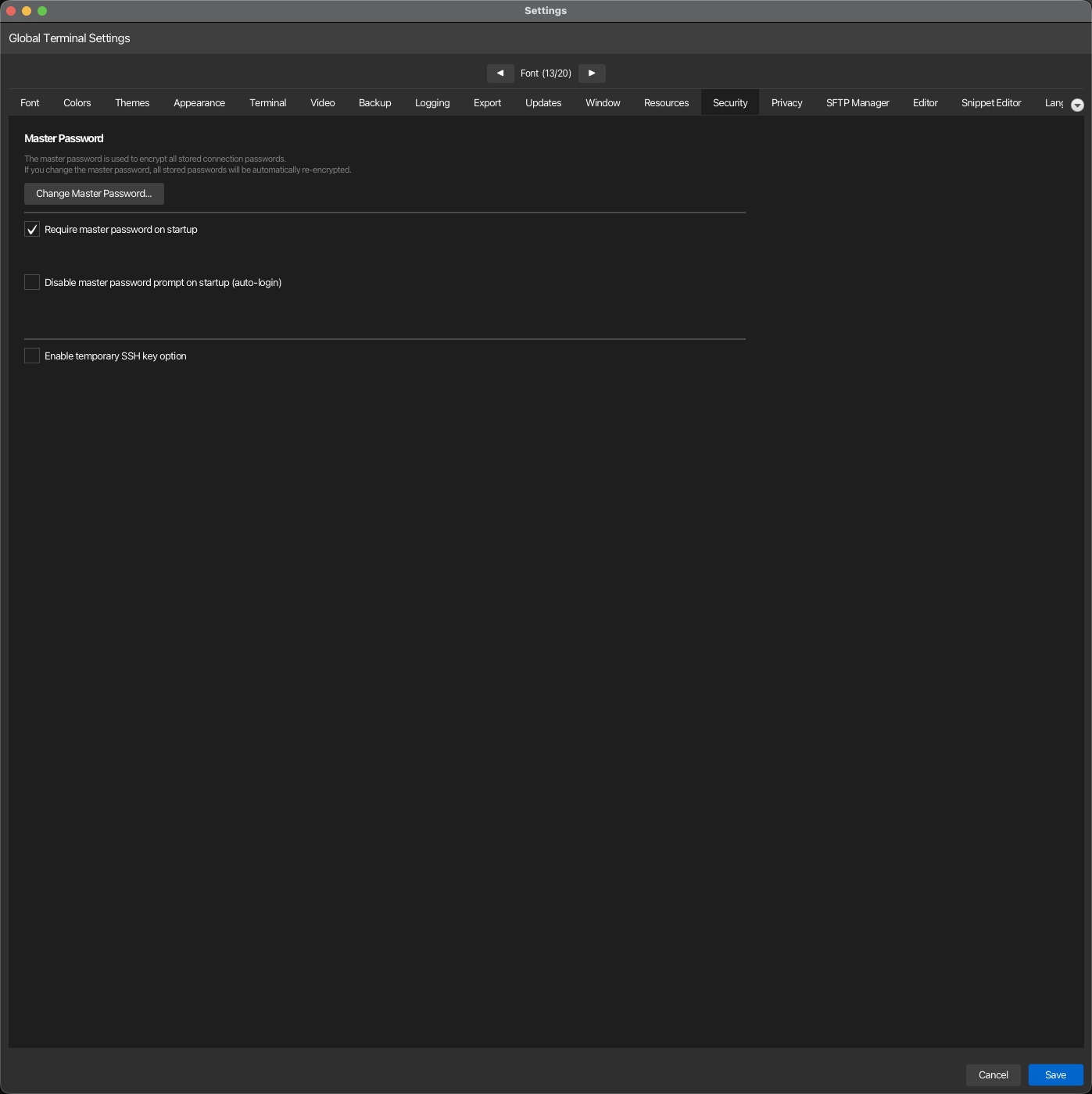
| Setting | Type | Values | Default | Stored as |
|---|---|---|---|---|
| Change Master Password | button | — | — | — |
| Require master password on startup | toggle | — | On | requireMasterPasswordOnStartup |
| Disable master password prompt on startup (auto-login) | toggle | — | Off | skipMasterPasswordPrompt |
| Enable temporary SSH key option | toggle | — | Off | temporarySshKeyEnabled |
| Default isolation | dropdown | None, Own process, Own process + sandbox | None | connectionIsolationDefault |
The tab is divided into three sections, each with an Open in manual link that opens the matching section below: Master password, Temporary SSH keys and Session isolation.
Master password
The vault that protects your passwords, SSH key passphrases and API keys is locked with the master password. The three options and the Change Master Password button control when korTTY asks for it.
Master password on startup
If "Require master password on startup" is disabled, korTTY starts with the vault locked: encrypted passwords and SSH keys cannot be decrypted until you unlock it with Configuration → Security → Unlock Vault… or the Unlock Vault… button of any "vault locked" message. This is a security risk and should only be disabled if you understand the consequences.
Auto-login stores your master password on disk
Enabling "Disable master password prompt on startup" makes korTTY remember your master password — stored in ~/.kortty/master.autounlock, encrypted with AES-256-GCM but with a key built into korTTY, so it is obfuscated rather than secret, with owner-only file permissions — and unlock the vault automatically on every start, with no dialog. Unlike disabling the option above, encrypted data (AI profiles, SSH passwords, credentials) stays usable, because the vault is actually unlocked. The trade-off: anyone who can read your ~/.kortty folder or a backup can then decrypt all saved passwords, SSH keys and API keys — the file permissions are the only remaining protection. On a brand-new profile korTTY sets up a default password automatically, so the app can start with no input at all. korTTY asks you to confirm before enabling it, and it is intended only for throwaway/test environments such as a VM. While auto-login is enabled, Require master password on startup is switched off and greyed out — the two options are mutually exclusive. An enterprise policy that requires a master password overrides this option.
Unattended first launch (automation / test VMs)
To bring korTTY up with no dialog at all — even on a brand-new profile that has never been unlocked — create ~/.kortty/global-settings.xml before the first launch with the option already enabled:
<?xml version="1.0" encoding="UTF-8" standalone="yes"?>
<globalSettings>
    <skipMasterPasswordPrompt>true</skipMasterPasswordPrompt>
</globalSettings>
On that first start korTTY sets up the default master password kortty-auto automatically and unlocks the vault, so scripted or CI runs need no interaction. If you later turn auto-login off on such a profile, kortty-auto is the password to enter — change it immediately via Change Master Password if the profile is meant to live on. Intended for disposable/test environments only — see the security warning above.
Change Master Password button
Opens a dialog asking for the Current Password, the New Password (at least 6 characters) and a Confirm New Password repetition; Change applies it. korTTY rejects a wrong current password, a new password under six characters, and a mismatch between the two new entries, each with its own message. On success it reports how many secrets were re-encrypted: every master-password-protected secret is decrypted with the old password and re-encrypted with the new one — connection passwords and key passphrases, jump-server passwords, SSH-key passphrases, stored credentials, AI-profile API keys, AI-skill provider secrets and the other AI/translation keys, and RAG and Job Scheduler secrets — so nothing becomes unreadable after the change.
The new password only takes over once every store has been migrated, so an error part-way through leaves the old password in effect instead of locking you out of half your data. If an individual secret cannot be migrated (for example one that was encrypted with a different password), korTTY leaves that value untouched, reports how many items were affected, and notes them in the log — those secrets keep the old password and must be re-entered manually. With auto-login enabled, the remembered password in ~/.kortty/master.autounlock is rewritten to the new master password, so automatic unlocking keeps working after the change.
Temporary SSH keys
A temporary SSH key is a private key you paste for one session instead of choosing a key file. Enable temporary SSH key option shows or hides that choice everywhere; it is independent of the master-password options above.
Temporary SSH keys and the temp folder
With this option on, the Connection Manager and Quick Connect offer a temporary SSH key: a private key you paste for the session instead of a key file. For terminal tabs, splits and SFTP, korTTY reads a temporary key in memory and never writes it to a key file; a saved connection keeps the key only encrypted with your master password in connections.xml. Scheduled jobs also authenticate in memory, with one exception: because an Rsync job hands the key to the external ssh, the JobScheduler writes the temporary key of an Rsync job to an owner-only file in the system temp folder and deletes it when the job's connection closes or fails. Key files that earlier versions left in the temp folder (kortty_temp_key_*.key, kortty_scheduler_key_*.key) are deleted at the next start, as long as they belong to you and are older than five minutes.
Session isolation
Default isolation
Default isolation: in the Session isolation section is the isolation of every connection that sets none itself and whose folders set none; a connection and a folder can choose their own in the Connection Manager, and the folder levels are stored as connectionGroupIsolation. The section says whether this computer has a working sandbox, or why not, and which connection types can be isolated in this version. With an organization minimum the levels below it are not offered and the section names the minimum. See Session isolation.