AI Skills
Configure custom AI skills that enhance AI interactions. This tab lets you manage a library of markdown-based skills that are automatically or manually included in AI requests. Open via AI → AI Manager → AI Skills; stored in ~/.kortty/global-settings.xml.
Moved out of Global Settings
The skill library used to be a tab in Configuration → Global Settings. It now lives in the AI Manager, next to profiles, local models and knowledge stores. The stored data and the settings file are unchanged.
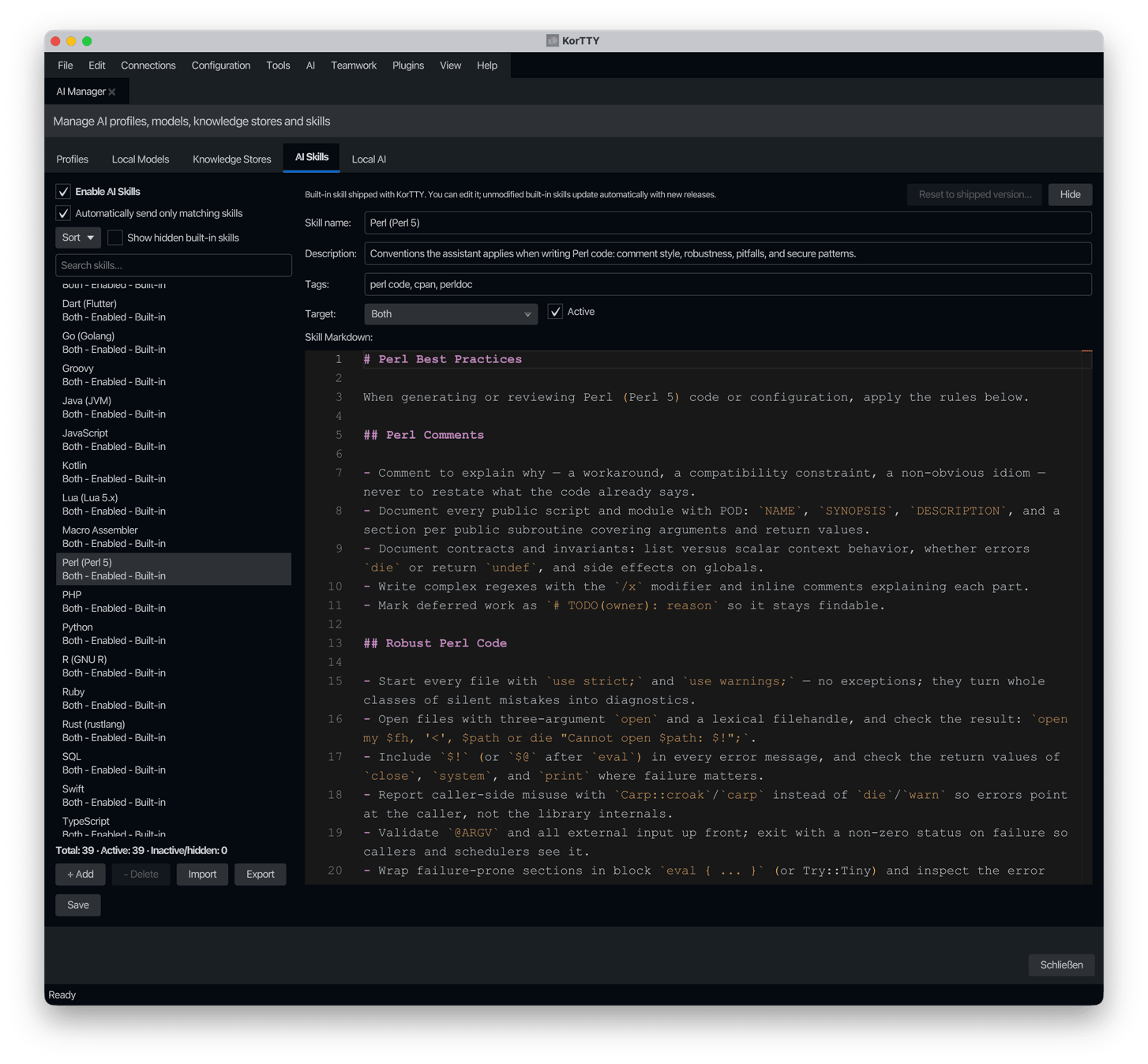
Global Settings
| Setting | Type | Values | Default | Stored as |
|---|---|---|---|---|
| Enable AI Skills | toggle | — | On | aiSkillsEnabled |
| Automatically send only matching skills | toggle | — | On | aiSkillAutoDetectionEnabled |
| korTTY may create skills and save learned rules in them | toggle | — | On | aiSkillAutoCreate |
| Local / External | switch | Local: your own and built-in skills; External: skills imported from the internet | Local | — (view filter) |
| Show hidden built-in skills | toggle | — | Off | — (view filter) |
| Search skills | text | Filters the list by name, description or tags | — | — (view filter) |
| Sort | menu button | Alphabetical, Status (enabled first) | — | — |
| Statistics | button | Opens the usage and size statistics of the skills, see Skill statistics | — | — |
| Save | button | Writes the library to the global settings file | — | — |
A count line below the list summarizes the whole library — Total, Active (enabled and not hidden), and Inactive/hidden — regardless of the current search or hidden filter.
Skill Editor Fields
When you select or create a skill, the right panel shows per-skill fields. Each skill is persisted individually in the skill list.
| Setting | Type | Values | Default | Stored as |
|---|---|---|---|---|
| Skill name | text | — | "AI Skill" | name (on AiSkill object) |
| Description | text | — | — | description |
| Tags | text | Comma-separated tags (e.g. linux, bash) | — | tags |
| Target | dropdown | AI Chat/Functions, AI Agent, Both, Connection | Both | target |
| Active | toggle | — | On | enabled |
| Skill Markdown | text | Markdown-formatted skill content | — | content |
The skill library is stored in global-settings.xml, which cannot hold certain invisible characters: control characters other than tab, line feed and carriage return, U+FFFE, U+FFFF and half of a surrogate pair. Such a character can arrive when you paste into the Skill Markdown editor. A field that contains one shows a message below it that names the character, for example U+0007, and Save refuses to save the library and selects the skill until you remove the character. When you close the AI Manager with such a skill, korTTY saves your other changes and keeps the last saved version of that skill, or leaves out a skill that was never saved. Import removes such characters from the name, description, tags and Markdown of the imported file.
Built-in skills
korTTY ships 39 built-in best-practice skills covering shells (Bash, KornShell, Zsh, Csh, POSIX sh, PowerShell), programming languages (Python, C, C++, Java, C#, JavaScript, Visual Basic, SQL, R, Rust, Go, PHP, Swift, Assembly, Macro Assembler, Ruby, Perl, Lua, Groovy, TypeScript, Kotlin, Dart), markup and data formats (HTML, XML, YAML, JSON) and automation/observability tools (Puppet, Ansible, Azure DevOps Pipelines, Jenkins Declarative and Scripted Pipelines, Filebeat, Logstash). Each skill carries professional guidance on code commenting, robustness, common pitfalls to avoid, and language-specific security practices. They are added to the library on first start and appear with a Built-in badge.
Built-in skills behave like your own skills — they can be edited, deactivated and assigned to connections — with these differences:
- They cannot be deleted, only hidden. Hide removes a built-in from the list and from all skill pickers, and a hidden built-in is no longer sent with any AI request — even on connections it was previously assigned to. Show hidden built-in skills reveals hidden entries, marked with a Hidden badge, so they can be brought back with Unhide.
- Unmodified built-ins update automatically. When a new korTTY release ships improved skill content, unchanged built-ins are replaced silently at startup (your Active/hidden choices are kept).
- Modified built-ins are never touched. Once you edit a built-in it shows a Built-in (modified) badge and stops auto-updating. Reset to shipped version discards your changes and restores the delivered version your edits were based on. If a newer delivered version exists, the entry shows 🔄 Update available and Update to latest shipped version adopts it.
- Your own skills always take precedence. When one of your enabled skills carries a tag matching a built-in's topic (for example a personal skill tagged
perl), the built-in is suppressed: it shows Overridden by user skill, is grayed out, and is no longer sent with any AI request. Deleting or deactivating your skill immediately reactivates the built-in. - Deactivated, hidden and overridden entries are rendered grayed out; this works in every application design theme.
Switching off auto-detection deactivates built-ins
Without auto-detection every enabled skill is sent with every AI request, which would inflate prompts massively with 39 built-in skills. Turning Automatically send only matching skills off therefore asks for confirmation and then deactivates all built-in skills; re-enable the ones you need individually. Built-ins delivered by later releases also arrive deactivated while auto-detection is off.
External skills
The External view lists skills imported from internet skill directories. External skills live in the same library as your own skills: once you enable one, it is selected and sent exactly like a local skill. The count on each switch button shows how many skills each view holds.
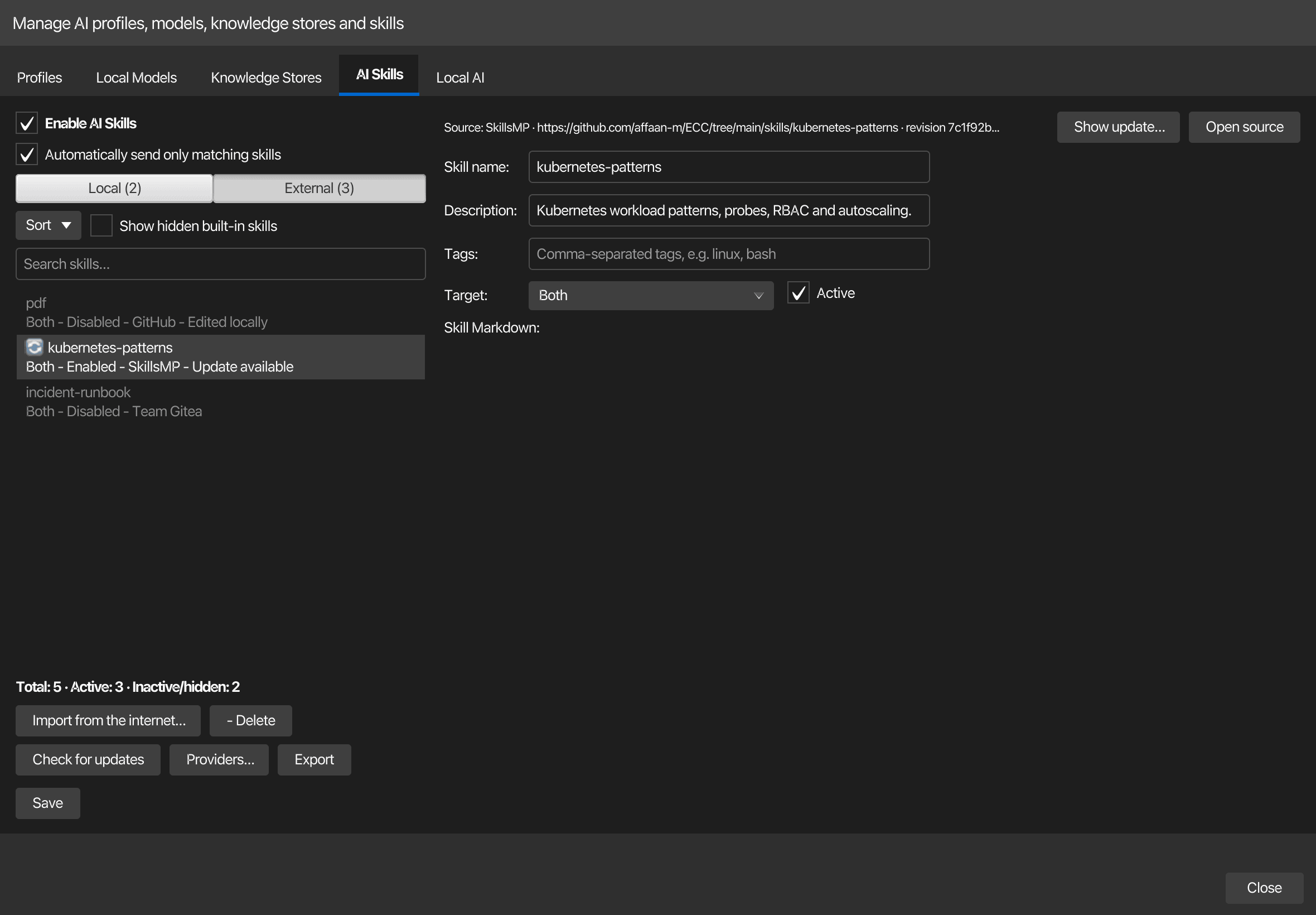
| Button | What it does |
|---|---|
| Import from the internet… | Opens the import dialog: pick a provider, search, preview a SKILL.md and import the selected skills |
| Check for updates | Asks each external skill's provider for its current version; skills with a newer version show 🔄 Update available |
| Providers… | Opens the provider table with sign-in details (see below) |
| Delete / Export | Same as for local skills |
Imported skills start deactivated
korTTY sends a skill's text to the AI model word for word, so a skill from the internet can contain instructions you do not want. Every imported skill therefore arrives deactivated, whatever its front matter says. Read it in the editor, then tick Active and click Save. Only the SKILL.md file is imported; scripts, reference files and other files that belong to a skill are never downloaded or run.
When an external skill is selected, the banner above the editor shows its provider, its source and the imported revision. Open source opens the skill's page in the browser. If you edit the text or the description, the banner and the list mark the skill as Changed locally; Shorten... never changes the text of an imported skill, only its learned rules. After Check for updates has found a newer version, Show update… opens a side-by-side comparison of your version and the provider's version. Apply update replaces the text and description and keeps your name, tags, target, active state and learned rules; a skill imported before descriptions were tracked keeps its description. A skill that is Changed locally is never overwritten, and the dialog says so: it offers Import as copy, which adds the provider version as a new, deactivated skill named after the revision, and Skip this version, which hides that revision while a newer one is still offered. Nothing is updated without a click, and every change takes effect when you click Save.
Importing skills
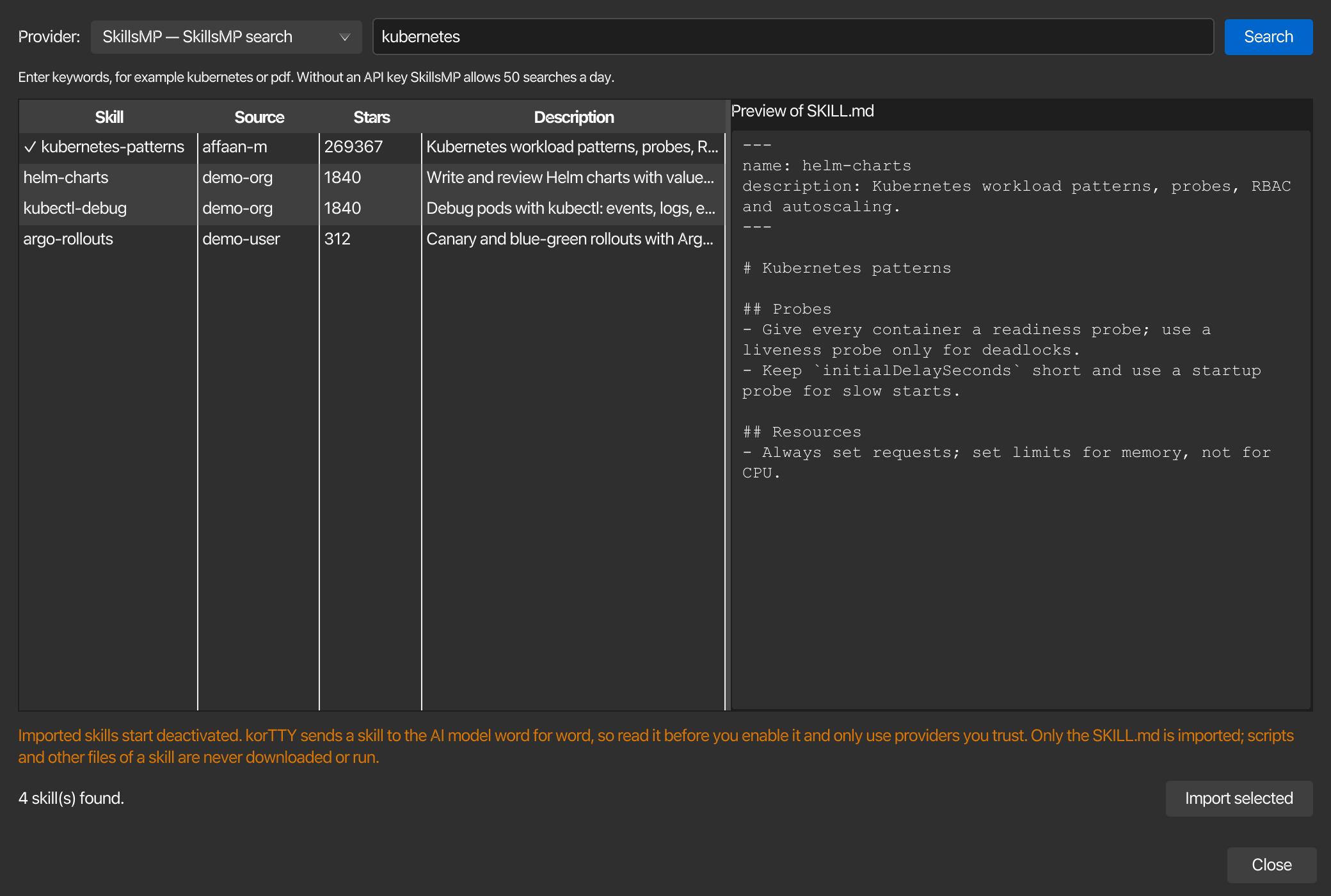
Choose a provider, enter a search and click Search. Selecting a result loads its SKILL.md into the preview. The results table shows each skill's name, source, GitHub stars and description; a ✓ before the name marks a skill that is already in the library. Select one or more results and click Import selected; results marked ✓ are skipped. What you enter depends on the provider type:
| Provider type | Enter | Example |
|---|---|---|
| GitHub repository | Keywords to search SKILL.md files on GitHub (needs a token), owner/repo for every skill of a repository, owner/repo@skill or a GitHub link for one skill; commands copied from agenticskills.io or skills.sh work too |
python testing, anthropics/skills, npx skills add anthropics/skills@pdf |
| SkillsMP search | Keywords | kubernetes |
| HTTP(S) server | The URL of a SKILL.md file, or a path relative to the provider's base URL |
incident/SKILL.md |
Directories such as agenticskills.io and skills.sh publish their skills as GitHub repositories, so the GitHub provider imports from all of them. korTTY reads repositories through the GitHub REST API at https://api.github.com (API version 2022-11-28) and remembers the Git revision of each imported SKILL.md, so a commit that changes other files of the repository is not reported as an update. Without a token GitHub allows 60 requests an hour; an import takes one or two. GitHub only answers a keyword search with a token: without one, the dialog explains this and offers Search SkillsMP instead, which searches the same GitHub skills without signing in. Keywords do not have to match exactly; every word has to appear somewhere in the SKILL.md.
The SkillsMP provider searches the SkillsMP index through https://skillsmp.com/api/v1/skills/search. Without an API key SkillsMP allows 50 searches a day, with a key 500. The skills it finds are downloaded from GitHub through the active GitHub provider for github.com, with that provider's token.
Providers
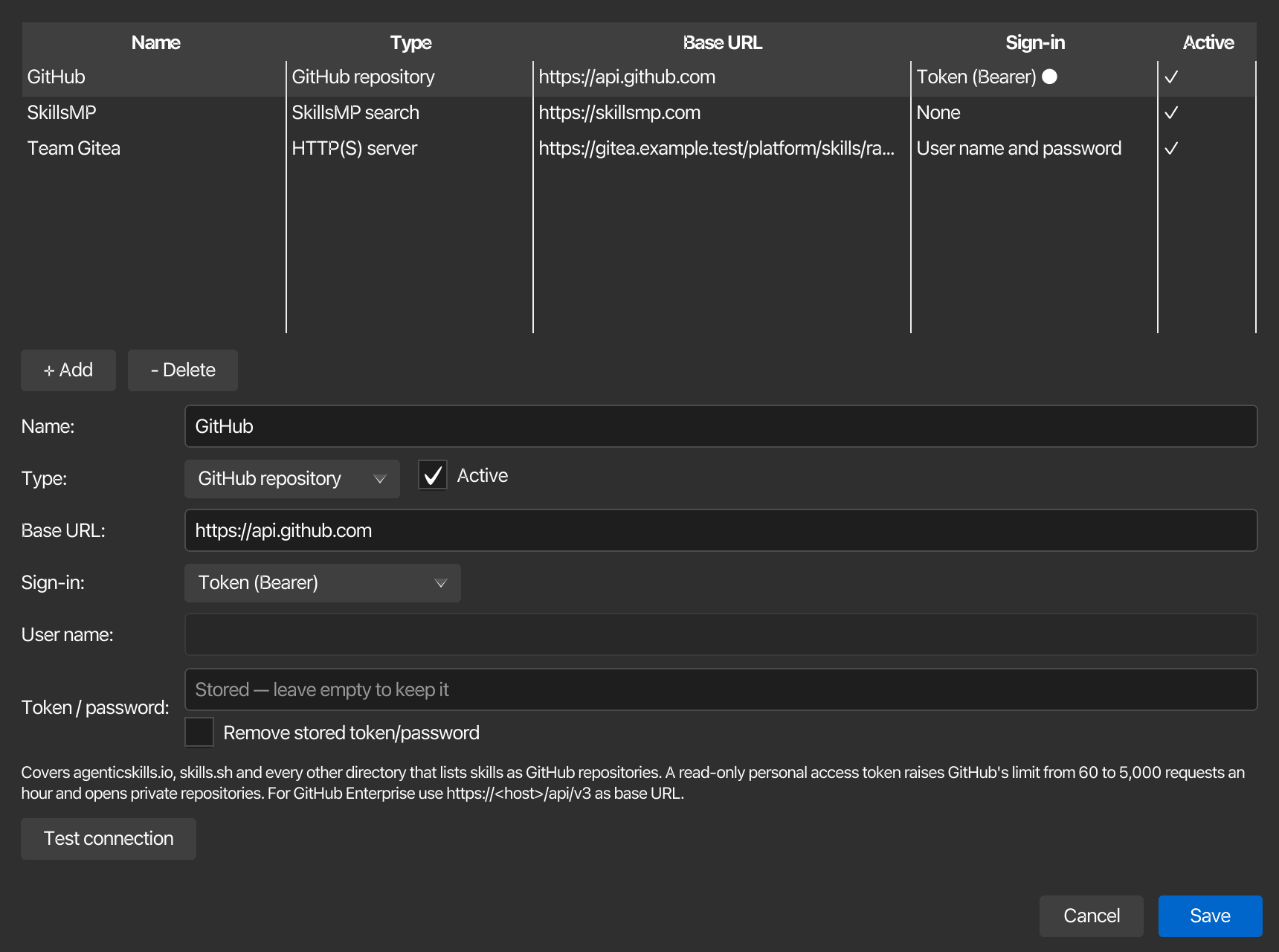
Providers… opens a table of skill providers that you can extend as you like. korTTY starts with a GitHub and a SkillsMP provider; add more with + Add, for example a GitHub Enterprise server or a team's own server. Deleting a provider keeps the skills imported from it, but they can no longer be checked for updates.
| Field | Values | Stored as |
|---|---|---|
| Name | Any name | aiSkillProviders/provider/name |
| Type | GitHub repository, SkillsMP search, HTTP(S) server | type |
| Active | Only active providers appear in the import dialog | enabled |
| Base URL | Empty uses the type's default (https://api.github.com, https://skillsmp.com); for GitHub Enterprise use https://<host>/api/v3 |
baseUrl |
| Sign-in | None, Token (Bearer), User name and password (HTTP Basic) | auth |
| User name | Only for User name and password | username |
| Token / password | A GitHub personal access token, a SkillsMP API key or the server password | encryptedSecret, encrypted with the master password |
Test connection checks that the provider answers and accepts the credentials, and shows the remaining request quota where the provider reports one. A token or password is encrypted with the master password when you click Save; if the vault is locked, korTTY offers to unlock it. Leave the field empty to keep a stored token, or tick Remove stored token/password to delete it.
Network safety
korTTY talks to providers over HTTPS only; plain HTTP is accepted for this computer alone (localhost). Redirects are not followed, so a token or password is never sent on to another host, and a SKILL.md larger than 256 KiB is refused.
Skills created by korTTY and learned rules
korTTY can save rules that you confirm into your skills, and it can create a skill for a topic that has none yet. Nothing is saved without your confirmation: the rule card shows the exact text and where it goes, and Save writes it. The switch korTTY may create skills and save learned rules in them controls both, and the enterprise policy can lock it.
A rule that names a connection goes into that connection's memory; a rule about a topic that already has a skill, built-in or your own, goes into that skill's learned rules; a rule about a language or tool without a skill creates one; any other rule goes into the global memory. The memory itself is described in AI memory.
- A skill korTTY created shows the badge NEW · created by korTTY until you select it in the list; then it shows korTTY. The skill the list selects by itself when it opens does not count.
- A +N rule(s) chip counts the learned rules you have not seen yet; opening the skill marks them as seen and removes the chip.
- The editor lists the learned rules of a skill under Learned rules, shown only when the skill has any. Edit changes a rule's text in a dialog, Delete removes it after a confirmation, and both are saved with the skill when you click Save.
- Learned rules are sent with their skill whenever the skill is selected for a request, as long as the memory is on and the policy allows it.
Rules are proposed from your messages only in the Suggest rules learning mode; Remember as rule… saves a rule that you write yourself.
Secrets in skills
korTTY does not store a possible password, key or token in a skill, a learned rule, the memory or an approved memory file. The check looks for keyword phrases in German and English, key=value assignments (also in .env files and command-line flags), long random-looking strings, token formats it knows, and values saved in the password vault while the vault is unlocked.
When you change a skill so that it holds a possible secret, Save refuses to save the library and selects that skill. A flagged skill that you do not change does not block Save; its badge stays until the secret is removed. The message names the line, the field and the kind of secret, never the value, for example Line 4 in the skill text looks like it holds a secret (a password or token assignment). Remove it and try again. A Markdown file or a skill from the internet that holds a finding is refused on import in the same way.
At startup korTTY checks the existing skills and marks one that holds a possible secret with a ⚠ possible secret badge in the list. It does not change or delete that skill. A flagged skill is still sent with requests until the secret line is removed; only the outbound masking applies.
The check is no guarantee. A password you chose yourself, without a keyword and not saved in the vault, cannot be recognized reliably, so do not write one into a skill.
Skill statistics
Statistics in the list's header opens the statistics of your skills: how often each one was sent with a request, how large it is and how that changes. The figures come from the local file stats/skill-usage.json, see Configuration files.
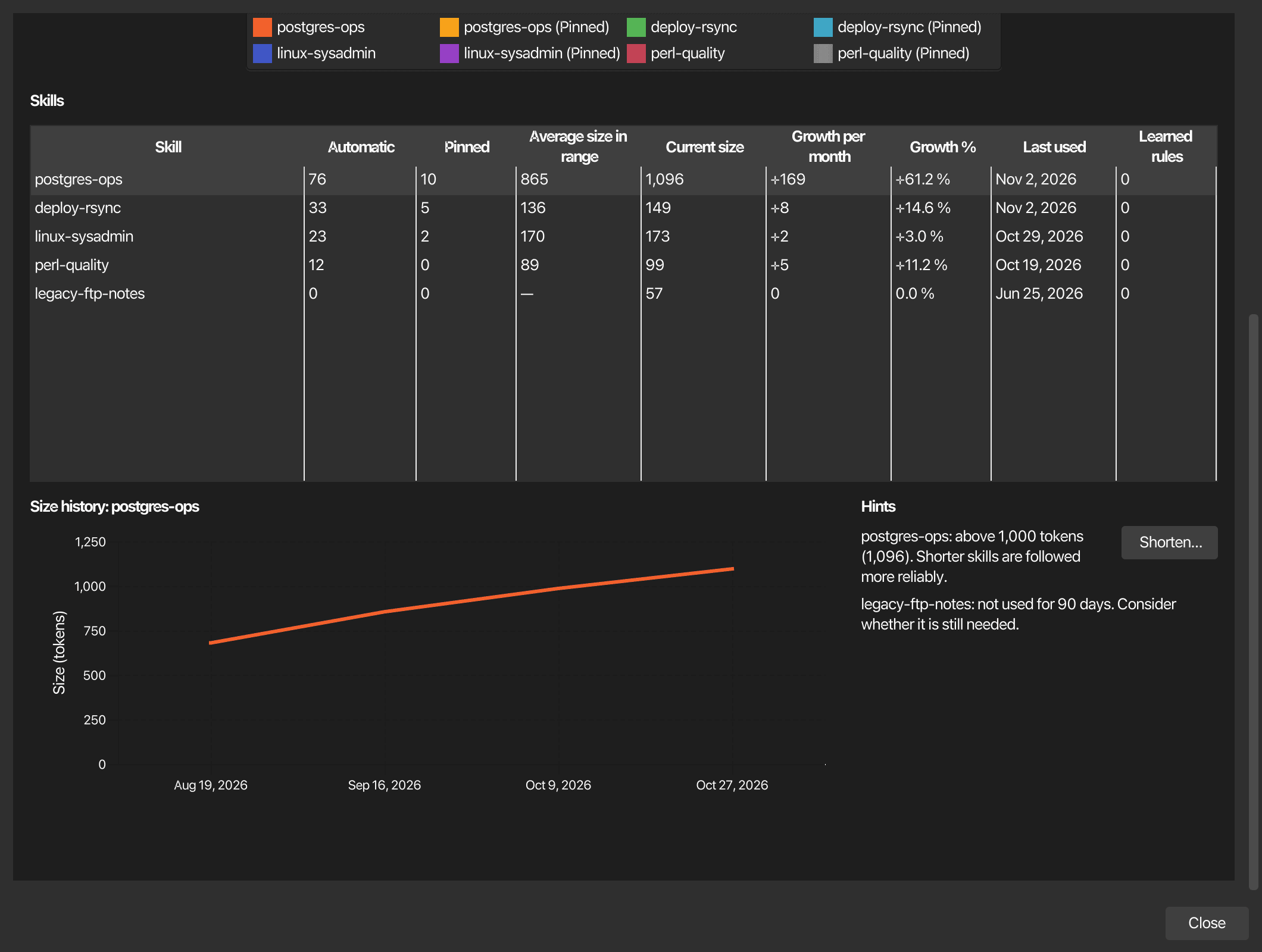
| Control | Effect |
|---|---|
| Day, Month, Year | Sets the granularity of the chart and of the size history; the range list follows it |
| Range | Day: last 30, 90 or 400 days. Month: last 12, 24 or 60 months. Year: all years |
| Record statistics | Turns recording on or off; while it is off nothing is counted or stored. The enterprise policy can lock it |
| Include pinned | Also counts the uses of skills that are assigned to a connection or picked explicitly. Off shows automatic uses only |
| Reset... | Deletes every recorded use and size history after a confirmation; the skills stay unchanged |
The four figures at the top are Automatic uses, Average size of active skills in tokens, Skill tokens sent and Growth per month in tokens per month. The stacked bar chart shows the uses per skill over the range: the eight most used skills and Others. The table lists each skill, most used first, with its badge under the name, automatic and pinned uses, average and current size, growth per month and in percent, last use and learned rules. Select a row to see its size history below the table.
Hints name the skills to review: one not used for 90 days, one that more than doubled within 30 days, and one above 1,000 tokens. The last two offer Shorten....
Shorten... asks the default AI profile for a shorter version of the skill and of its learned rules, shows the change as a diff with the token sizes before and after, and saves nothing until you click Apply. The text of a skill you wrote yourself can be shortened. For a built-in or an imported skill only its learned rules are shortened, so its text keeps receiving updates. Set a default AI profile first; the dialog says so when none is set.
Daily values are kept for 400 days, monthly values for five years and yearly values without a limit. The enterprise policy key statistics in [rule.ai-memory] can switch recording off for everyone; see Enterprise policy.
Notes
Auto-detection behavior
When Automatically send only matching skills is enabled, korTTY scores each skill against the current request across four fields — tags, name, description, and the headings in the skill's Markdown — and includes at most the two highest-scoring skills that clear the relevance threshold (ties broken by catalog order). Explicitly pinned and connection-assigned skills are added on top and do not consume that limit. When the local scores are inconclusive (zero or one skill matched, or exactly two matched with nearly equal scores), korTTY additionally asks the model to classify the request and prefers that answer — likewise capped at two skills — falling back to the local result if the call fails. When disabled, all applicable skills are sent without scoring — a skill is still skipped when it is inactive, has empty content, or does not match the current target.
Skill targets
- AI Chat/Functions: Skills available in AI Chat and function call contexts
- AI Agent: Skills used by the terminal AI agent
- Both: Available to both AI Chat and AI Agent contexts
- Connection: Available to both AI Chat and AI Agent, but only on the connections the skill is assigned to. Such skills are always sent on those connections and bypass auto-detection.
Skill lifecycle
Skills are stored as XML elements within the global settings file. Use Import to load skills from markdown files and Export to save selected skills as markdown files; to import skills from internet directories use the External view (see above). Delete applies to your own skills only; built-in skills are hidden instead (see above). Reset, update, hide and unhide are available from the list's context menu and from the banner above the editor when a built-in skill is selected. The skill list can be sorted alphabetically by name or by status (enabled first). Save persists the library immediately and confirms next to the button; pending edits are also written when the AI Manager window is closed. Importing a markdown file always creates an independent user skill — even a file exported from a built-in skill.
Choosing skills per request
This tab manages the global library. Which of these enabled skills apply to a given action is chosen elsewhere: the snippet editor's AI skills picker pins your selection to every snippet AI action, and the Full code analysis window shows the included skills as chips — labelled (auto-selected) or (manual) — with a searchable picker whose changes take effect on the next re-run. Within snippet AI actions the picker replaces auto-detection: only the ticked skills plus connection-assigned skills are sent, and clearing the picker sends no library skills at all. The snippet Correct and Translate selection actions and the fixed Diagram request never include library skills, regardless of target or pinning. See Snippets → AI skills.